#What Pixxoku is for
Pixxoku is a second pair of eyes for your pixel art. It checks a sprite, an animation or a whole sprite sheet against 35 rules, marks every problem on the canvas and explains it in plain words. Most problems fix with one click, every fix changes only the pixels it names, and you can always undo. When you are done you get a score, a printable report and the cleaned art, ready to send back to the app it came from.
#Your first check in 5 minutes
- Open Pixxoku and drop a PNG or GIF onto the canvas, or click Open art. No art to hand? Click Try the sample.
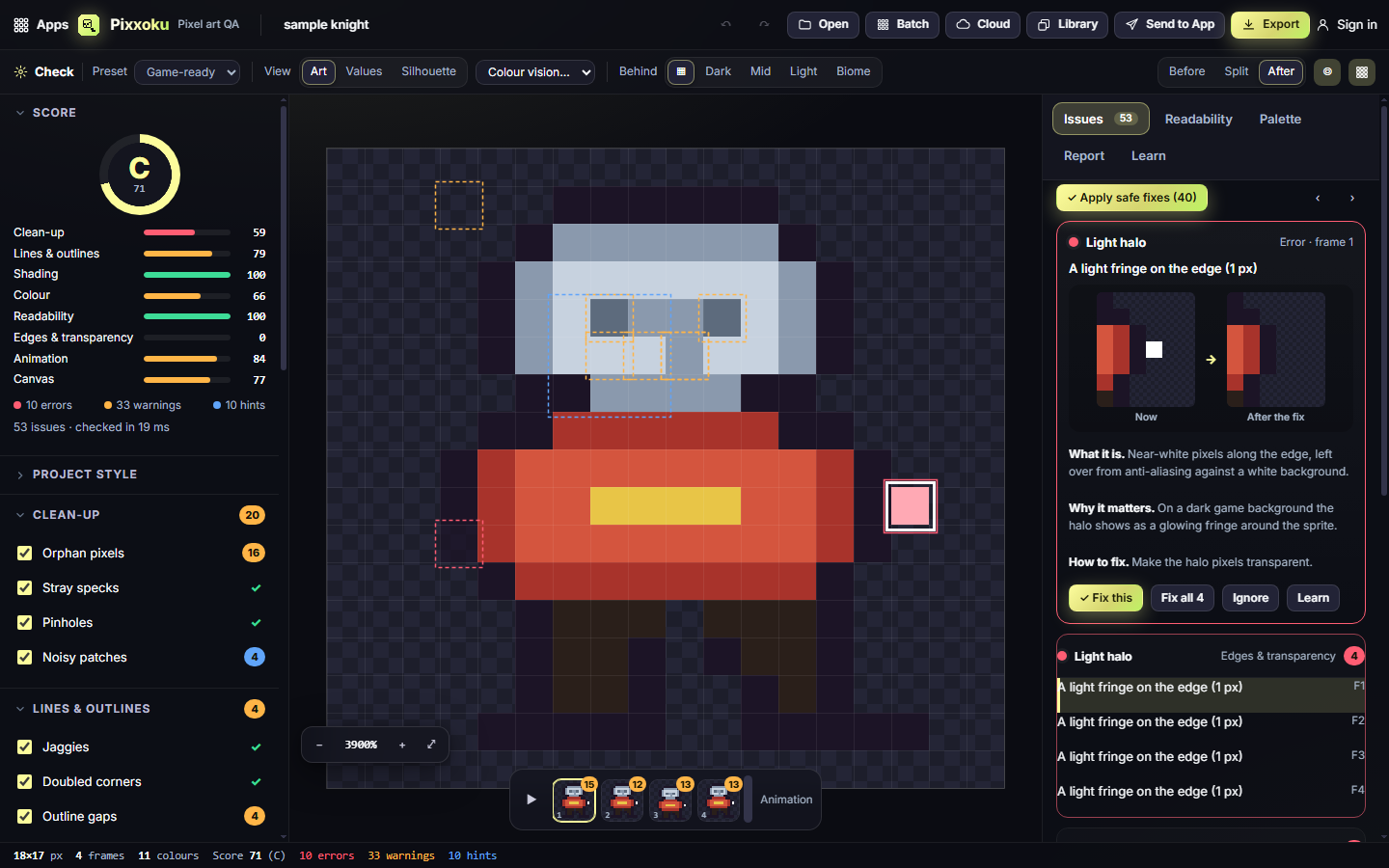
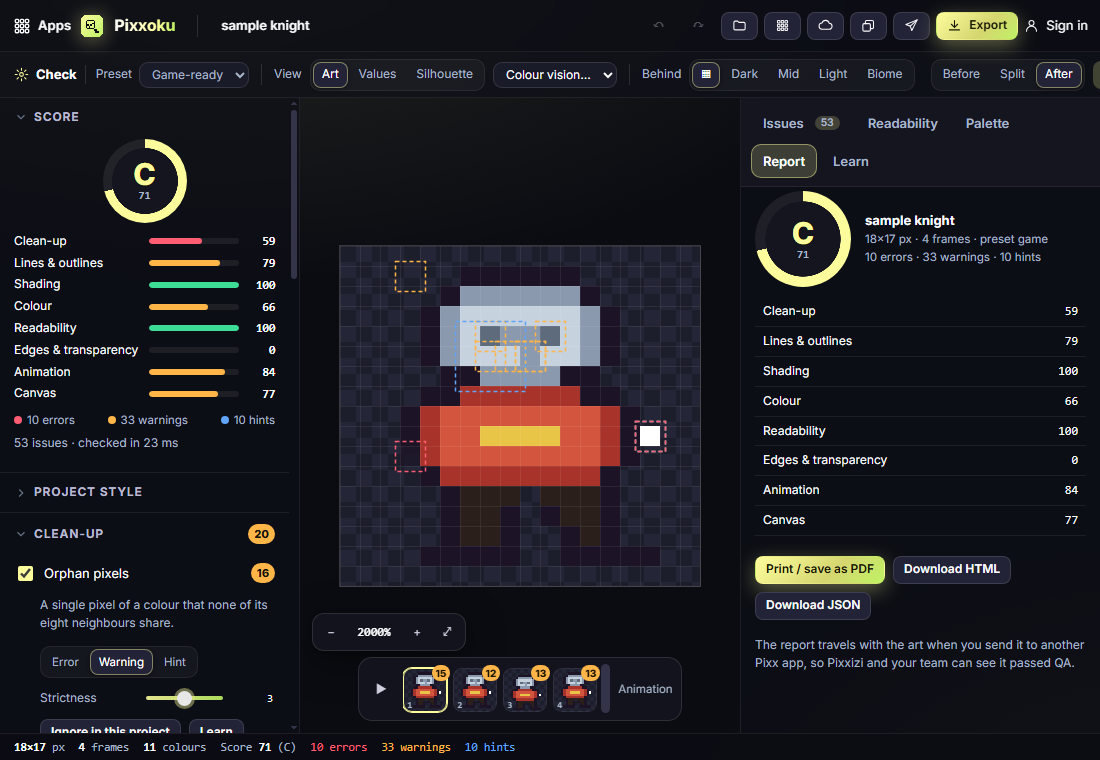
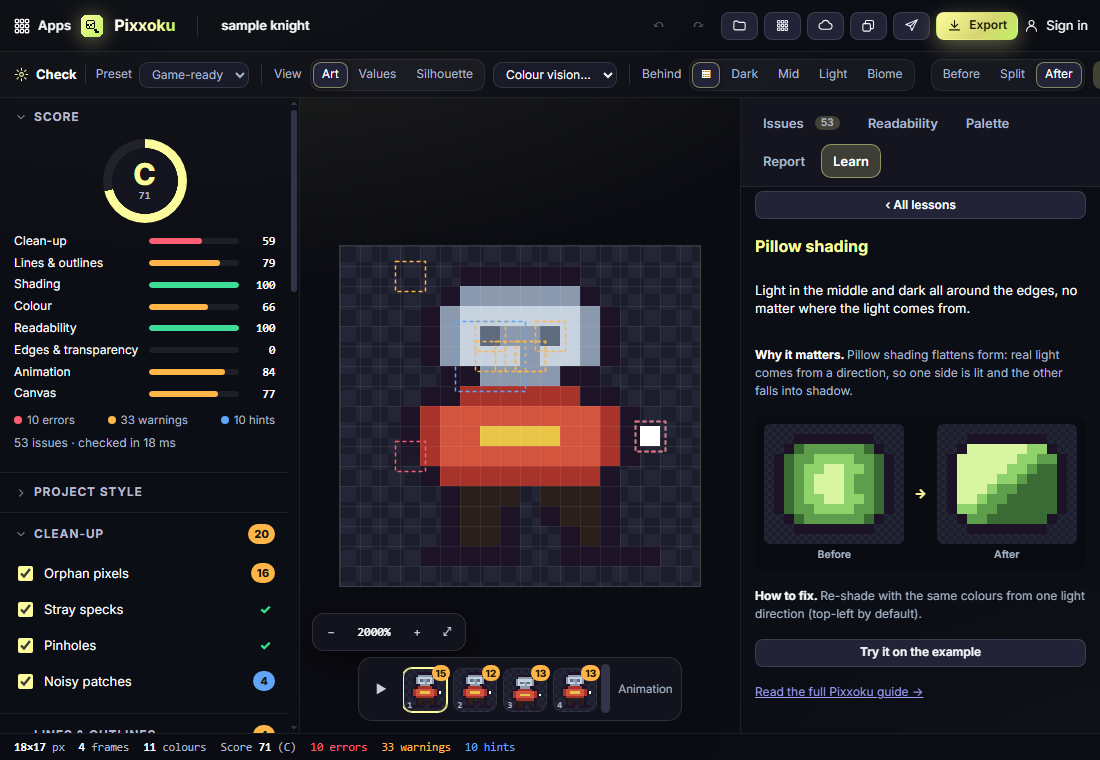
- Look at the Score card on the left: a grade from A to F, and a score for each category (Clean-up, Lines & outlines, Shading, Colour, Readability, Edges & transparency, Animation, Canvas).
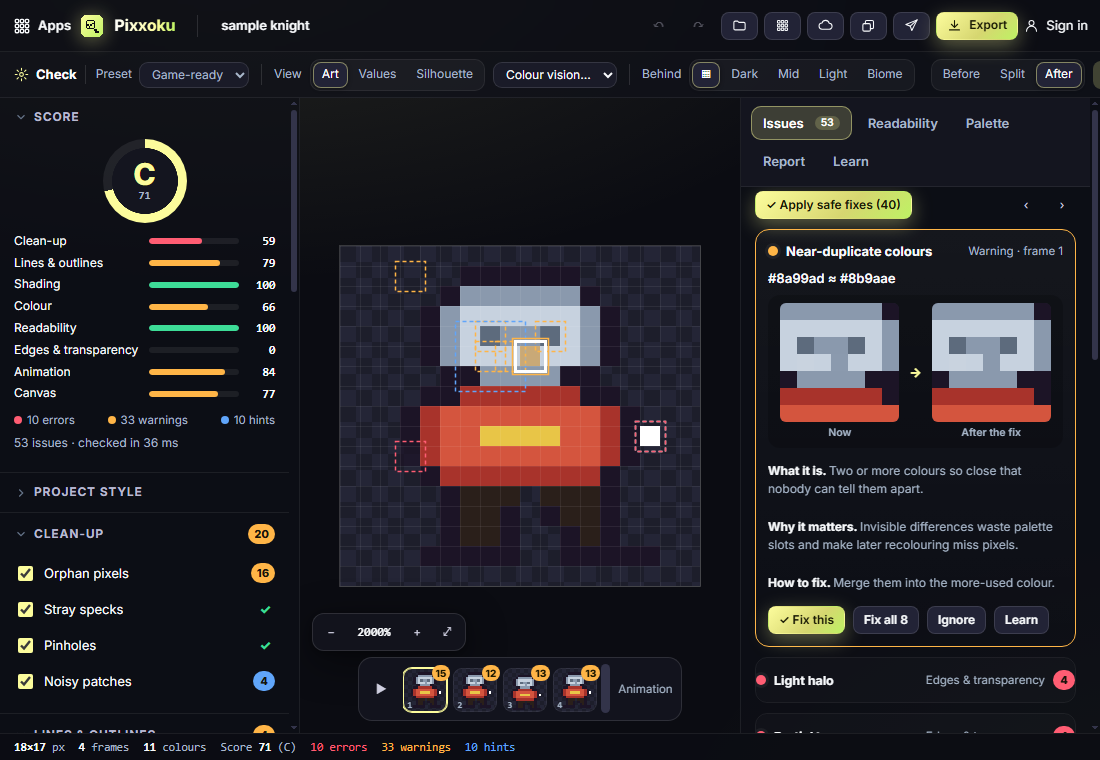
- In the Issues tab on the right, click a group (for example Orphan pixels). The canvas zooms to the first one and draws a box around it.
- Read What it is, Why it matters and How to fix, and compare the Now and After the fix previews.
- Click Fix this, or Fix all to fix every issue of that kind.
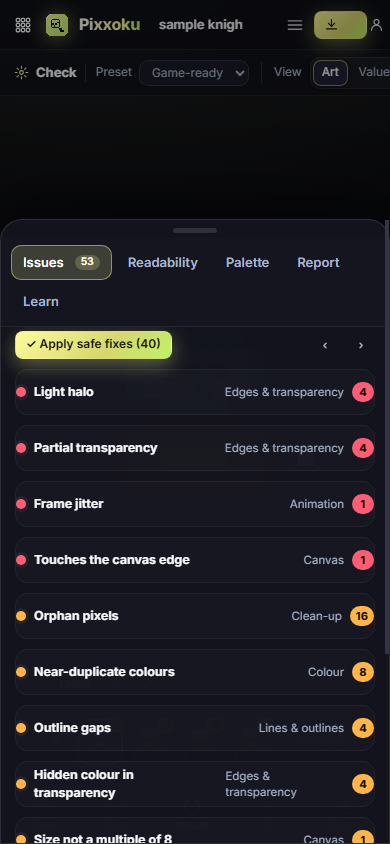
- Click Apply safe fixes to clean everything that cannot change the look of your art: stray specks, light halos, half-transparent pixels, near-duplicate colours and more.
- Click Export, pick a format and a scale, and click Download. Leave Also download the QA report ticked to get the report too.
#How-tos
#How to open an animation or a sprite sheet
- Open a GIF, or choose Open → Open frames (several images) and pick the frames together. They are put in order by file name.
- For a sheet, choose Open → Open as a sprite sheet. Pixxoku finds the grid from the empty gaps between cells. Check the Columns, Rows, Cell width and Cell height, then click Open as sheet.
- The frames appear in the strip under the canvas. Each thumbnail shows how many issues that frame has. Press ▶ or Space to play.
Animation rules then run too: Frame jitter (a frame that pops a pixel out of line), Pixel boiling (outline pixels that flicker), Outline colour changes, Timing outliers and Loop seam.
#How to fix one issue, or all of one kind
- Click a box on the canvas, or an issue in the list. Use N and P to step through them.
- Click Fix this (or press F) for just that one.
- Click Fix all (or press Shift+F) to fix every issue of that kind.
- Changed your mind? Press Ctrl+Z to undo and Ctrl+Y to redo.
#How to choose how strict the check is
- Pick a Preset in the bar above the canvas:
- Everything runs every rule.
- Retro strict keeps a 16-colour budget and is tough on lines and noise.
- Modern allows 64 colours, soft shading and some half-transparency.
- Game-ready is a balanced check for sprites that will move on screen.
- Mobile icons checks contrast against both a dark and a light background.
- In the left panel, open any rule by its name. Turn it on or off with its tick box, set it to Error, Warning or Hint, and move Strictness from 1 (gentle) to 5 (strict).
- Click Save as my rules… to keep your setup. It appears in the Preset list with a star.
#How to check against your game's palette
- Open Project style in the left panel.
- Choose a palette under Project palette, or send one from another Pixx app (it becomes the project palette when it arrives).
- Off-palette colours now lists every colour that is not in it. Fix all swaps each one for its nearest palette colour.
- Set Colour budget to the most colours one sprite should use, and Light from to the direction your light comes from (used when Pixxoku re-shades pillow shading).
#How to check that the sprite reads well
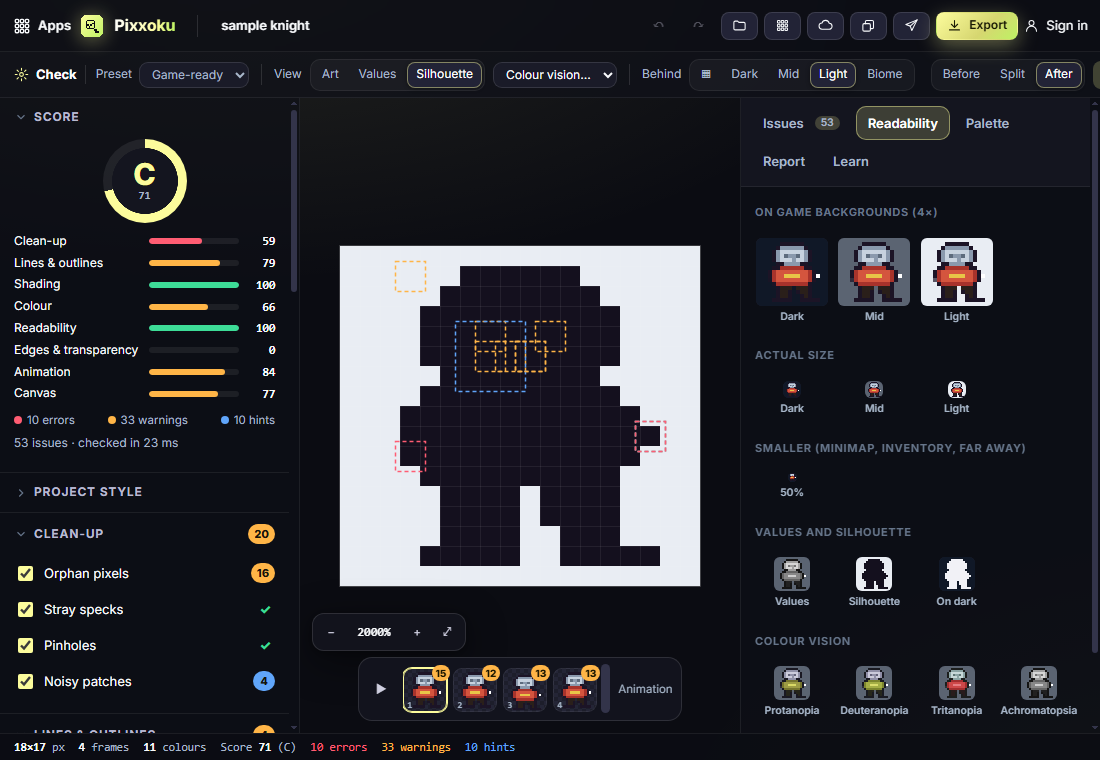
- In View, switch from Art to Values (greyscale) or Silhouette (the shape only). Use Colour vision… to see it as a colour-blind player would.
- Use Behind to try it on Dark, Mid and Light backgrounds, or on a colour from one of the 50 Biome backgrounds.
- Open the Readability tab for everything side by side: the sprite on game backgrounds, at actual size, at half and quarter size, and in all four colour-vision modes.
#How to compare before and after
- Use Before, Split and After at the right of the options bar.
- Split shows the original on the left and your cleaned art on the right.
- Zoom with the mouse wheel or the − and + buttons, drag to move around, and double-click to fit.
#How to ignore something on purpose
- Select the issue and click Ignore (or press I). It stays ignored for this art.
- To ignore a whole rule, open the rule in the left panel and click Ignore in this project.
- To bring ignored issues back, open Project style and click Un-ignore.
#How to check many files at once
- Click Batch and choose your images.
- Tick Apply safe fixes to every file if you want them cleaned as well as checked.
- Each file gets a score and counts of errors and warnings. Click Download art (ZIP) for the images or Download reports (ZIP) for a report per file.
#How to learn what each rule means
- Open the Learn tab, or click Learn on any issue or rule.
- Each lesson explains the problem, why it matters and how to fix it, with a before and after.
- Click Try it on the example to open the example and fix it yourself.
#Exporting and sharing
- Export saves the cleaned art as PNG or WebP (one image), or for animations This frame (PNG), All frames (ZIP), Sprite sheet (PNG + JSON) or GIF. Pick a scale from 1× to 8×; pixels stay sharp.
- The Report tab prints a report (choose Print / save as PDF) or downloads it as HTML or JSON. It lists the grade, the category scores and every issue with a close-up.
- Send to App sends the cleaned art back in the same form it came in (image, frames or sheet), with its QA grade attached, or sends its cleaned palette. Pixxoku receives images, frames, sprite sheets and palettes. See Send to App.
- Library opens art from your Pixx library or saves this one there. Cloud saves the whole check (art, original, rules and ignores) to your account. See Cloud projects and your Library and Your Pixx account.
- Pixxoku needs a plan or the 14-day trial. See Plans, trials and billing.
#Tips and shortcuts
- N / P next and previous issue · F fix · Shift+F fix all of that kind · I ignore · M show or hide the markers
- Ctrl+Z undo · Ctrl+Y redo · Ctrl+O open · Ctrl+S export
- Space play or pause an animation · 0 fit · + and - zoom · Esc clear the selection
- You can paste an image straight in with Ctrl+V, and drop a .pxasset file from another Pixx app.
- Fixes only change the pixels named in the issue. If a fix is not what you wanted, undo it and fix it by hand in Pixxivi.
- On a phone, use the bar at the bottom: Rules and Issues slide up as sheets, and Fix fixes the selected issue (or applies the safe fixes).
#Troubleshooting
- If too much gets flagged, pick a gentler preset such as Modern, or lower Strictness on the noisy rule.
- If your 1-pixel eyes or highlights show as Orphan pixels, that is on purpose in your art: select one and click Ignore, or set the rule to Hint.
- If a big image will not open, it is probably a sprite sheet: choose Open → Open as a sprite sheet so each cell is checked as a frame.
- If Low contrast with the background fires for every sprite, open Project style and untick the backgrounds your game never uses.
- If a sprite sheet opens with the wrong grid, open it again with Open as a sprite sheet and set Columns and Rows yourself.
#Related guides
- Getting started with Pixx Suite
- Send to App
- Cloud projects and your Library
- Pixxivi for drawing the hand fixes
- Pixxani for spell and effect animations
- Pixxulo for palettes