#Two kinds of saved work
Your Pixx account keeps two kinds of work, both counted in your plan's storage.
| Cloud projects | Library items | |
|---|---|---|
| What it is | The complete, editable project from one app: every layer, frame and setting | A finished result in a shared format: an image, animation frames, a sprite sheet, a palette or a sound |
| Who can open it | Only the app that made it | Any Pixx app that understands that kind of item |
| Use it for | Carrying on with a project on another device | Handing work from one app to another, and keeping reusable assets |
| Find it in an app | Cloud at the top | Library at the top |
Think of cloud projects as your files for each app, and the Library as a shared shelf between apps.
#How-tos
#How to save a project to the cloud
- In the app, click Cloud at the top.
- Choose Save to cloud. The first save asks for nothing more; later saves update the same project and keep its last 10 versions.
- To keep the original and start a separate copy, choose Save as a new cloud project instead.
If the same project was changed on another device in the meantime, your version is saved as a copy, so nothing is ever overwritten.
#How to open a cloud project
- Click Cloud at the top of the app.
- Choose Open from cloud… and click the project.
You can also open any app's projects from Your Library on pixxsuite.com (see below).
#How to save your current work to the Library
- Click Library at the top of the app.
- Click Save current work to my library. If the app can save more than one kind of thing (for example the animation, or just its palette), pick one first.
- It appears in the Library right away, ready to open in any app that accepts it.
You can also use Send to App → Save to my Pixx library.
#How to open something from the Library
- Click Library at the top of the app.
- Click the item you want. The window only shows the kinds of item this app can open.
Got a .pxasset file from someone, or saved one yourself? Click Open a .pxasset file… at the bottom of the Library window, or just drag the file onto the app.
#How to use Your Library on pixxsuite.com
- Click My Library in the pixxsuite.com menu.
- Switch between Library assets and App projects with the tabs at the top.
- Click Open in… on a Library item to choose any app that accepts it, or Open in the app's name on a project. The app opens signed in, with your work loaded.
#How to delete several items at once
- In a Library window, or in Your Library on pixxsuite.com, click Select.
- Click the items you want to remove. Hold Shift and click to select a whole range, or use Select all.
- Click Delete N items and confirm once. The size you'll free up is shown before you confirm.
- Press Esc or click Done to leave select mode.
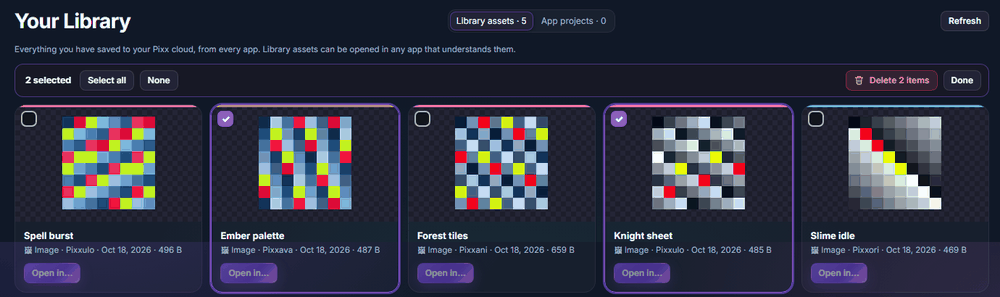
Each card also has its own trash button if you only want to delete one.
#How to download a copy for yourself
In Send to App, click Download .pxasset to save the item as a file on your computer. You can open it later in any Pixx app that accepts it, even without signing in.
#Storage
Cloud projects and Library items share your plan's storage: 10 MB per app on À la carte, 50 MB on Starter, 100 MB on Professional and 200 MB on Unlimited. The meter is in Account → My Plan. If you're over the limit you can still view, download and delete; new cloud saves pause until there's room. See Plans and billing.
#Troubleshooting
- If a Library item doesn't appear in an app's Library window, that app can't open that kind of item. Check Send to App to see which apps accept what.
- If cloud saving is refused, you may be out of storage or the app may not be part of your plan. Check My Plan.
- If you see "Sign in to see your library", sign in with the account you saved under.