#What Pixxulo is for
Pixxulo is a palette workshop. A good palette is half of good pixel art, and Pixxulo helps you build one: start from a classic palette, generate colour harmonies, make smooth shade ramps, pull colours out of a picture, and check that your colours work for players with colour blindness. When you're happy, export the palette for your art program or game engine, or send it to another Pixx app.
#Your first palette in 5 minutes
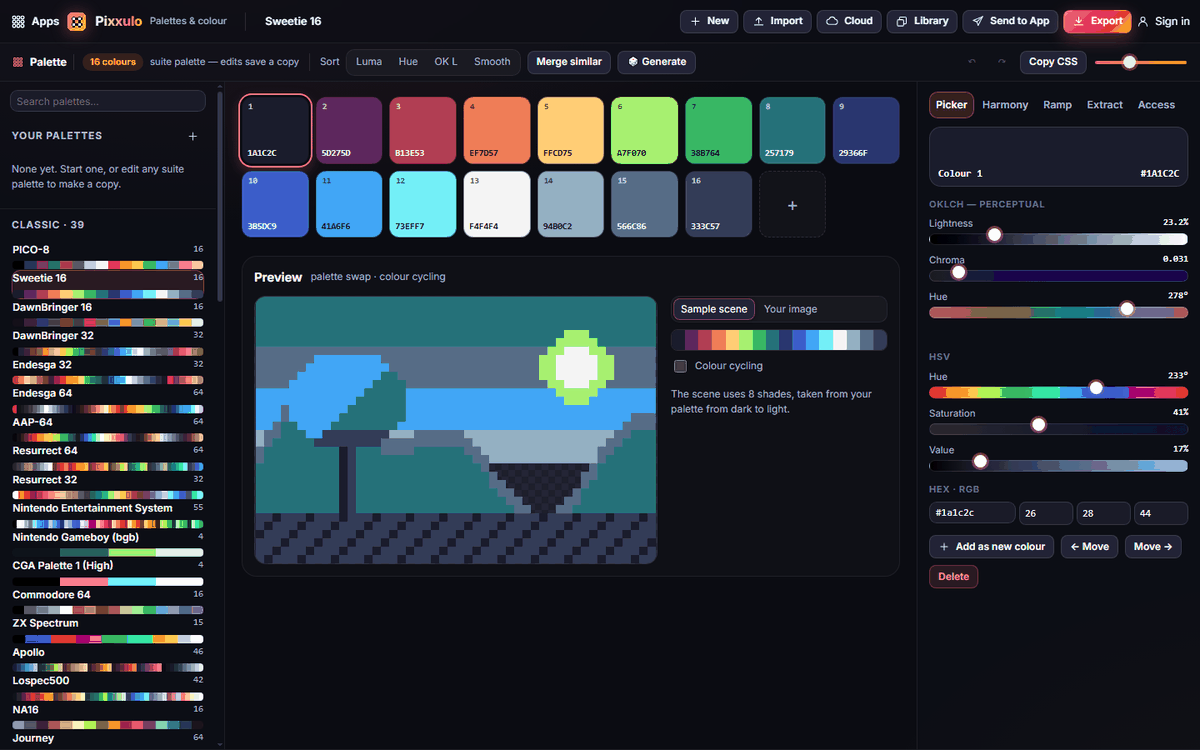
- Open Pixxulo. On the left you'll see Your palettes and below them the classic palettes (PICO-8, Sweetie 16, DawnBringer and more). Click one to open it.
- Click any big swatch in the middle to select it. The Picker tab on the right shows its colour; drag the Lightness, Chroma or Hue sliders to change it. Editing a built-in palette automatically saves your own copy.
- Click + after the last swatch to add a colour, or press N.
- Look at the Preview under the swatches: a small pixel scene drawn with your palette, from its darkest to lightest colour.
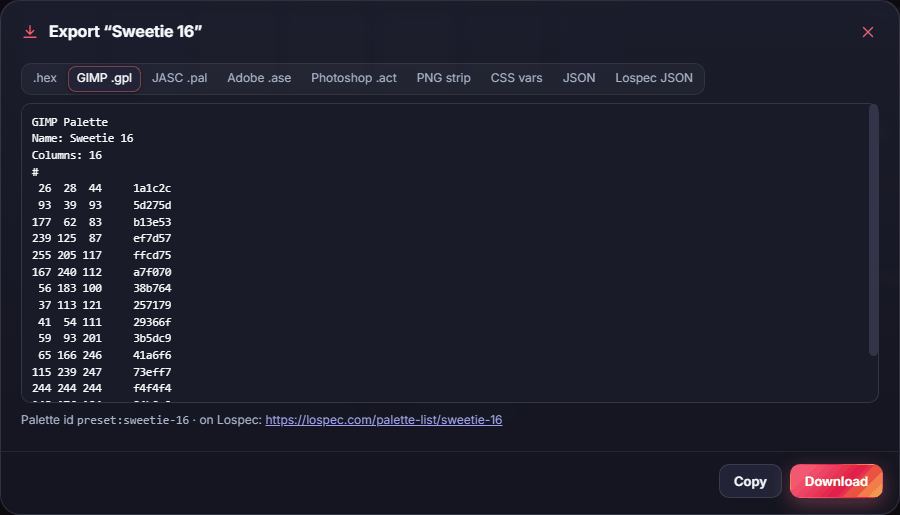
- Click Export (top right), pick a format such as GIMP .gpl or .hex, and click Download.
#How-tos
#How to start a new palette
- Click New at the top.
- Type a name in the box at the top of the page.
- Add colours with +, generate them with Generate, or pull them from an image with the Extract tab.
#How to edit a colour precisely
- Select a swatch.
- In the Picker tab, use the OKLCH — perceptual sliders (Lightness, Chroma, Hue) for even, natural steps, or the HSV sliders if you prefer those.
- Type an exact colour in the Hex · RGB boxes.
- Add as new colour keeps the original and adds the edited one; ← Move and Move → change its position; Delete removes it.
#How to make a colour harmony
- Select the colour to start from.
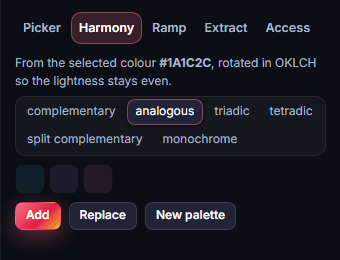
- Open the Harmony tab and choose complementary, analogous, triadic, tetradic, split complementary or monochrome.
- Click Add to add the new colours, Replace to swap them in, or New palette to start a palette from them.
#How to make a shading ramp
- Select a mid-tone colour.
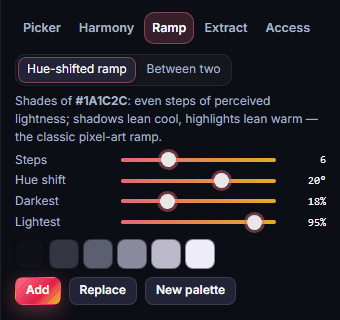
- Open the Ramp tab and keep Hue-shifted ramp selected.
- Set Steps (how many shades), Hue shift (shadows lean cool, highlights lean warm — the classic pixel-art look), Darkest and Lightest.
- Click Add, Replace or New palette.
- To blend between two colours instead, select two swatches and choose Between two.
#How to take colours from a picture
- Open the Extract tab.
- Drop an image onto the box, or click it to pick one.
- Choose how many colours you want and the method: Refined (best quality) or Median cut.
- The most-used colours come first. Add them to your palette or make a new palette from them.
#How to tidy and sort a palette
- In the bar above the swatches, Sort by Luma (brightness), Hue, OK L (perceived lightness) or Smooth (each colour next to its closest neighbour).
- Merge similar joins colours that look the same.
- Drag swatches to reorder them by hand. Ctrl+Z undoes any change.
#How to check colours for colour blindness and contrast
- Open the Access tab.
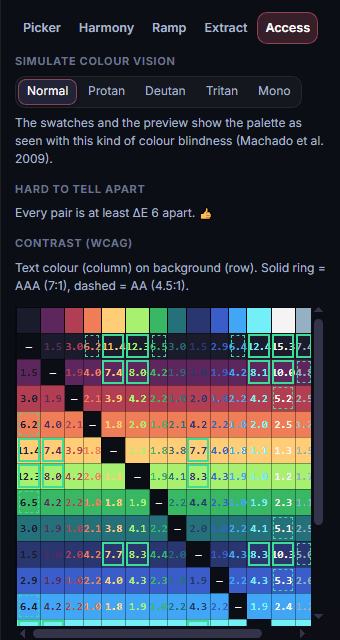
- Under Simulate colour vision, pick Protan, Deutan, Tritan or Mono. The swatches and preview show how the palette looks with that type of colour blindness.
- Hard to tell apart lists colour pairs that look too similar.
- Contrast (WCAG) shows which colour pairs are readable as text on a background (a solid ring means very readable, a dashed ring means readable).
#How to preview your palette on your own art
- In the Preview panel, click Your image and pick a picture.
- It's redrawn in your palette so you can judge the colours on real art.
- Tick Colour cycling to animate a range of colours (water, fire, glowing effects) and set its speed.
#How to import a palette
Click Import and choose a palette file (.gpl, .pal, .ase, .act, .hex, .json, .css) or an image. You can also paste a list of hex codes with Ctrl+V, or bring a palette in from a Lospec link.
#Exporting and sharing
- Export saves the palette as .hex, GIMP .gpl, JASC .pal, Adobe .ase, Photoshop .act, a PNG strip of swatches, CSS vars, JSON or Lospec JSON. Copy puts it on your clipboard, and Copy CSS in the bar copies CSS variables in one click.
- Send to App sends the palette (or its swatch strip as an image) to another Pixx app — for example to recolour art in Pixxomo or to use as the palette in Pixxato.
- Library opens a palette from your Pixx library, or turns the colours of a saved image, animation or sprite sheet into a new palette.
- Cloud saves all your palettes to your account so they're on your other devices too.
#Tips and shortcuts
- Ctrl+Z / Ctrl+Y undo and redo, Del deletes, Ctrl+A selects all, Ctrl+C copies hex codes, Ctrl+V pastes hex codes.
- N adds a colour, Space generates, ← / → change the selected swatch, Alt+← / Alt+→ move it, Ctrl+S opens Export.
- Click, Shift+click or Ctrl+click to select several swatches; the slider at the top right changes the swatch size.
- Use the search box at the top left to find a palette by name.
- On a phone or tablet, the palette list and the tools open as panels from the bottom of the screen.
#Troubleshooting
- If you can't change a built-in palette, that's expected: your first edit saves a copy under Your palettes, which you can change freely.
- If Generate changed a colour you wanted to keep, undo with Ctrl+Z, lock that swatch, then generate again.
- If an imported image gives too many colours, use the Extract tab and set a smaller colour count.
- If your palettes aren't on another device, sign in and use Cloud to save them, then open them from Cloud on the other device.
#Related guides
- Pixxato — turn pictures into pixel art with your palette
- Pixxomo — recolour sprites and swap palettes
- Pixxivi — draw with your palette
- Send to App
- Plans and billing