#What Pixxado is for
Pixxado lights pixel art and grounds it with shadows. You choose where the light comes from, and Pixxado shades your sprite with clean, hue-shifted colour ramps (or only the colours of a palette you pick). It then casts a crisp, pixel-true shadow onto the ground or a wall behind it.
It works on single sprites, GIFs and whole sprite sheets. In Scene mode it lights a whole level instead: lamps make pools of light, and walls and props block them. Every frame of an animation gets the same canvas and the same ground line, so the art and its shadow layer line up perfectly in your game.
#Your first lit sprite in 5 minutes
- Open Pixxado. A sample knight is already on the stage. To use your own art, click Open or drop a PNG, GIF or sprite sheet onto the stage.
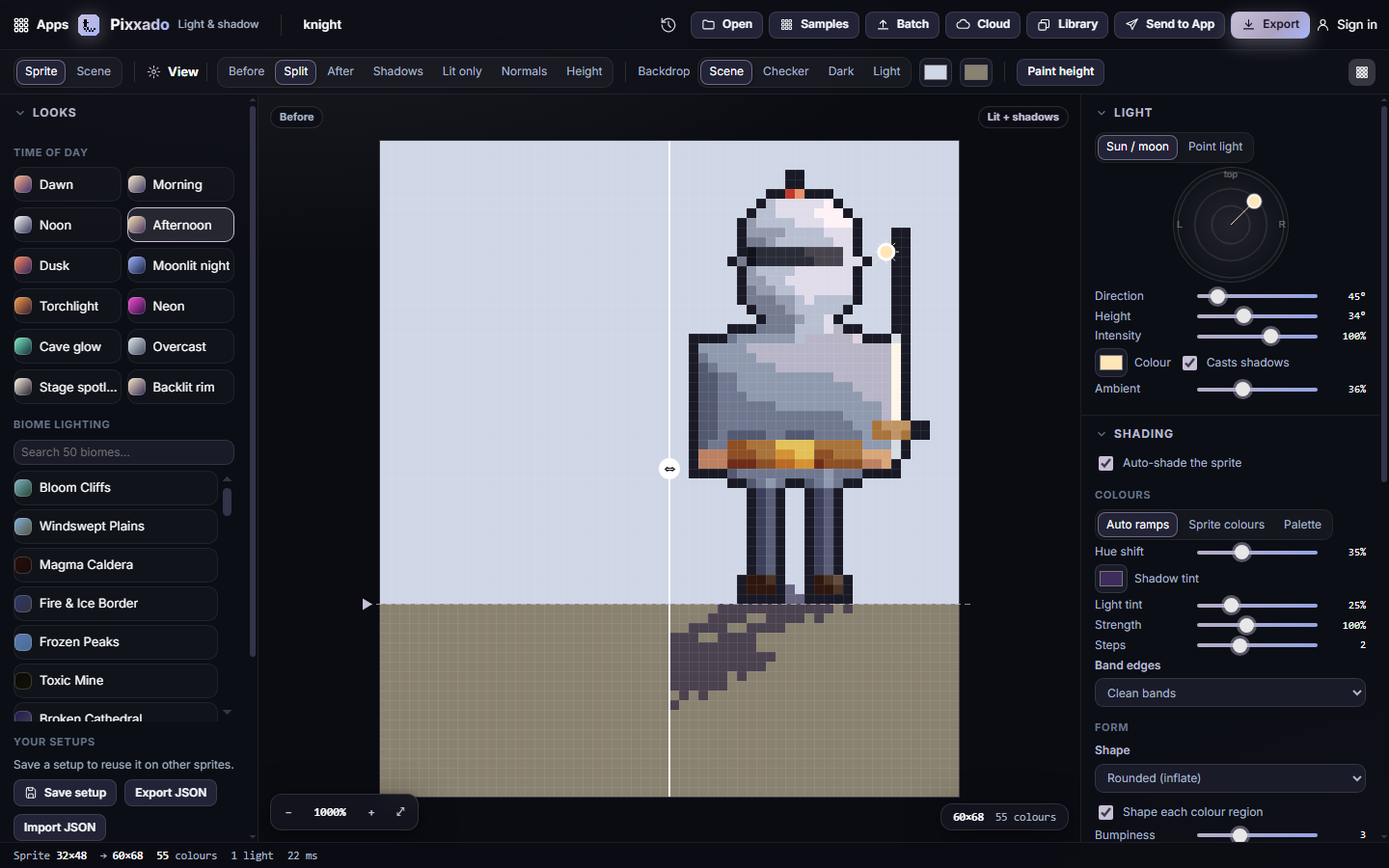
- In Looks on the left, click a time of day, such as Afternoon or Dusk. The light, shading and shadow change together.
- Drag the glowing sun handle around the sprite to move the light. The shading and the shadow follow it.
- Drag the white line on the stage to compare Before and Lit + shadows.
- Click Export, choose Lit art + shadows, a scale, and Download.
#How-tos
#How to choose a light direction
- In the Light panel on the right, make sure Sun / moon is selected.
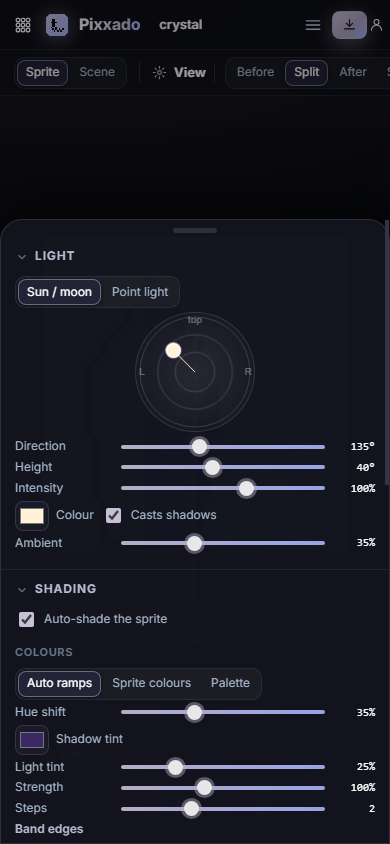
- Drag the dot on the round dial. The angle sets where the light comes from. The closer the dot is to the edge, the lower the light and the longer the shadow.
- For exact values, use the Direction and Height sliders. You can also drag the sun handle on the stage itself.
- Set Intensity, Colour and Ambient (the light that reaches everywhere, even in shadow).
#How to use a torch, lamp or other point light
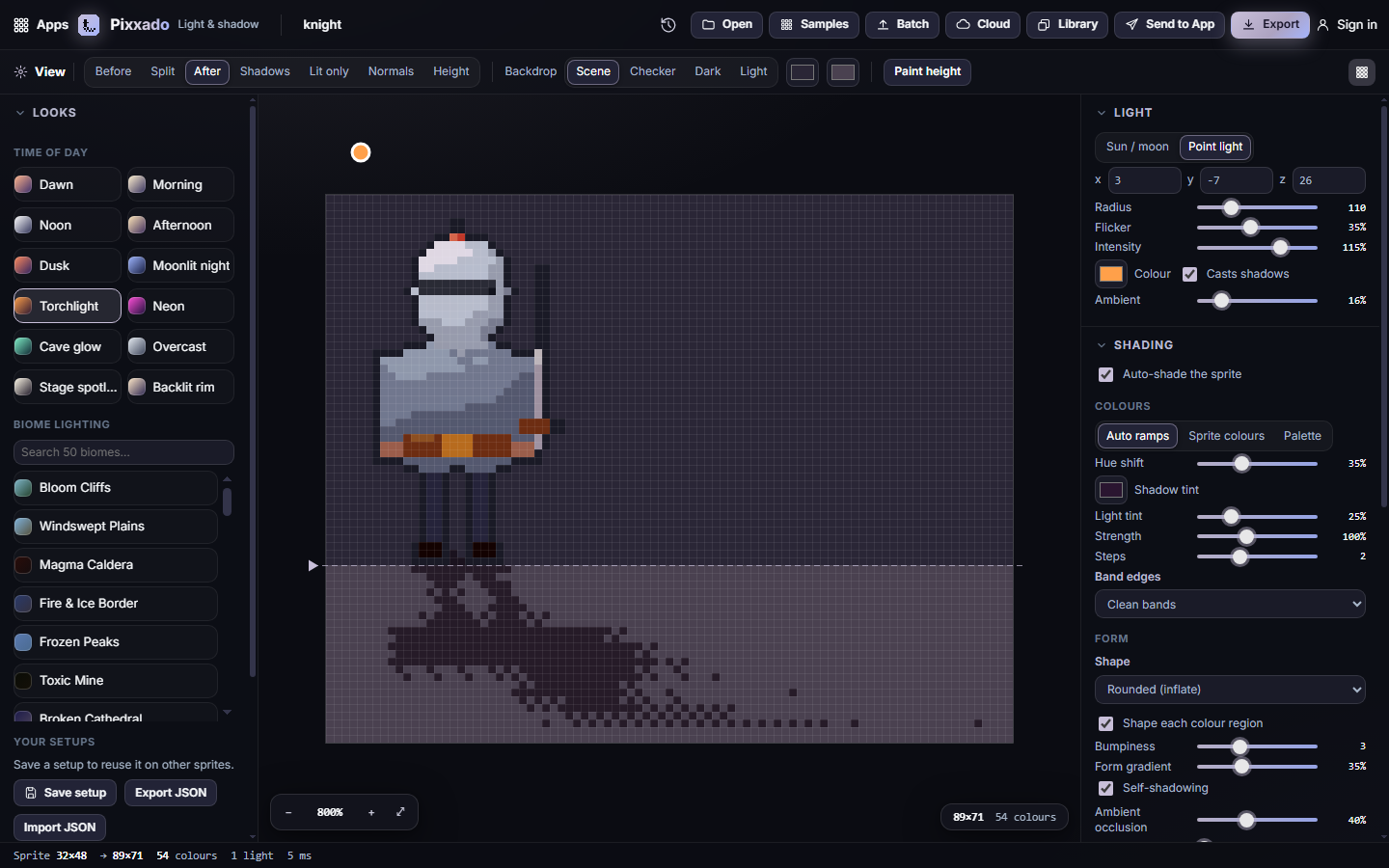
- Click Torchlight in Looks, or click + Point light under Lights.
- Drag the coloured dot on the stage to place the light. Set its height with z in the Light panel.
- Use Radius for how far it reaches and Flicker to make it flicker.
- A flickering light on a still sprite exports as a short animation. Tick Animate the flickering light in the export dialog.
#How to keep the shading inside your palette
- In Shading, under Colours, pick one of three modes:
- Auto ramps builds a ramp from each colour. The shadows lean toward the Shadow tint and the highlights toward the light colour.
- Sprite colours shades using only colours already in your sprite.
- Palette locks every shaded pixel to the palette you choose from the list.
- Use Steps for how many shades up and down each colour gets.
- For a softer pixel-art look, set Band edges to one of the Dither options.
#How to shape the shading
- In Shading, choose a Shape: Rounded (inflate) for soft bodies, Bevelled for boxes and tiles, From brightness for art that already has shading, or Flat.
- Tick Shape each colour region so arms, belts and gems round off on their own.
- Tune Bumpiness, Form gradient, Self-shadowing, Ambient occlusion (darker creases) and Rim light.
- For full control, click Paint height above the stage. Drag to raise the surface, and Shift-drag or right-drag to lower it.
- If you already have a normal map, click Use a normal map….
#How to set up cast shadows
- Open Cast shadows on the right.
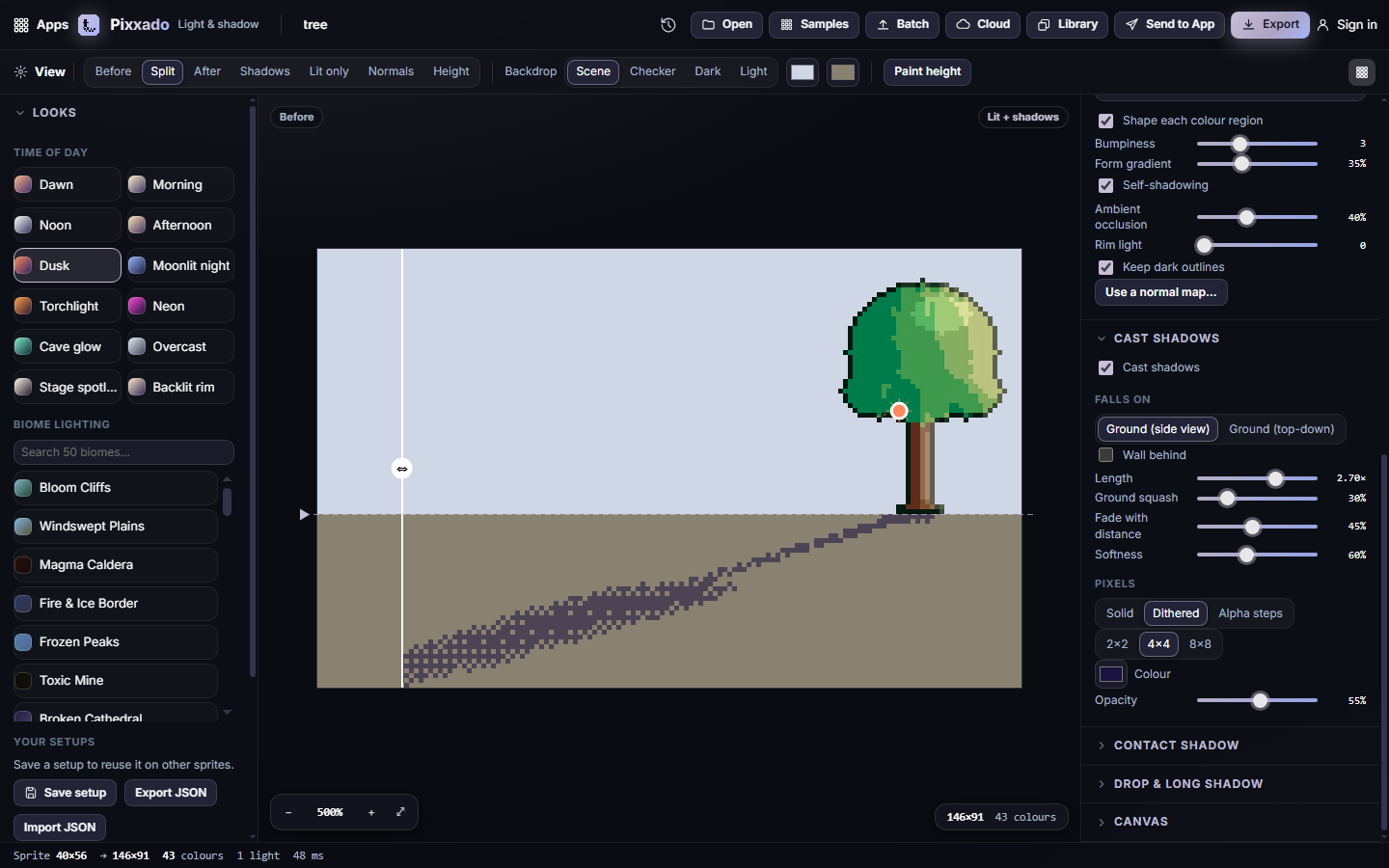
- Under Falls on, pick Ground (side view) for platformer-style art or Ground (top-down) for top-down and 3/4 views. Tick Wall behind to also throw a shadow onto a wall.
- Use Length, Ground squash, Fade with distance and Softness to shape it.
- Under Pixels, choose Solid, Dithered (a 2×2, 4×4 or 8×8 pattern) or Alpha steps. Softness is always drawn with whole pixels, never blur.
- Set the shadow Colour and Opacity.
#How to move the ground line
- The dashed line across the stage is the ground. Drag the arrow at its left end up or down.
- To go back to the automatic ground line (from the lowest pixel of your sprite), open Canvas and tick Ground line from the feet.
#How to add contact, drop and long shadows
- Contact shadow puts a small dark patch right under the feet. Choose Ellipse or From the feet, then set its Width, Height and Strength.
- Drop & long shadow is for logos, UI and text. Set the X/Y offset, turn on Long shadow for a diagonal streak, or tick Outline shadow.
#How to use biome lighting
- In Looks, scroll to Biome lighting or type in Search 50 biomes….
- Click a biome. Its light colour, shadow tint and backdrop colours are applied together.
#How to save a look and reuse it
- Click Save setup in Looks and give it a name. It appears under Your setups.
- Export JSON saves the setup as a file you can share. Import JSON loads one back.
#How to light a whole level (Scene mode)
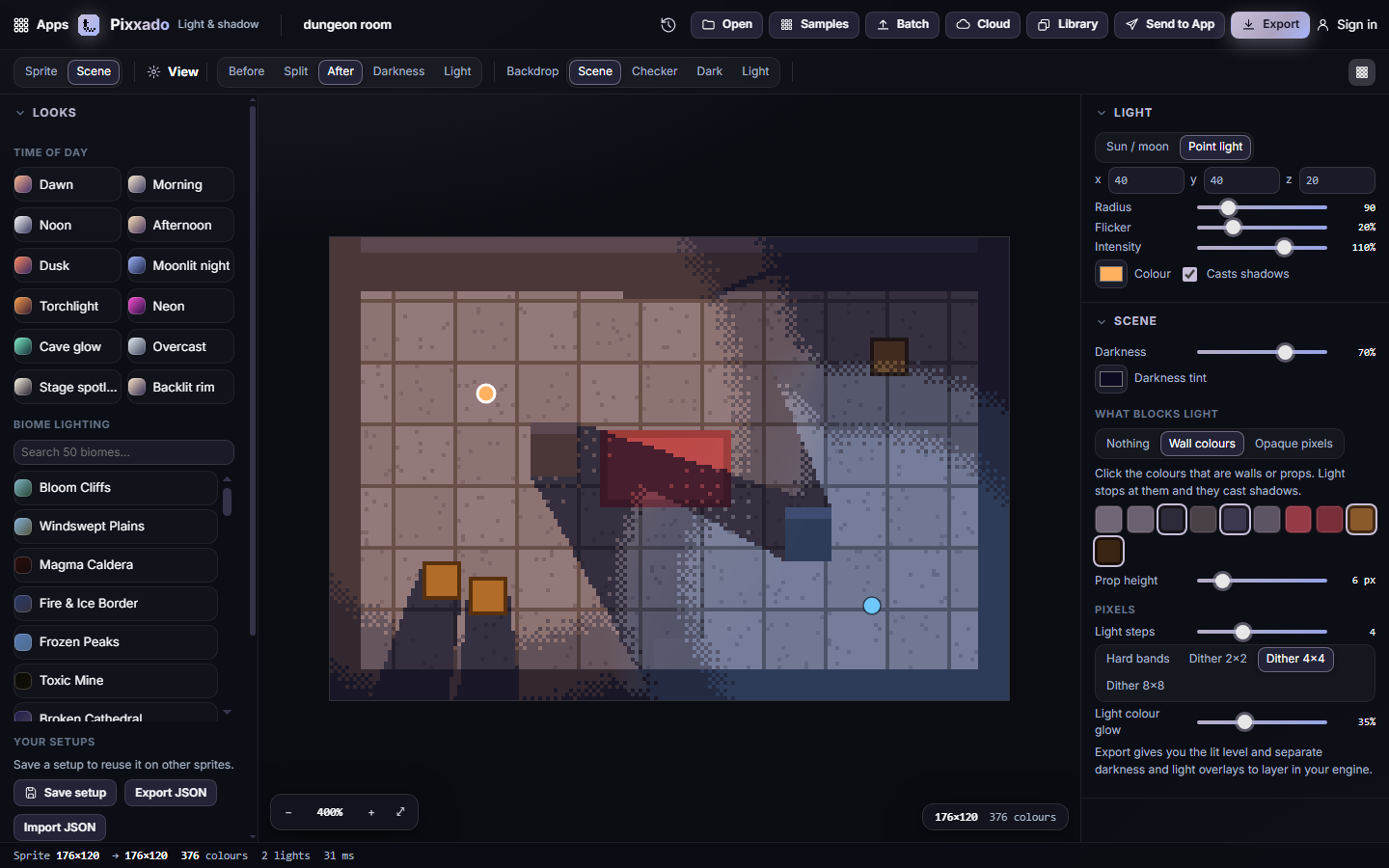
- Click Scene at the left of the View bar, then open your level image (up to 1024×1024). To try it first, choose Samples → Dungeon room (scene mode).
- Drag the lamps around the level. Add more with + Point light and set each one's Radius, Colour and Intensity.
- In the Scene panel, set Darkness and Darkness tint for the unlit parts.
- Under What blocks light, choose Wall colours and click the colours of your walls and props. For a props layer with a transparent background, choose Opaque pixels.
- With a sun or moon light, Prop height sets how long the props' shadows are.
- Use Light steps and the dither buttons to choose how the light bands are drawn.
#How to light many sprites at once
- Set up the light you want.
- Click Batch and pick several images.
- Pixxado lights each one and shows a preview. Click Download ZIP to get each sprite's lit art plus a separate shadow layer.
- For sprites that turn around, click Turn variants… under Lights. You get the same setup lit from the left, the top and the right.
#Exporting and sharing
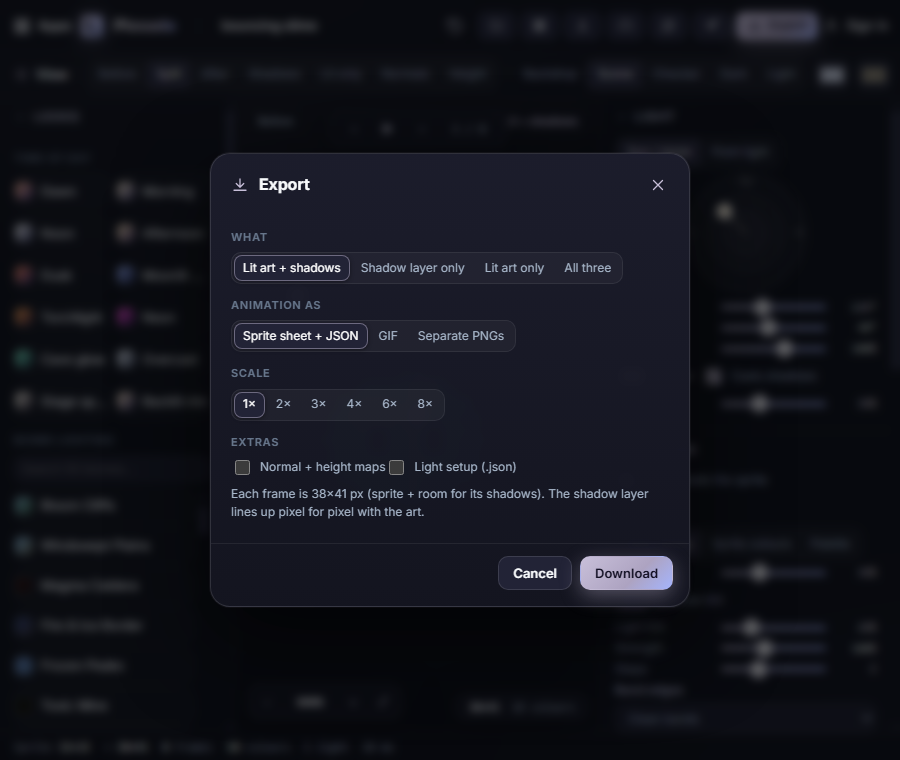
Click Export and choose:
In Scene mode, What offers Lit scene, Darkness overlay and Light overlay. Layer the overlays over your level in your game engine.
For sprites:
- What: Lit art + shadows, Shadow layer only, Lit art only, or All three. Every layer has the same size, so they stack pixel for pixel.
- Animation as: Sprite sheet + JSON, GIF or Separate PNGs. The JSON lists every frame plus the sprite offset and ground line.
- Scale: 1× to 8×, always crisp.
- Extras: Normal + height maps and the Light setup (.json).
Send to App sends the lit art, the shadow layer on its own, or the lit art without shadows to another Pixx app. Sprite sheets keep their hitboxes and pivots, moved to match the bigger canvas, and they note which layer holds the shadow. Pixxado can receive images, animations, sprite sheets and palettes. A palette you send in locks the shading to its colours. Use Library to open anything saved in your Pixx library, and Cloud to save the whole project (sprite, light setup and painted height) to your account.
#Tips and shortcuts
- Ctrl+Z / Ctrl+Y undo and redo. Ctrl+O opens a sprite and Ctrl+S opens the export dialog.
- B flips between Before and After. 0 fits the view, and + / - zoom.
- For animations, Space plays and pauses, and the arrow keys step through frames.
- You can paste an image straight from the clipboard.
- Shadows, Lit only, Normals and Height in the View bar show what Pixxado is working with.
- On phones, use the bottom bar: Looks and Light open as sheets, and Compare cycles the views.
#Troubleshooting
- If the shading looks too strong, lower Strength or Steps, or switch Shape to Bevelled.
- If a shadow looks speckled, raise Opacity, lower Softness, or choose Solid under Pixels.
- If your sprite has big empty space under it, the shadow starts at the wrong place. Drag the ground line's arrow to the feet.
- If a large image opens as one huge frame, it's a sprite sheet. Pixxado asks for the columns and rows when an image is bigger than a single frame can be.
- If a lamp lights straight through a wall in Scene mode, make sure the wall's colours are selected under Wall colours.
- If a palette lock looks too dark, choose a palette with more shades of each colour, or switch back to Auto ramps.
#Related guides
- Send to App
- Your Pixx library
- Pixxomo — recolour the lit result
- Pixxula — pack frames into sheets
- Plans and billing