#What Pixxune is for
Pixxune makes retro chiptune music for games. You can compose note by note in a tracker or piano roll, or pick a mood or a biome and let Pixxune write a full looping track for you. Every track loops without a click, so it can play forever in your game. You export WAV files with loop points, separate stems and MIDI.
#Your first looping track in 5 minutes
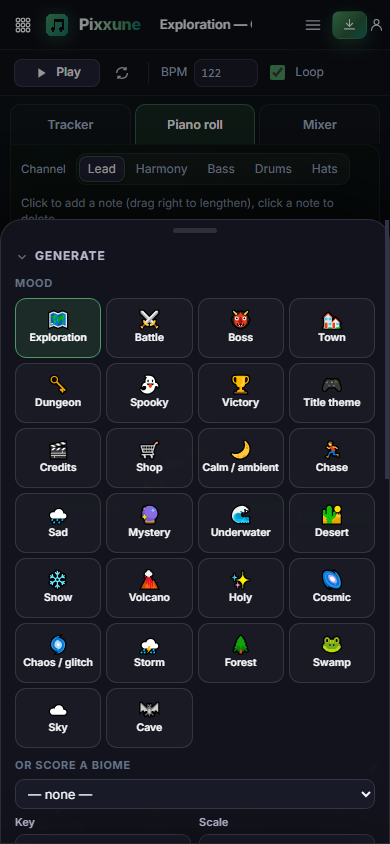
- Open Pixxune. The Generate panel is on the left (on a phone, tap Generate at the bottom).
- Pick a Mood, for example Exploration, Battle or Cave.
- Choose a Length (8 or 16 bars is a good start) and leave Intro before the loop ticked.
- Click ♪ Generate a track. Pixxune writes the song and starts playing it.
- Not quite right? Click 🎲 Variation for a new melody with the same tempo, key and chords, or click ♪ Generate a track again for a completely new one.
- Click Export, keep 16-bit and 44.1 kHz, then click Download WAV.
#How-tos
#How to score a biome
- In Generate, open Or score a biome and pick one of the 50 biomes (for example a frozen peak, a lava field or a haunted forest).
- Pixxune selects the matching mood and key for you.
- Leave Ambience on Auto (biome weather) to add a matching background bed such as wind, rain, drips or a magic hum.
- Click ♪ Generate a track.
#How to enter notes in the tracker
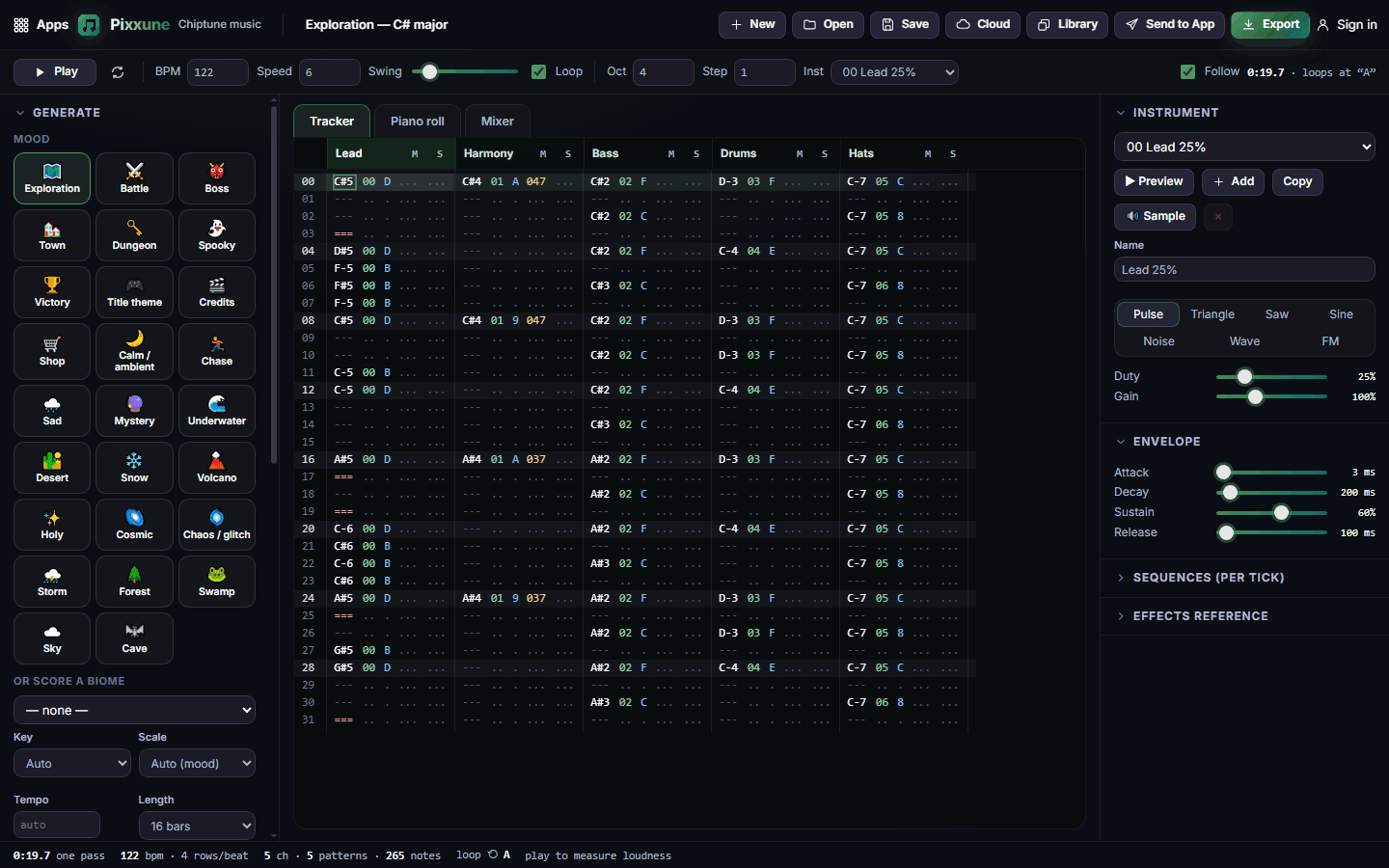
- Click the Tracker tab and click a row in a channel's note column.
- Type notes like a piano: Z to M play the current octave, Q to U play one octave higher. Press 1 for a note-off.
- Change the octave with Oct in the bar at the top, and how far the cursor moves after each note with Step.
- Pick the sound for new notes in Inst.
- Move right into the volume and effect columns with the arrow keys and type numbers and letters (0–9, A–F).
#How to use effects
- Move the cursor to an effect column (the two columns after the volume).
- Type the effect letter, then two digits. For example 047 makes a quick chord arpeggio, 436 adds vibrato and S02 cuts the note short.
- Open Effects reference in the right panel for the full list: arpeggio, slides, portamento, vibrato, volume slide, retrigger, duty, note cut, note delay, pan and tempo.
#How to draw notes in the piano roll
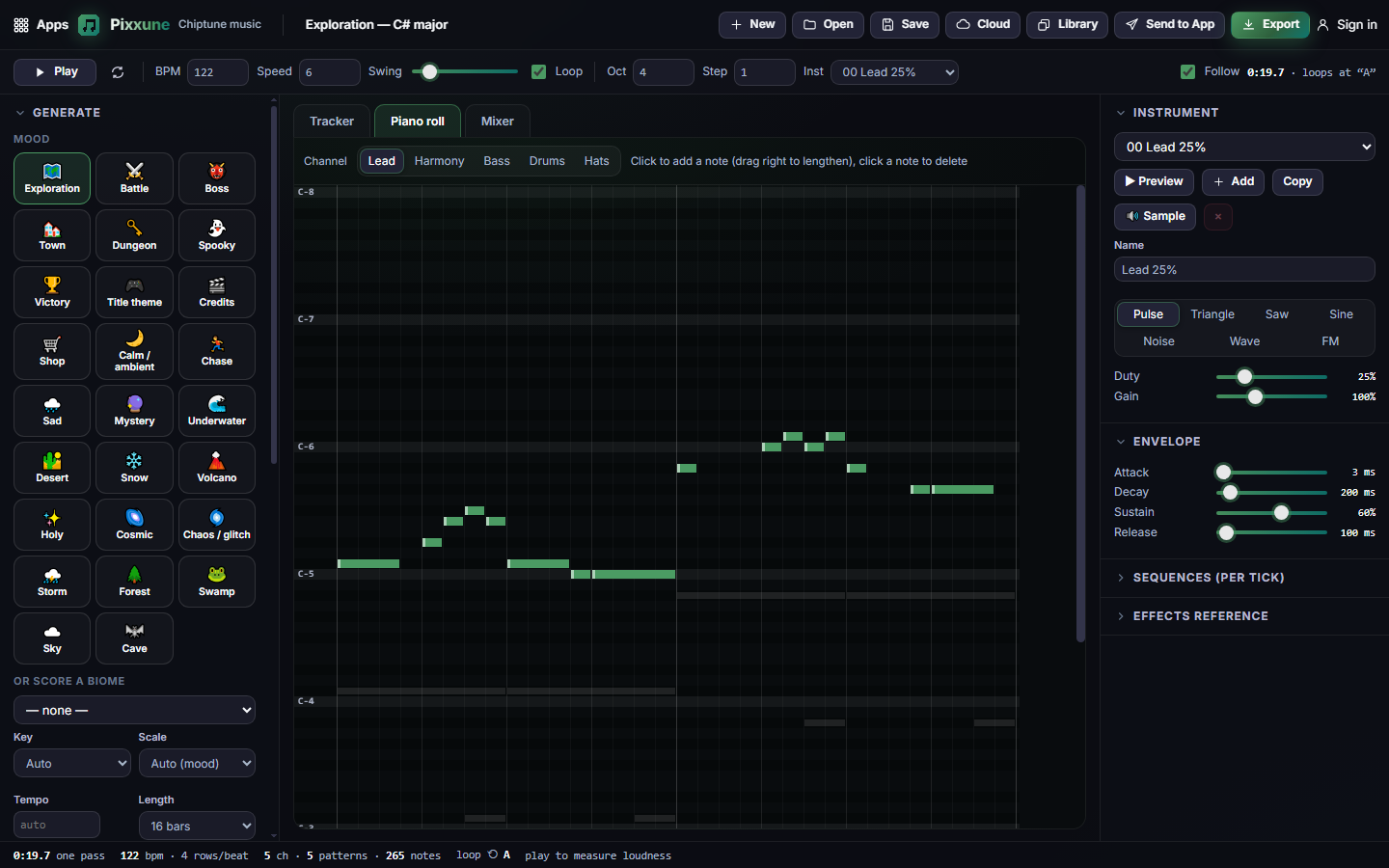
- Click the Piano roll tab.
- Choose a channel at the top, for example Lead or Bass.
- Click to add a note and drag to the right to make it longer. Click an existing note to delete it.
- The tracker and the piano roll edit the same song, so you can switch back and forth.
#How to program drums
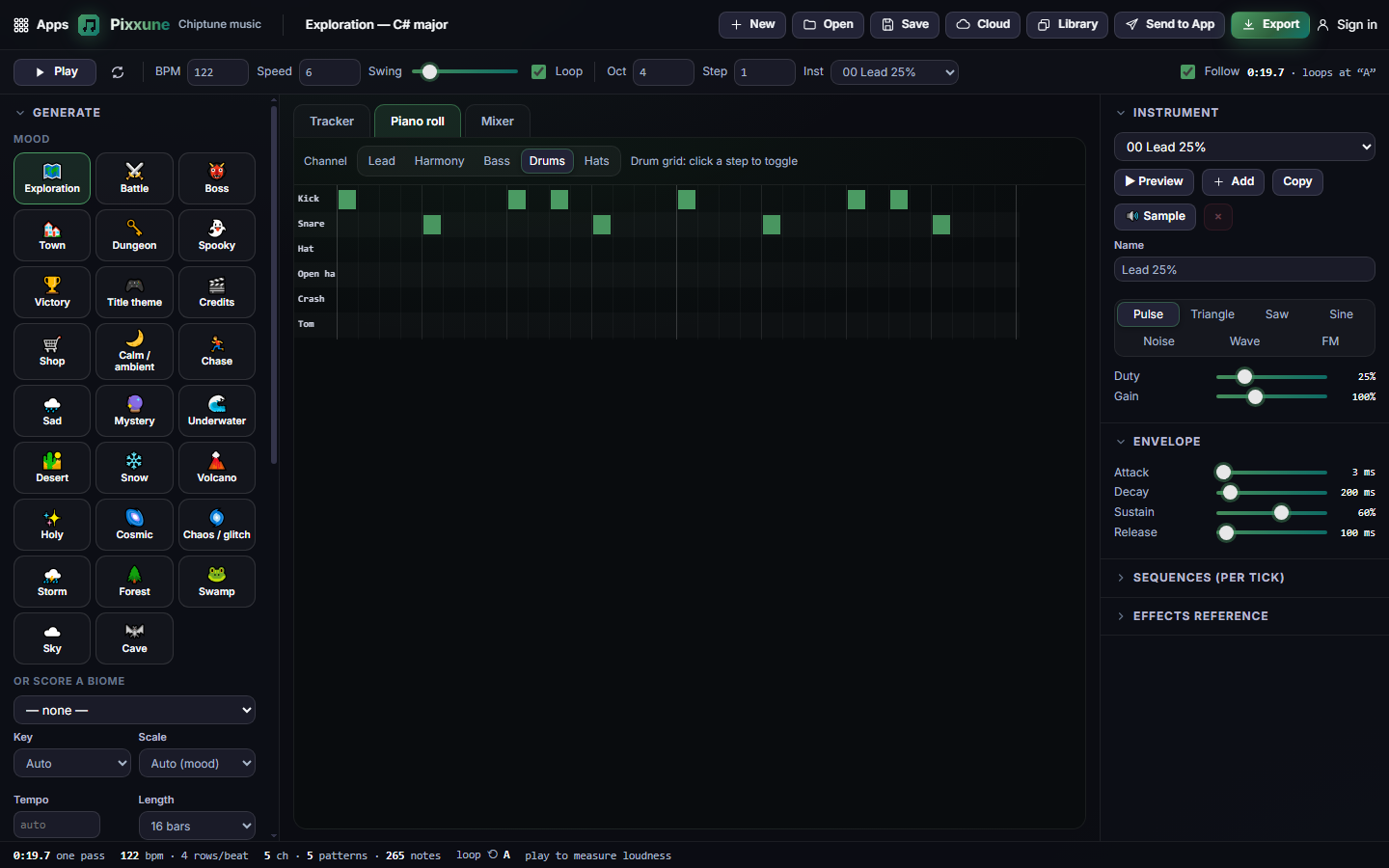
- In Piano roll, pick the Drums or Hats channel.
- Pixxune shows a drum grid with one lane per drum sound (kick, snare, hats, crash, tom).
- Click a step to add a hit, click it again to remove it.
#How to arrange the song and set the loop point
- In the Song section of the left panel, the Order list shows which pattern plays in which order.
- Use + Row, ↑ and ↓ to arrange, and the dropdown on each row to choose its pattern.
- Click ⟲ on a row to make the song loop back to it. Everything before it plays once as an intro.
- Under Patterns, use New for an empty pattern or Clone to edit a copy.
- Untick Loop in the top bar for a one-shot piece such as a jingle.
#How to shape an instrument
- In the right panel, pick the instrument under Instrument.
- Choose its wave: Pulse, Triangle, Saw, Sine, Noise, Wave or FM. For Wave, draw your own waveform in the grid.
- Adjust Duty, Gain and the Envelope (attack, decay, sustain, release).
- Open Sequences (per tick) to add classic chip tricks: volume, duty, arpeggio and pitch patterns.
- Click ▶ Preview to hear it, or Add to pick one of more than 25 ready-made instruments.
#How to use your own sound as an instrument
- Click 🔊 Sample in the instrument panel.
- Choose a sound from your Pixx library (for example an effect you made in Pixxibu) or a WAV file under 10 seconds.
- The sound is added as a new instrument and plays at different pitches like any other.
#How to mix and master
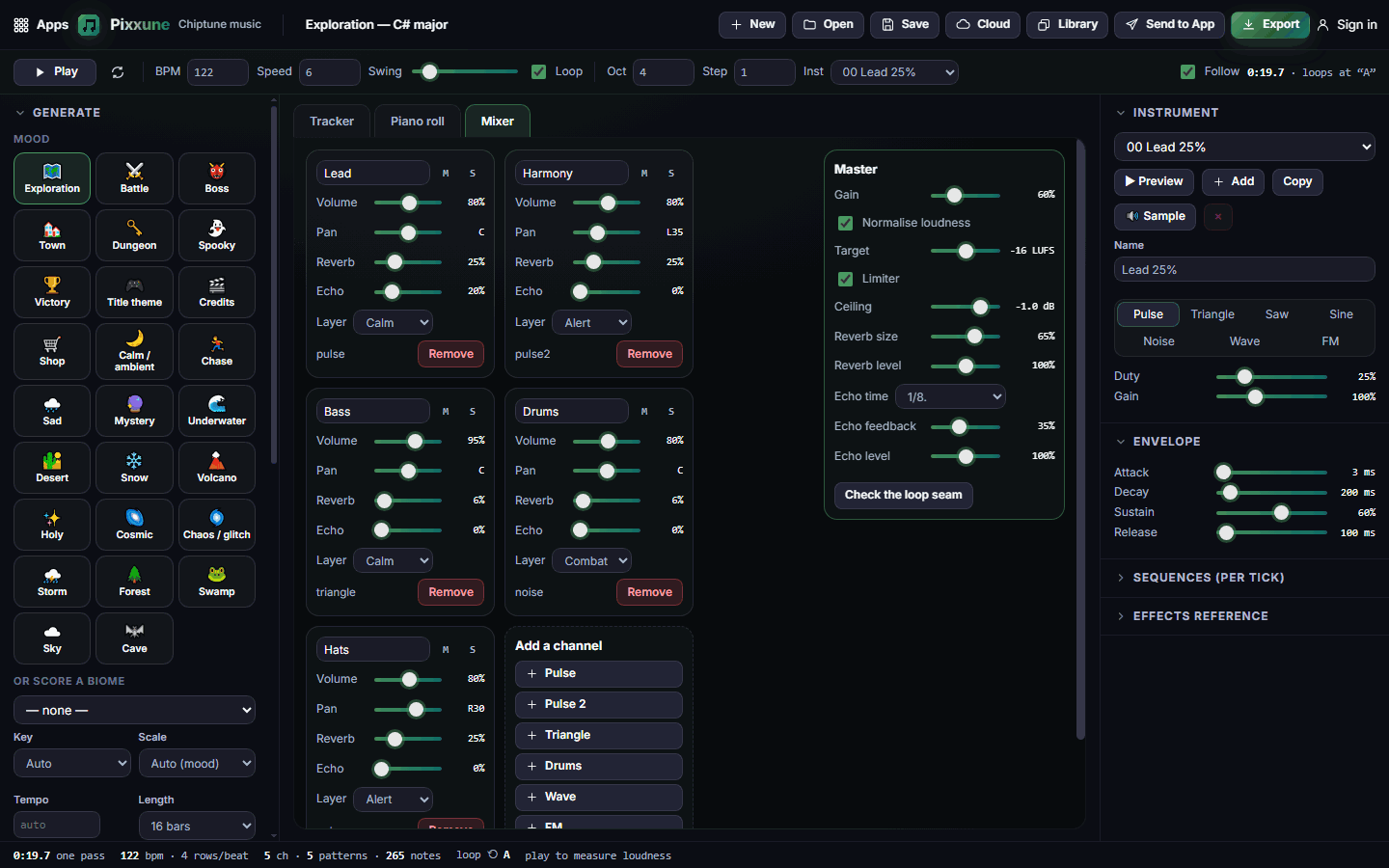
- Click the Mixer tab. Each channel has Volume, Pan, Reverb, Echo, mute (M) and solo (S).
- In Master, set the overall loudness with Normalise loudness and Target, and keep Limiter on to avoid clipping.
- Set the echo to the beat with Echo time (for example 1/8).
- Click Check the loop seam to make sure the loop point is clean.
#How to make adaptive music for a game
- Tick Intensity layers before generating. Each channel is tagged Calm, Alert or Combat (change it with Layer in the Mixer).
- In Export, click Calm / alert / combat. You get three stems that stay in sync: play the calm one while exploring and fade in the others as the action grows.
- For short jingles, click a Stinger in the Generate panel: victory, level up, item get, secret found, game over or danger.
#Exporting and sharing
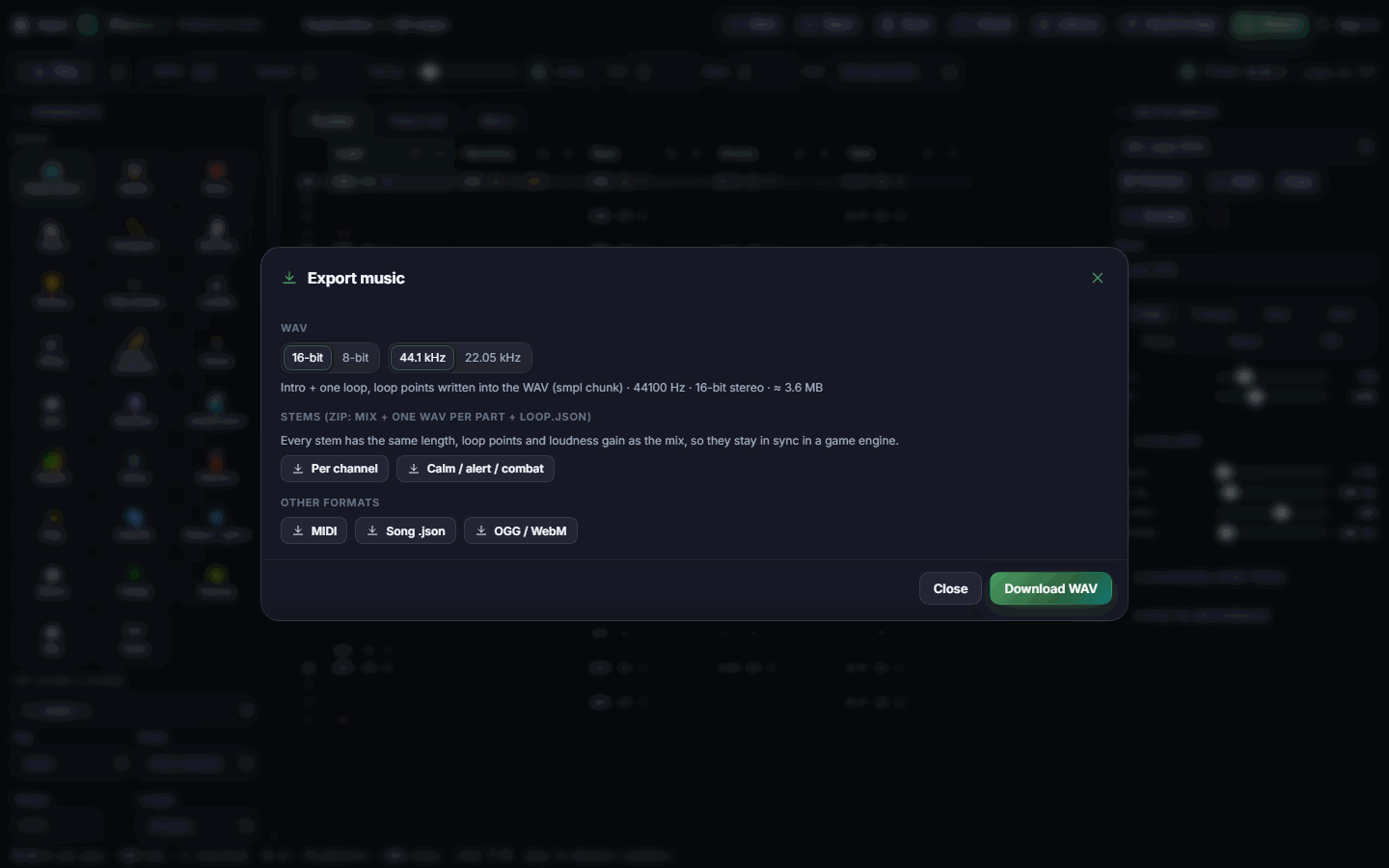
- WAV: 16-bit or 8-bit, 44.1 kHz or 22.05 kHz, stereo. A looping song exports the intro plus one loop, and the loop points are stored in the file so game engines can loop it seamlessly.
- Stems: a zip with the mix, one WAV per channel (or the calm / alert / combat layers) and a small file with the loop points.
- MIDI: for other music software.
- Song .json: the full editable song. Open it again with Open.
- OGG / WebM: compressed audio, in browsers that support recording (no loop points).
- Send to App: sends the track as a sound with its loop points and tempo to your Pixx library or another app such as Pixxibu. Sending it back to Pixxune opens the full song for editing.
- Library: opens sounds from your library. A Pixxune track opens as a song; any other sound becomes a sampled instrument.
- Cloud: saves the song to your Pixx account so you can open it on another device.
- Open also imports MIDI files, and a WAV file becomes an instrument.
#Tips and shortcuts
- Space plays or stops the song, Shift+Space loops only the current pattern.
- Ctrl+Z undoes and Ctrl+Y redoes, one keystroke at a time.
- Shift + arrow keys select a block; Ctrl+C, Ctrl+X and Ctrl+V copy, cut and paste it.
- Ctrl+↑ and Ctrl+↓ transpose the selection by a semitone (add Shift for an octave).
- Tab jumps to the next channel, Delete clears and moves down.
- Ctrl+S opens Export.
- Your song is saved in the browser automatically, so you can close the tab and continue later.
- On a phone, use Generate, Play, Sound and Export at the bottom and edit notes in the Piano roll. The full tracker works best on a tablet or computer.
#Troubleshooting
- If you hear nothing, click Play once: browsers only allow sound after you click or tap.
- If the loop clicks in your game, export WAV again and make sure your game uses the loop points in the file, or loop from the time shown in the stems' loop file.
- If Check the loop seam warns about a jump, reduce long echo feedback or reverb on the loop's last notes.
- If a WAV will not load as an instrument, keep it under 10 seconds.
- If the song plays only once, tick Loop in the top bar or click ⟲ on an order row.