#What Pixxani is for
Pixxani makes pixel-art visual effects: fireballs, explosions, novas, beams, lightning, tornadoes, healing auras, hit sparks, status effects and more. You don't draw them frame by frame. You stack layers, where each layer is a shape (a structure, such as a beam or a nova) filled with a material (an element, such as flame or frost), and Pixxani animates it. Then tune colours, timing and motion, and export a GIF or a sprite sheet for your game.
It's built for effects artists and game developers who want lots of good-looking effects quickly.
#Your first effect in 5 minutes
- Open Pixxani. It starts with an effect already loaded so you can see it play.
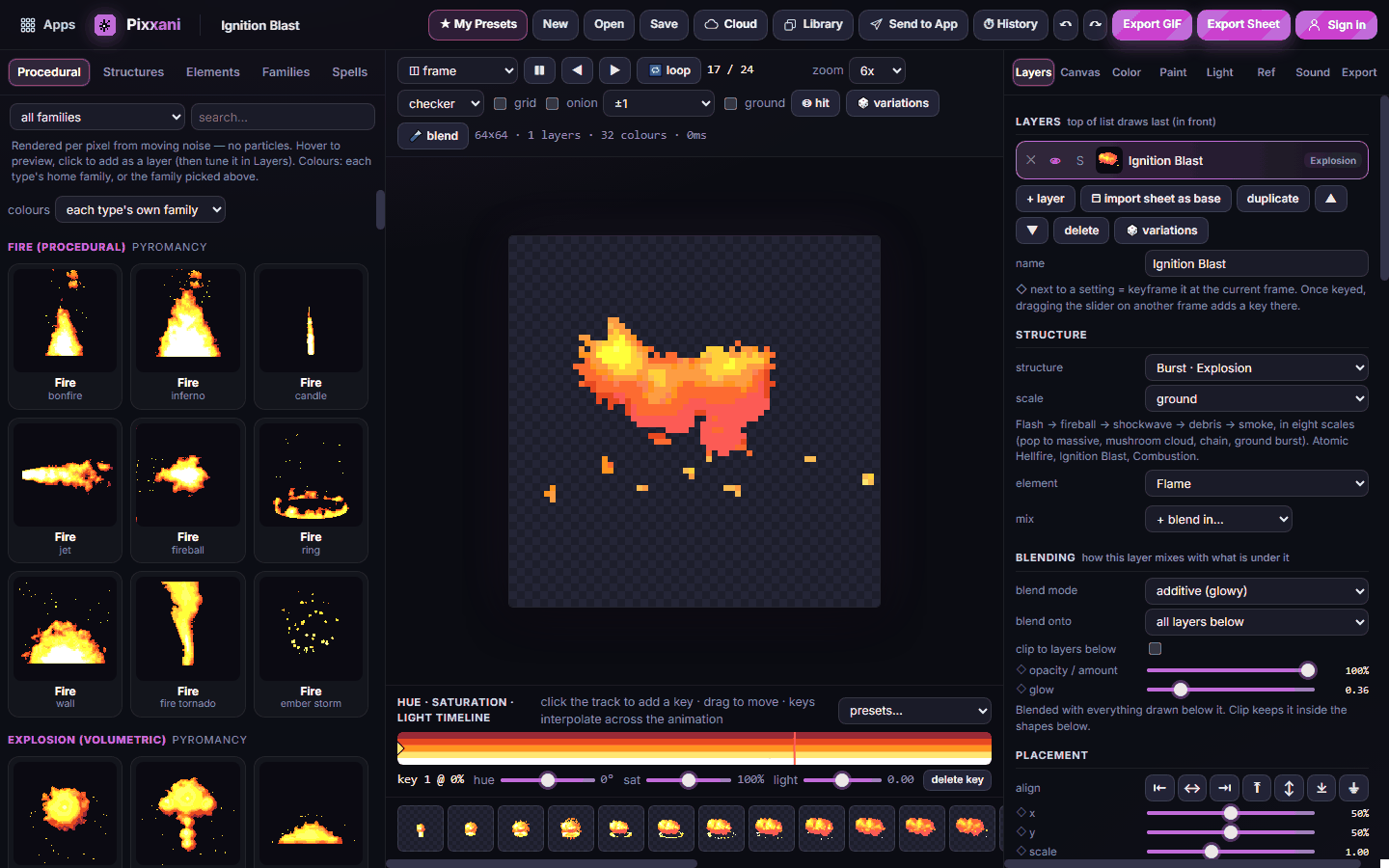
- In the Library on the left, open the Procedural tab and click a card, for example Fire · fireball. Hover a card first to preview it.
- The effect appears on the canvas in the middle and as a layer on the right.
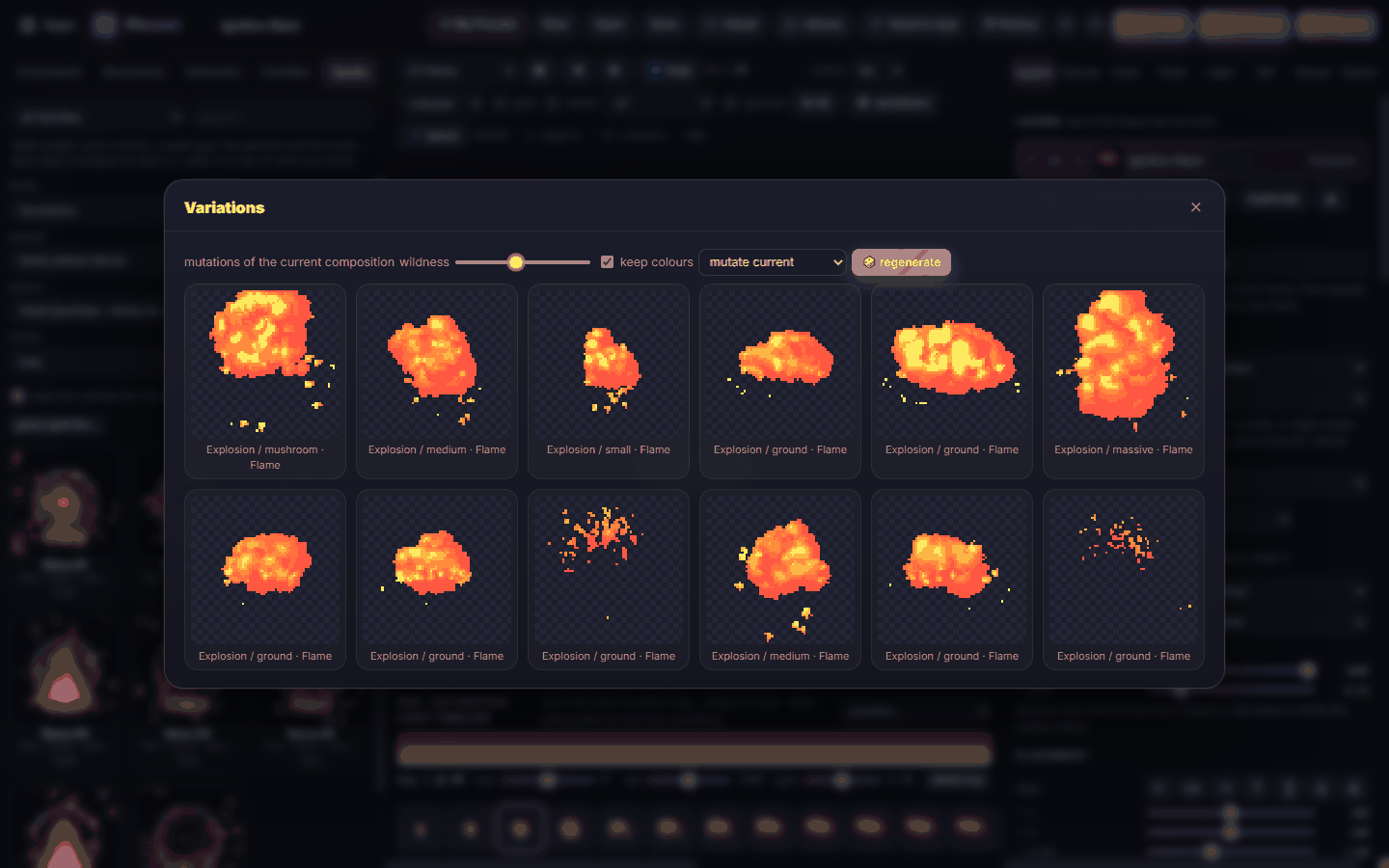
- Click variations above the canvas and pick one of the 12 twists on your effect.
- Click Export GIF (top right) and then Download GIF.
#How-tos
#How to browse the library
The left panel has five tabs:
- Procedural: realistic, flowing effects (fire, water, wind, clouds, lightning, frost, energy, explosions…) rendered from moving noise rather than particles.
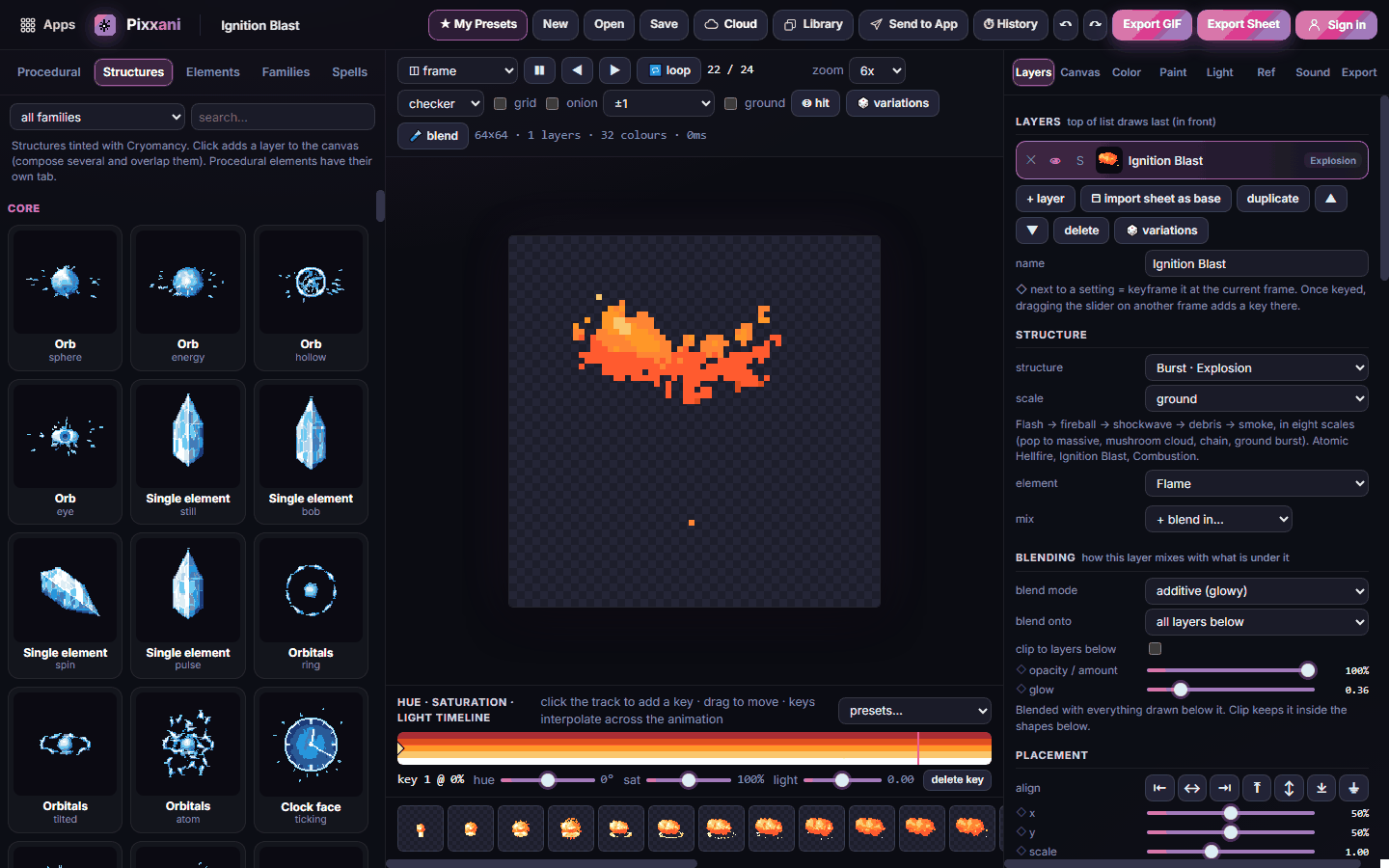
- Structures: shapes and motions such as orb, projectile, beam, nova, wave, tornado, rain, meteor, shield, portal, cage and quake.
- Elements: materials and particles such as flame, frost, lightning, leaves, gems, runes, bats and coins.
- Families: colour palettes grouped by magic type (fire, ice, water, earth, light, shadow…).
- Spells: a spell creator. Pick a family, a spell type (for example Nova / ring burst), a particle and a scale, then click one of the generated variations.
Use the search box and the family filter to narrow any tab. Click a card to replace your effect, or + to add it on top.
#How to stack and edit layers
- Open Layers on the right. The list draws the top layer last, in front.
- Use + layer, duplicate, delete and the arrows to manage layers.
- For the selected layer, set its structure, scale, element and mix (blend in a second element).
- Under Blending, pick a blend mode, for example additive (glowy) for light and fire. Use opacity and glow to taste.
- Under Placement, align the layer and move it with x, y and scale.
#How to animate any setting with keyframes
- Move to a frame with the arrows above the canvas.
- Click the ◇ next to a slider to set a key at that frame.
- Go to another frame and move the slider: a new key is added, and Pixxani blends between them.
#How to change colours over time
The Hue · Saturation · Light timeline under the canvas lets you shift the whole effect's colours across the animation. Click the track to add a key, drag keys to move them, or choose from presets…. For example, an effect can start white-hot and cool to deep red.
#How to get fresh ideas fast
- variations shows 12 mutations of your current effect. Drag wildness for subtler or bolder changes, then click one to use it.
- Blend builds 12 new effects from elements and structures you choose (or surprises you). breed turns your favourite into the parent of the next 12.
#How to set the canvas, length and loop
- Open the Canvas tab on the right to set the size (8 to 480 pixels on an 8-pixel grid), the number of frames and the speed.
- Use ⤢ Fit canvas to animation to trim empty space around the effect.
- Turn on seamless looping when the effect should repeat without a jump.
#How to add intros and outros
Any layer can appear (fade, pop, grow from the ground, spin, materialize…) and disappear (shrink, shatter, crumble, burst to pixels, melt, evaporate…). Turn on the sequence option to play intro → hold → outro in order.
#How to light an effect and paint on top
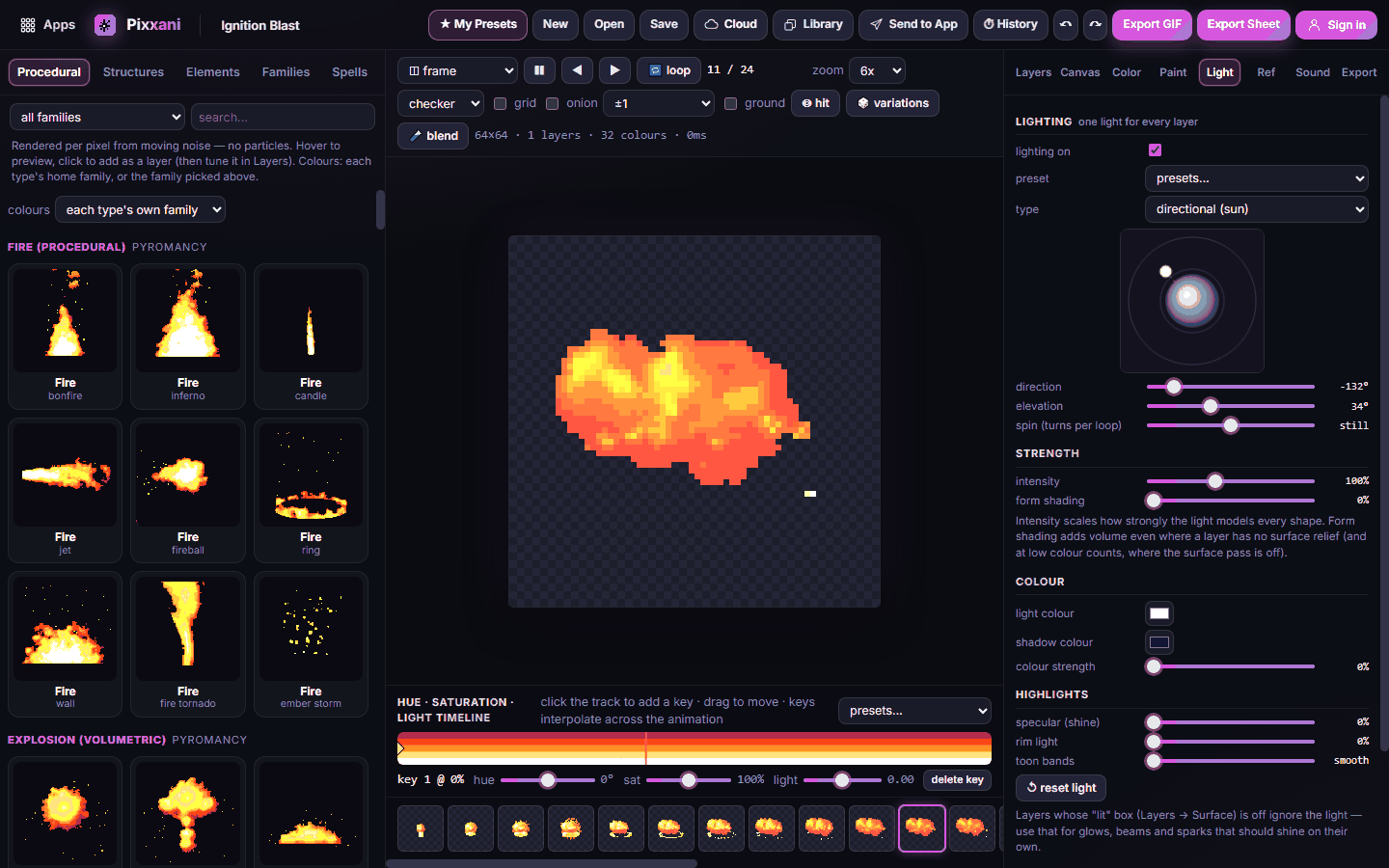
- The Light tab adds direction, glow, rim light and a ground shadow so effects sit in a scene.
- The Paint tab lets you draw pixels on one frame or on all frames, with a pencil, eraser, fill and mirror symmetry.
- The Color tab limits colours (1–256), adds dithering and an outline.
#How to sync to a sound
In the Sound tab, load a sound effect. Its waveform appears under the timeline and plays along with the preview, and you can line up the loudest hit with a frame. Pair it with sounds from Pixxibu.
#Exporting and sharing
- Export GIF downloads an animated GIF at any scale.
- Export Sheet downloads a sprite sheet PNG plus a JSON file with the frame positions and timing.
- The Export tab on the right also offers PNG frames, an icon, and layers as separate sheets (one aligned sheet per layer, great for compositing in an engine).
- My Presets saves your favourite effects so you can reuse them; you can export and import them too.
- Send to App sends your animation as frames or a sheet, or its colours as a palette, to another Pixx app, for example Pixxifo or Pixxula. See Send to App.
- Cloud and Library save and open your work through your Pixx account; History lets you step back through changes.
#Tips and shortcuts
- Ctrl+Z / Ctrl+Y undo and redo; the History button lists every step.
- Turn on onion above the canvas to see neighbouring frames faintly.
- Fewer colours make simpler, flatter effects; more colours add shading and detail automatically.
- Mark a hit frame (the frame where the effect lands); it's included in the exported data.
- Pixxani works best on a tablet or desktop screen.
#Troubleshooting
- If the effect is cut off at the edges, enlarge the canvas in the Canvas tab or lower the layer's scale.
- If the GIF loses its soft glow, that's a GIF limit (hard transparency). Use the sprite sheet PNG for soft edges.
- If an effect looks too busy, lower the colours in the Color tab or hide extra layers.
- If the loop jumps, make the effect loop seamlessly in the Canvas tab.
#Related guides
- Pixxifo · Pixxula · Pixxibu · Pixxura · Send to App