#What Pixxivi is for
Pixxivi is the pixel-art editor and sprite animator of the Pixx Suite. You draw sprites, tiles and scenes pixel by pixel, build animations frame by frame, and export them for your game or to share. It has layers, onion skin, animation tags, tilemaps, palettes, lighting and effect generators, and it works with a mouse, a pen or your fingers on a tablet or phone.
#Your first animation in 5 minutes
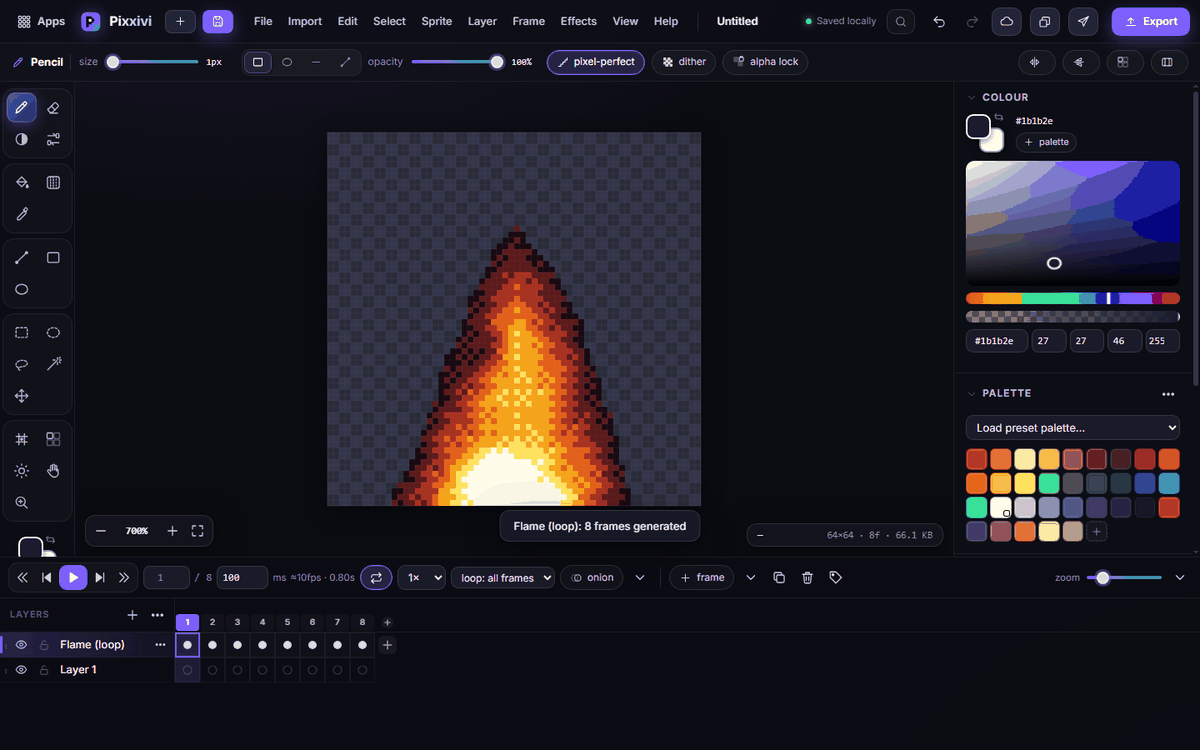
- Open Pixxivi. If the welcome tour appears, follow it or click Skip.
- Click + (New sprite) at the top, choose a preset such as 32×32, set Frames to 4 and click Create.
- Pick the pencil (B) and a colour from the Palette on the right, and draw on frame 1.
- In the timeline at the bottom, click + frame to add a frame that copies the current one, then change the drawing a little. Repeat for each frame.
- Turn on onion in the timeline to see the neighbouring frames faintly while you draw.
- Press Enter (or the play button) to watch the animation.
- Click Export, choose GIF, and save it.
#How-tos
#How to start a new sprite
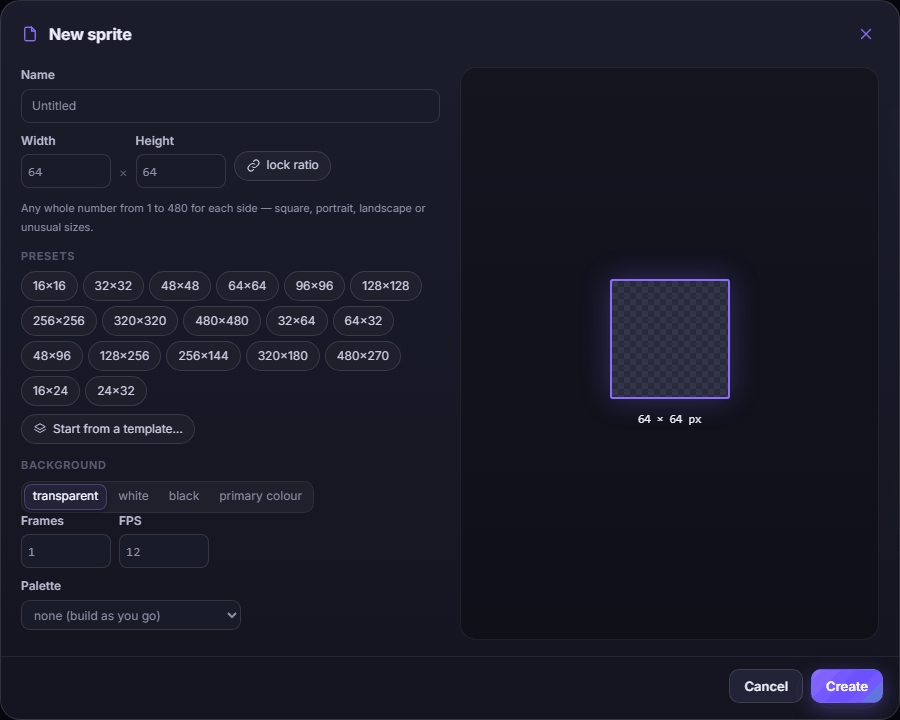
- Click + at the top or press Ctrl+N.
- Type a Width and Height (each from 1 to 480 pixels), or click a preset such as 16×16, 64×64 or 320×180. lock ratio keeps the shape when you change one side.
- Choose a Background (transparent, white, black or primary colour), the number of Frames, the FPS and a starting Palette.
- Click Create. You can also choose Start from a template… to begin from an animation template.
#How to draw and erase
- Pencil (B) draws single pixels. pixel-perfect in the bar above the canvas removes the extra corner pixels on curved strokes.
- Eraser (E), shading (R, lightens or darkens with palette colours), fill (G) and picker (I, or hold Alt).
- Line, rectangle and ellipse tools draw shapes; hold Shift to keep them straight or round, Alt to draw from the centre.
- Set the brush size, its shape and opacity in the bar at the top. dither paints a pattern, alpha lock paints only on existing pixels.
- Undo with Ctrl+Z, redo with Ctrl+Y.
#How to select, move and transform
- Use the rectangle, ellipse, lasso (Q) or magic wand (W) selection tools.
- Switch to the move tool (V) to drag the selection, use its handles to scale, or rotate and flip it from the Edit menu.
- Rotation keeps pixels crisp (RotSprite), so rotated pixel art still looks clean.
#How to use layers
- The Layers panel is on the left of the timeline. Click + to add a layer.
- Click the eye to hide a layer, the lock to protect it, and drag layers to reorder them.
- Use ⋯ on a layer for its properties: opacity, blend mode, colour label, or making it a reference or static layer.
- Press Ctrl+G to group layers, and Ctrl+E to merge a layer down.
#How to animate with the timeline
- Each column in the timeline is a frame. Click + frame to add a copy of the current frame; use the arrow next to it for an empty or linked frame.
- Click a frame number to select it; drag to reorder; set its duration in the ms box.
- onion shows the frames before and after the current one; the arrow next to it sets how many and how strong.
- Choose loop: all frames or a tag in the loop menu, and the play speed (1×) next to it.
#How to organise animations with tags
- Select a range of frames in the timeline.
- Click the tag button (or press Alt+T) and name the tag, for example walk or attack.
- Choose the direction: forward, reverse or ping-pong.
- Tags are kept when you export sprite sheets and Aseprite files, so your game knows where each animation starts.
#How to use palettes
- In the Palette panel, use Load preset palette… to load a classic palette (PICO-8, DawnBringer, Endesga and many more).
- Click a swatch to paint with it; click + to add your own colour.
- ⋯ in the Palette panel imports and exports palettes, makes a palette from the sprite's colours, and generates colour ramps.
#How to import a GIF, picture or sprite sheet
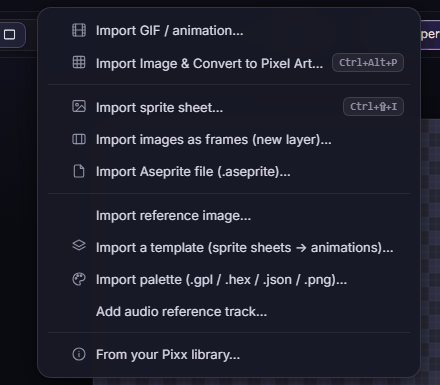
Open the Import menu at the top:
- Import GIF / animation… brings in every frame of a GIF, APNG or WebP.
- Import Image & Convert to Pixel Art… turns a photo into pixel art at the size and colours you choose.
- Import sprite sheet… cuts a sheet into frames (it guesses the grid for you).
- Import images as frames (new layer)…, Import Aseprite file (.aseprite)…, Import reference image…, palettes, templates and an audio track for timing.
- From your Pixx library… opens something you sent from another Pixx app.
#How to add generated effects
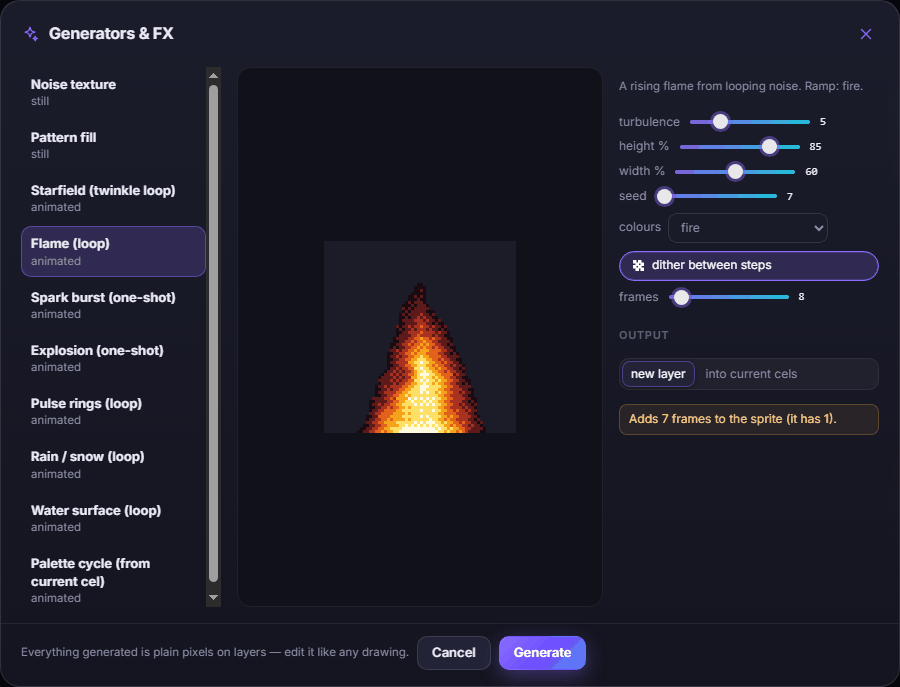
- Open Effects → Generators & FX… (or press Shift+N).
- Choose an effect: Noise texture, Pattern fill, Starfield, Flame, Spark burst, Explosion, Pulse rings, Rain / snow, Water surface or Palette cycle.
- Adjust its sliders and colours, then click Generate. The result is ordinary pixels on a new layer that you can edit like any drawing. Looping effects loop seamlessly.
#How to light your pixel art
- Choose the light tool (the sun icon in the toolbox, or Shift+L).
- Click the canvas to place a light; drag it to move it and Alt-drag to change its radius.
- Set each light's colour, strength and glow, and make it flicker or pulse over the animation.
- Lighting is a live preview. When you like it, Bake it into real pixels.
#How to find any command
Press Ctrl+K (or /) to open the command palette, type what you want ("flip", "onion", "export") and press Enter. Press ? to see every keyboard shortcut.
#Exporting and sharing
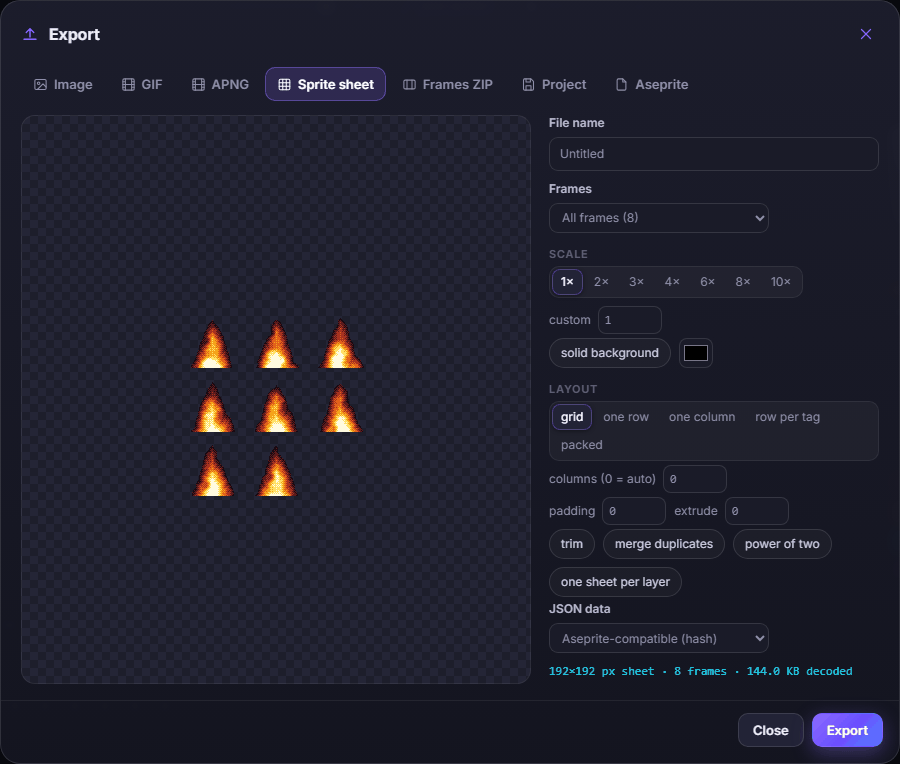
Click Export (or press Ctrl+Shift+E) and choose a tab:
- Image — a PNG of the current frame.
- GIF and APNG — animated images.
- Sprite sheet — all frames in one image: grid, one row, one column, row per tag or packed, with scale, padding, trim and JSON data (Aseprite-compatible) for game engines.
- Frames ZIP — every frame as its own PNG.
- Project — a .pxvi file that keeps everything (layers, tags, lights) for later editing.
- Aseprite — an .aseprite file.
Also:
- The Send to App button (paper plane) sends your animation, a frame, a sprite sheet or the palette to another Pixx app, such as Pixxula for atlases or Pixxifo for GIF loops.
- The Library button opens things saved in your Pixx library; the Cloud button shows sync status and your projects.
#Tips and shortcuts
- Tools: B pencil, E eraser, R shading, G fill, I picker, Q lasso, W magic wand, V move, T tile stamp, H hand, Z zoom.
- Ctrl+Z / Ctrl+Y undo and redo, Ctrl+S saves, Ctrl+Shift+S downloads the project, Enter plays.
- Hold Space and drag to pan; scroll to zoom.
- On a tablet: draw with the pen, pan and pinch-zoom with two fingers, two-finger tap to undo, three-finger tap to redo, long-press for the colour picker.
- Mirror drawing (Shift+X / Shift+Y) draws symmetric sprites.
- On iPhone and iPad, add Pixxivi to your Home Screen for a full-screen app that keeps your projects safely.
#Troubleshooting
- If you can't draw, check that the current layer isn't locked or hidden, and that alpha lock is off.
- If an exported GIF looks different, remember lighting is a preview until you Bake it, and reference layers are never exported.
- If a project is missing on another device, sign in on both devices; synced projects appear after a moment.
- If the app feels slow on a huge animation, lower the onion skin count or hide layers you aren't working on.
#Related guides
- Pixxato — convert photos into pixel art first
- Pixxula — pack your frames into sprite sheets and atlases
- Pixxifo — make GIF and loop animations
- Send to App
- Plans and billing