#What Pixxevi is for
Pixxevi makes looping pixel-art weather and environments for games and videos: rain, snow, fog, fireflies, embers, auroras, lightning and 40 more effects. You can stack them over a transparent background as an overlay for your own game, or build a full scene with sky, sun or moons, mountains, forests, ruins and ground.
Every animation loops seamlessly: the last frame flows straight back into the first.
#Your first looping scene in 5 minutes
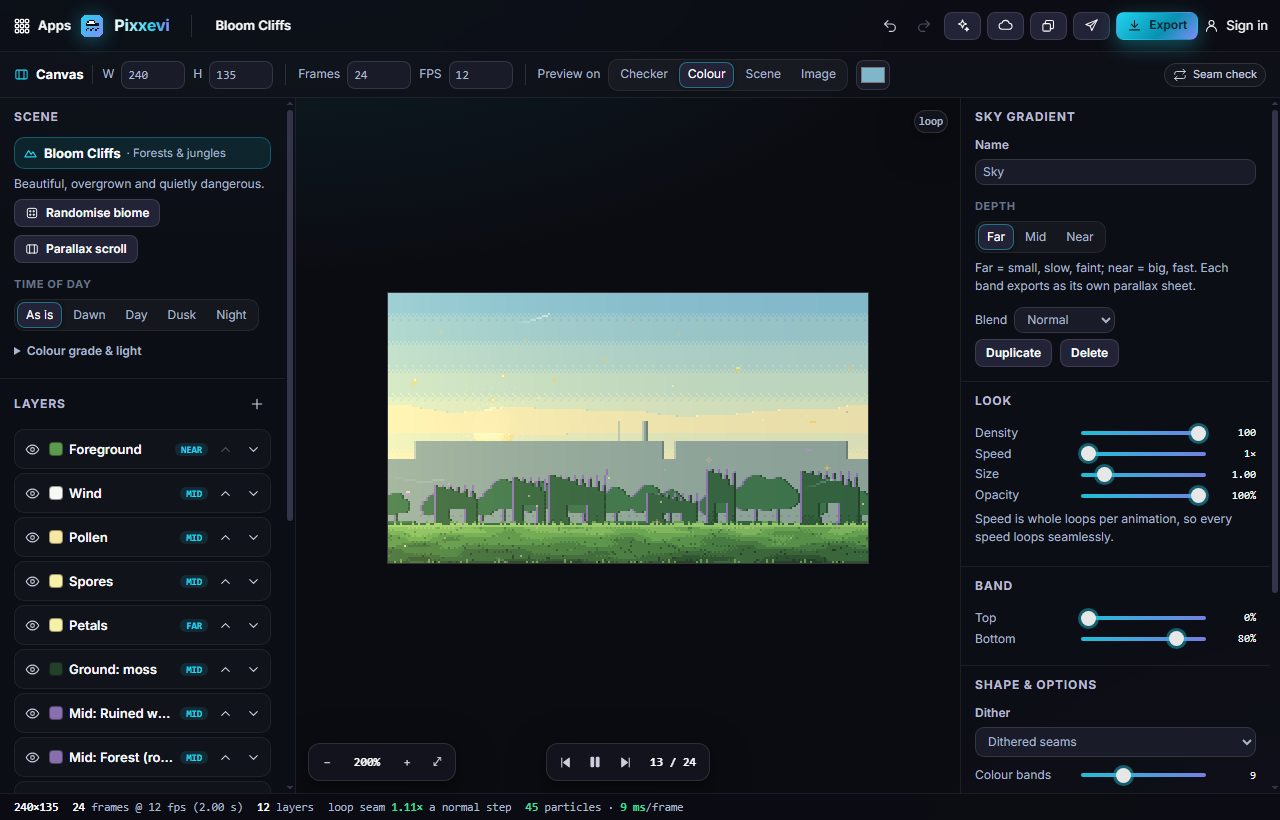
- Open Pixxevi. It starts on a ready-made biome scene, so you can see what it does right away.
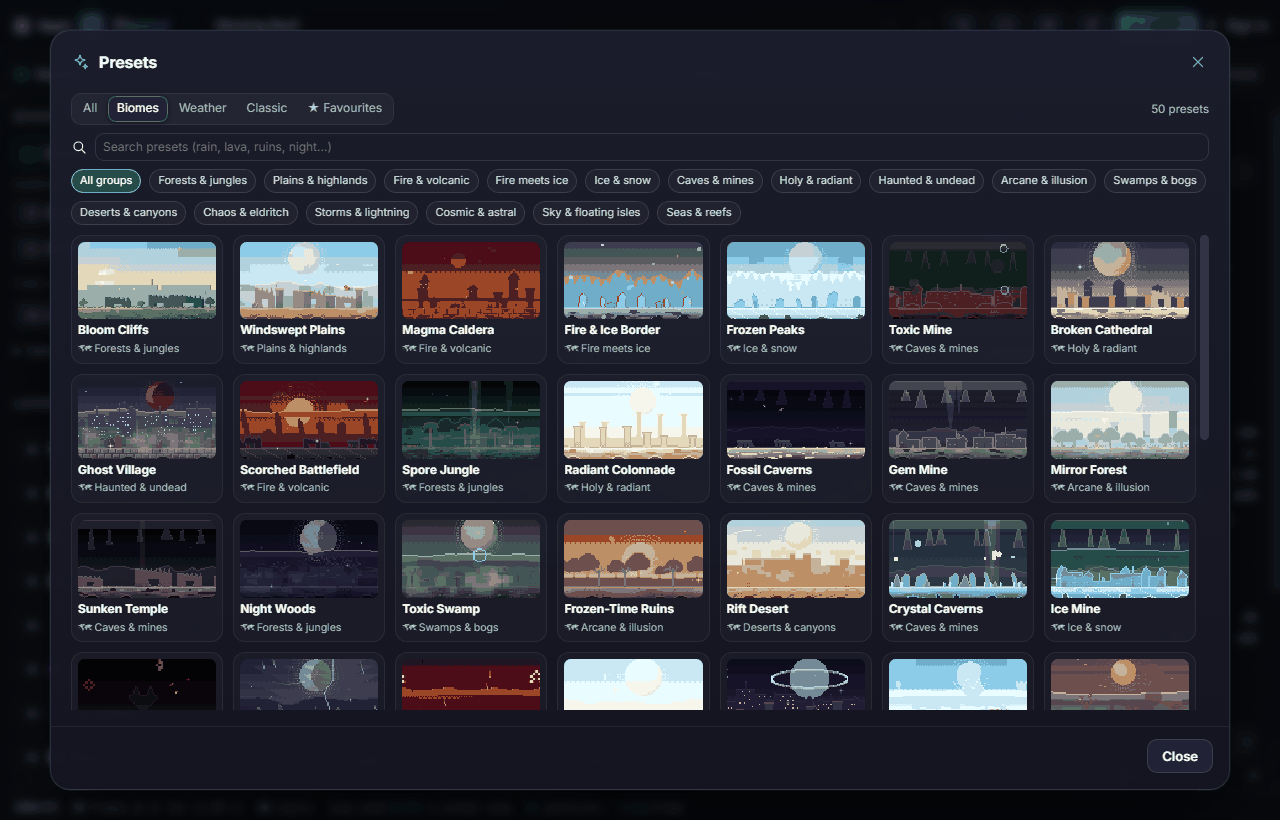
- Click Presets (the sparkle icon in the top bar), open the Biomes tab and pick a scene, for example Magma Caldera or Frozen Peaks. Hover a card to see it move.
- Press Space to play. Use Time of day on the left (Dawn, Day, Dusk, Night) to change the mood.
- Click Randomise biome for a fresh variation of the same place.
- Click Export, choose GIF and click Download.
#How-tos
#How to find the right preset
- Click Presets in the top bar.
- Choose a tab: Biomes (50 full scenes), Weather (transparent overlays such as light rain or a monsoon), Classic or Favourites.
- Narrow it down with the group chips (Ice & snow, Fire & volcanic, Swamps & bogs…) or type in the search box: rain, lava, ruins, night…
- Click the star on a card to save it to Favourites.
#How to add your own weather on top
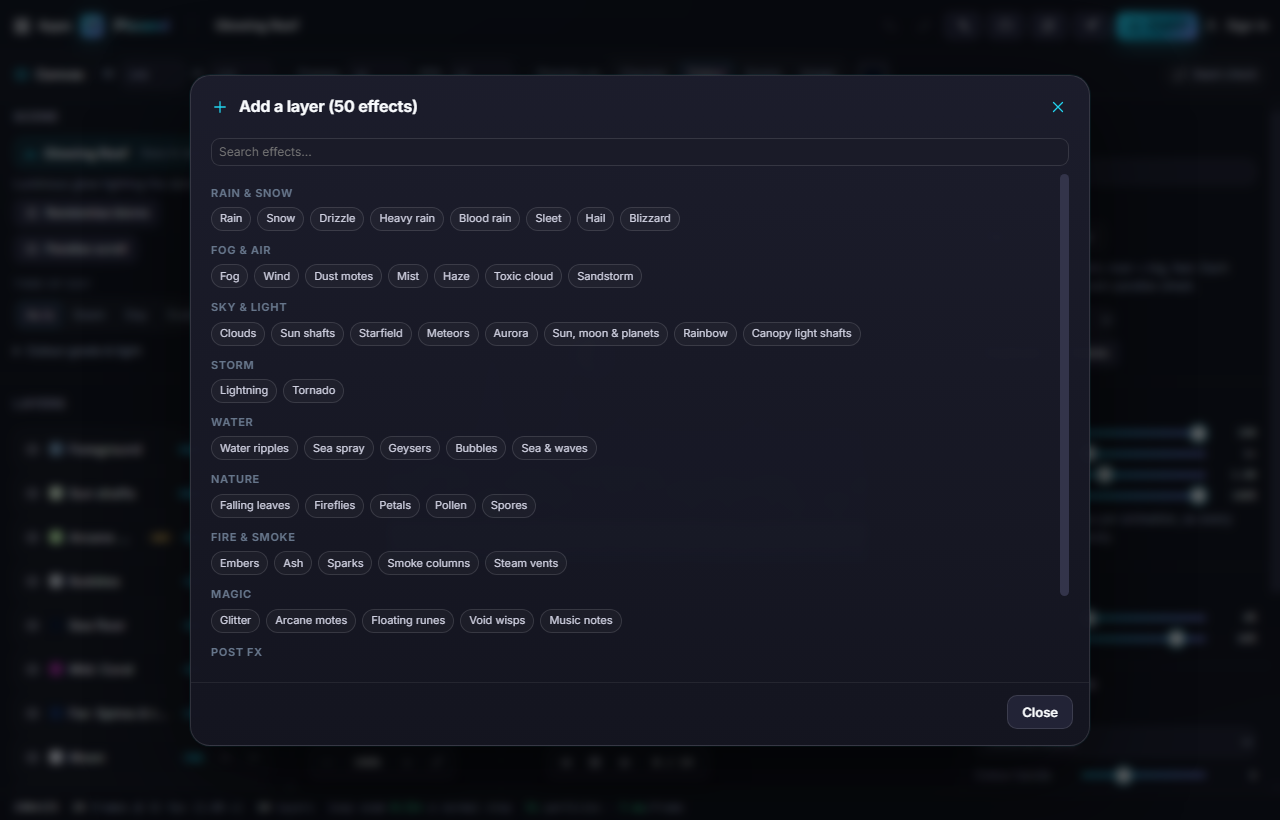
- In Layers on the left, click +.
- Pick an effect: rain, snow, fog, fireflies, embers, meteors, aurora, floating runes and many more, grouped by type.
- Its settings appear on the right. Adjust Density, Speed, Size and Opacity, and pick its colours.
#How to create depth (parallax)
- Select a layer and set Depth to Far, Mid or Near. Far effects are small, slow and faint; near ones are big and fast.
- Click Parallax scroll to slide the scenery sideways while it loops, like a side-scrolling game background.
- When you export, each depth band can become its own sheet, ready for parallax in your game engine.
#How to change the look and lighting
- Under Time of day, pick Dawn, Day, Dusk or Night.
- Open Colour grade & light for tint, brightness, contrast, saturation and glow.
- Select a layer to change its Blend mode (for example, Add makes embers glow).
#How to set the size, length and speed of the loop
- In the Canvas bar, set W and H (up to 480 × 480 pixels per frame), Frames (how many frames the loop has) and FPS (how fast it plays).
- A layer's Speed counts whole loops, so any speed you pick still loops seamlessly.
- Use Preview on to view your loop over a checkerboard, a colour, a sample scene or your own image.
#How to check the loop is seamless
The footer shows the loop seam score: around 1× means the jump from the last frame to the first looks like any other frame. Click Seam check to replay the moment the loop wraps around slowly.
#How to reorder, hide and duplicate layers
- Drag a layer in the list to reorder it (or use its arrows). Layers lower in the list are drawn first.
- Click the eye icon to hide a layer.
- With a layer selected, use Duplicate or Delete on the right.
- Press R to re-roll a layer's random pattern.
#Exporting and sharing
Click Export to choose:
- What to export: Full scene, or Effects only (no sky / scenery) for a transparent weather overlay.
- Format: sprite sheet PNG with a data file, GIF, APNG, animated WebP, PNG frames ZIP, one sheet per layer, or parallax layers (one sheet per depth band).
- Background: Transparent, or Bake the preview colour.
- Scale (1–8×, crisp pixels) and an optional Palette lock.
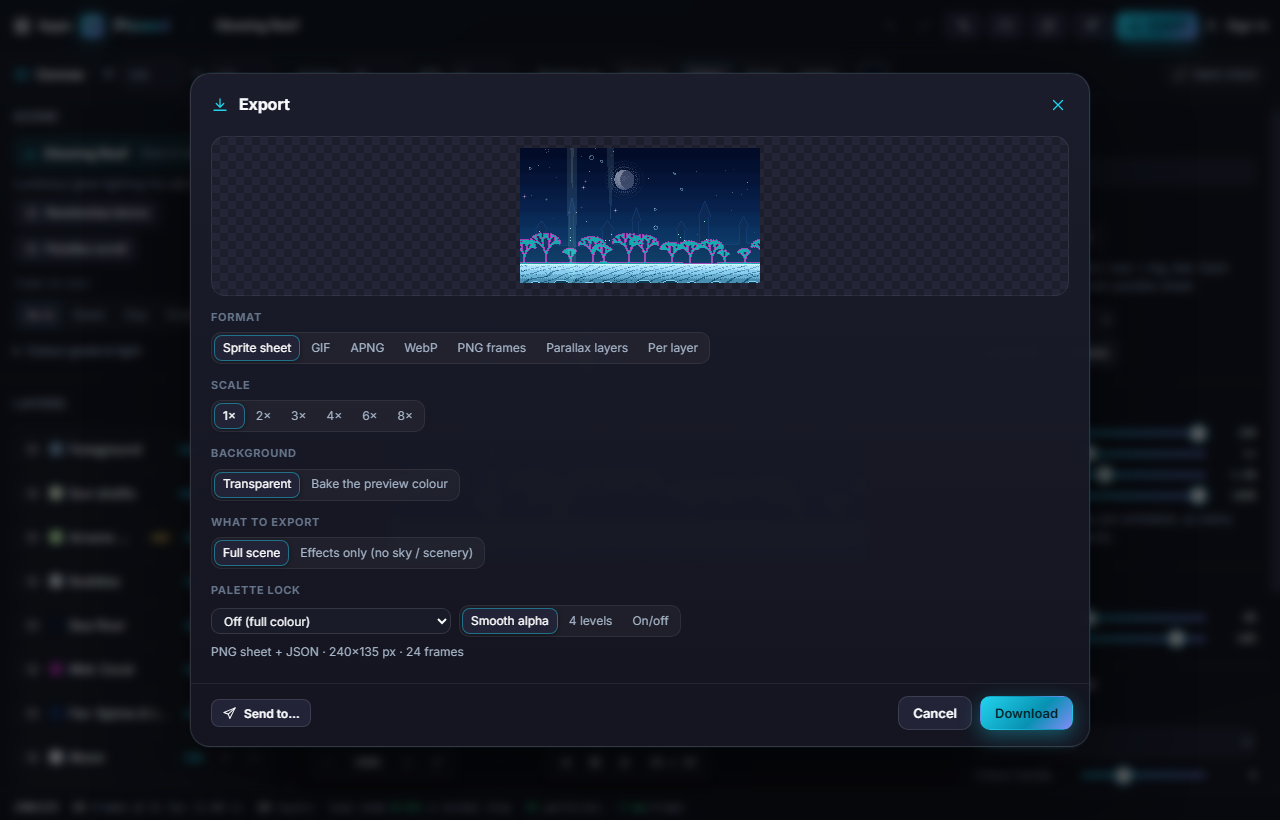
Send to… sends the loop as frames or a sheet, or its colours as a palette, to another Pixx app such as Pixxifo or Pixxori. Library can bring in a palette (it recolours the selected layer). See Send to App.
#Tips and shortcuts
- Space play · ← / → step · Ctrl+Z / Ctrl+Y undo / redo · Ctrl+D duplicate layer · Delete remove layer · R re-roll · 0 fit · Ctrl+S export.
- The footer's particle count and ms per frame tell you how heavy a scene is. Fewer layers or lower density render faster.
- Weather presets are transparent, so they sit nicely over your own game art.
- On a phone, the layer list and settings open as bottom sheets.
#Troubleshooting
- If the preview stutters, lower the density of the busiest layer or reduce the canvas size.
- If WebP export is missing, your browser can't make WebP; use GIF or APNG.
- If a GIF loses soft glows or fog edges, export APNG or WebP, or bake a background colour.
- If your scene looks too dark at night, open Colour grade & light and raise the brightness, or choose Dusk.