#What Pixxibu is for
Pixxibu makes 8-bit and retro-style sound effects for games: coin pickups, jumps, lasers, hits, explosions, power-ups, menu blips and magic spells. One click gives you a fresh sound, and sliders let you shape it until it fits. There are also 25 ready-made spell kits (Frost, Fire, Storm, Shadow and more), each with ten sounds for casting, impacts, buffs and big ultimates.
No audio experience is needed: click, listen, tweak, export.
#Your first sound in 5 minutes
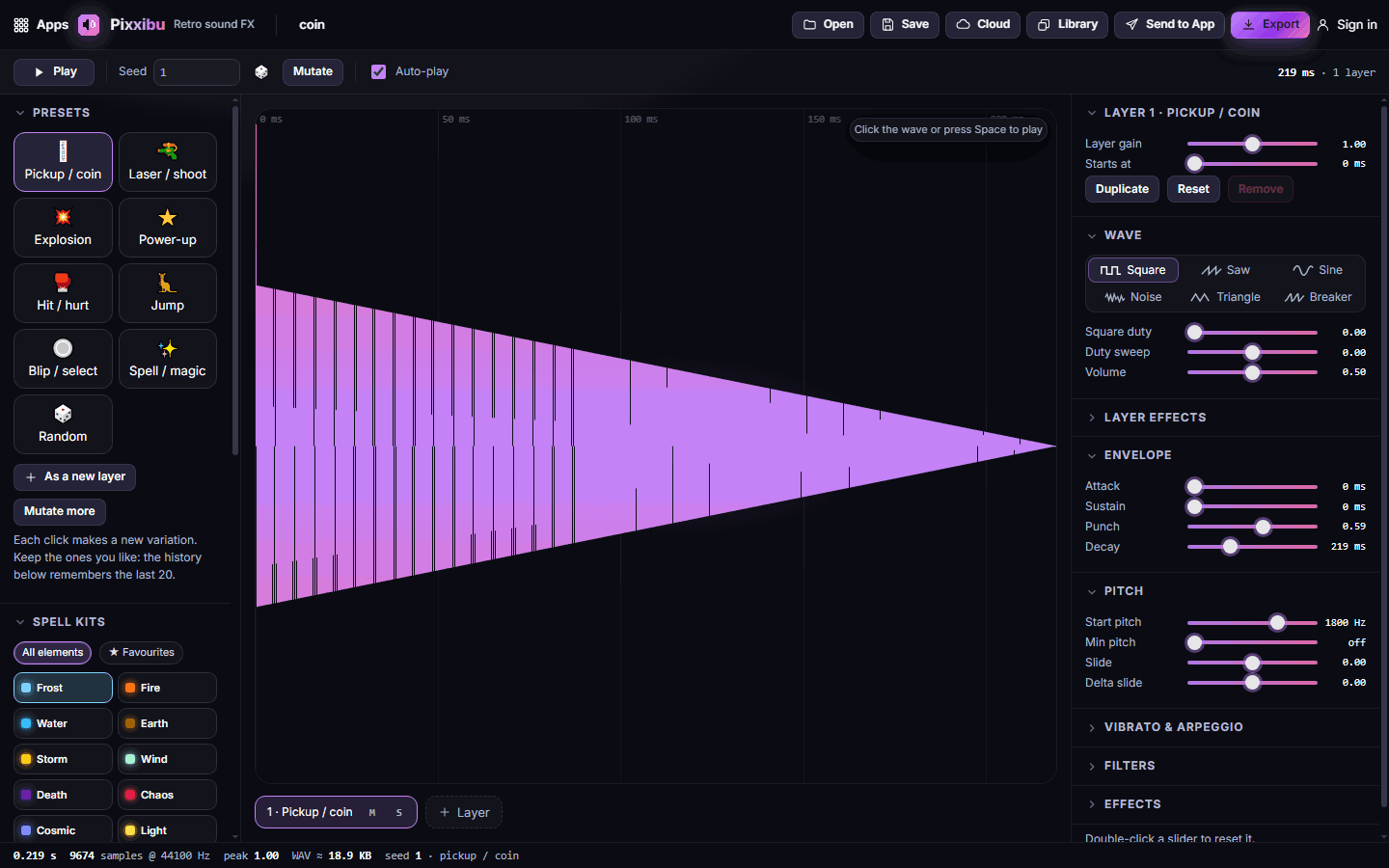
- Open Pixxibu. A coin sound is loaded; click the waveform or press Space to hear it.
- In Presets on the left, click Laser / shoot. A new laser sound is generated and played.
- Don't like it? Click Laser / shoot again for another variation, or click Mutate in the options bar to nudge the current sound slightly.
- In the right panel, drag Decay under Envelope to make the sound longer or shorter.
- Click Export, keep 16-bit and 44.1 kHz, and click Download WAV.
#How-tos
#How to make a sound from a preset
- In Presets, click Pickup / coin, Laser / shoot, Explosion, Power-up, Hit / hurt, Jump, Blip / select, Spell / magic or Random.
- Every click makes a new variation. With Auto-play ticked, it plays straight away.
- The History list remembers your last 20 sounds; click one to bring it back.
- The Seed box shows the number behind the sound. Type the same seed later to get exactly the same sound again.
#How to use the spell kits
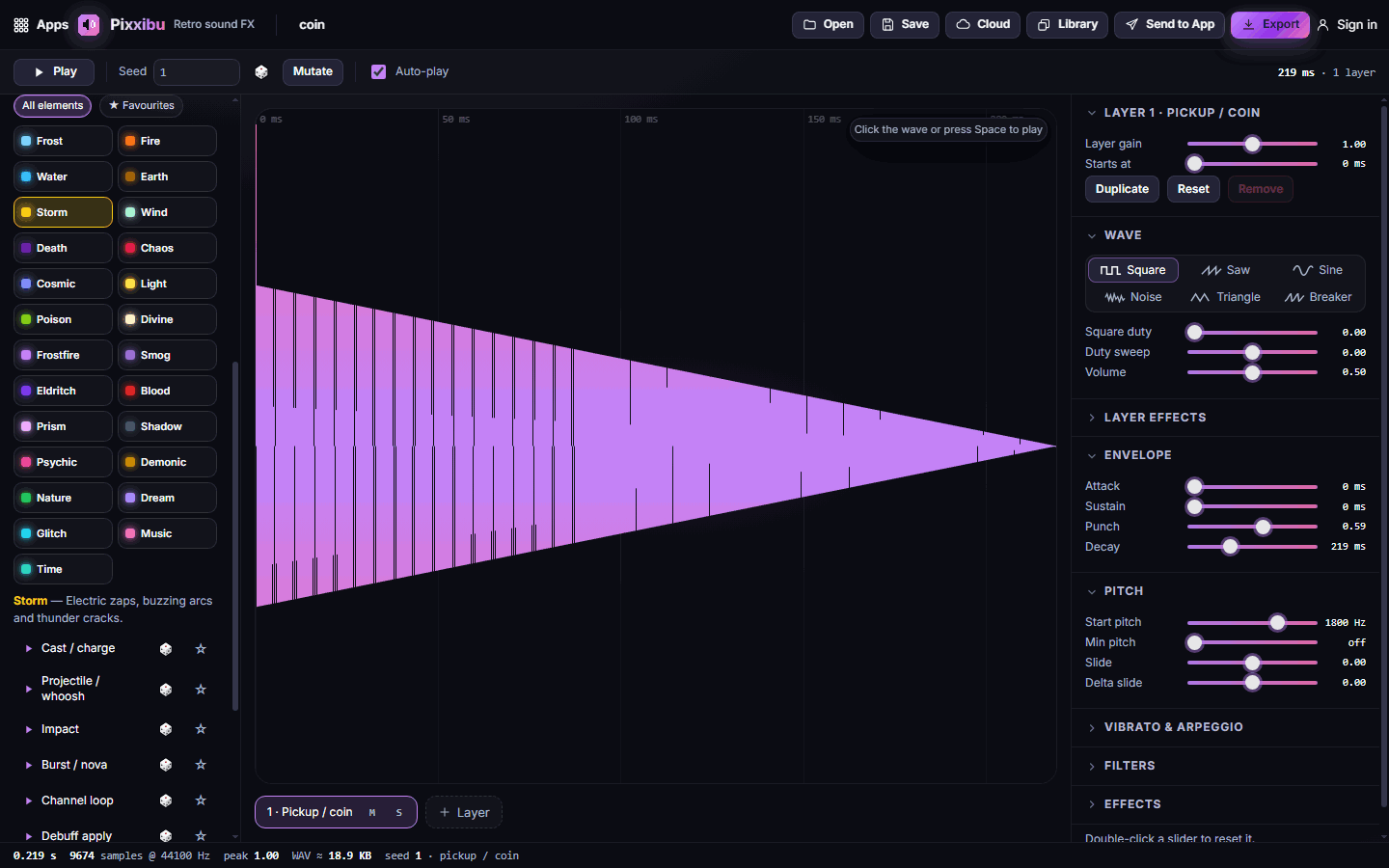
- Scroll the left panel down to Spell kits.
- Pick an element: Frost, Fire, Water, Earth, Storm, Wind, Death, Chaos, Cosmic, Light, Poison, Divine, Frostfire, Smog, Eldritch, Blood, Prism, Shadow, Psychic, Demonic, Nature, Dream, Glitch, Music or Time. A short line describes its character, for example "Electric zaps, buzzing arcs and thunder cracks" for Storm.
- Click a role to load and hear it: Cast / charge, Projectile / whoosh, Impact, Burst / nova, Channel loop, Debuff apply, Debuff tick, Buff / boon, Heal or Ultimate.
- Click 🎲 next to a role for a variation, or ☆ to save it to Favourites.
- A loaded kit sound is fully editable, just like any other sound.
#How to shape a sound
The right panel groups the settings. Double-click any slider to reset it.
- Wave: the basic tone. Square is classic 8-bit, Saw is buzzy, Sine is soft, Noise is for explosions and hits, Triangle is mellow, Breaker is metallic.
- Envelope: Attack (fade in), Sustain (hold), Punch (a loud start) and Decay (fade out) set the length and shape.
- Pitch: Start pitch, plus Slide and Delta slide to make it rise or fall, as in a jump or a laser.
- Vibrato & arpeggio: wobble, or quick note steps for a power-up jingle.
- Filters: low-pass and high-pass make a sound duller or thinner.
- Effects: Repeat speed, phaser and tremolo.
- Volume sits in the Wave section.
#How to add layer effects
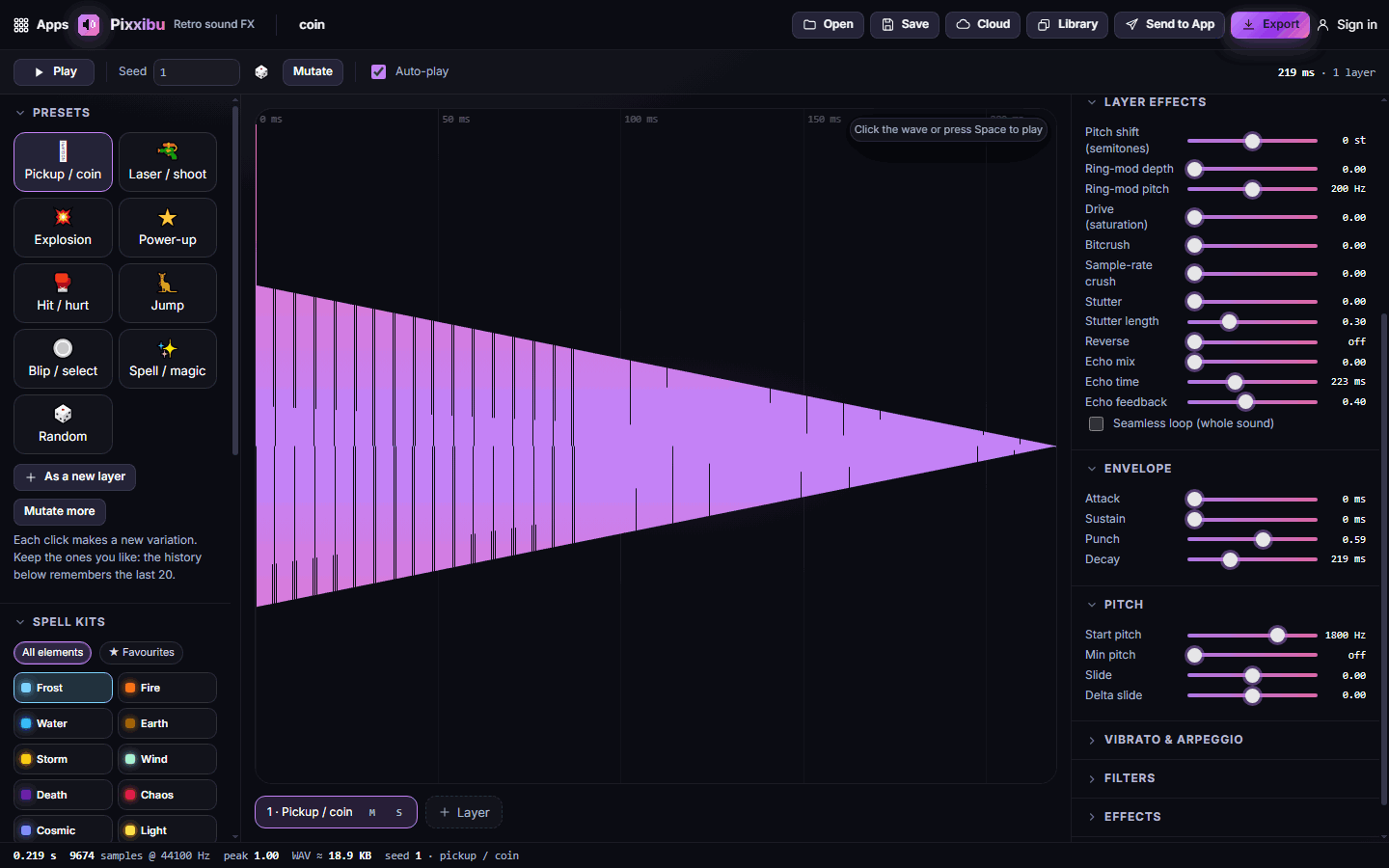
- Open Layer effects in the right panel.
- Use Pitch shift (semitones), Ring-mod depth and Ring-mod pitch (metallic tones), Drive (saturation), Bitcrush and Sample-rate crush (lo-fi), Stutter and Stutter length, Reverse, and Echo mix, Echo time and Echo feedback.
- Tick Seamless loop (whole sound) for sounds that repeat, such as a charging beam.
#How to layer several sounds
- Click + Layer under the waveform to add a second sound, or As a new layer under Presets to add a preset as a layer.
- Each layer has its own settings. Click its tab under the waveform to edit it.
- Use Layer gain to balance the volume and Starts at to delay a layer, such as an explosion's rumble after the initial crack.
- The M (mute) and S (solo) buttons on each layer tab help you listen to parts separately. You can mix up to 4 layers.
#Exporting and sharing
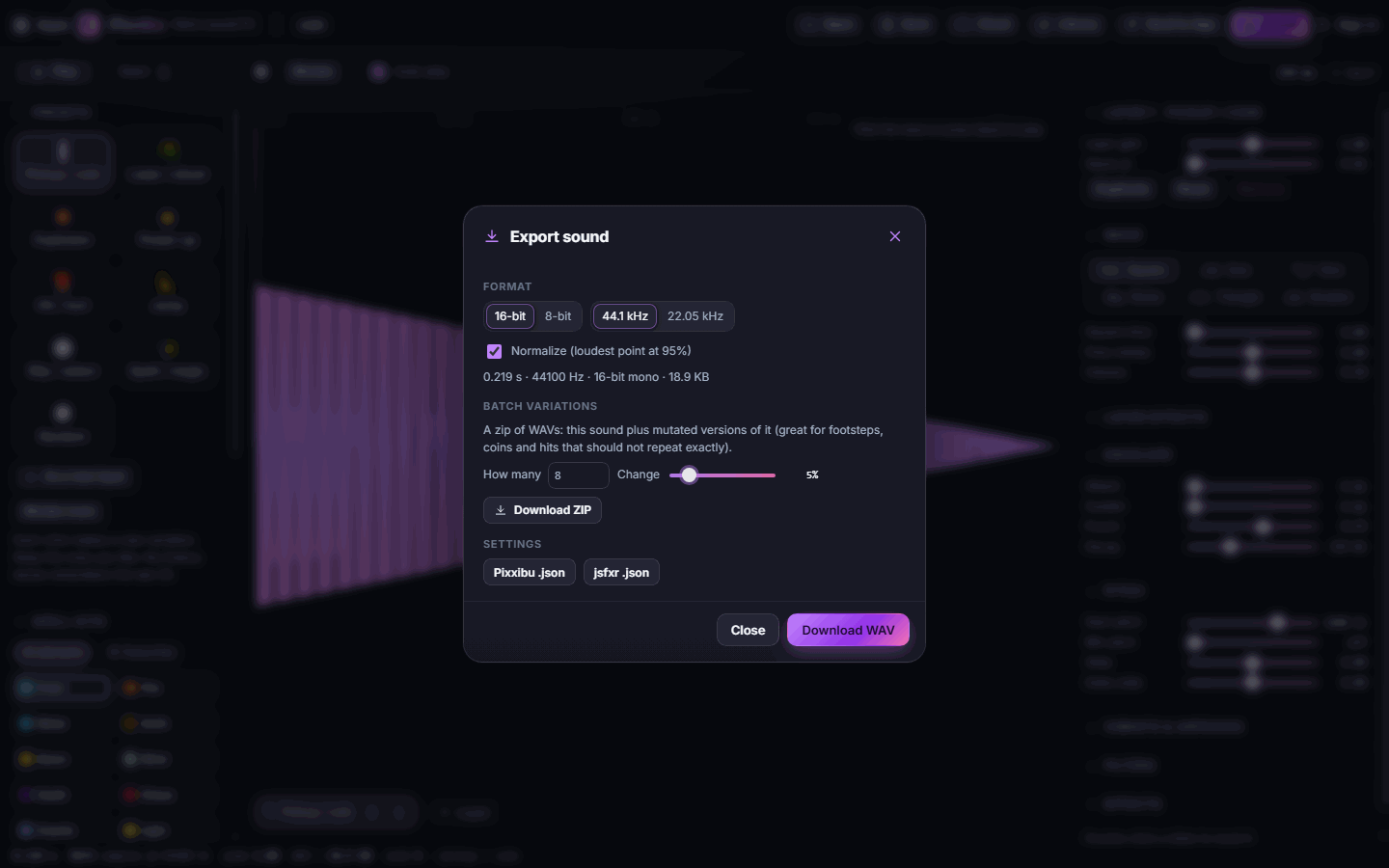
Click Export (Ctrl+S) to open Export sound:
- Format: 16-bit or 8-bit, 44.1 kHz or 22.05 kHz. 16-bit at 44.1 kHz suits most games.
- Normalize makes the sound as loud as possible without distortion.
- Download WAV saves the sound.
- Batch variations creates a zip of slightly different versions, which is great for footsteps, coins or hits that shouldn't sound identical every time. Set How many and Change, then click Download ZIP.
- Settings saves the sound's recipe as a Pixxibu .json, or as a jsfxr .json that works in the jsfxr tool.
Open loads Pixxibu or jsfxr settings files and WAV files. A WAV you open can be played and exported, but not edited with the sliders. Save keeps a project, Cloud saves it to your account, and Send to App or Library shares the sound through your Pixx library.
#Tips and shortcuts
- Space play and stop · M mutate · Ctrl+O open · Ctrl+S export · Esc close windows.
- Click anywhere on the waveform to play.
- Short, punchy sounds usually work best in games: keep Decay low for UI blips and hits.
- Your sound saves on this device automatically.
#Troubleshooting
- If you hear nothing, click once anywhere on the page first (browsers only allow sound after a click), and check your device volume.
- If a sound is too quiet, tick Normalize in the export window or raise Volume.
- If a sound clips or crackles, lower Drive or the layer gains.
- If a loop clicks when repeating, tick Seamless loop (whole sound) under Layer effects.
#Related guides
- Pixxani for the spell animations to go with your sounds
- Your Pixx library
- Plans and billing