#What Pixxkit is for
Pixxkit makes the pictures, posts and pages you need to launch a game. You set up your brand once: name, tagline, logo style, colours, pixel fonts, key art, characters and screenshots. Pixxkit then fills 46 templates at the exact sizes Steam, itch.io, the console and mobile stores, social networks and email apps ask for.
Your pixel art stays crisp. It is only ever scaled by whole numbers, so every pixel stays a sharp square. A checklist tells you when a required size is missing, text is too small to read, or something sits outside a platform's safe area.
#Your first Steam capsule in 5 minutes
- Open Pixxkit. A sample game, Starfall Knight, is already loaded so you can see how everything fits.
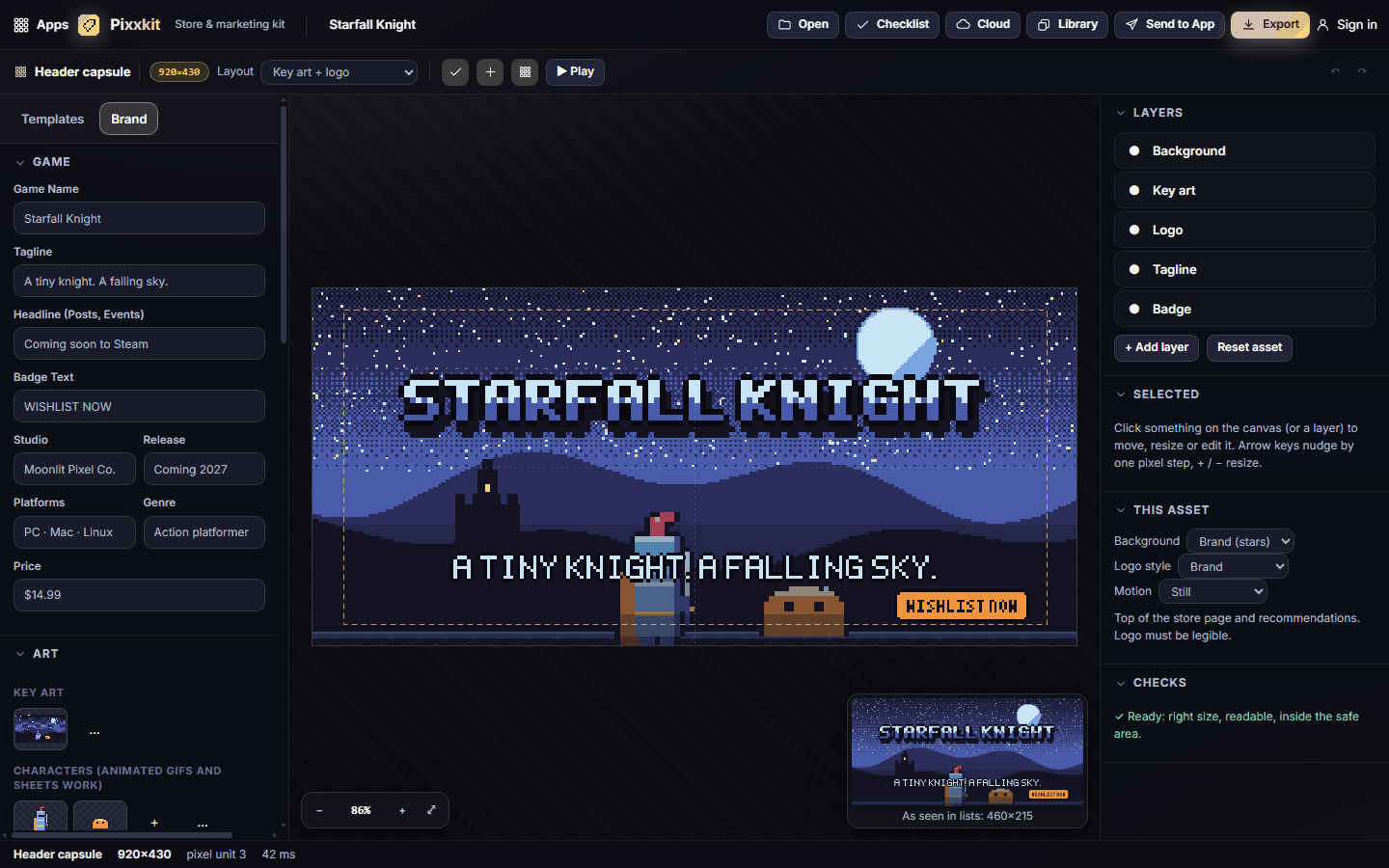
- Click Brand on the left. Type your game's name and tagline under Game. Every template updates.
- Under Art, click + next to Key art and pick a wide picture of your game. Add a character and a few screenshots the same way.
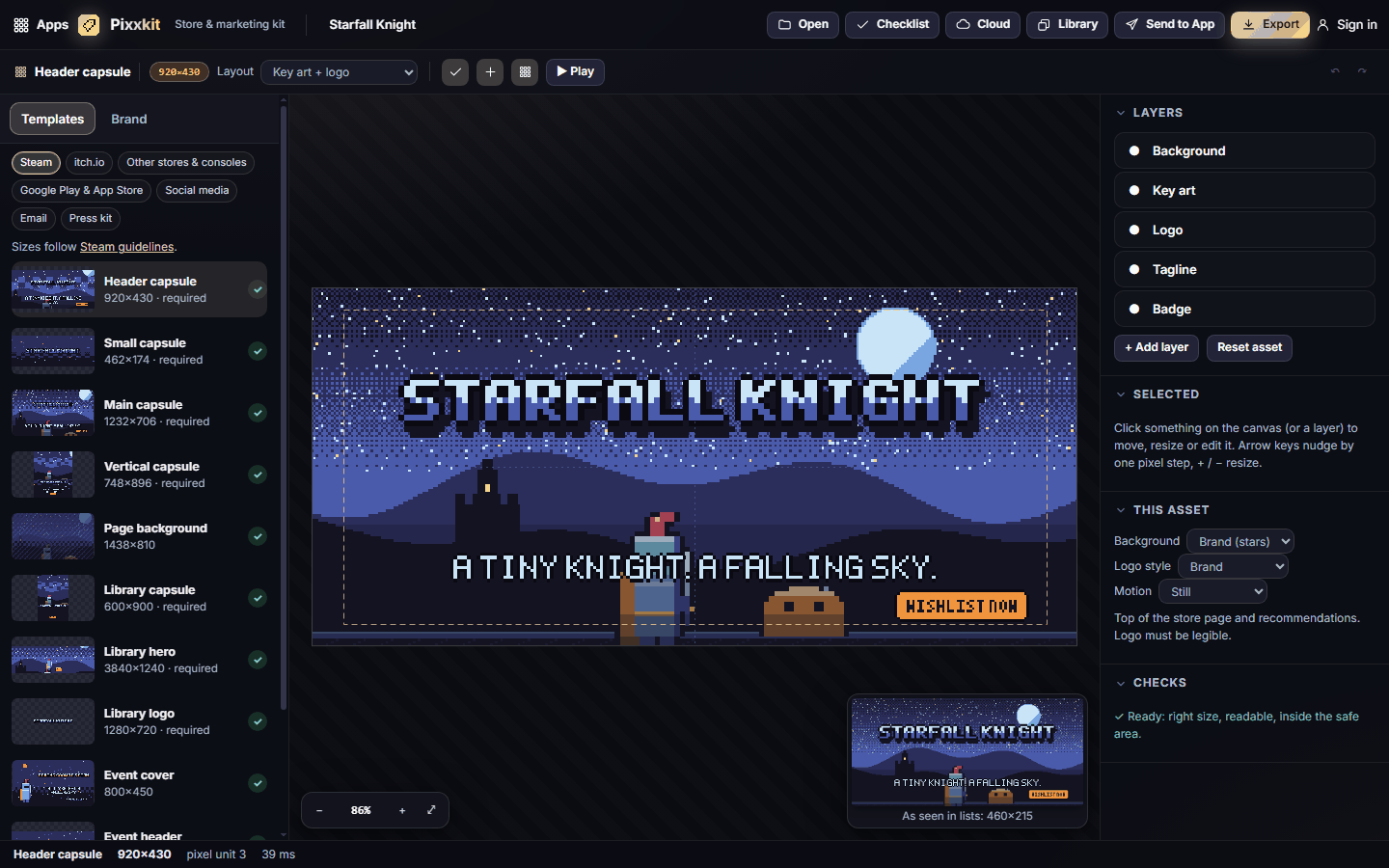
- Click Templates, then Steam, then Header capsule. Try another design from Layout in the bar above the canvas.
- Click Export, choose This asset, and Download. You get a PNG at exactly 920×430.
#How-tos
#How to set up your brand
- Click Brand at the top of the left panel.
- Under Game, fill in the name, tagline, headline (used on posts and event art), badge text (for example WISHLIST NOW), studio, release, platforms, genre and price.
- Under Colours, click a swatch to change it, + to add one, or Load a palette… to start from a classic palette. Pixxkit picks a background, text and accent colour for you. To choose them yourself, set the Roles dropdowns.
- Keep an eye on the line under the roles: it tells you if your text colour is hard to read on your background.
- Under Background, choose Gradient, Radial, Stars, Pattern, Key art or Solid.
#How to make a logo
- In Brand, open Logo. You see your game's name in ten styles: Classic, Bevel, Long shadow, Arched, Wave, Stacked, Icon lockup, Emblem, Banner and Neon.
- Click a style to use it everywhere. Each style gets an outline, shadow or gradient from your colours.
- Pick a Title font and a Text font. All six fonts are pixel fonts drawn for Pixxkit.
- For Icon lockup and Emblem, set an Icon under Art (a small sprite works best).
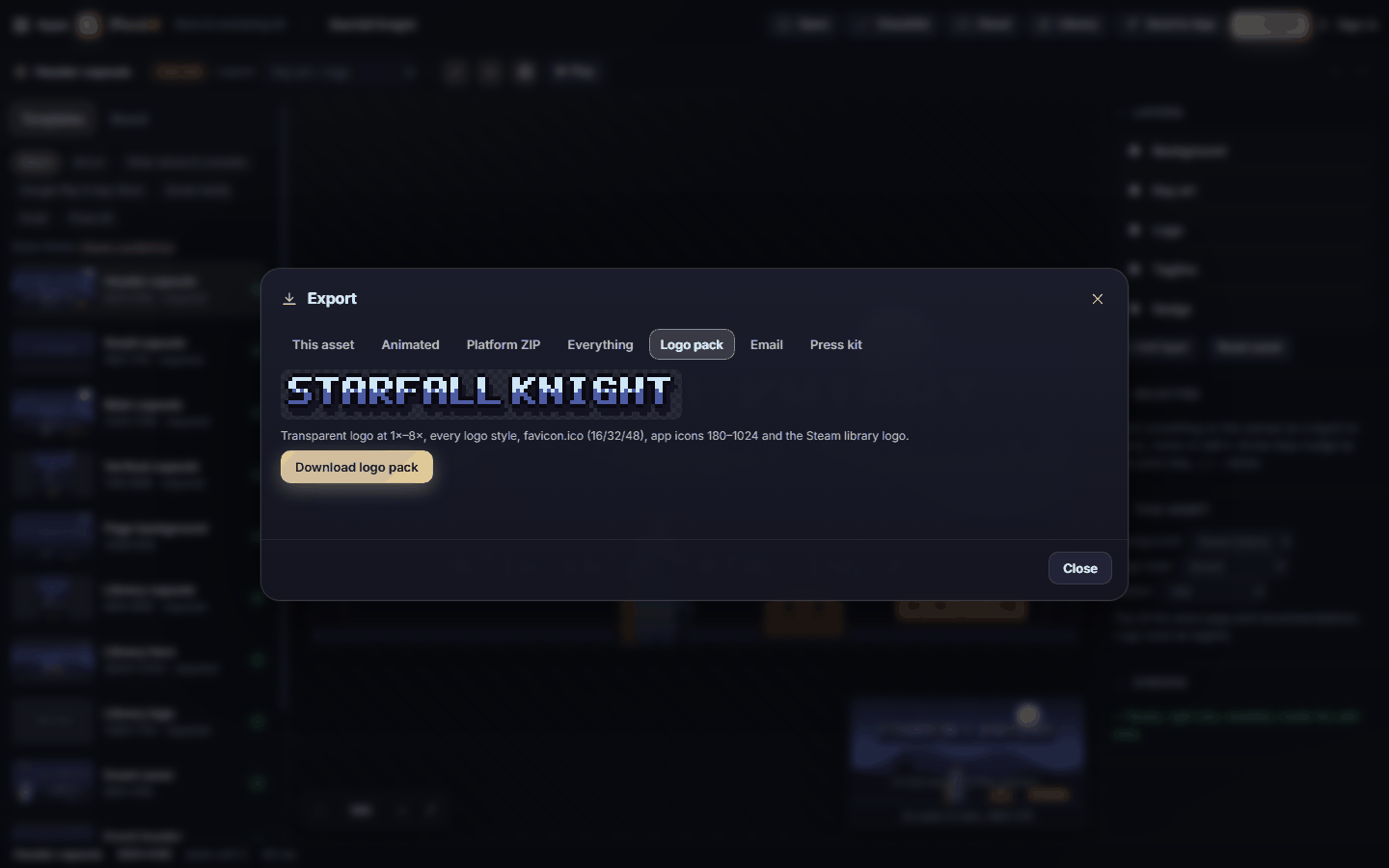
- Click Export the logo pack… to download the logo at 1× to 8×, every style, a favicon and app icons.
#How to add your art
- Drag images or GIFs onto the canvas, paste them with Ctrl+V, or click Open in the top bar.
- Pixxkit sorts them for you: a wide picture becomes the key art, an animation or small sprite becomes a character, and anything else becomes a screenshot.
- To change where something goes, use the + and … buttons beside Key art, Characters, Screenshots and Icon in Brand → Art.
- Move the Focus sliders so the important part of your key art stays in view when a template crops it.
#How to make social media posts
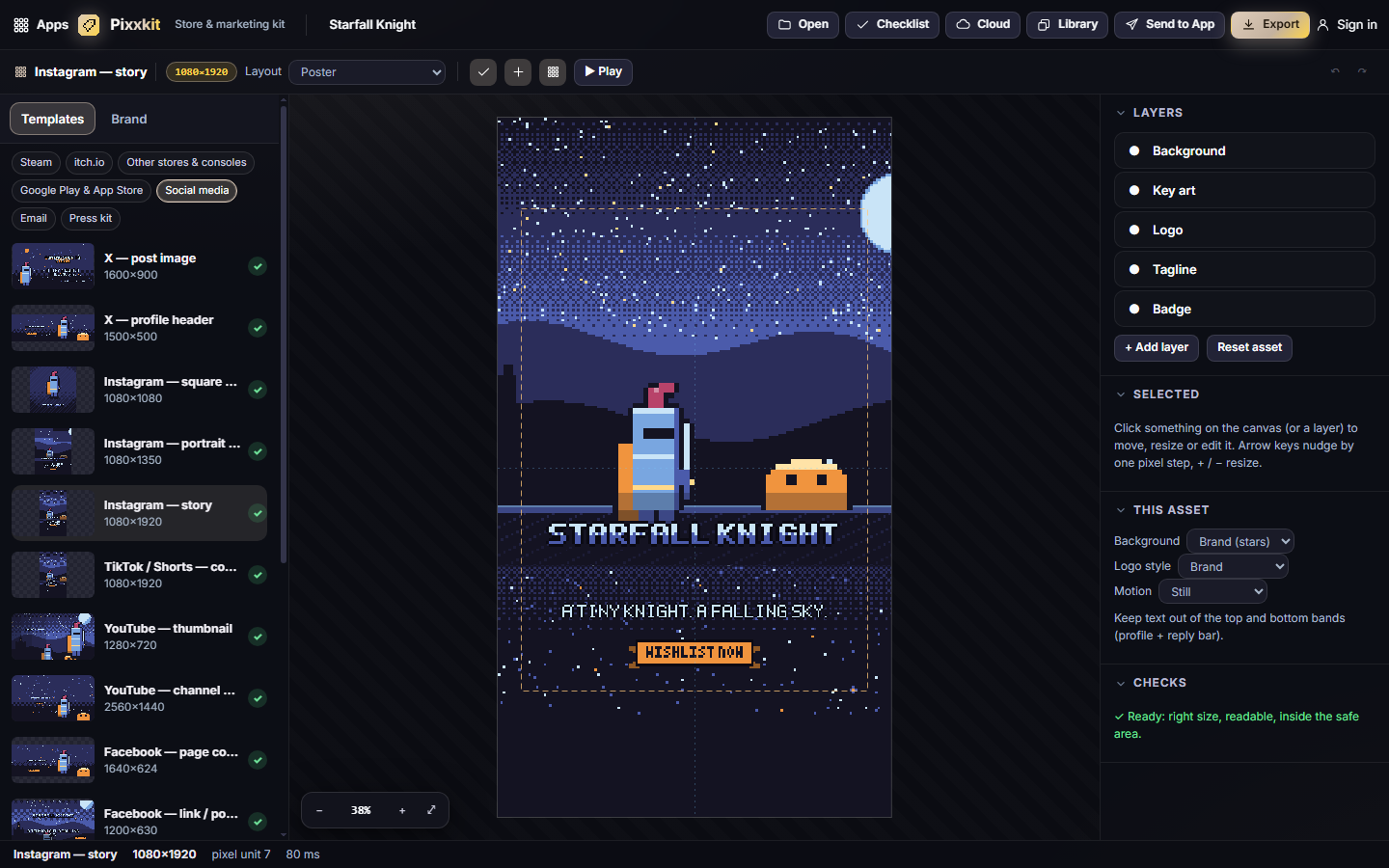
- Click Templates, then Social media.
- Pick a size: X post or header, Instagram square, portrait or story, TikTok or Shorts cover, YouTube thumbnail or channel banner, Facebook cover or post, LinkedIn banner, Discord icon, banner or announcement, or Reddit post or banner.
- Choose a Layout (for example Poster, Spotlight or Announcement).
- Turn on the safe-area button in the options bar to see where the app's own buttons cover your picture. Pixxkit keeps text inside it for you.
- Use the preview in the bottom-right corner to see how the picture looks at the size people scroll past it.
#How to move, resize or hide something
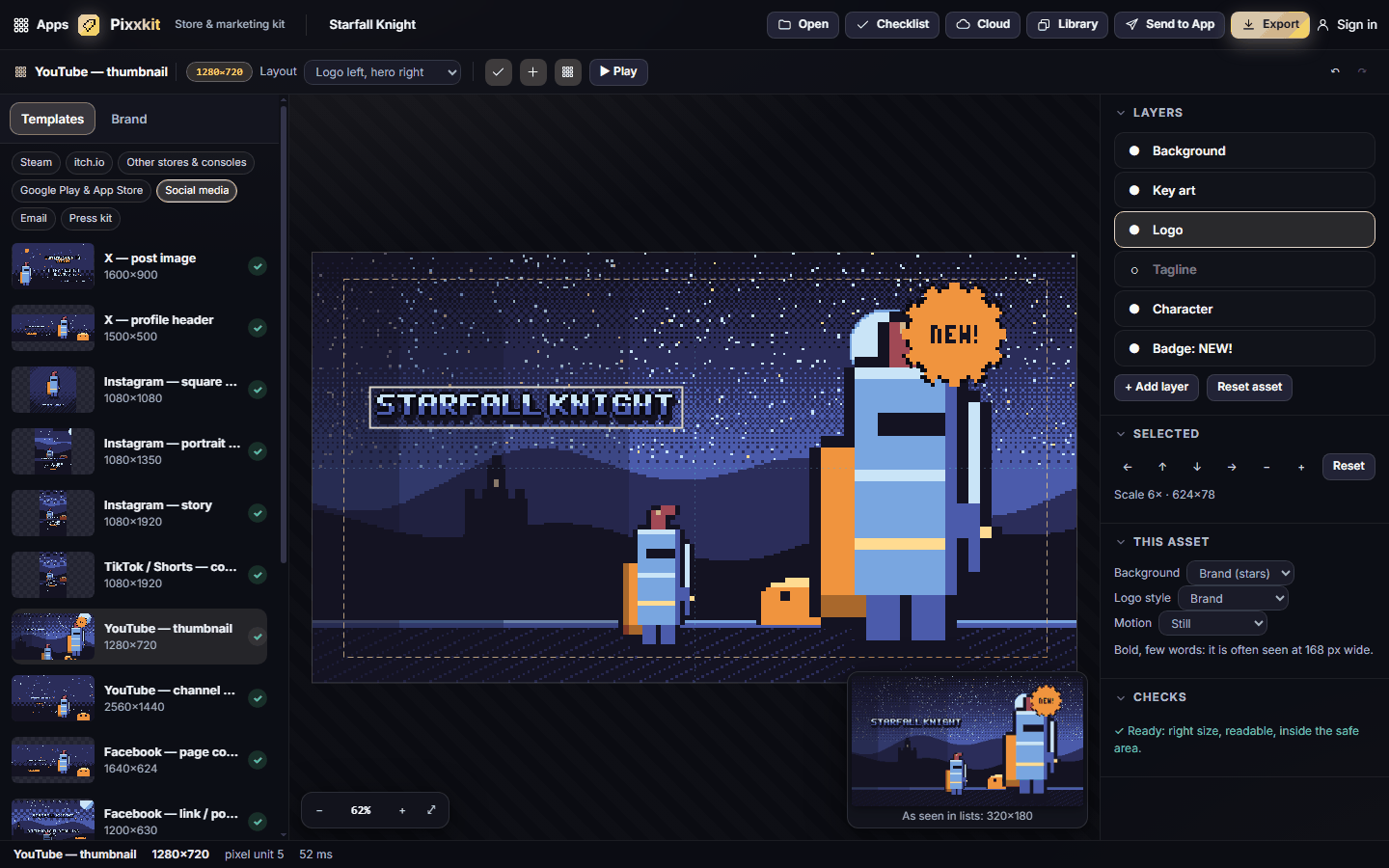
- Click the logo, tagline, badge or a character on the canvas, or click it in Layers on the right.
- Drag it. It snaps to the centre and to the safe-area edges.
- Use the arrows in Selected, or the arrow keys, to nudge it. Use − and + to resize it in whole steps, so the pixels stay sharp.
- Click the dot in front of a layer to hide or show it.
- Click Reset asset to go back to the brand's version of this template.
#How to add text, badges and shapes
- In Layers, click + Add layer.
- Choose Text, Badge, Shape (box), Shape (ellipse) or Image from this project….
- With the new layer selected, change its text, font, badge style, colour, size or opacity in Selected.
- Press Delete to remove the selected layer.
#How to make an animated teaser
- Add an animated character (a GIF, or frames sent from another Pixx app).
- In This asset on the right, pick a Motion: Shine, Bounce or Pulse.
- Click ▶ Play to preview it.
- Click Export, choose Animated, set the frames, speed and GIF or APNG, and Download teaser.
#How to write a launch email
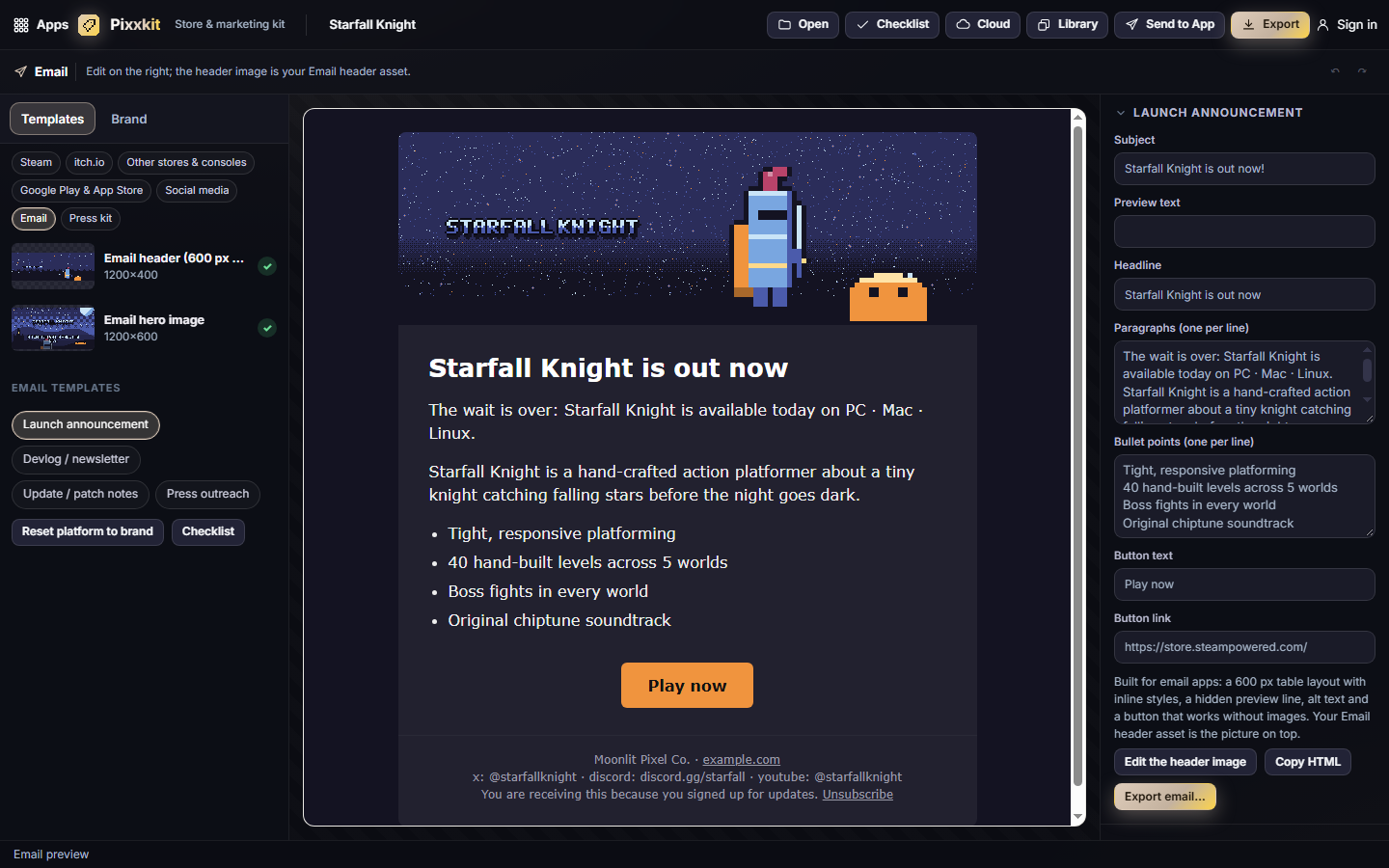
- Click Templates, then Email, then one of the four email templates: Launch announcement, Devlog / newsletter, Update / patch notes or Press outreach.
- Edit the subject, preview text, headline, paragraphs, bullet points and button on the right. The preview updates as you type.
- Click Edit the header image to change the picture at the top.
- Click Export email… to download the HTML and its header image, or Copy HTML to paste it into your mail service.
#How to build a press kit
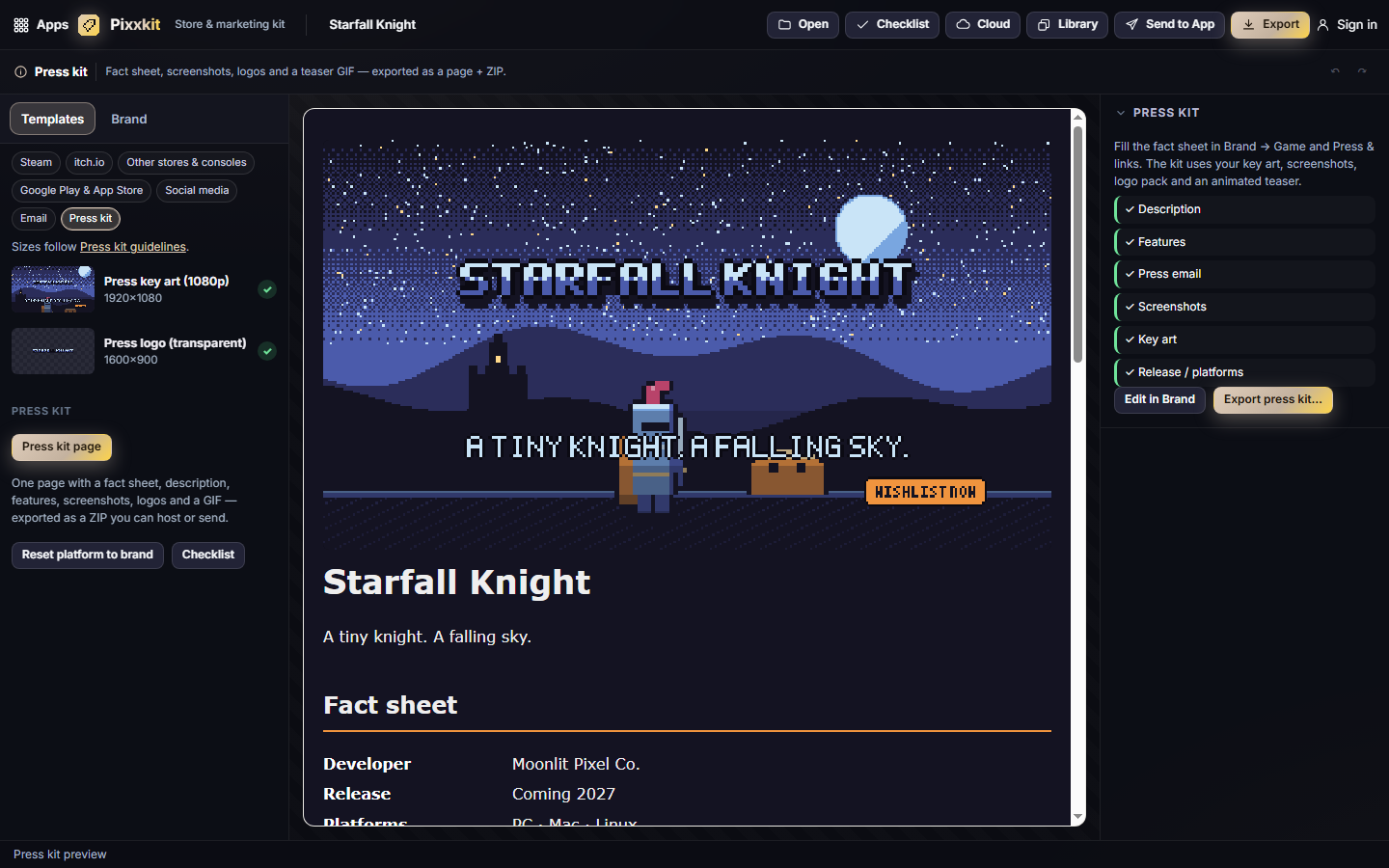
- Fill in Brand → Press & links: description, features (one per line), website, store page, press email and social links.
- Click Templates, then Press kit, then Press kit page. The right panel shows what is still missing.
- Click Export press kit…. You get a ZIP with a ready web page, a fact sheet, key art, screenshots, your logo and a teaser GIF.
#How to check you have everything a store needs
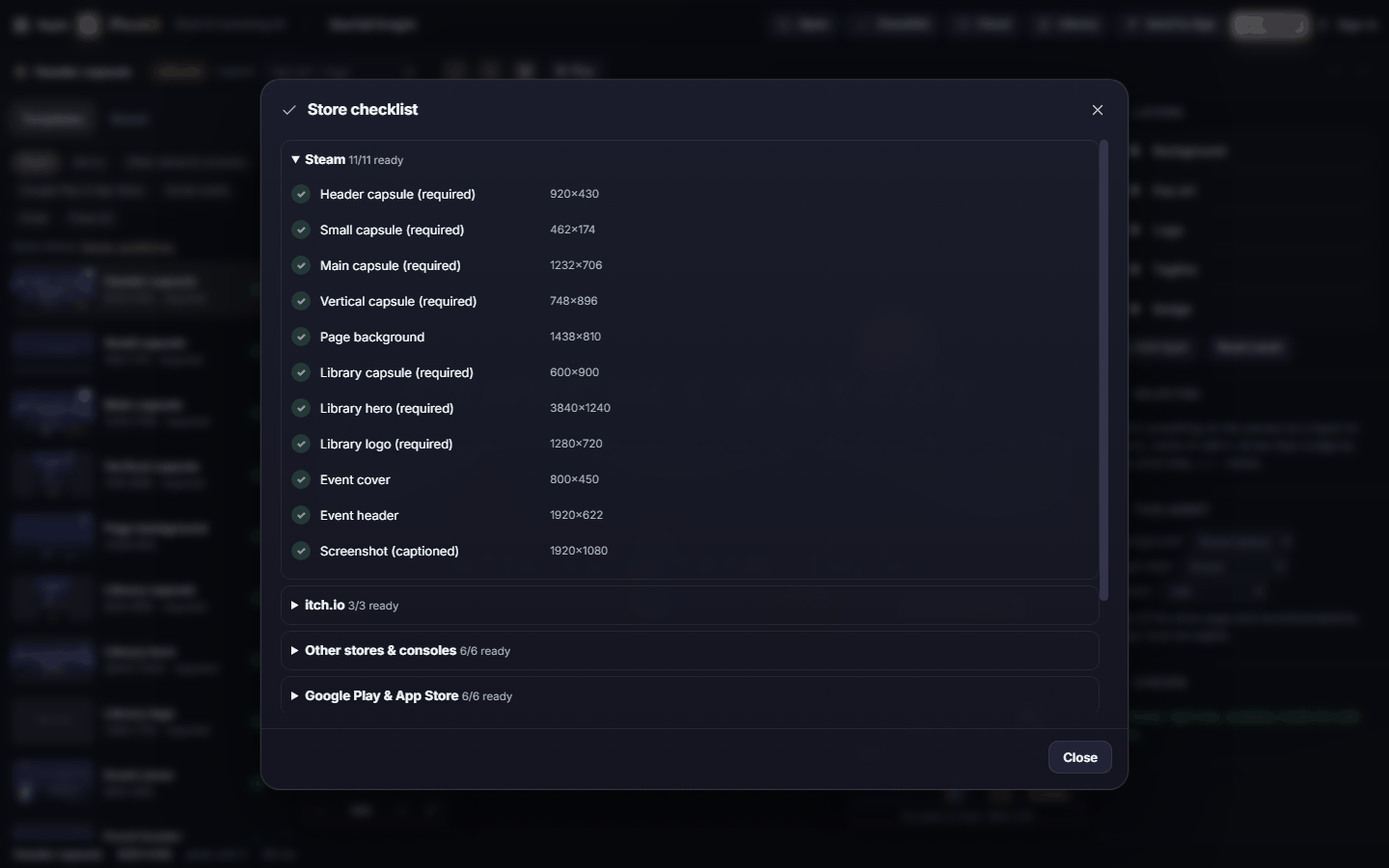
- Click Checklist in the top bar.
- Open a platform to see every size. A green tick means ready, a yellow ! means a warning, a red ✕ means it must be fixed.
- Click a row to jump straight to that template.
#Exporting and sharing
Click Export (or press Ctrl+S). The Export window has seven tabs:
| Tab | What you get |
|---|---|
| This asset | PNG, JPG or WebP at the exact size, or copy it |
| Animated | A GIF or APNG teaser of the current template |
| Platform ZIP | Every size for one platform, named and ready to upload |
| Everything | All 46 templates in folders by platform |
| Logo pack | Logo at 1×–8×, every style, favicon, app icons 180–1024, Steam library logo |
| The email HTML plus its header image | |
| Press kit | Web page, fact sheet, art, screenshots, logo and teaser GIF |
Files are named after your game, the template and its size, for example starfall-knight_steam_header_920x430.png.
Send to App sends the current template or the logo as an image, the teaser as frames, your brand colours as a palette, or a whole platform's templates as a pack. Library saves any of these to your Pixx library. Pixxkit opens images, frames, sprite sheets, palettes and packs from other Pixx apps. Cloud saves the whole kit (brand, art and every template) to your account.
#Tips and shortcuts
- Ctrl+Z / Ctrl+Shift+Z undo and redo. Ctrl+S opens Export. Ctrl+O adds art.
- Arrow keys nudge the selected layer. Hold Shift for bigger steps. + and - resize it.
- Space plays or pauses the animation. Double-click the canvas to fit it to the screen.
- Very large templates (like the 3840×1240 library hero) preview at a smaller size. They always export at full size.
- Reset platform to brand under the template list clears your tweaks for that platform.
- On a phone, use Templates, Brand, Layers and Export at the bottom of the screen.
#Troubleshooting
- If text looks blurry in the editor, zoom with + or double-click to fit. The exported file is always sharp.
- If a template shows a yellow !, open it and read Checks on the right. It names the problem, such as text that will be too small in store lists.
- If your key art is cropped in the wrong place, move the Focus sliders in Brand → Art.
- If the Steam library hero shows an error, hide the logo and text on it. Steam adds its own logo on top.
- If an app icon is rejected for transparency, check that Background is not hidden on the icon template.
#Related guides
- Getting started with the Pixx Suite
- Send to App
- Your Pixx library
- Plans and billing
- Pixxypo for custom pixel fonts and Pixxani for animated characters