#What Pixxomo is for
Pixxomo recolours pixel art without wrecking it. Your original is never changed. Instead you stack layers on top (a colour swap here, a hue shift there, a gradient overlay clipped to the art) and Pixxomo replays them every time. It works on single images, whole sprite sheets and animations, so one change recolours every frame at once.
If you've used Photoshop's adjustment layers, blend modes and clipping masks, you'll feel at home. If you haven't, the swatch panel lets you recolour by simply clicking colours.
#Your first recolour in 5 minutes
- Open Pixxomo and click Try the sample: a four-frame slime sheet opens.
- In Swatches on the right, click the green you want to change, then pick a new colour. That colour and its shading change everywhere, on every frame.
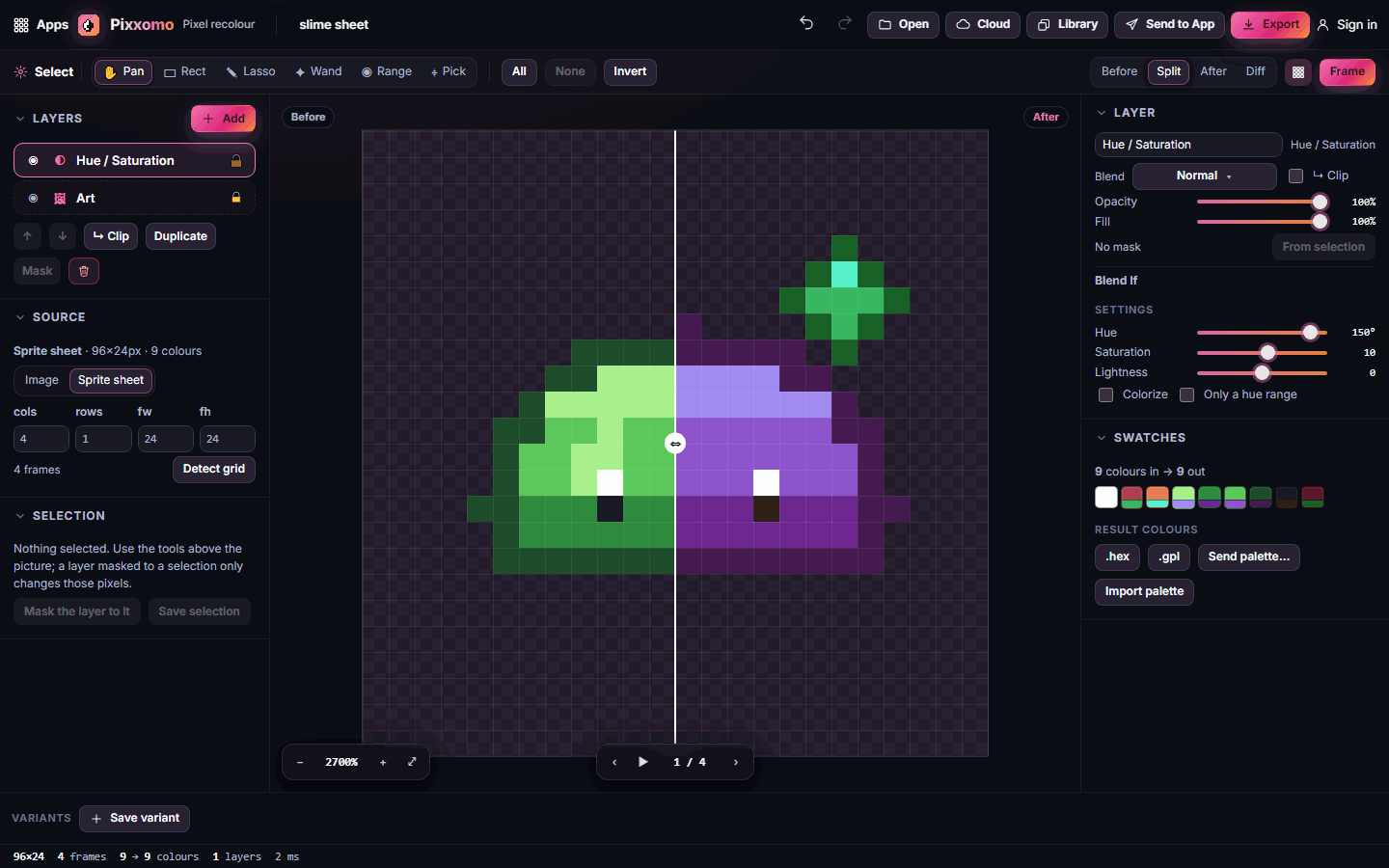
- Click + Add in Layers and choose ◐ Hue / Saturation. Drag Hue to shift all the colours at once.
- Drag the white Split line on the canvas to compare Before and After.
- Click Export, choose PNG, a scale, and Download.
#How-tos
#How to open your art
- Click Open in the top bar, drop files onto the canvas, or paste with Ctrl+V.
- Open a single image, a sprite sheet, an animated GIF or several frames at once.
- For sprite sheets, the grid is detected automatically. Check cols, rows, fw and fh in the Source panel and click Detect grid if needed.
#How to swap colours with the swatches
- Swatches lists every colour in your art, grouped into shading ramps.
- Click a swatch, then choose its new colour (or use the Pick eyedropper tool on the canvas).
- Shift-click several swatches that belong together (light, mid and dark green, say) and click Link ramp to shift the whole ramp together. Auto ramps finds ramps for you.
- Swaps are stored in a Swatch remap layer, which you can turn off or delete at any time.
- Select pixels selects every pixel of a swatch, handy for a mask.
#How to add an adjustment layer
- Click + Add in Layers.
- Under Adjustment layer, choose Swatch remap, Hue / Saturation, Brightness / Contrast, Exposure, Levels, Curves, Grayscale, Posterize, Invert, Gradient map or Palette snap.
- Its settings appear in the Layer panel on the right.
- Palette snap forces every colour onto a palette such as PICO-8 or your own; Gradient map recolours by brightness.
#How to use blend modes, opacity and fill
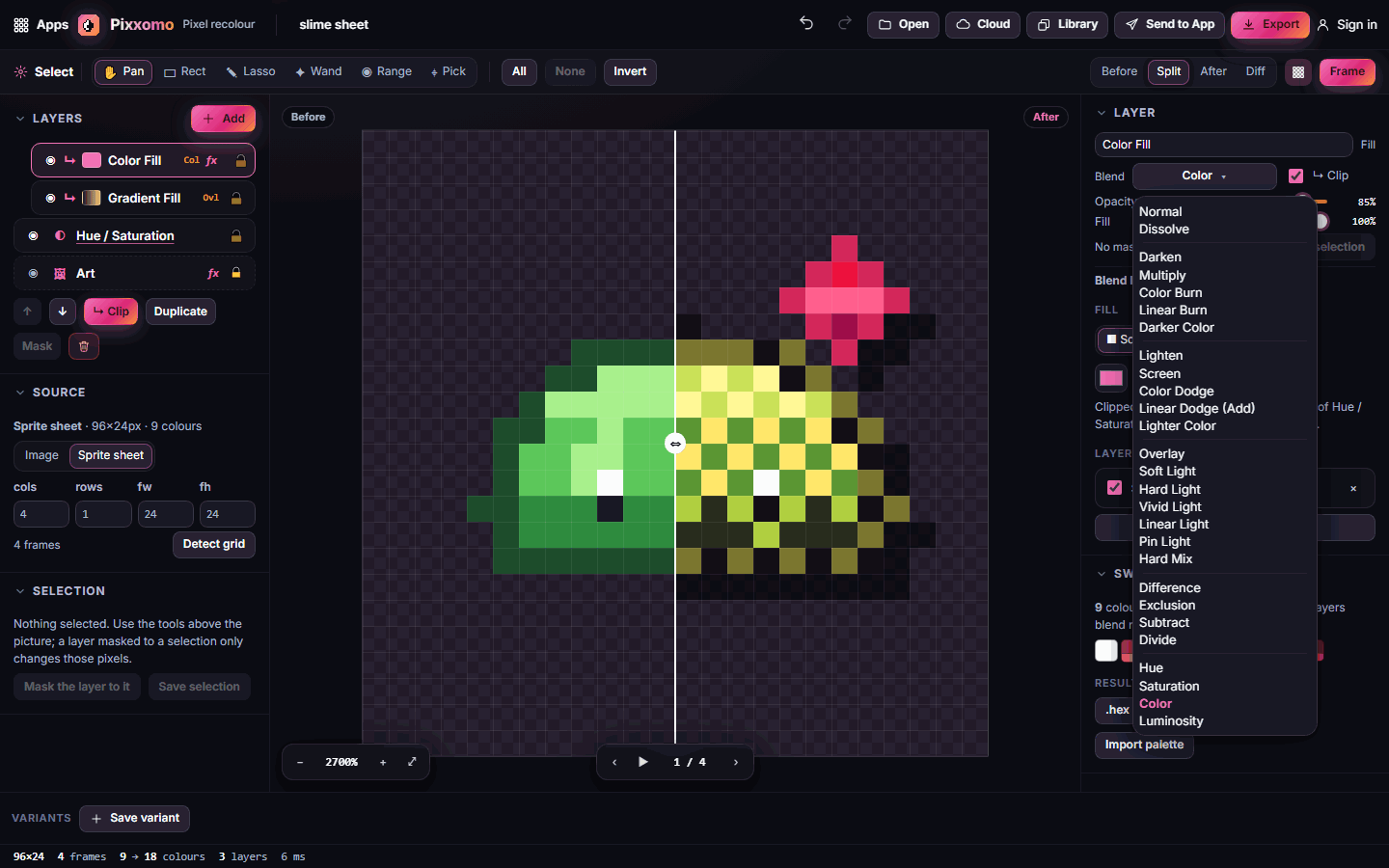
- Select a layer and click the Blend button in the Layer panel.
- Choose any of Photoshop's 27 modes, from Multiply and Screen to Overlay, Soft Light, Color and Luminosity. Hover a mode to preview it before you commit.
- Opacity fades the whole layer including its styles; Fill fades only the layer's own content.
- Blend If limits the layer to darker or lighter parts of the art.
#How to add a fill layer and clip it to the art
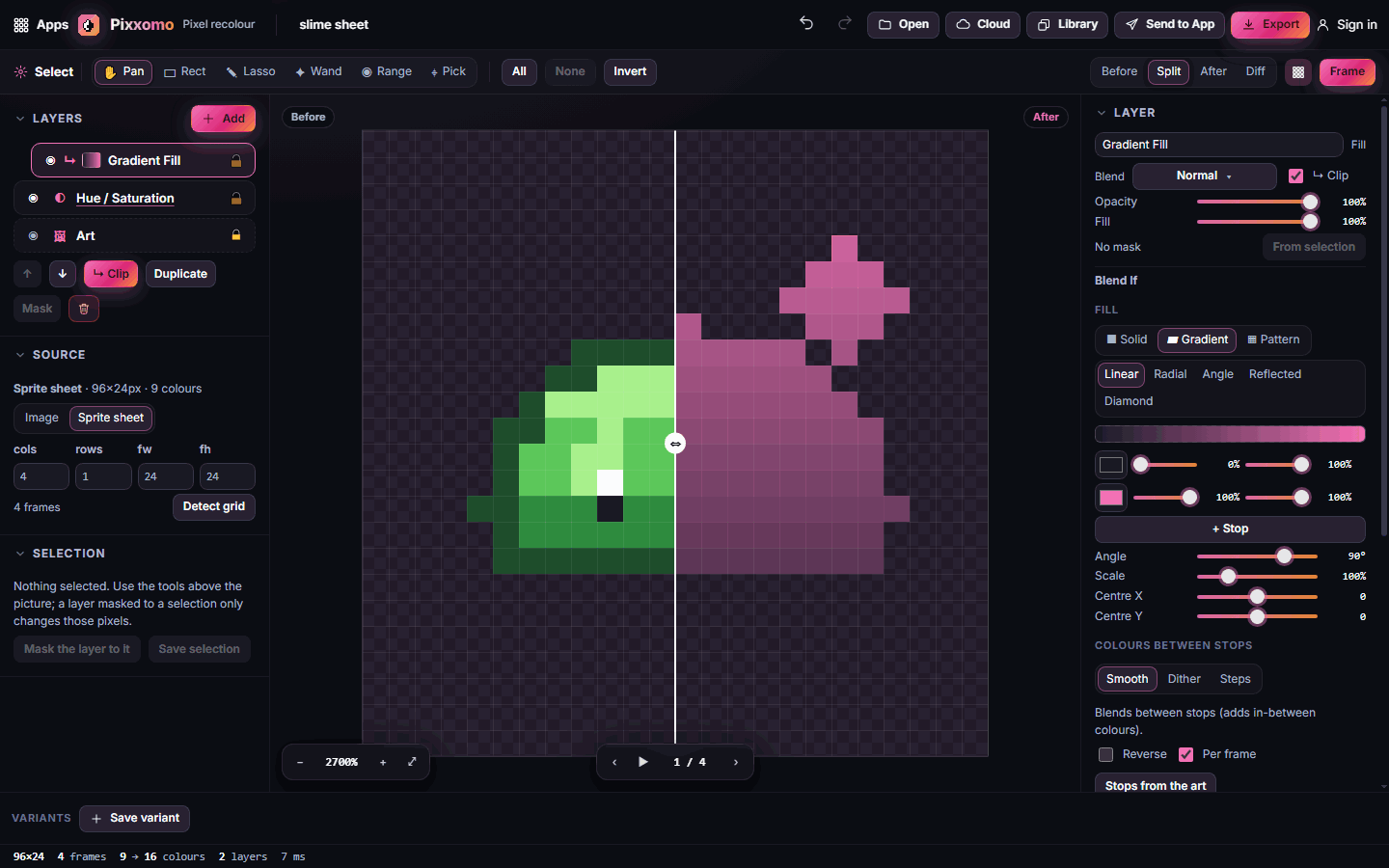
A fill layer lays a flat colour, gradient or pattern over your art, a quick way to tint or re-skin a sprite.
- Click + Add and choose Solid Color, Gradient or Pattern under Fill layer.
- New fill layers are clipped to the art automatically: you'll see ↳ in the layers list, and the colour only lands on the sprite, never on transparent space.
- For a gradient, pick Linear, Radial, Angle, Reflected or Diamond, edit the stops, and choose Smooth, Dither or Steps under "Colours between stops". Steps keeps it pixel-perfect.
- Change the blend mode to Color, Overlay or Multiply for a tint instead of a solid cover.
- Click ↳ Clip (or press Ctrl+Alt+G) to clip or release any layer.
#How to recolour only part of a sprite
- Choose a selection tool in the options bar: Rect, Lasso, Wand (selects similar connected colours) or Range (selects a colour everywhere).
- While a selection tool is active, the options bar shows New, + (add), − (subtract) and ∩ (intersect) to combine selections. Use All, None and Invert as needed.
- Select the layer that should only affect that area, then click Mask the layer to it in the Selection panel (or From selection in the Layer panel).
- Save selection keeps a selection to reuse later.
#How to add outlines, shadows and overlays
- Select a fill layer, or the Art row at the bottom of the layers list.
- Under Layer styles, click Add style and choose Drop Shadow, Color Overlay, Gradient Overlay, Pattern Overlay or Stroke.
- A Stroke adds a 1–8 px outline, inside, outside or centred.
#How to make colour variants
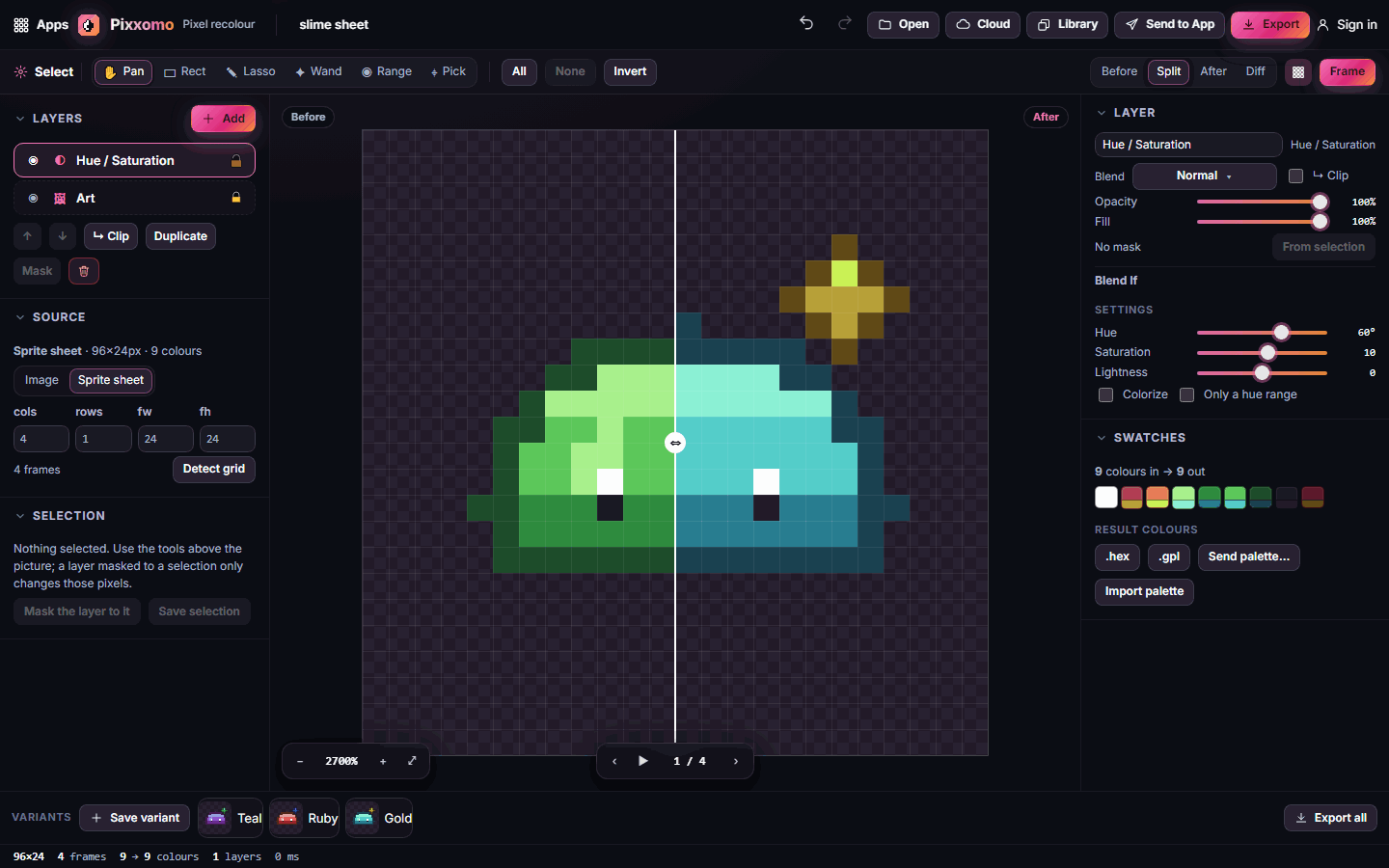
- Set up a look, for example a teal slime.
- Click Save variant in the Variants bar at the bottom and give it a name.
- Change the layers for the next look (red, gold…) and save again.
- Click a variant's thumbnail to switch back to it, or Export all to download every variant in one zip.
#How to review your changes
Use Before, Split, After and Diff in the options bar. Diff highlights exactly which pixels changed. Frame shows one frame of a sheet at a time, with play controls under the canvas.
#Exporting and sharing
Click Export to save PNG or lossless WebP at 1× to 8×. Sprite sheets keep their grid; animations can export as a zip of frames, a sheet or a GIF. Under Swatches, Result colours offers .hex and .gpl palette files, Send palette…, and Import palette.
Send to App passes your result to another Pixx app as the same kind it came in as (image, frames or sheet), plus its colours as a palette. Library opens an image, frames, a sheet or a palette from your Pixx library.
#Tips and shortcuts
- H pan · M rect · L lasso · W wand · R colour range · I eyedropper.
- Ctrl+A / Ctrl+D / Ctrl+Shift+I select all, none, invert.
- Ctrl+Alt+G clip or release · Alt-click a layer to clip it · Shift + / Shift − cycle blend modes.
- Ctrl+Z / Ctrl+Shift+Z undo and redo · , / . previous and next frame · 0 fit.
- Transparent pixels are never painted by adjustments or clipped fills, so your sprite's outline always stays clean.
- Your work autosaves on this device; sign in and use Cloud to keep it across devices.
#Troubleshooting
- If a fill covers the transparent background, it isn't clipped: click ↳ Clip.
- If nothing changes when you move a slider, check the layer is visible (the eye in the list) and not hidden by a mask.
- If a recolour spills onto other parts, mask the layer to a selection, or use Swatch remap with a smaller tolerance.
- If the sheet frames look misaligned, fix cols, rows, fw and fh in Source, then Detect grid.
#Related guides
- Pixxulo for building palettes
- Pixxava for character colour variants
- Send to App
- Plans and billing