#What Pixxato is for
Pixxato turns photos, concept art, screenshots and drawings into pixel art. You choose the size in pixels, the colours and the dithering, and Pixxato shows the original and the result side by side as you adjust. It's great for game backgrounds, portraits, item icons, or a quick pixel-art version of a reference image that you then finish by hand in Pixxivi.
#Your first pixel art in 5 minutes
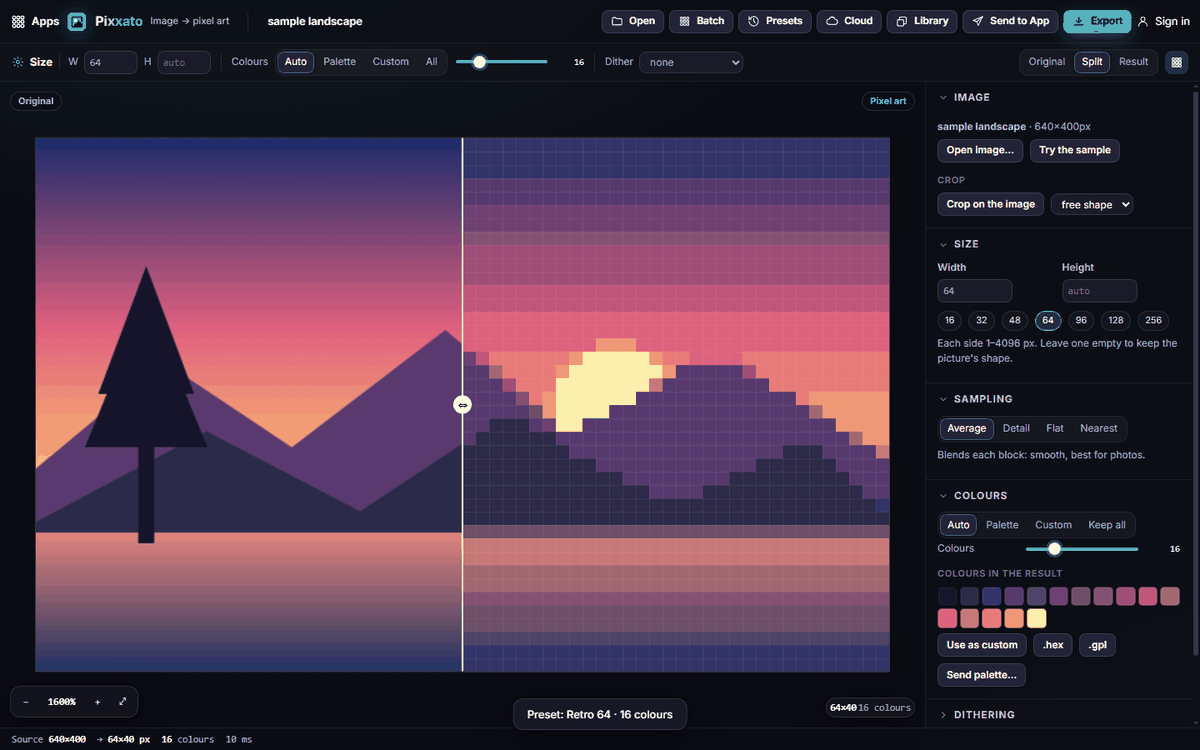
- Open Pixxato. Click Try the sample to load a landscape, or click Open at the top and pick one of your own pictures. You can also drag an image onto the page or paste one with Ctrl+V.
- In the Size section on the right, click 64. That makes the picture 64 pixels wide; the height follows the picture's shape.
- Under Colours, keep Auto and drag the Colours slider to about 16. Fewer colours look more "retro".
- Look at the stage: the left half is the original, the right half is the pixel art. Drag the round handle in the middle to compare.
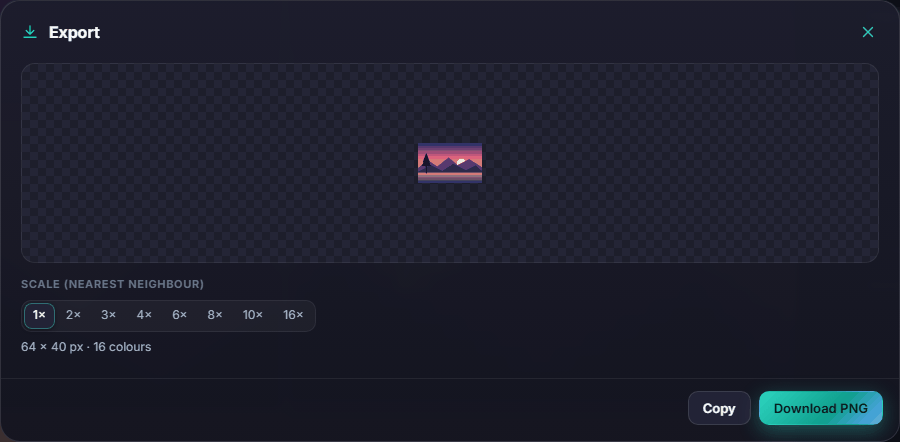
- Click Export (top right), choose a scale such as 8× so the pixels stay big and sharp, and click Download PNG.
That's it: you have a 64-pixel-wide picture, saved at 8× so it looks crisp anywhere.
#How-tos
#How to set an exact size
- In Size, type a Width and/or Height in pixels (each side can be from 1 to 4096).
- Leave one box empty to keep the picture's proportions, or fill in both for an exact size such as 32 × 32.
- The quick buttons 16, 32, 48, 64, 96, 128, 256 set the width in one click.
#How to crop the picture first
- In the Image section, click Crop on the image.
- Pick a shape from the list next to it (free shape, 1:1, 4:3, 16:9 …).
- Drag a rectangle over the part you want, then click Done cropping.
- To undo the crop, click Reset. You can also type exact crop numbers in the boxes that appear.
#How to choose how pixels are sampled
Under Sampling, pick one:
- Average blends each block of the picture. Best for photos.
- Detail picks a real pixel from each block. Crisper, with no in-between colours.
- Flat uses the most common colour of each block. Best for screenshots and existing pixel art.
- Nearest takes the centre of each block. Fastest and sharpest, but fine details can flicker.
#How to use a classic palette (PICO-8, Game Boy …)
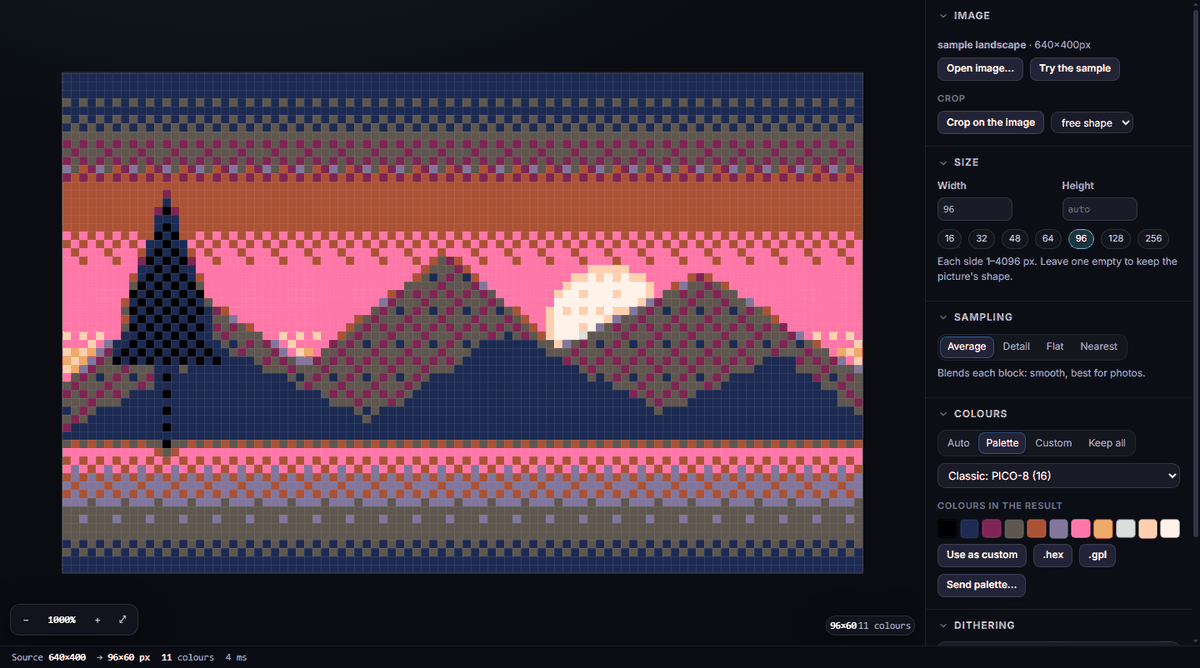
- Under Colours, click Palette.
- Choose a palette from the list, for example Classic: PICO-8 (16). Pixxato then uses only those colours.
- Open Dithering and choose a pattern if you want smoother gradients with few colours.
#How to use your own colours
- Under Colours, click Custom.
- Click + to add a colour, click a swatch to change it, or click the small × on a swatch to remove it.
- To load a palette file, click Import .hex / .gpl.
- Tip: after any conversion, Use as custom copies the result's colours into the custom palette so you can fine-tune them.
#How to add dithering
- Open the Dithering section.
- Pick a method: Floyd–Steinberg (smooth), Atkinson (light, classic), Sierra Lite, Jarvis (soft), or Ordered 2×2 / 4×4 / 8×8 (a regular pattern).
- Adjust Strength until gradients look right. Choose None (flat) for clean, flat colour areas.
#How to remove the background and add an outline
- Open Clean-up.
- Tick Remove the background and raise Tolerance until the area around your subject disappears.
- Tick Remove lone pixels to clean stray dots.
- Tick Outline to draw a 1-pixel outline around the shape, and pick its colour.
- Ink edges darkens the edges inside the picture for a hand-drawn look.
#How to brighten or recolour the picture
Open Adjust and move Brightness, Contrast, Saturation, Gamma or Hue. Reset adjustments puts them back.
#How to save your favourite settings
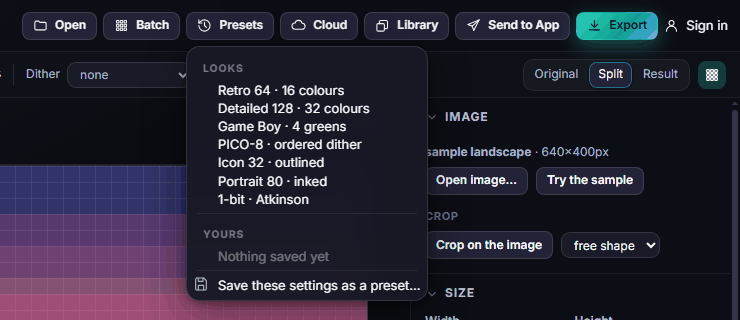
- Click Presets at the top.
- Choose Save these settings as a preset… and give it a name.
- Your presets appear under Yours in the same menu.
#How to convert many pictures at once
- Click Batch at the top and pick several images (or drop several onto the page).
- Pixxato converts them all with your current settings and shows a preview of each.
- Click Download ZIP to get all the results.
#Exporting and sharing
- Export saves a PNG at 1× to 16× scale (pixels are enlarged without blurring). Copy puts it on the clipboard.
- The colours of the result can be saved as .hex or .gpl palette files from the Colours section.
- Send to App sends the pixel art (as an image) or its colours (as a palette) to another Pixx app, for example to keep drawing in Pixxivi or to build a palette in Pixxulo.
- Library opens an image, animation frame or palette that you saved to your Pixx library.
- Cloud saves the project (your settings and the picture) to your account so you can open it on another device.
#Tips and shortcuts
- Ctrl+O opens an image, Ctrl+S opens Export, 0 fits the picture on screen, + and - zoom.
- Switch between Original, Split and Result at the top right of the stage. The grid button shows the pixel grid when you zoom in.
- Double-click the picture to fit it to the stage.
- Small sizes (32–96 pixels wide) give the strongest pixel-art look.
- On a phone, tap Settings at the bottom to open the settings panel; Compare cycles the views.
#Troubleshooting
- If the result looks muddy, lower the colour count, try Detail sampling, or turn dithering off.
- If the background isn't removed, raise Tolerance, or crop closer to your subject first.
- If a big conversion is slow, try a smaller width first; very large sizes (2000+ pixels) take a moment.
- If your image doesn't open, use PNG, JPEG, GIF, WebP or BMP. For animated GIFs, only the first frame is used.
#Related guides
- Pixxivi — finish your pixel art by hand
- Pixxulo — build and tune palettes
- Pixxoni — scale pixel art up or down cleanly
- Send to App
- Plans and billing