#What Pixxori is for
Pixxori is a tilemap and level editor. Start from one of 58 biome kits, each a complete tileset in matching colours with ground, liquids, slopes, ledges and 46 props, and let Pixxori generate a whole level in one click. Or bring your own tileset and paint by hand. When you're done, export for Tiled, LDtk, CSV or as a picture.
It works for side-view platformers and top-down maps, including dungeons.
#Your first level in 5 minutes
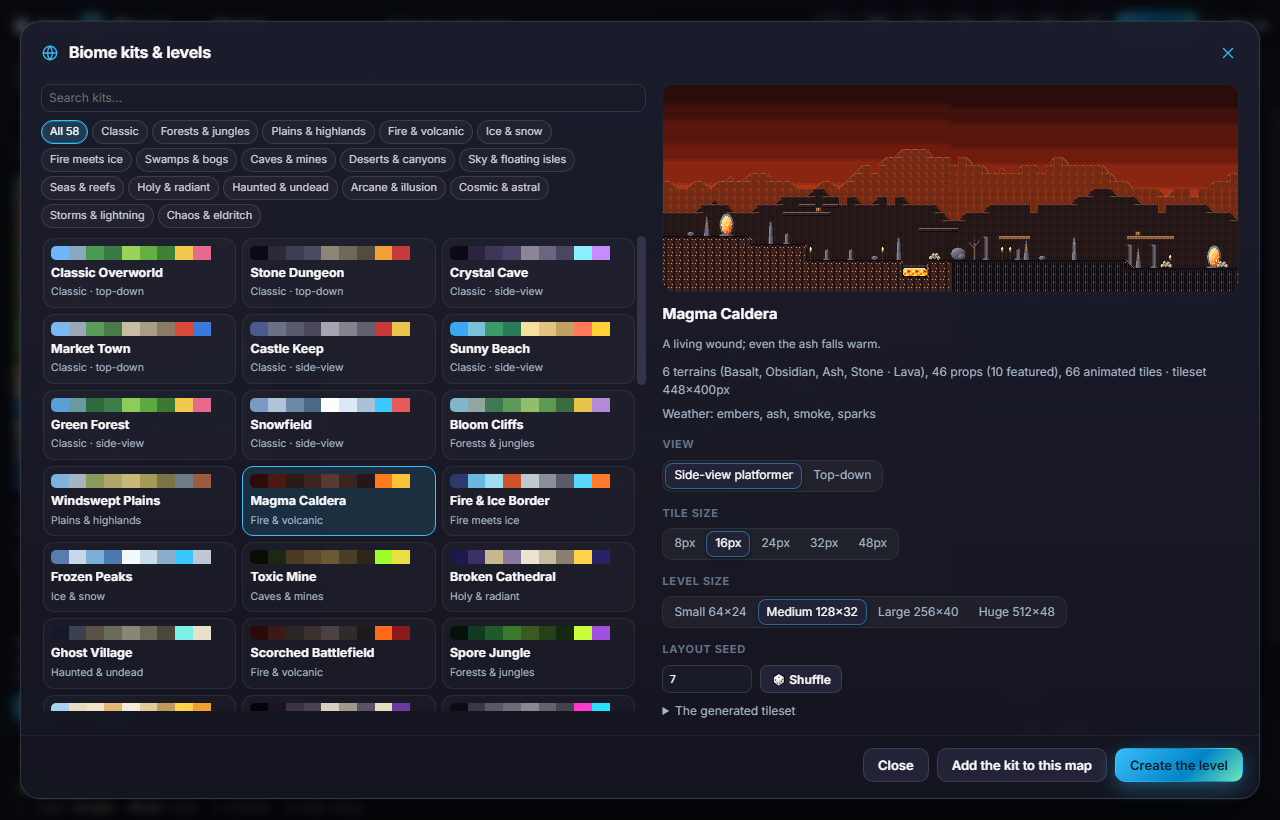
- Open Pixxori and click Kits in the top bar (the globe icon).
- Pick a biome, for example Bloom Cliffs or Magma Caldera. Use the group chips or the search box to browse.
- On the right, choose the View (Side-view platformer or Top-down), a Tile size (16px is a good start) and a Level size.
- Click Create the level. Pixxori builds the tileset, the terrain, liquids, ledges, props, a spawn point and an exit.
- Not quite right? Open Kits again and click Shuffle for a different layout of the same biome.
- Click Export and choose a format.
#How-tos
#How to paint tiles
- Choose the Brush tool (B).
- Click a tile in the Tileset panel on the left, or drag across several tiles to paint a multi-tile stamp.
- Paint on the map. Use Size in the options bar for bigger brushes.
- Other tools: Erase (E), Fill (G), Rect (R), Line (L) and Pick (I, or Alt+click) to grab the tile under the cursor.
#How to use autotiling for terrain
Kit terrains (grass, stone, sand, lava…) are autotiles: when you paint or erase, Pixxori picks the right edge and corner pieces for you, and rebuilds them as you keep painting. Rectangles, lines and fills autotile too, so a big shape is one drag.
#How to place props
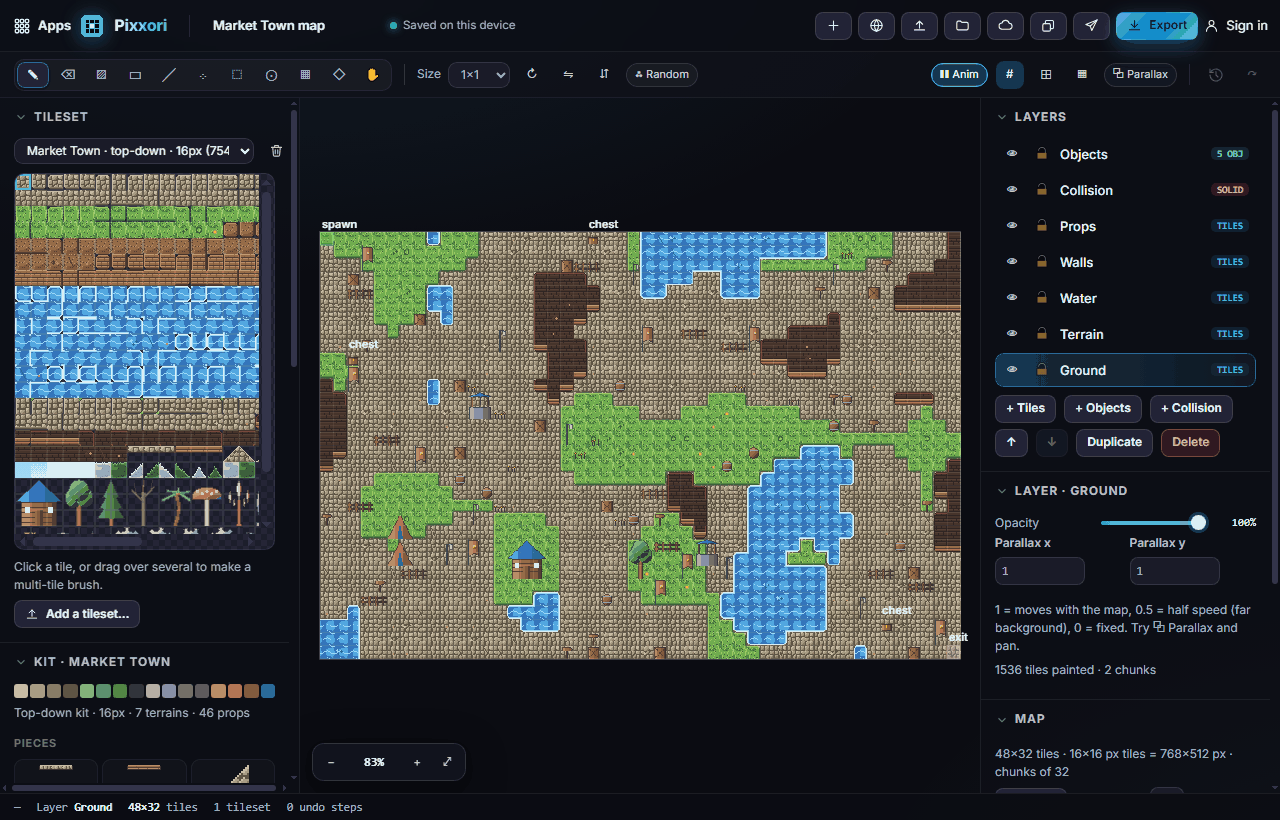
- In the Kit panel on the left, scroll to the props (trees, rocks, ruins, torches, chests…).
- Click a prop to paint it.
- Shift+click several props to build a scatter set, then use Scatter (P) to drop them at random empty spots. A density slider controls how many.
- Torches, lanterns, banners, portals and cogs are animated: turn Anim on in the options bar to watch them.
#How to work with layers
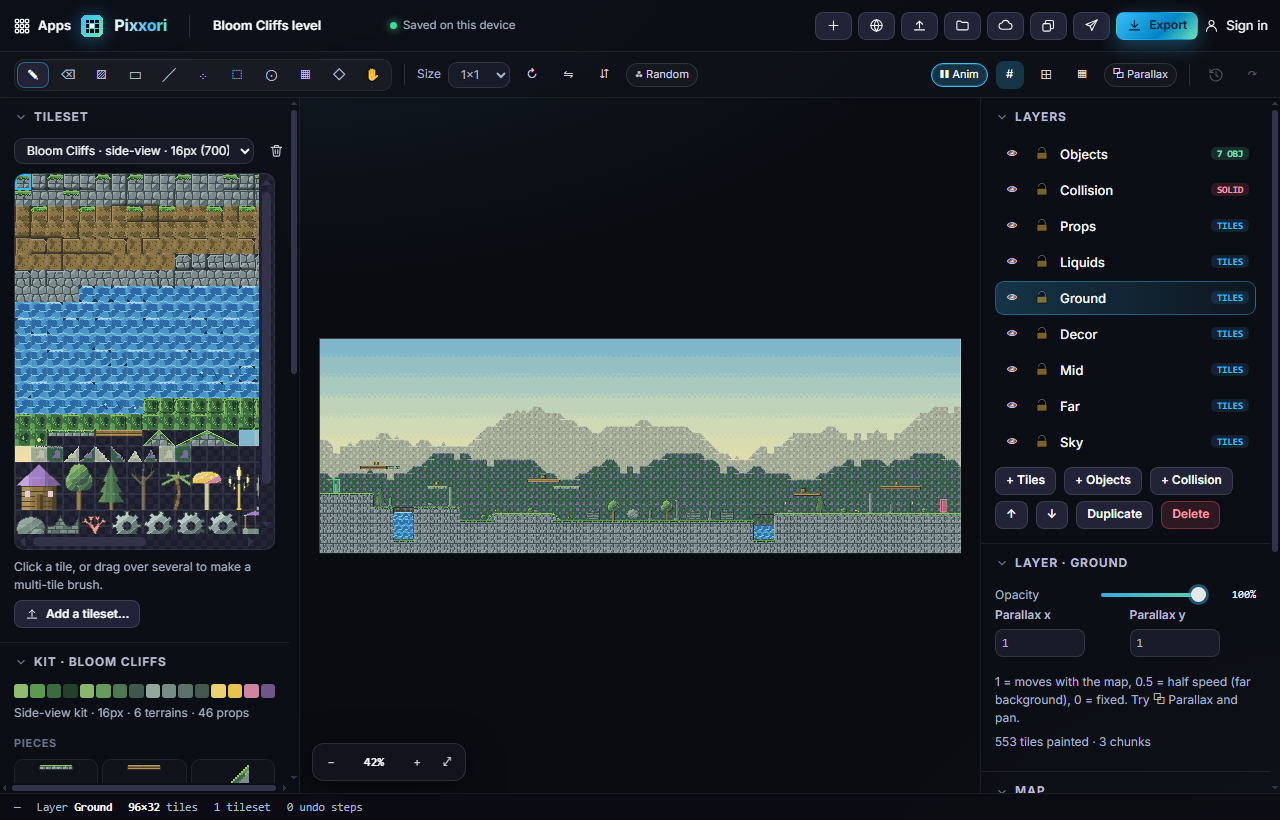
- The Layers panel lists tile, object and collision layers, for example Sky, Far, Mid, Ground, Liquids, Props, Collision and Objects.
- Click a layer to paint on it. Use the eye to hide it and the lock to protect it.
- Add layers with + Tiles, + Objects or + Collision, and reorder them with the arrows.
- Give background layers a Parallax value (0.5 = moves at half speed), then click Parallax in the options bar to preview the depth while you pan.
#How to add collision
- Select the Collision layer and the Collision tool (C).
- Choose a kind: solid, one-way platform, slopes, ladder, water or hazard.
- Paint it, or let Pixxori build it for you: every kit tile already knows its collision kind, so it can be rebuilt automatically from the tiles.
#How to add spawn points, doors and triggers
- Choose the Object tool (O) and click to place an object (hold Shift to place it off the grid).
- Give it a name, type, size, colour and custom properties.
- Drag to move it; press Delete to remove it.
#How to copy, paste and reuse parts of a map
- Choose Select (M) and drag over an area.
- Copy (Ctrl+C), cut (Ctrl+X), paste (Ctrl+V) or delete it.
- Save it as a stamp to reuse it later; stamps are kept in your project.
#How to use your own tileset
- Click Add a tileset… under the Tileset panel and choose an image.
- Set the tile size, margin and spacing, and check the live grid.
- You can use several tilesets in one map.
#Exporting and sharing
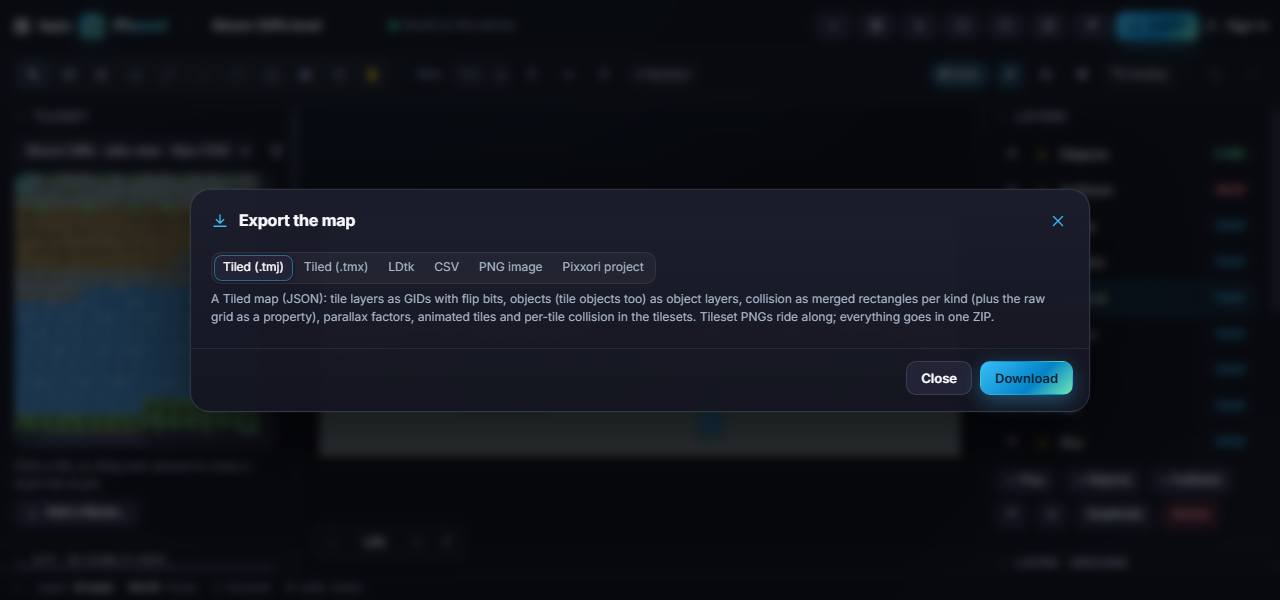
Click Export (Ctrl+E) to download:
- Tiled (.tmj or .tmx) with the tileset images, animated tiles, collision and objects.
- LDtk JSON with tiles, collision values and entities.
- CSV, one file per layer.
- The map as a PNG (1–4× size).
- The editable Pixxori project file.
Send to App sends the map picture, the current tileset as a sprite sheet, or its colours as a palette to another Pixx app. Library opens sprite sheets or images from other apps as a new tileset, or recolours your tileset with a palette from Pixxulo. See Send to App. Cloud saves the whole project to your Pixx account.
#Tips and shortcuts
- B brush · E erase · G fill · R rect · L line · P scatter · M select · I pick · C collision · O object · H pan (or hold Space) · Z rotate the brush · X / Y flip · [ / ] change layer · 0 fit · + / − zoom.
- Ctrl+Z / Ctrl+Y undo and redo every edit · Ctrl+S save the project · Ctrl+E export.
- Random (options bar) paints a random tile from your selection each click, great for grass and stone variety.
- Maps can be huge (up to 4096 × 4096 tiles); zoomed far out, Pixxori shows a quick overview.
- On a phone, the tileset and layers open as bottom sheets and tools come from the bottom bar.
#Troubleshooting
- If rotated tiles look wrong in LDtk, that's an LDtk limit; Pixxori warns you. Avoid rotating tiles if you use LDtk.
- If the map is empty after opening, check the right layer is visible (the eye icon) and press 0 to fit.
- If regenerating a level replaced your edits, use undo right away. Regenerate always rebuilds every layer, so Pixxori asks first.
- If your engine shows gaps between tiles, export at 1× and turn off texture smoothing in your engine.