#What Pixxava is for
Pixxava is a character builder. Pick a body, dress it with hair, faces, clothes, armour, hats and weapons — or apply one of 47 complete styles in one click — and Pixxava animates it for you. Export sprite sheets your game engine can load, GIFs to share, and portraits for dialogue boxes. Every part recolours with proper shading, so your knight can wear any colours you like and still look hand-shaded.
Pixxava has two body bases:
- Hero (Ozzbit Games) — the default. A polished 32-pixel-tall platformer hero (drawn on 128 × 128 frames) with 25 side-view animations: idle, walk, run, dash, slide, jumps and falls, wall slide and wall jump, ledge hang and climb, a three-hit combo, hurt and death. The base body and its animations come from the Male Hero Template by Ozzbit Games.
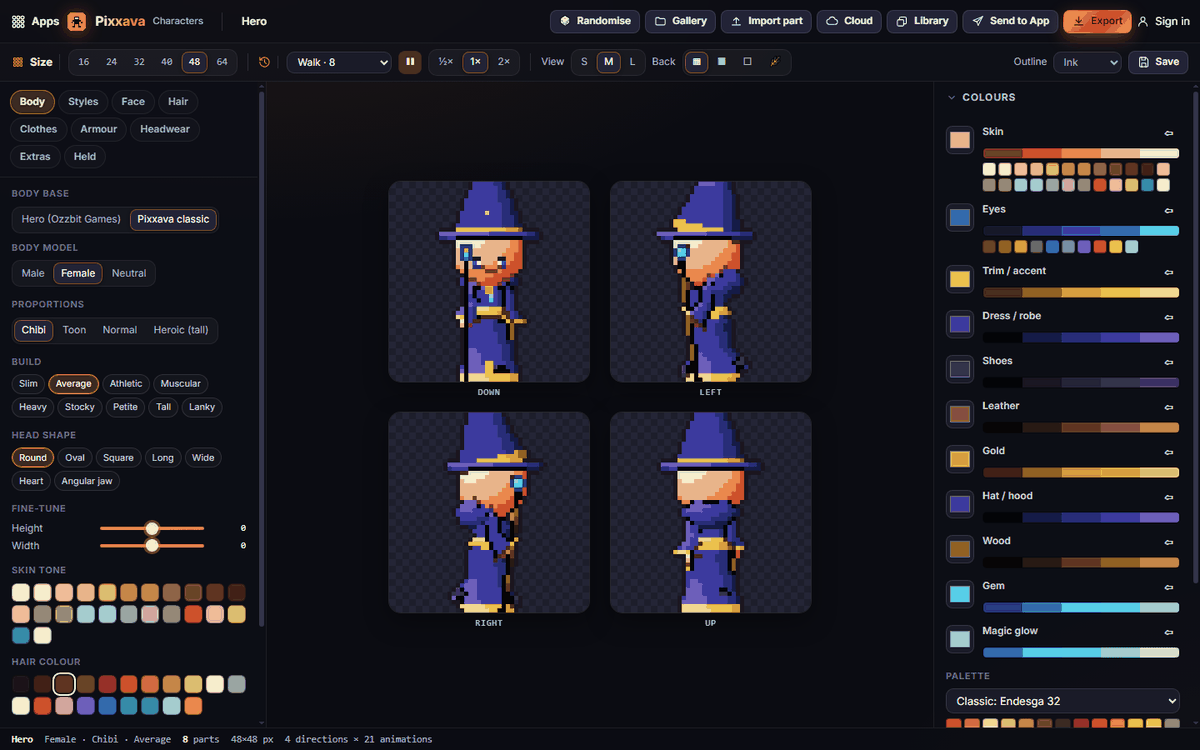
- Pixxava classic — Pixxava's own bodies: male, female or neutral; chibi, toon, normal or heroic proportions; sizes from 16 × 16 to 64 × 64 pixels; 21 animations in four directions, including a magic cast.
#Your first character in 5 minutes
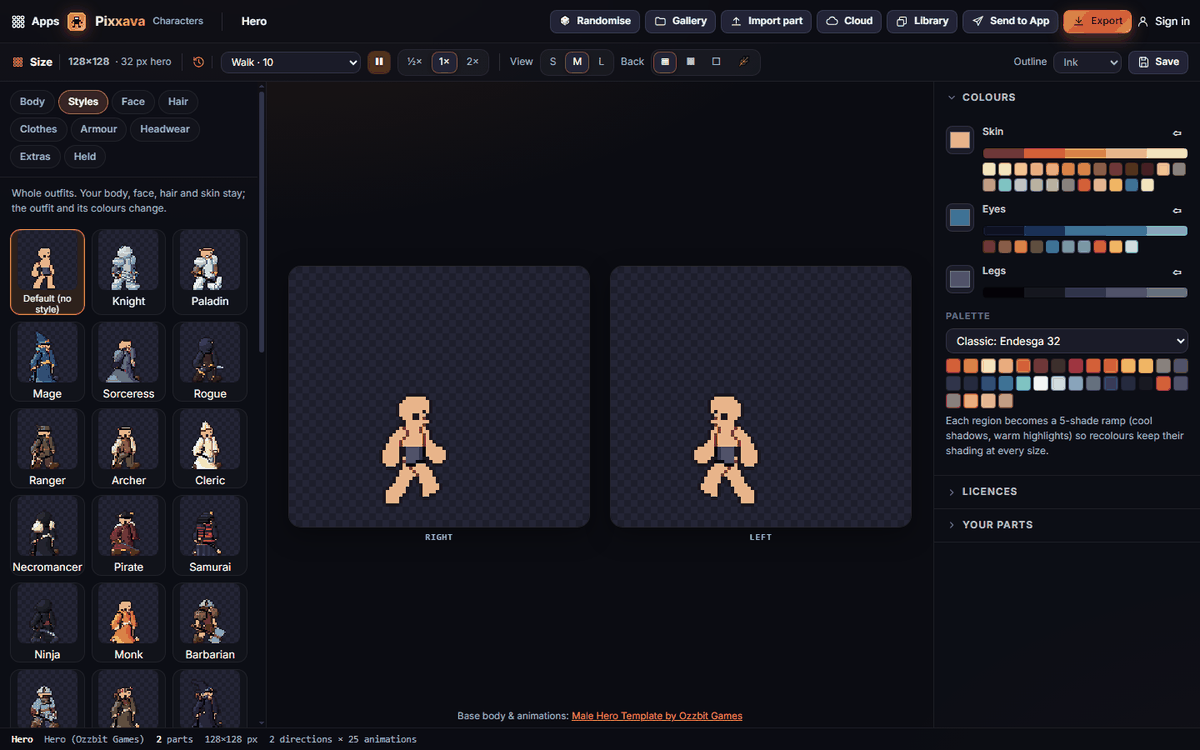
- Open Pixxava. You start with the Hero body and Default (no style): a plain, undressed base.
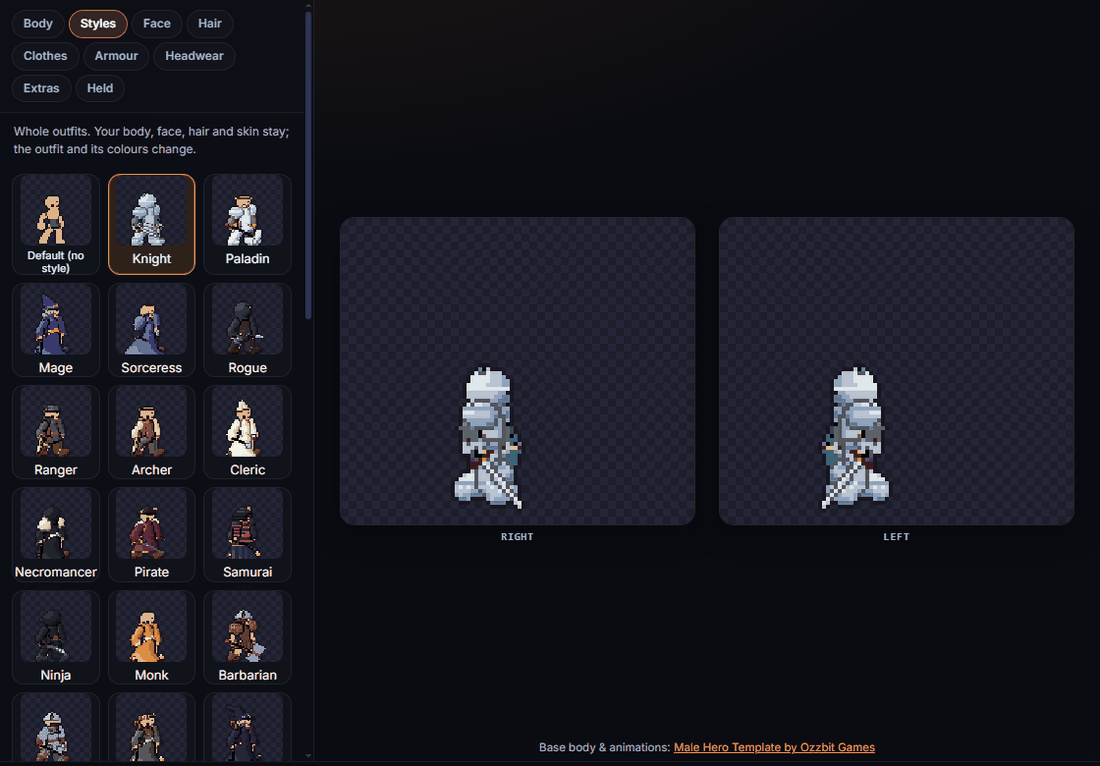
- Click the Styles tab on the left and pick a look, for example Knight, Mage or Ninja. The whole outfit changes; the body, face, hair and skin stay.
- On the right, under Colours, click a colour swatch (for example Coat / cape or Metal) and pick a new colour from the ramp below it.
- Use the animation list at the top (it shows Walk at first) to watch other animations play.
- Click Export, keep Sheet + JSON (zip), and click Download.
#How-tos
#How to choose the body base
- Open the Body tab.
- Under Body base, choose Hero (Ozzbit Games) or Pixxava classic.
- On the Hero body, the body shape options are dimmed because the Hero has one fixed body. Switch to Pixxava classic for female or neutral bodies, chibi proportions, other sizes and four directions. Your outfit and colours carry over.
#How to make a female, neutral or chibi character
- In the Body tab, choose Pixxava classic.
- Under Body model, pick Male, Female or Neutral.
- Under Proportions, pick Chibi, Toon, Normal or Heroic (tall).
- Choose a Build (slim, athletic, muscular, heavy, petite, tall …) and a Head shape, and fine-tune Height and Width with the sliders.
#How to change the sprite size (classic body)
On the classic body, the Size buttons at the top left switch between 16, 24, 32, 40, 48 and 64 pixels. Every part is drawn for every size, so nothing gets blurry, and your character keeps all its choices. The Hero body is always 128 × 128 frames with a 32-pixel-tall hero.
#How to pick skin, hair and eye colours
In the Body tab, scroll to Skin tone, Hair colour and Eye colour. There are 24 skin tones, from realistic shades to fantasy colours (green, blue, lavender, ashen, stone, demon red and more), 20 hair colours and 10 eye colours.
#How to dress the character piece by piece
- Use the tabs Face, Hair, Clothes, Armour, Headwear, Extras and Held.
- Click a part to put it on; click it again (or choose none) to take it off.
- Extras has things like wings, quivers, jetpacks and tails; Held has 28 weapons and 11 off-hand items such as shields and spellbooks.
- Want a clean start? Choose Default (no style) in Styles to remove all parts.
#How to recolour the outfit
Under Colours on the right, each colour region (skin, eyes, top, legs, coat/cape, leather, metal, gold, magic glow …) has a swatch. Click it and pick a colour; Pixxava builds a five-shade ramp so the shading still looks right. You can also pick a Palette to limit the swatches to a classic palette.
#How to view the animations
- Choose an animation in the list at the top (Idle, Walk, Run, Combo, Death …).
- Use the play/pause button and ½×, 1×, 2× to change the speed.
- View S / M / L changes the preview size, and Back changes the background behind the character.
- On the classic body you see four directions; on the Hero you see right and left.
#How to save characters to your gallery
Click Save (or press Ctrl+S) to keep the character in your Gallery. Click Gallery to see your saved characters and open one again.
#How to use Randomise with locks
- Click Randomise to generate a random character.
- To keep something, use Lock for Randomise on a part tab, Lock body for Randomise in the Body tab, or Lock colours.
- Randomise again; locked choices stay.
#How to draw your own parts
- Click Export, open the Template tab and download the template: the body as a colour-coded mannequin.
- Draw your part over it in Pixxivi or any pixel editor.
- Back in Pixxava, click Import part, choose your PNG, and give it a name, slot, author and licence.
#Exporting and sharing
Click Export and choose a tab:
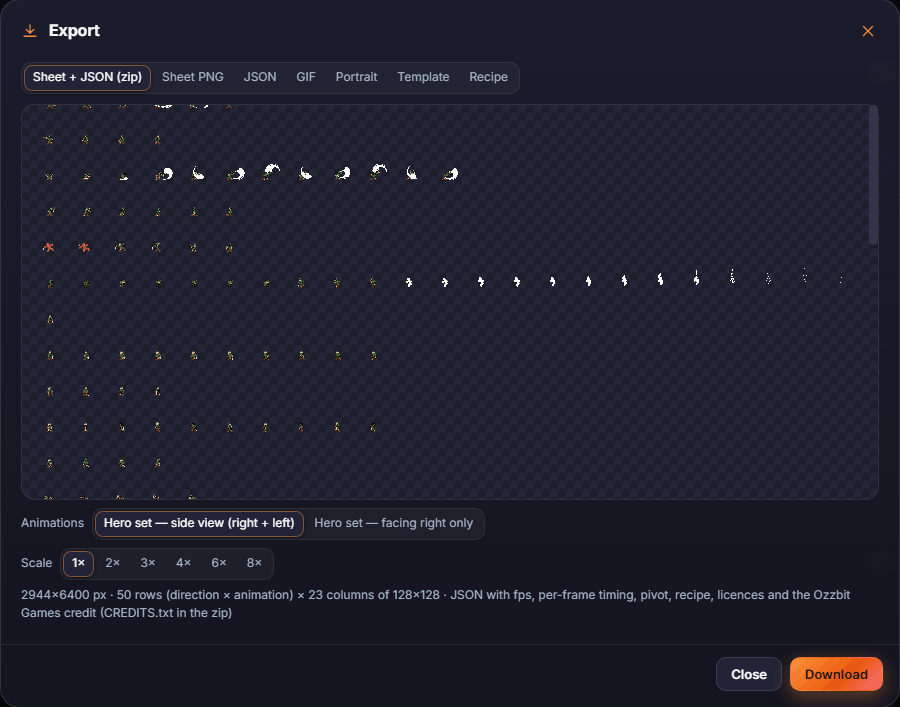
- Sheet + JSON (zip) — the sprite sheet plus data for your engine: frame timing, pivot, the character recipe and the credits.
- Sheet PNG or JSON on their own.
- GIF — one animation as an animated GIF.
- Portrait — a close-up image for dialogue boxes.
- Template — the colour-coded mannequin for drawing your own parts.
- Recipe — the character as a small file you can load again later.
On the Hero body, choose Hero set — side view (right + left) or Hero set — facing right only. On the classic body, choose RPG — 4 directions, Platformer — side or Everything. Pick a Scale from 1× to 8×.
Also:
- Send to App sends an animation, all animations, single frames, a pose or the colours to another Pixx app — for example to touch up frames in Pixxivi or pack sheets in Pixxula.
- Library opens palettes and part sheets from your Pixx library.
- Cloud saves your characters to your account.
- Exports on the Hero body include a credit to Ozzbit Games, the creator of the base body template.
#Tips and shortcuts
- Ctrl+S saves to the gallery.
- Styles change only the outfit; your body, face, hair and skin stay.
- Outline at the top right switches between ink outlines, shaded outlines or none.
- The history button next to the size lets you step back through recent changes.
- On a phone, the part tabs and colours open as panels from the bottom.
#Troubleshooting
- If the body options are greyed out, you're on the Hero body. Switch to Pixxava classic in the Body tab to use them.
- If you don't see four directions, the Hero body is side-view only; the classic body has four.
- If an imported part doesn't line up, draw it over the template downloaded from Export → Template at the same size.
- If your sheet looks tiny in your game, export at a larger Scale, or scale it up with nearest-neighbour filtering in your engine.
#Related guides
- Pixxivi — touch up frames by hand
- Pixxula — pack sprite sheets and atlases
- Pixxomo — make colour variants
- Send to App
- Plans and billing