#What Pixxifo is for
Pixxifo turns animations into files you can share and use: looping GIFs, APNGs and animated WebPs. It has two views. Sheet → GIF takes a sprite sheet and gives you a finished animation in four steps. The Editor is a full frame workshop where you can reorder frames, change timing, make seamless loops and shrink file sizes.
Everything runs in your browser; your images are not uploaded unless you save to your Pixx cloud.
#Your first GIF in 5 minutes
- Open Pixxifo. It starts in Sheet → GIF (top bar).
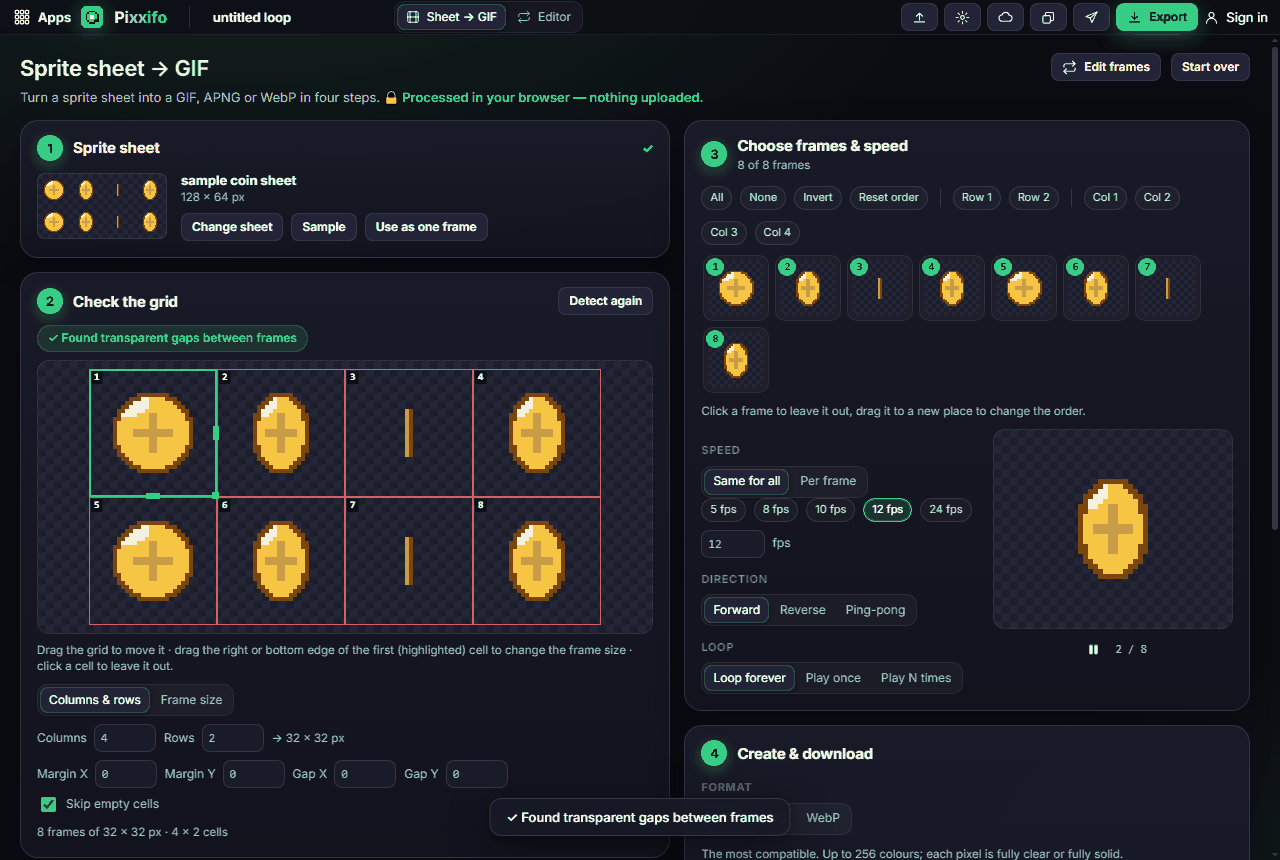
- Drop a sprite sheet onto the page, paste one with Ctrl+V, or click Try a sample to load a spinning coin.
- In 2 · Check the grid, Pixxifo finds the frames for you. A green chip tells you how, for example Found transparent gaps between frames. The numbered cells show the play order.
- In 3 · Choose frames & speed, watch the live preview on the right. Pick a speed such as 12 fps.
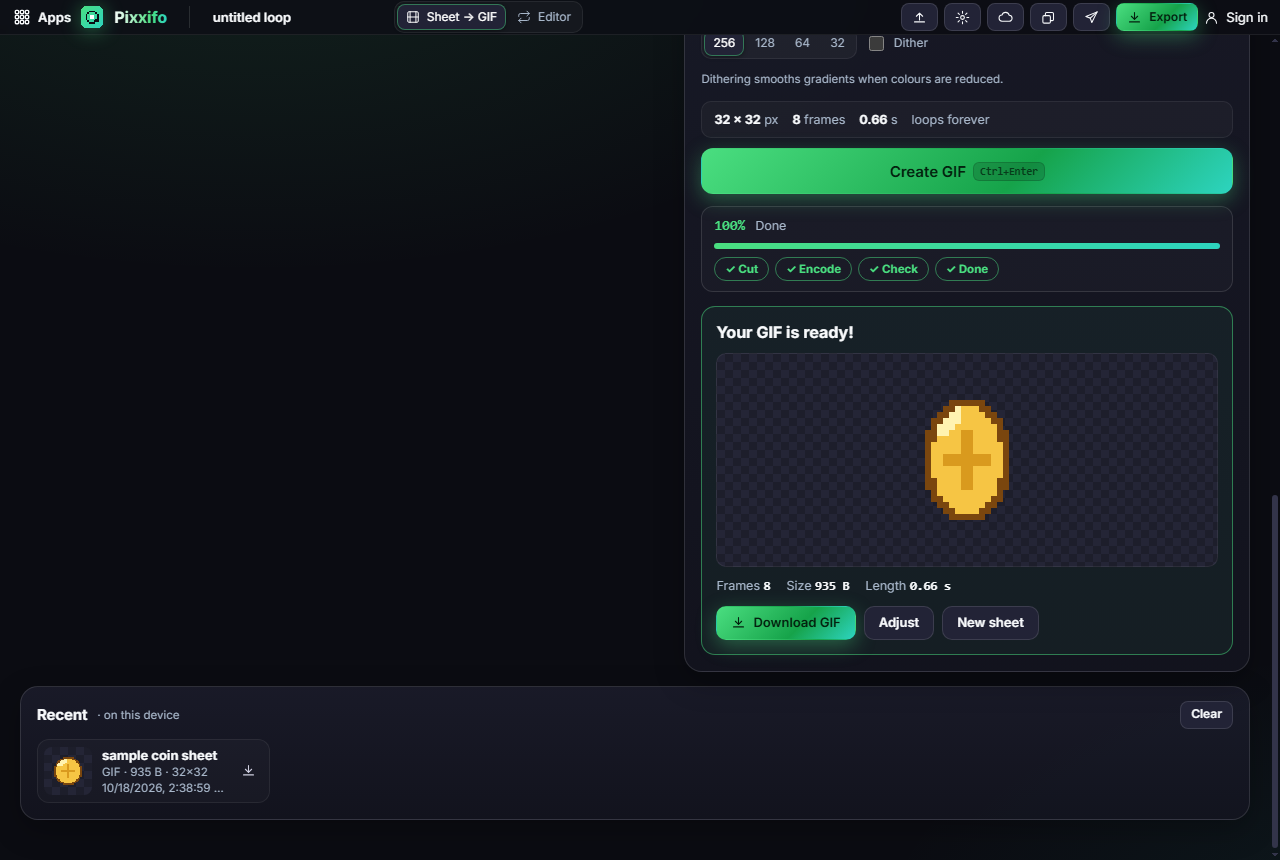
- In 4 · Create & download, keep GIF, choose a Size (2× or 4× makes small pixel art easier to see) and click Create GIF (or press Ctrl+Enter).
- When the card says Your GIF is ready!, click Download GIF.
#How-tos
#How to fix a grid that was detected wrong
- In 2 · Check the grid, click Detect again first.
- If it is still off, choose Columns & rows and type how many frames are across and down, or switch to Frame size and type the width and height of one frame.
- Use Margin X / Y if the first frame does not start at the top-left corner, and Gap X / Y if there is space between frames.
- You can also fix it by hand: drag the grid to move it, and drag the right or bottom edge of the first (highlighted) cell to resize every frame.
- Click a cell to leave it out. Keep Skip empty cells ticked to ignore blank cells at the end of a sheet.
#How to choose which frames play, and in what order
- In 3 · Choose frames & speed, click a frame to leave it out (click again to bring it back).
- Use All, None or Invert for quick selections, or Row 1, Col 2 and so on to keep just one row or column. This is handy when a sheet holds several animations.
- Drag a frame to a new place to change the order. Reset order puts them back.
#How to set the speed and the loop
- Under Speed, choose Same for all and pick a speed (5, 8, 10, 12 or 24 fps), or type your own.
- For different timing per frame (for example a longer pause on the last frame), choose Per frame and type a delay under each frame.
- Under Direction, Ping-pong plays forward then backward, great for breathing or bobbing loops.
- Under Loop, choose Loop forever, Play once or Play N times.
#How to make the file bigger, smaller or cleaner
- In 4 · Create & download, set Size (50%, 1×, 2×, 4×, 8× or any percentage).
- Leave Resize on Auto: pixel art is enlarged with crisp, hard pixels, photos are smoothed. Choose Pixel art or Smooth to force one.
- Pick a Background: transparent, or a solid colour.
- For GIFs, lower colours (256, 128, 64, 32) to shrink the file, and tick Dither to smooth gradients.
#How to edit frames one by one
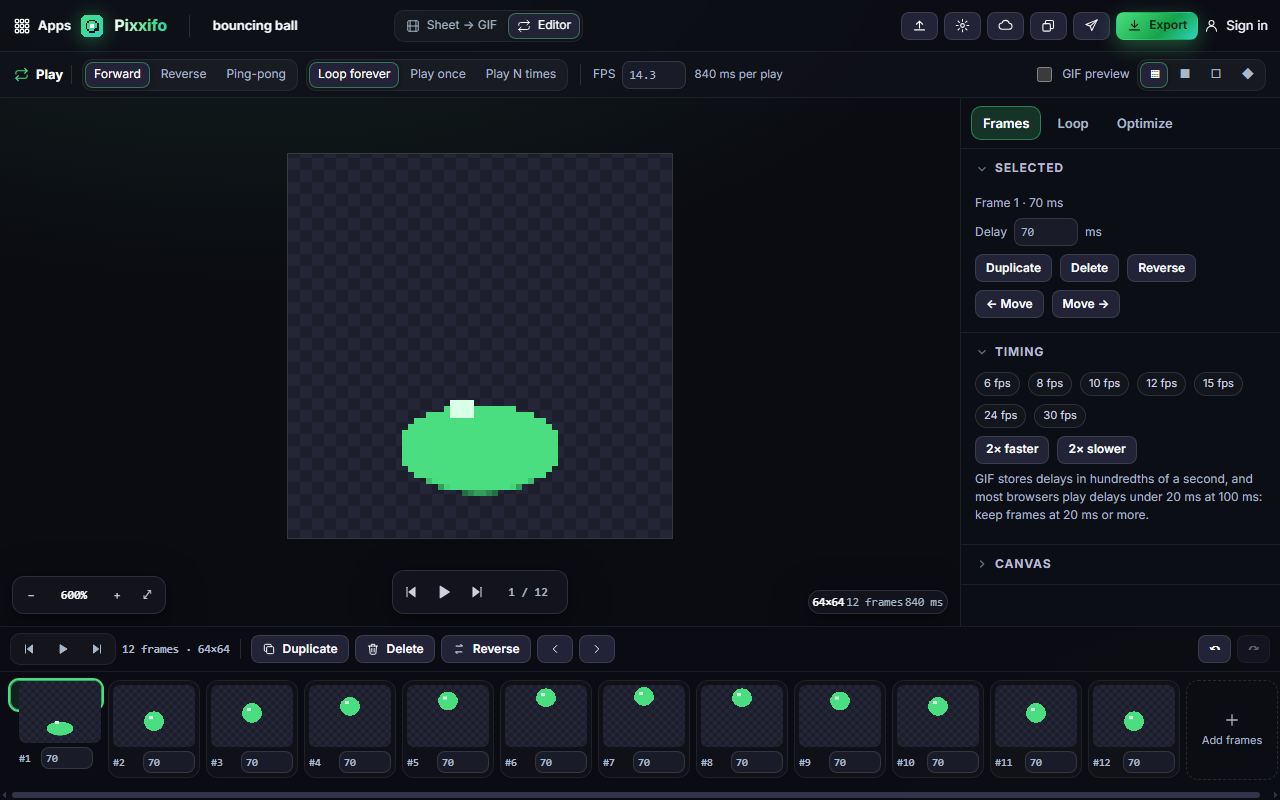
- Click Edit frames in Sheet → GIF, or switch to Editor in the top bar.
- The filmstrip at the bottom shows every frame. Click to select (Shift-click for a range, Ctrl-click to add one), then use Duplicate, Delete, Reverse or the arrows to move them.
- Type a delay (in milliseconds) under any frame, or use the Timing chips on the right (2× faster, 2× slower).
- Press Space to play and pause, and the arrow keys to step.
#How to make a loop seamless
- In the Editor, open the Loop tab on the right.
- Check the seam meter: it tells you how big the jump is from the last frame back to the first.
- Use the seamless crossfade to blend the last few frames into the first, so the loop has no visible jump.
#How to keep GIF file sizes small
- In the Editor, open Optimize.
- Lower the number of colours. The live size estimates show what the GIF, APNG, WebP or PNG ZIP will weigh before you export.
- Tick GIF preview in the options bar to see exactly how the reduced colours and hard-edged transparency will look.
#How to use the quick tools
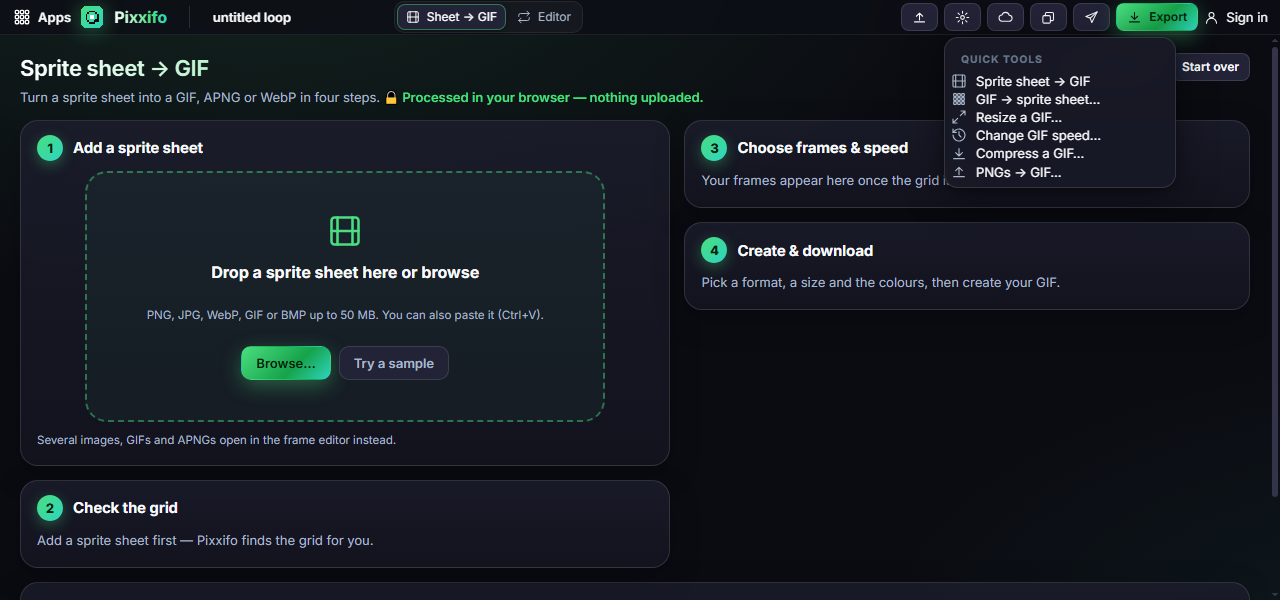
Open Tools in the top bar (the gear icon) for one-step jobs: GIF → sprite sheet, Resize a GIF, Change GIF speed, Compress a GIF and PNGs → GIF.
#Exporting and sharing
- Sheet → GIF exports GIF, APNG or WebP from step 4. Your last 12 results stay under Recent on this device for quick re-downloads.
- In the Editor, click Export (or Ctrl+S) for GIF, APNG, animated WebP, a PNG frames ZIP (with a timing file) or a sprite sheet PNG, with the same size, resize and background options. You see a preview and the exact size before downloading.
- Send to App hands the animation to another Pixx app, for example to Pixxula to pack it into an atlas or Pixxivi to touch up frames. Pixxifo can also open animations, sprite sheets and images sent from other apps via Library. See Send to App.
- Cloud saves the whole editor project to your Pixx account so you can continue on another device.
#Tips and shortcuts
- Space play / pause · ← / → step · Ctrl+Enter create · Ctrl+S export · Ctrl+D duplicate · Ctrl+A select all · Ctrl+Z / Ctrl+Y undo / redo · Del delete · 0 fit to screen.
- Browsers play GIF delays under 20 ms slowly, so keep each frame at 20 ms or more.
- GIFs can't do soft (semi-transparent) edges. If your art has a glow, use APNG or WebP, or pick a background colour.
- On a phone, Sheet → GIF stacks into one column; in the Editor the settings open from the bottom bar.
#Troubleshooting
- If the frames are cut in the wrong places, click Detect again, then set Columns & rows by hand.
- If the GIF looks blotchy, raise the colours back to 256 or tick Dither.
- If the GIF is too big to post, lower the Size, reduce colours, or use fewer frames.
- If WebP export is missing, your browser can't create WebP; use GIF or APNG instead.
- If a still image opens as one frame, choose Slice it when Pixxifo asks, or use Sheet → GIF.