#What Pixxovo is for
Pixxovo lets you build little 3-D models out of blocks (voxels) and turns them into clean pixel-art sprites. Instead of drawing a house four times for four directions, you build it once and Pixxovo renders every view with the same lighting and outlines.
You can model from scratch, start from 70 built-in models (trees, rocks, ruins, houses, props, creatures), or generate a whole biome diorama in one click. The result exports as sprite sheets, GIFs or MagicaVoxel files.
#Your first sprite in 5 minutes
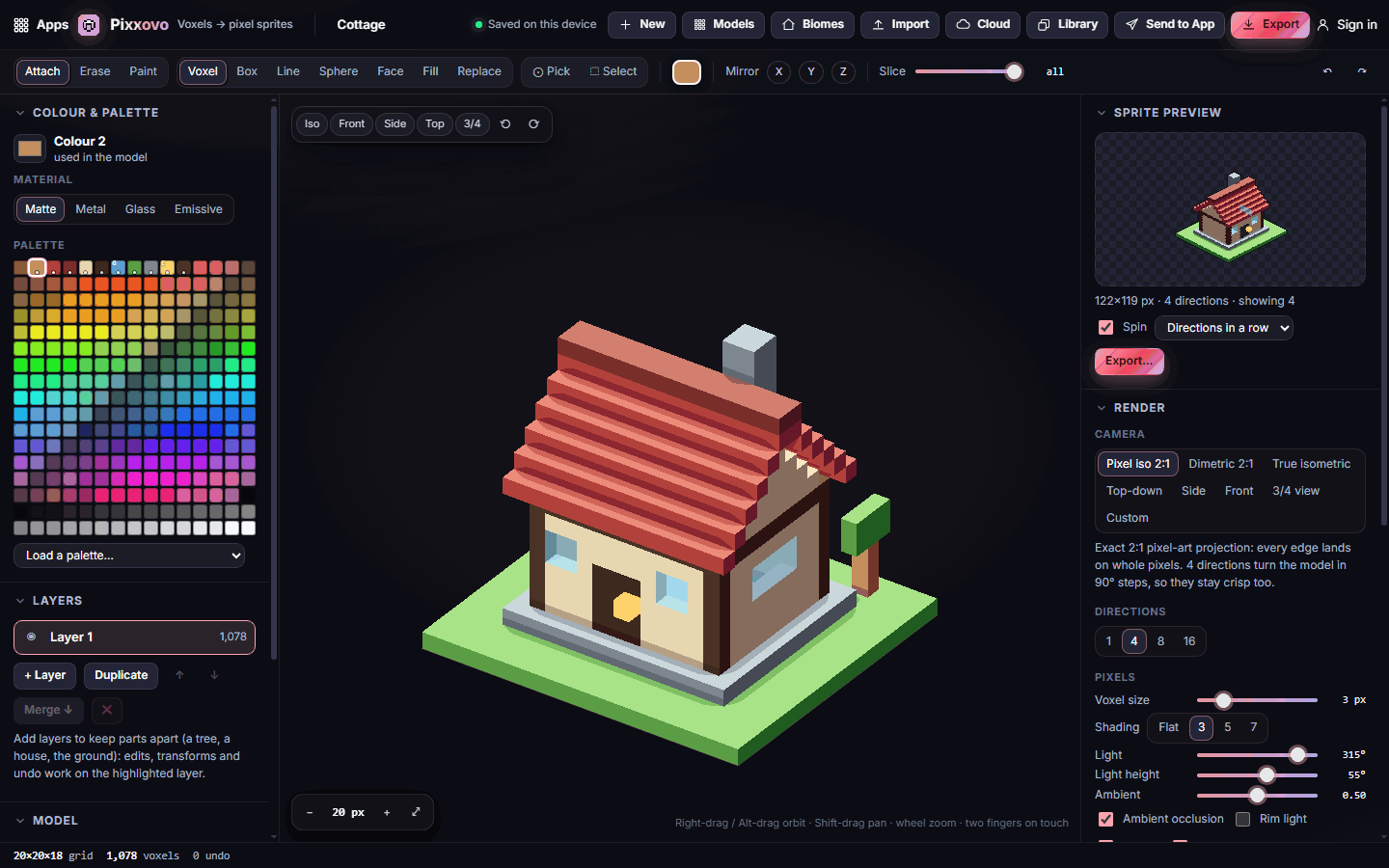
- Open Pixxovo. A sample cottage is loaded, and the Sprite preview on the right shows it turning.
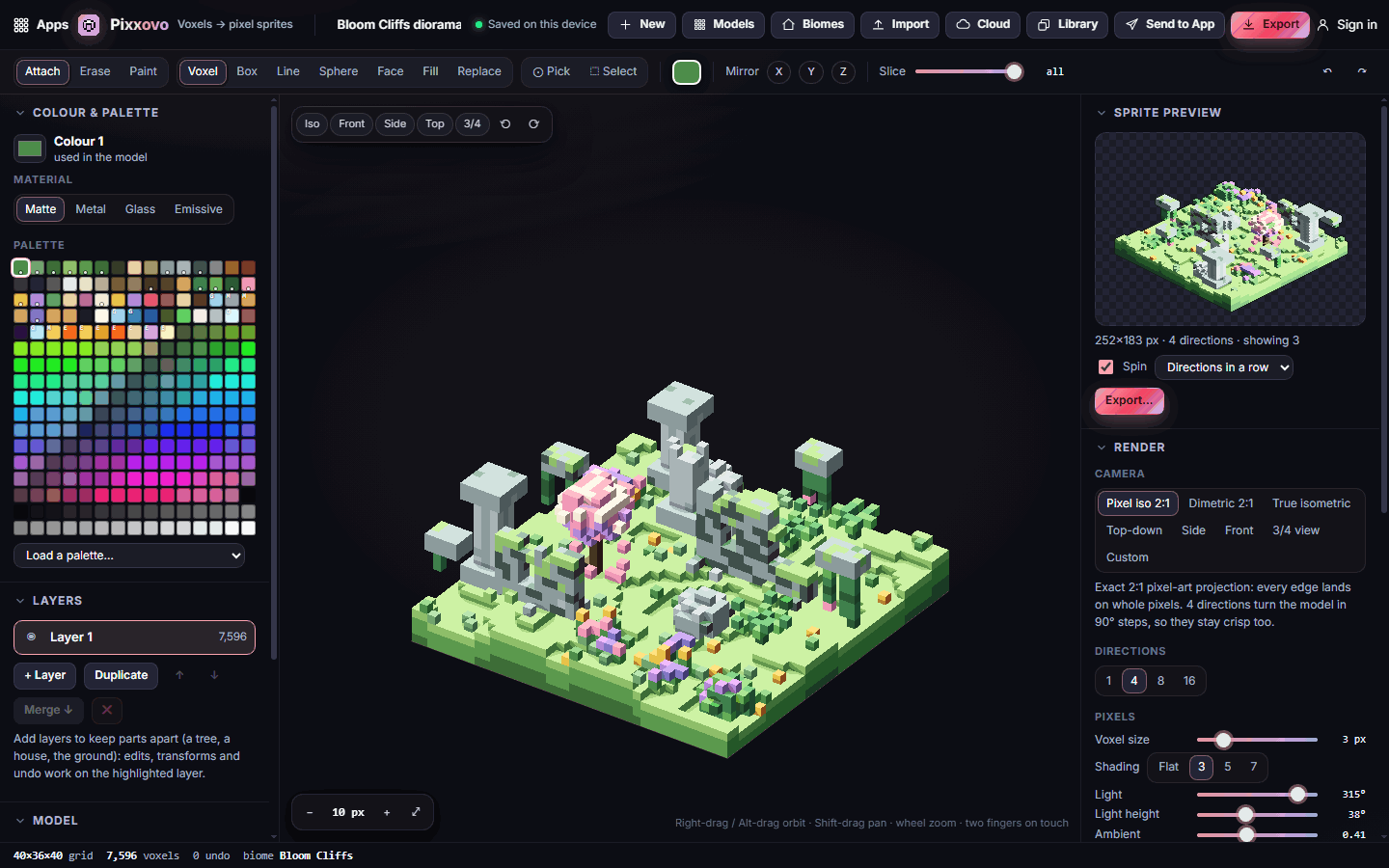
- Click Biomes in the top bar, pick a biome such as Bloom Cliffs, and click Generate diorama. A small scene is built in that biome's colours.
- Close the window. Right-drag (or Alt-drag) on the canvas to orbit and look around your diorama.
- In the Render panel, check that the camera is Pixel iso 2:1 and choose 4 directions.
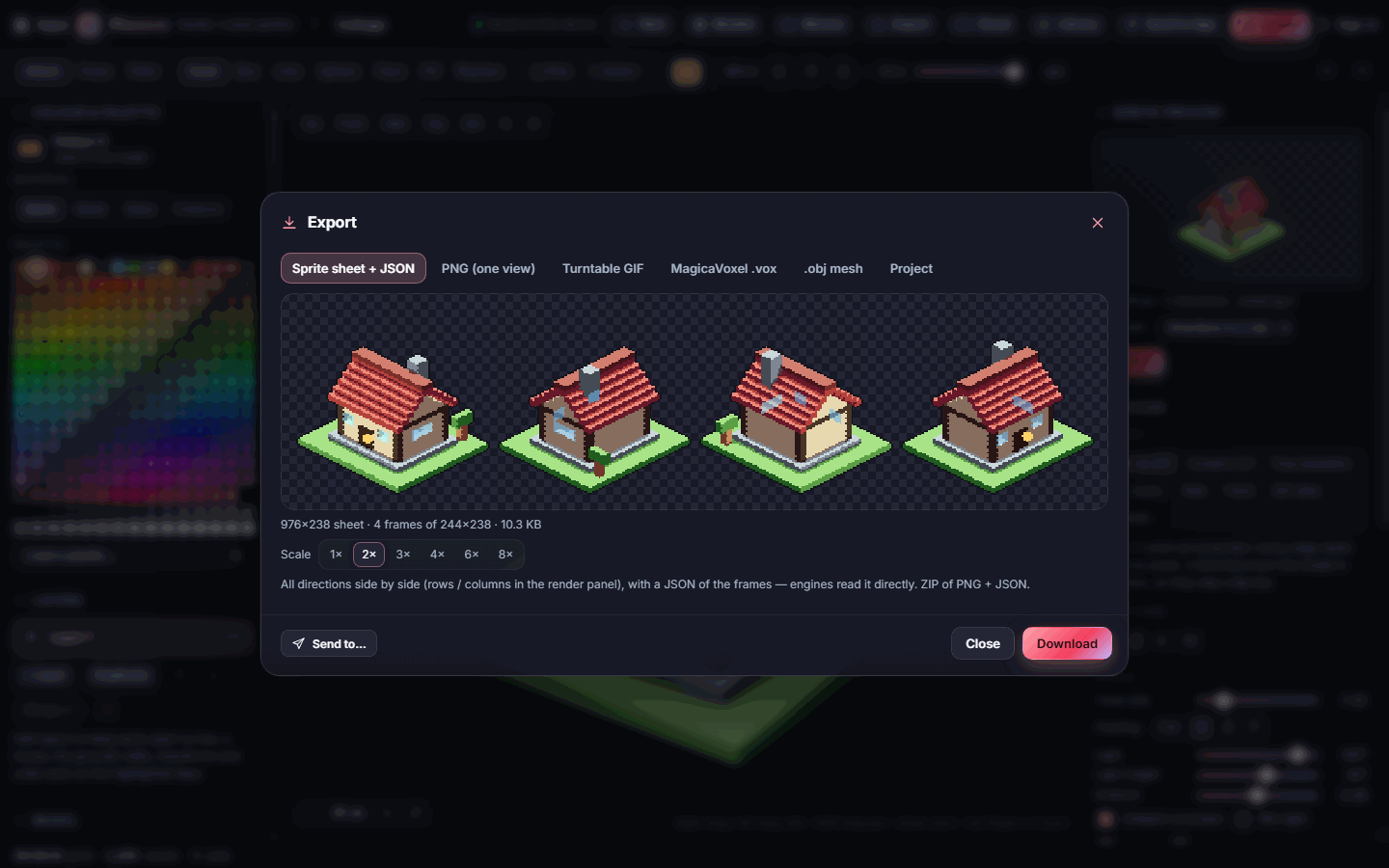
- Click Export, keep Sprite sheet + JSON, pick a scale and click Download.
#How-tos
#How to start a new model
- Click New in the top bar.
- Choose Blank grid at a size from 16 to 128 blocks, or one of the Samples: Cottage, Apple tree or Treasure chest.
- Your previous model is saved on this device, so you can come back to it.
#How to build and edit with the tools
The options bar has two rows of choices:
- Pick a mode: Attach adds blocks, Erase removes them, Paint recolours them.
- Pick a brush: Voxel (one block), Box, Line, Sphere, Face (a whole connected surface), Fill (a connected same-colour region) or Replace (every block of the clicked colour).
- Choose a colour from the Palette on the left, then click or drag on the model.
- Turn on Mirror X, Y or Z to build symmetrical things like a statue or an arch.
- Use the Slice slider to hide the top of the model and work inside it.
- Pick grabs a colour from the model; Select lets you box-select blocks to move, copy (Ctrl+C), cut (Ctrl+X), paste (Ctrl+V), turn or flip them.
#How to use the model library
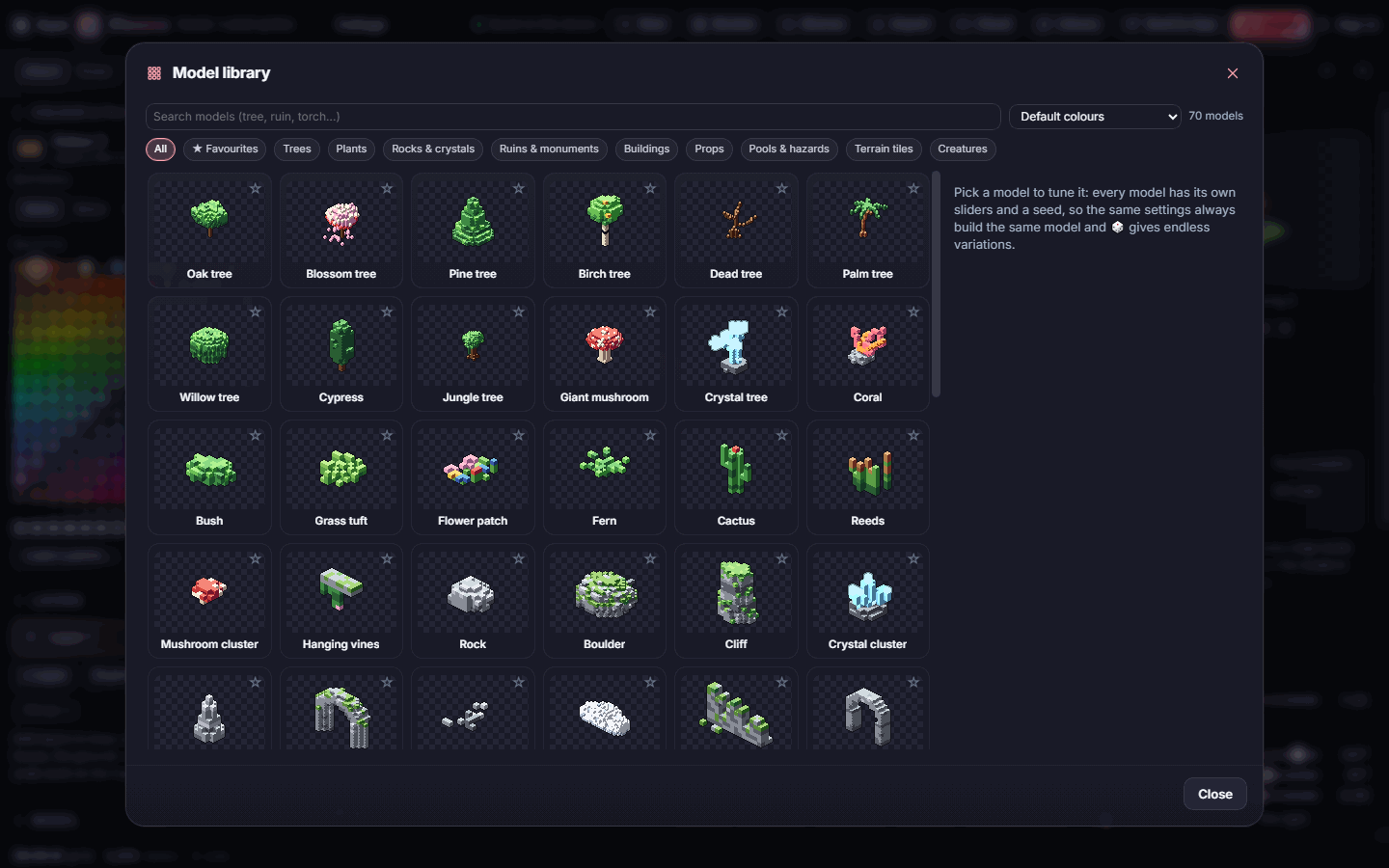
- Click Models in the top bar (or press M).
- Browse by group (Trees, Plants, Rocks & crystals, Ruins & monuments, Buildings, Props, Pools & hazards, Terrain tiles, Creatures) or search, for example "torch".
- Click a model to tune it: each one has its own sliders and a seed. Click 🎲 for a fresh variation.
- Use the colour menu at the top to show any model in a biome's colours.
- Choose New model to start from it, Add as layer to place it next to your work, or Stamp into layer to merge it into the current layer. Star ★ the ones you use often.
#How to work with biomes
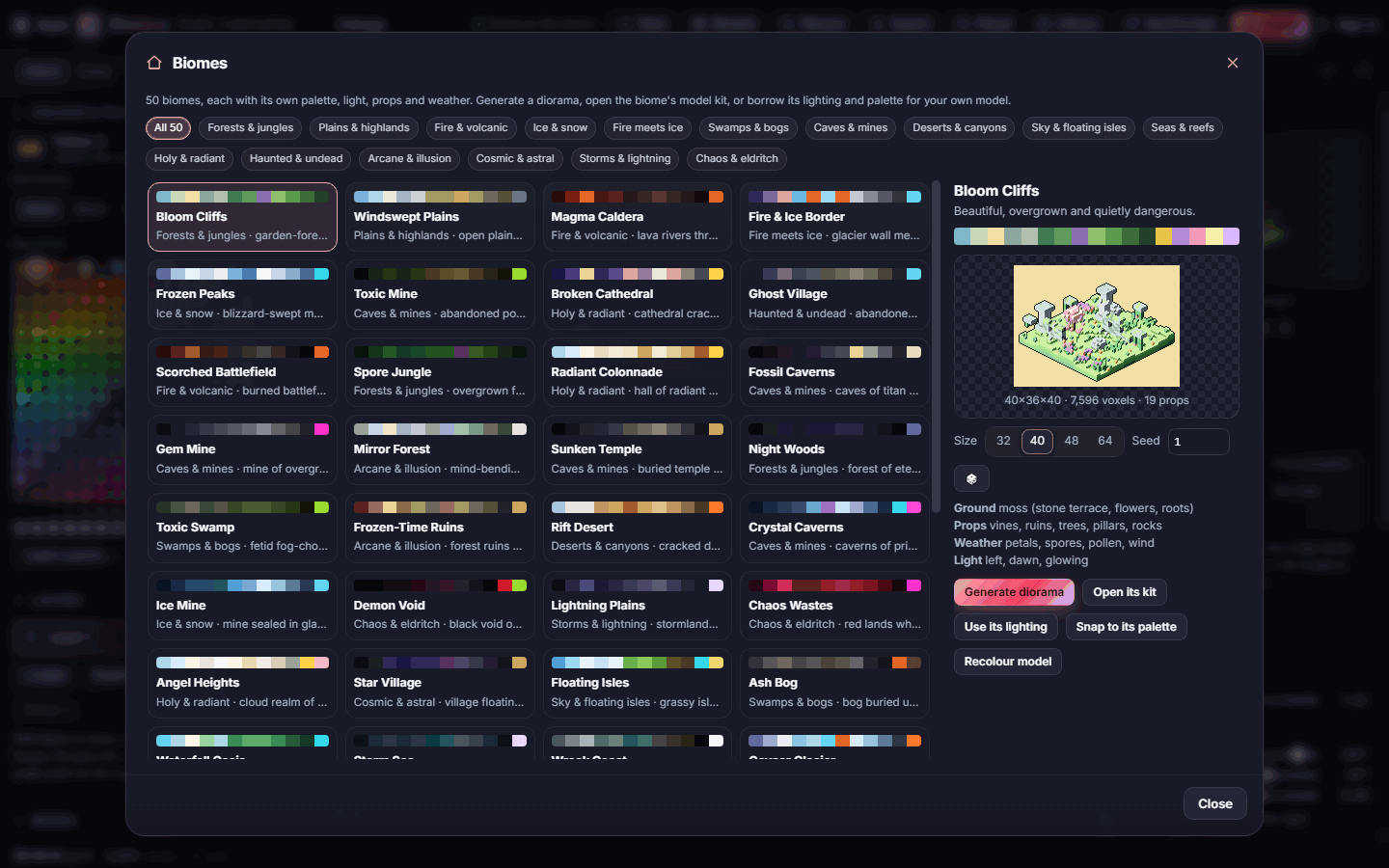
- Click Biomes (or press B). There are 50 biomes in groups such as Forests & jungles, Fire & volcanic, Ice & snow and Sky & floating isles.
- Select one to see its palette, a diorama preview, and the ground, props, weather and light it uses.
- Use the buttons:
- Generate diorama builds a small scene. Pick a Size (32–64) and a Seed first.
- Open its kit shows the library models that suit this biome, already in its colours.
- Use its lighting copies the biome's sun angle, ambient light, rim light and glow to your render.
- Snap to its palette limits the rendered sprite to the biome's colours.
- Recolour model repaints your current model in the biome's palette.
#How to use layers
- In the Layers panel, click + Layer to add one. Keep separate parts apart: the ground on one layer, a tree on another.
- Click a layer to work on it; edits and undo affect only that layer.
- Show or hide layers with the eye, double-click a name to rename it, and reorder with the arrows.
- Duplicate copies a layer; Merge ↓ joins it with the one below. The sprite always shows all visible layers together.
#How to set up the pixel-art render
Everything in the Render panel on the right changes how the sprite looks, not the model itself:
- Camera: Pixel iso 2:1 is the classic pixel-art angle where every edge lands on whole pixels. Other choices include Dimetric 2:1, True isometric, Top-down, Side, Front, 3/4 view and Custom.
- Directions: 1, 4, 8 or 16 views around the model.
- Voxel size sets how many pixels each block becomes; Shading picks Flat, 3, 5 or 7 tones per colour.
- Light, Light height and Ambient set the light; tick Ambient occlusion, Rim light, Outline and Glow for extra polish.
- Under Animation, choose a motion such as bob, sway, flicker, pulse or spin, plus the number of Frames. The preview plays it and sheets include every frame.
#How to make glowing parts
- Select a colour in the palette.
- Under Material, choose Emissive. Blocks of that colour glow and ignore shadows.
- In the Render panel, tick Glow, then pick Ring or Soft and a Glow radius.
- Metal gives brighter highlights; Glass is see-through.
#Exporting and sharing
Click Export (Ctrl+S) and choose a tab:
| Tab | What you get |
|---|---|
| Sprite sheet + JSON | All directions (and animation frames) in one image, with frame data for game engines |
| PNG (one view) | A single sprite |
| Turntable GIF | The model spinning |
| MagicaVoxel .vox | The model with its palette and materials, to keep editing in MagicaVoxel |
| .obj mesh | A 3-D mesh with vertex colours |
| Project | Your full Pixxovo project file |
Pick a Scale (1×–8×) and click Download.
Import in the top bar opens .vox files and Pixxovo projects. Send to App shares the directions as a sprite sheet, the turntable as an animation, one view as an image, or the palette. Library can open a palette as your colours, or an image as a voxel relief.
#Tips and shortcuts
- Orbit with right-drag or Alt-drag, pan with Shift-drag or middle-drag, zoom with the wheel. On touch screens, use two fingers.
- View presets at the top of the canvas: Iso, Front, Side, Top, 3/4, plus the turn buttons.
- Keys: A / E / P for Attach, Erase, Paint · 1–7 for brushes · I pick · S select · X / Y / Z mirror · ← / → turn the view · 0 fit · Ctrl+Z / Ctrl+Y undo and redo.
- Your project autosaves on this device. Sign in and use Cloud to open it elsewhere.
#Troubleshooting
- If blocks go somewhere unexpected, check you are on the right layer and that Slice isn't hiding the area you're clicking.
- If the sprite looks jagged at 8 or 16 directions, that's expected for in-between angles. Use 4 directions with Pixel iso 2:1 for the crispest result.
- If colours look different in the sprite, check the Shading steps, or turn off Snap to its palette.
- If a glow doesn't show, make sure the colour's material is Emissive and Glow is ticked in Render.
#Related guides
- Pixxexa for matching textures
- Pixxori for building levels with your sprites
- Send to App
- Plans and billing