#What Pixxexa is for
Pixxexa makes pixel-art textures that tile seamlessly: stone walls, grass, sand, wood planks, lava, ice, metal plates, sci-fi panels and more. Pick a material, tweak it with friendly sliders, add details like moss or cracks, and export a tile that repeats without a visible seam.
It's for anyone building game levels or backgrounds who needs good-looking ground and walls fast, from a single tile to a full themed set.
#Your first texture in 5 minutes
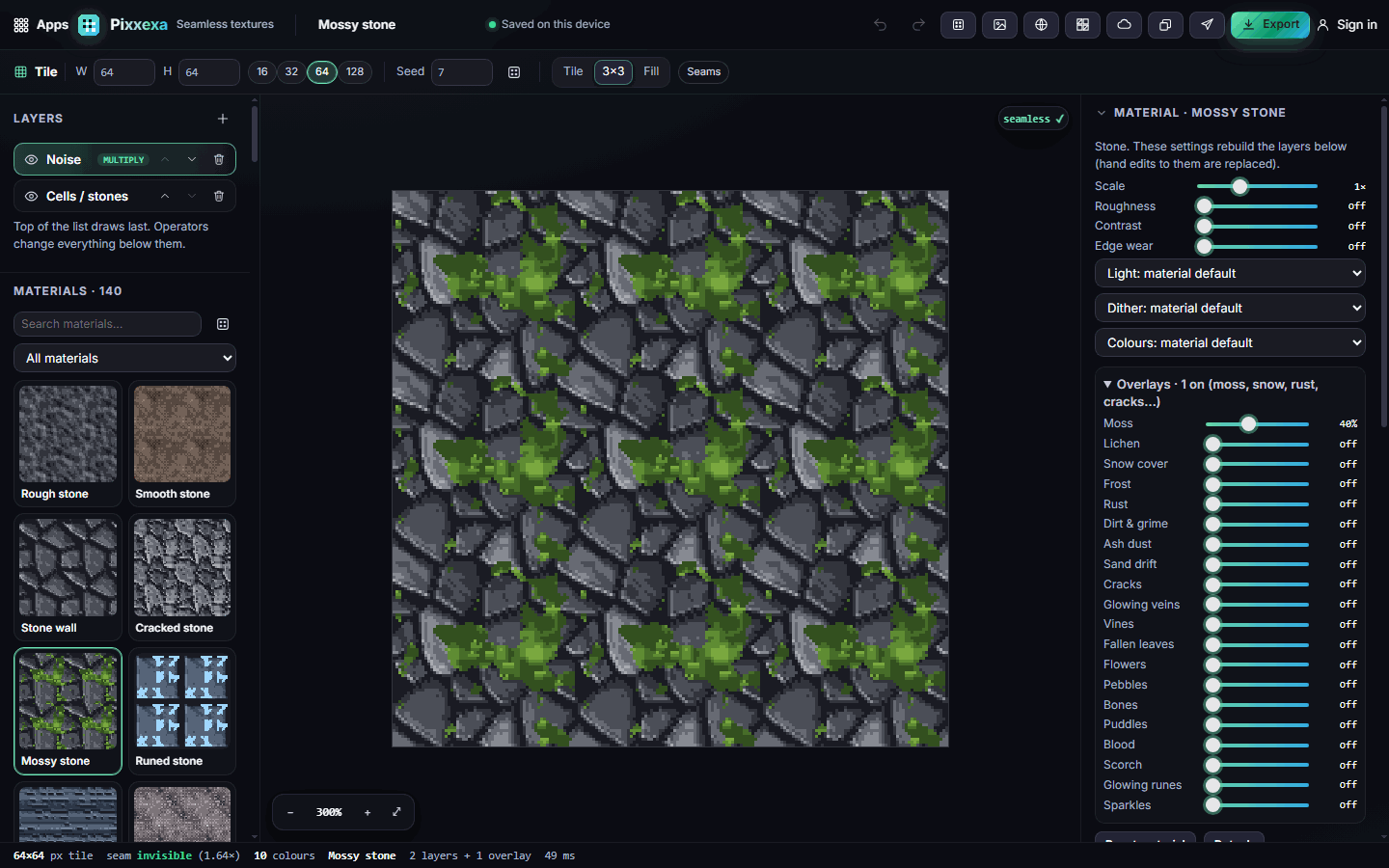
- Open Pixxexa. A Mossy stone texture is already showing, repeated 3×3 so you can see it tile.
- In the Materials list on the left, click Cobblestone, Grass or any other thumbnail. The texture changes instantly.
- In the right panel, drag Scale and Roughness until it looks right.
- Open Overlays and drag Moss or Snow cover up to add weathering.
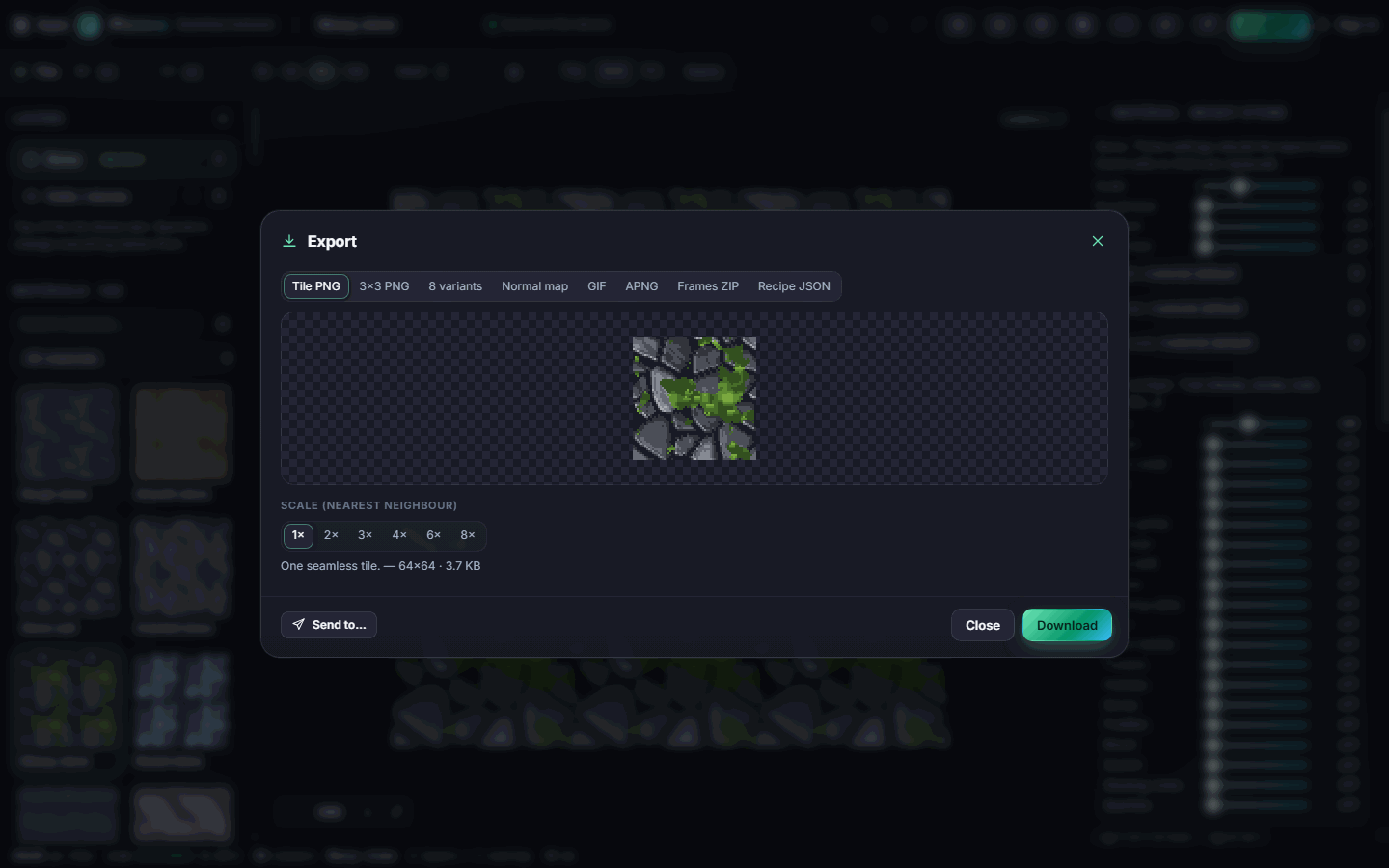
- Click Export, keep Tile PNG, choose a scale such as 4× and click Download.
#How-tos
#How to find a material
- Use the Search materials… box on the left, for example "brick", "lava" or "sci-fi".
- Or choose a category from the All materials menu.
- Click the star on a thumbnail to save it as a favourite.
- Use the dice button next to the search box for a random material, sometimes in a biome's colours.
There are 124 materials, from rough and cracked stone to glowing-mortar bricks, rusted metal, chainmail, marble, mosaic and rune floors. Seventeen of them are animated: lava, water, swamp, storm clouds and more.
#How to change the size and look
- In the options bar, set the tile size with W and H, or the quick buttons 16, 32, 64 and 128.
- Change the Seed for a different arrangement of the same material; the dice next to it picks a random seed.
- In the right panel, adjust Scale, Roughness, Contrast and Edge wear.
- Use the menus for Light (which side the light comes from), Dither (the dithering style) and Colours, which can recolour the material using any biome palette.
#How to add moss, snow, rust and other details
- Open Overlays in the right panel.
- Drag any overlay up: Moss, Lichen, Snow cover, Frost, Rust, Dirt & grime, Ash dust, Sand drift, Cracks, Glowing veins, Vines, Fallen leaves, Flowers, Pebbles, Bones, Puddles, Blood, Scorch, Glowing runes or Sparkles.
- Each overlay keeps its own colours, so moss stays green on grey stone.
#How to check it tiles
- Switch the view between Tile, 3×3 and Fill in the options bar.
- Click Seams to draw the tile edges: green means seamless, red would show a seam.
- The badge at the top of the canvas says seamless ✓ when the edges match.
#How to try different variations
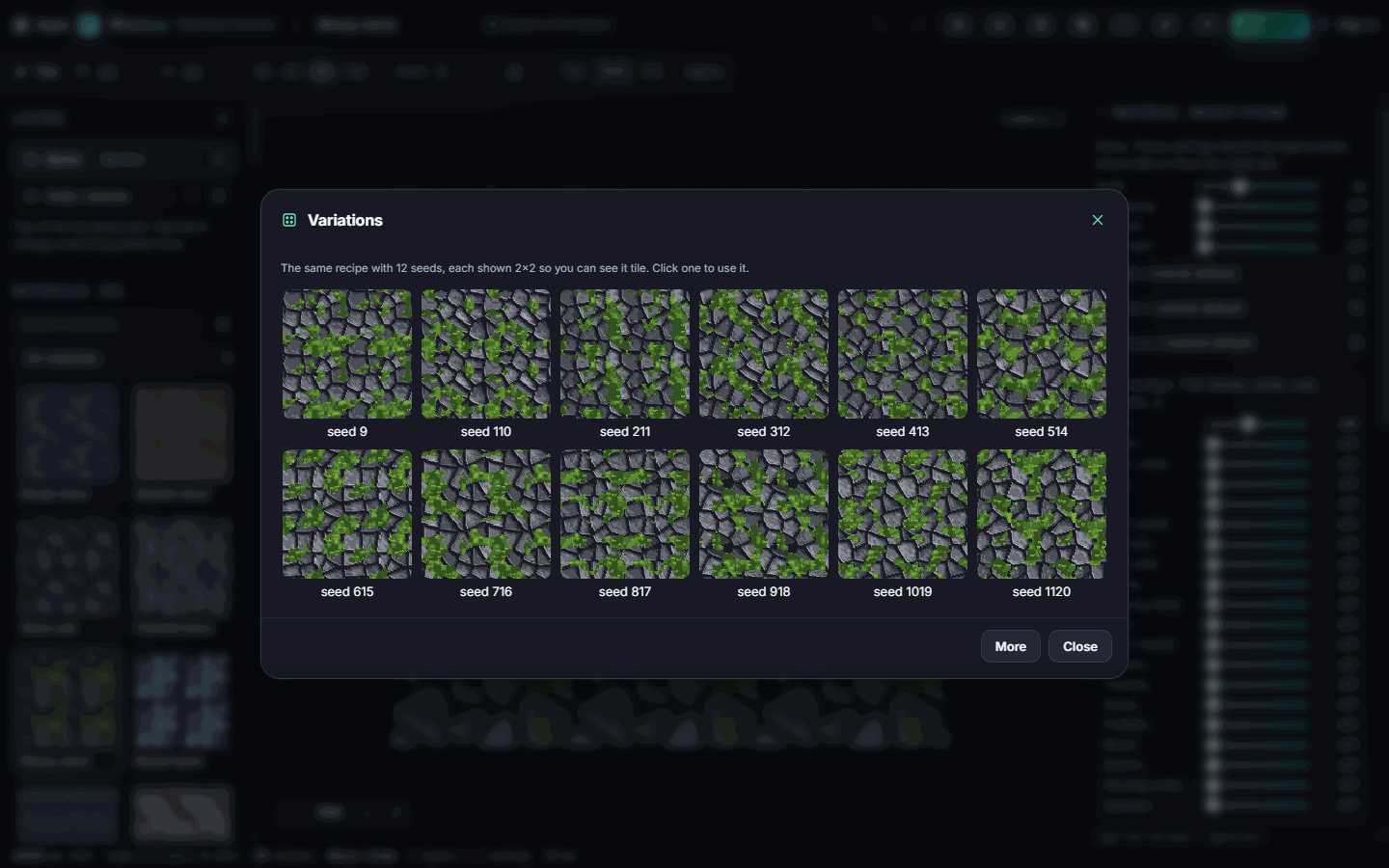
- Click Variations in the top bar.
- You'll see the same texture with 12 different seeds, each shown 2×2 so you can judge how it tiles.
- Click one to use it, or More for another dozen.
#How to make a whole biome texture pack
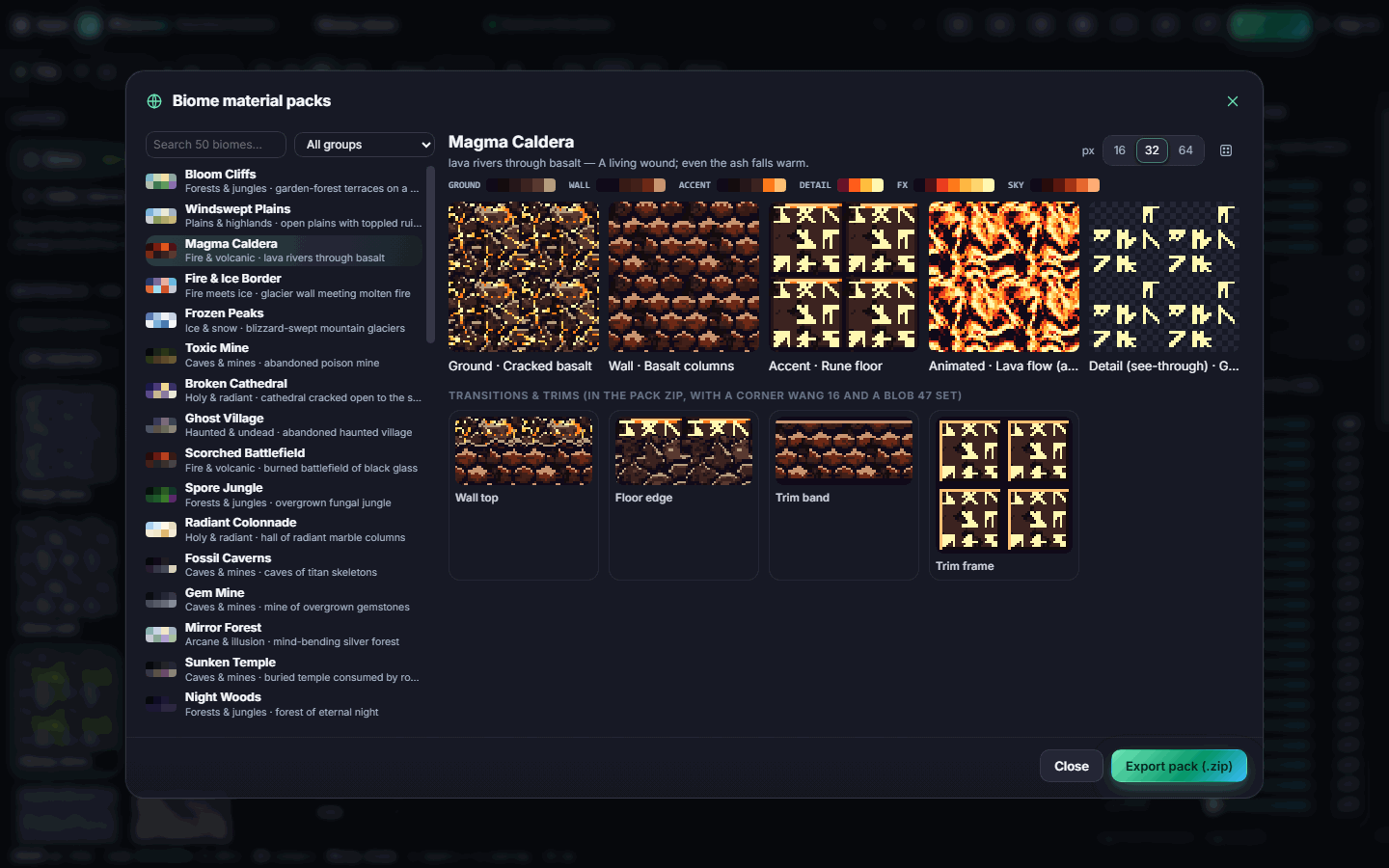
- Click Biomes in the top bar.
- Pick one of the 50 biomes on the left, for example Magma Caldera or Frozen Peaks.
- Pixxexa builds a matching set: a Ground texture, a Wall, an Accent, an Animated texture and a see-through Detail layer, plus transitions such as Wall top, Floor edge, Trim band and Trim frame.
- Choose the tile size (16, 32 or 64 px) and re-roll if you want a different take.
- Click any texture to open it for editing, or Export pack (.zip) to download everything at once.
#How to make transition and edge tiles
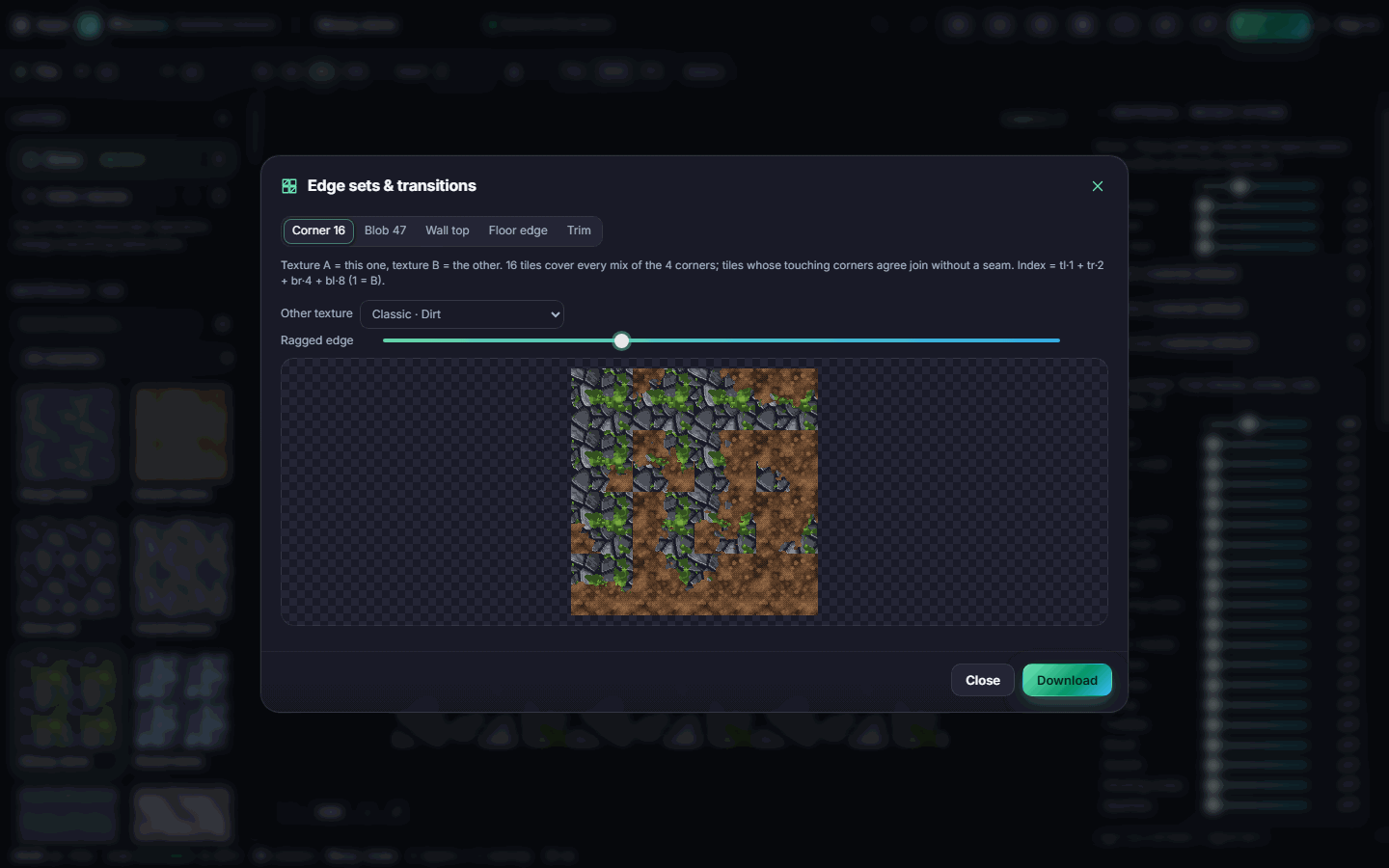
- Click Edge set in the top bar.
- Choose a tab: Corner 16, Blob 47 (a full autotile set), Wall top, Floor edge or Trim.
- Pick the Other texture your current one should blend into, for example Dirt.
- Adjust Ragged edge for a rougher or cleaner border, then click Download.
#How to build a texture by hand
- In the Layers panel, click + to add a generator (noise, bricks, wood grain, cells, stars…) or an operator (blur, emboss, levels…).
- Layers draw from the bottom up; operators change everything below them.
- Set each layer's blend and opacity, reorder with the arrows, or delete with the bin.
- Hand edits to a material's layers are replaced if you move that material's sliders again.
#How to turn your own image into a tile
- Click Import in the top bar.
- Drop, paste or pick an image. It's scaled to the tile size.
- Choose Blend edges or Mirror to hide the seams, then download it or use it as a layer.
#How to animate a material
- Pick an animated material (use the Animated filter in the browser), or add scrolling, boil or colour cycling to your own recipe.
- Press Space to play and pause, and the arrow keys to step frames.
- Animations always loop seamlessly.
#Exporting and sharing
Click Export (Ctrl+S) and choose a tab:
| Tab | What you get |
|---|---|
| Tile PNG | One seamless tile |
| 3×3 PNG | The tile repeated, for previews |
| 8 variants | Eight seeds in one sheet, for variety in a tilemap |
| Normal map | A lighting map for lit 2-D games (works with Pixxura) |
| GIF / APNG | The animation |
| Frames ZIP | Every frame as a PNG, plus timing |
| Recipe JSON | The settings, to rebuild the texture exactly |
Pick a scale from 1× to 8× and click Download.
Send to App shares the tile (image), the 8 variants (sheet), the animation (frames) or the colour ramp (palette). Library opens an image to make it tile, or a palette as the colour ramp.
#Tips and shortcuts
- R new seed · V variations · Space play · ← / → step · 1 / 3 / F tile, 3×3 or fill view · S seam lines · 0 fit · Ctrl+Z / Ctrl+Y undo and redo.
- The same material, settings and seed always give the same texture.
- Your recipe autosaves on this device; sign in and use Cloud to keep it across devices.
#Troubleshooting
- If you edited a layer and it reset, you moved a material slider afterwards. Click Detach at the bottom of the material panel first to keep your hand edits. Reset material goes back to the material's own settings.
- If the texture looks noisy, lower Roughness or switch Dither off.
- If colours band in the GIF, export APNG instead.
- If a biome pack takes a moment, wait for the thumbnails to fill in; large packs build several textures at once.
#Related guides
- Pixxori for building maps with your tiles
- Pixxura for lighting with normal maps
- Send to App
- Plans and billing