#What Pixxypo is for
Pixxypo makes pixel fonts. You draw each letter (a "glyph") on a small grid, set the spacing, and Pixxypo turns it into a font you can install on your computer, use on a website, or load in your game engine. It's perfect for game titles, dialogue boxes, score counters and a consistent retro look across your UI.
#Your first font in 5 minutes
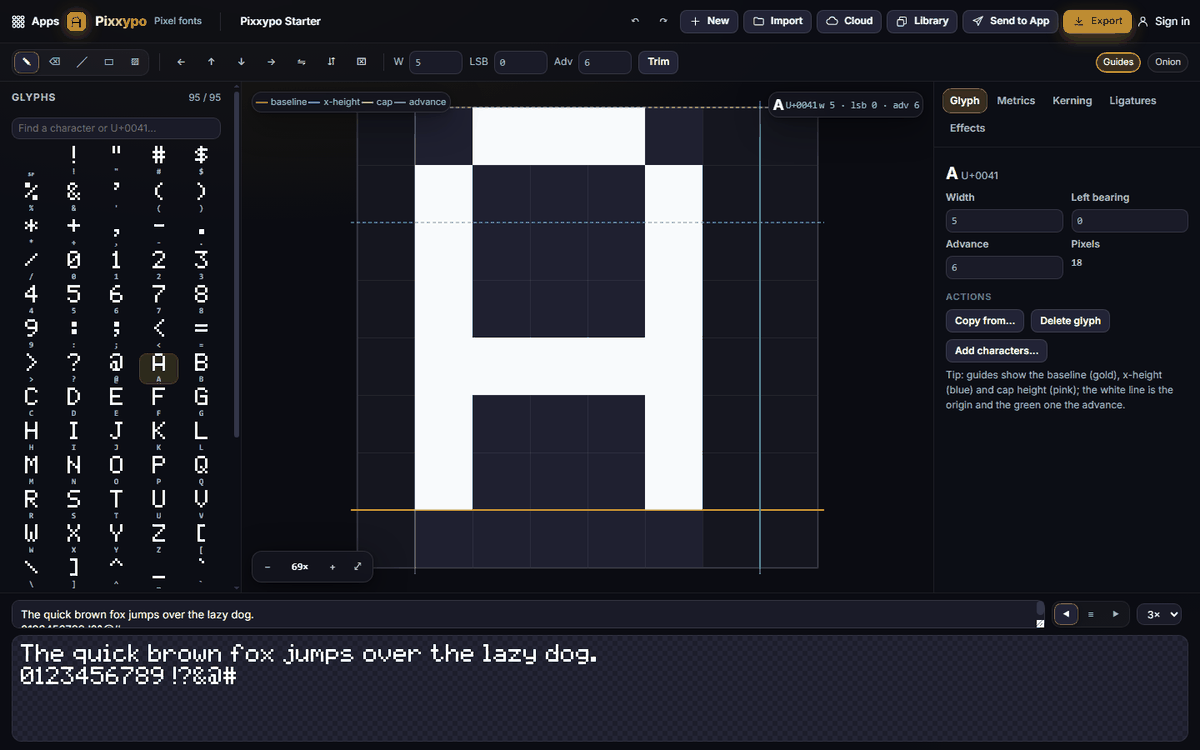
- Open Pixxypo. It starts with the Pixxypo Starter font: every printable letter, number and symbol, already drawn.
- Click a letter in the Glyphs list on the left, for example A.
- Draw on the big grid with the pencil. Click on an empty square to add a pixel, click on a filled one to erase, or right-click to erase.
- Watch the preview at the bottom update as you draw. Type your own text in the box above it.
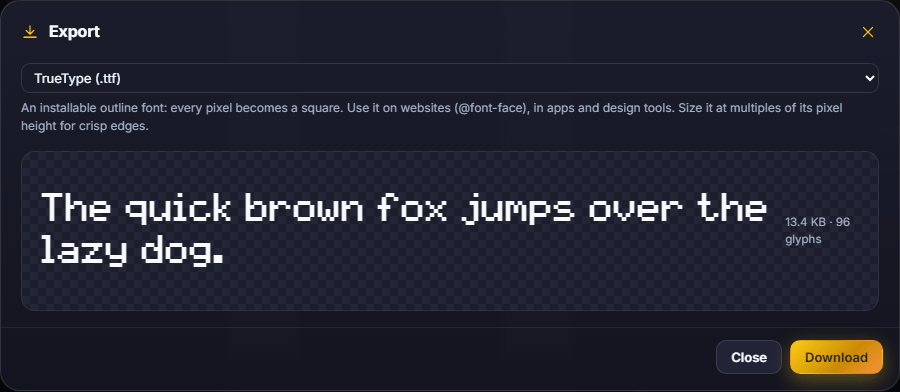
- Click Export, keep TrueType (.ttf), and click Download. Double-click the downloaded file to install your font.
#How-tos
#How to start a new font
- Click New.
- Choose Starter font (a ready 5×7 font to customise) or a blank font of the height you want.
- Give your font a name in the box at the top.
#How to draw a glyph
- Select the glyph in the Glyphs list, or type the character in Find a character or U+0041… to jump to it.
- Use the drawing tools at the top left: pencil, eraser, line, rectangle (hold Shift for a filled one) and fill.
- The arrow buttons shift the whole glyph one pixel; the flip buttons mirror it; Trim removes empty columns at the sides.
- The coloured guides show the baseline, x-height, cap height and advance (where the next letter starts).
- Turn on Onion to see another glyph faintly underneath, which helps keep letters consistent.
#How to set the width and spacing of a letter
- Select the glyph and open the Glyph tab on the right.
- Set Width (how wide the drawing area is), Left bearing (space before the letter) and Advance (how far the cursor moves to the next letter).
- The same values appear in the bar above the grid as W, LSB and Adv.
#How to change the font's size and line spacing
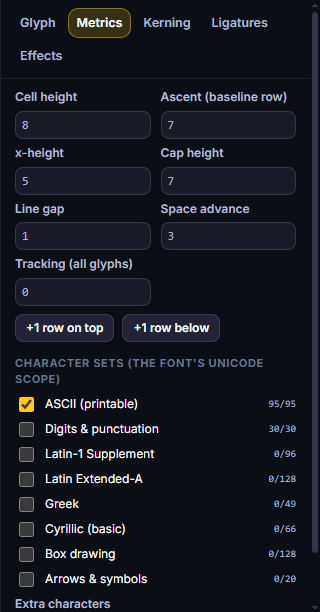
- Open the Metrics tab.
- Set Cell height, Ascent (baseline row), x-height, Cap height, Line gap, Space advance and Tracking (all glyphs).
- Need more room? +1 row on top or +1 row below adds a row to every glyph.
#How to add more characters (accents, Greek, Cyrillic, symbols)
- In the Metrics tab, tick the Character sets you want: Digits & punctuation, Latin-1 Supplement, Latin Extended-A, Greek, Cyrillic (basic), Box drawing, Arrows & symbols.
- New characters appear in the list as dashed tiles until you draw them.
- To add any single character, use Add characters… in the Glyph tab.
#How to fix awkward letter pairs (kerning)
- Open the Kerning tab and click Add pair.
- Type the two letters (for example AV) and set how many pixels closer or further apart they should be.
- The live preview shows the result.
#How to make a ligature
A ligature replaces a sequence of characters with one special glyph — for example "->" becoming an arrow, or "<3" a heart.
- Open the Ligatures tab and click Add ligature.
- Type the sequence (2 or more characters) and draw its glyph.
#How to style and animate the preview text
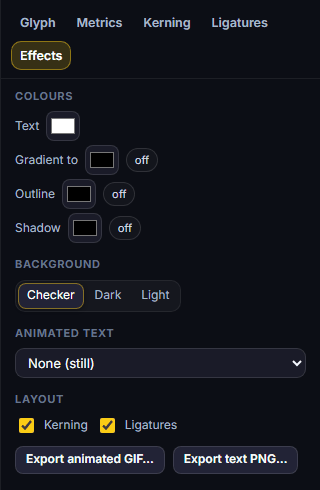
- Open the Effects tab.
- Choose a Text colour, an optional Gradient to, Outline and Shadow, and a Background (Checker, Dark, Light).
- Pick an Animated text effect: typewriter, wave, shake, rainbow, bounce or fade.
- Click Export animated GIF… or Export text PNG… to save the preview as an image.
#How to import an existing font
Click Import and choose:
- Glyph sheet image (a grid of characters)… — set the cell size, offsets, gaps and the characters in order; a grid overlay shows how it will be cut.
- BMFont (.fnt + .png together)… — pick both files at once.
- Pixxypo font (.pxfont.json)… — a Pixxypo project file.
#Exporting and sharing
Click Export and choose a format:
- TrueType (.ttf) — an installable font for computers, websites and design tools.
- BMFont text or BMFont XML (.fnt + .png) — the format most game engines read.
- Atlas PNG — just the packed glyph sheet.
- JSON metrics + bitmaps, C header (.h) or JS module — for programmers.
- Pixxypo project (.pxfont.json) — to keep editing later.
Also:
- Send to App sends the font as a glyph sheet, the preview text as an image or animation, or its colours to another Pixx app.
- Library opens a sheet or image from your Pixx library in the glyph-sheet importer, or a palette as the preview colours.
- Cloud saves your font to your account. Pixxypo also saves automatically on this device.
#Tips and shortcuts
- B pencil, E eraser, L line, R rectangle, G fill.
- [ and ] go to the previous / next glyph; Shift + arrow keys shift the glyph.
- Ctrl+Z / Ctrl+Y undo and redo (150 steps), Ctrl+S opens Export.
- Guides shows or hides the guide lines; Onion shows another glyph underneath.
- On a phone, the glyph list and settings open as panels from the bottom.
#Troubleshooting
- If letters overlap or have big gaps, check Advance and Left bearing in the Glyph tab, or adjust Tracking in Metrics.
- If the installed font looks blurry, use it at a whole multiple of its pixel height and turn off font smoothing where your app allows it.
- If a character shows as a dashed tile, it isn't drawn yet. Select it and draw it, or untick that character set.
- If a BMFont import fails, select the .fnt file AND its .png together.
#Related guides
- Pixxico — game UI to use your font in
- Pixxula — pack sprites and atlases
- Send to App
- Plans and billing