#What Pixxizi is for
Pixxizi is the game packager of the Pixx Suite. It collects the art, sound and dialogue you made in the other Pixx apps into one package. It checks the package for common problems, then exports projects that open straight in Godot 4, Unity, GameMaker, Phaser, LÖVE or Defold. Hitboxes, pivots, animation speeds and music loop points come along, so you don't have to set them up again in the engine.
#Your first package in 5 minutes
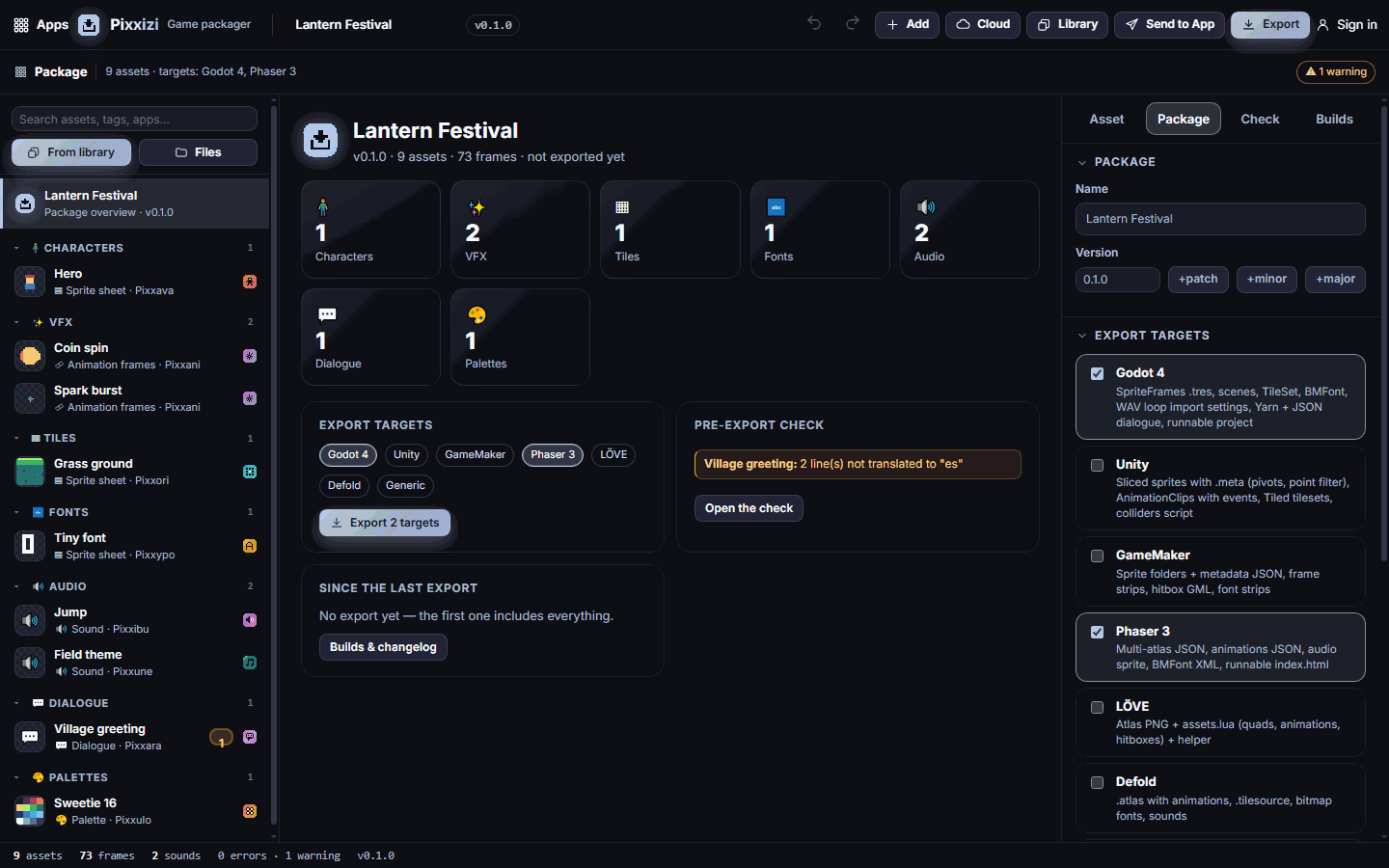
- Open Pixxizi and click Try the sample package. A small game appears in the list on the left: a hero, two effects, a tileset, a font, two sounds, a conversation and a palette.
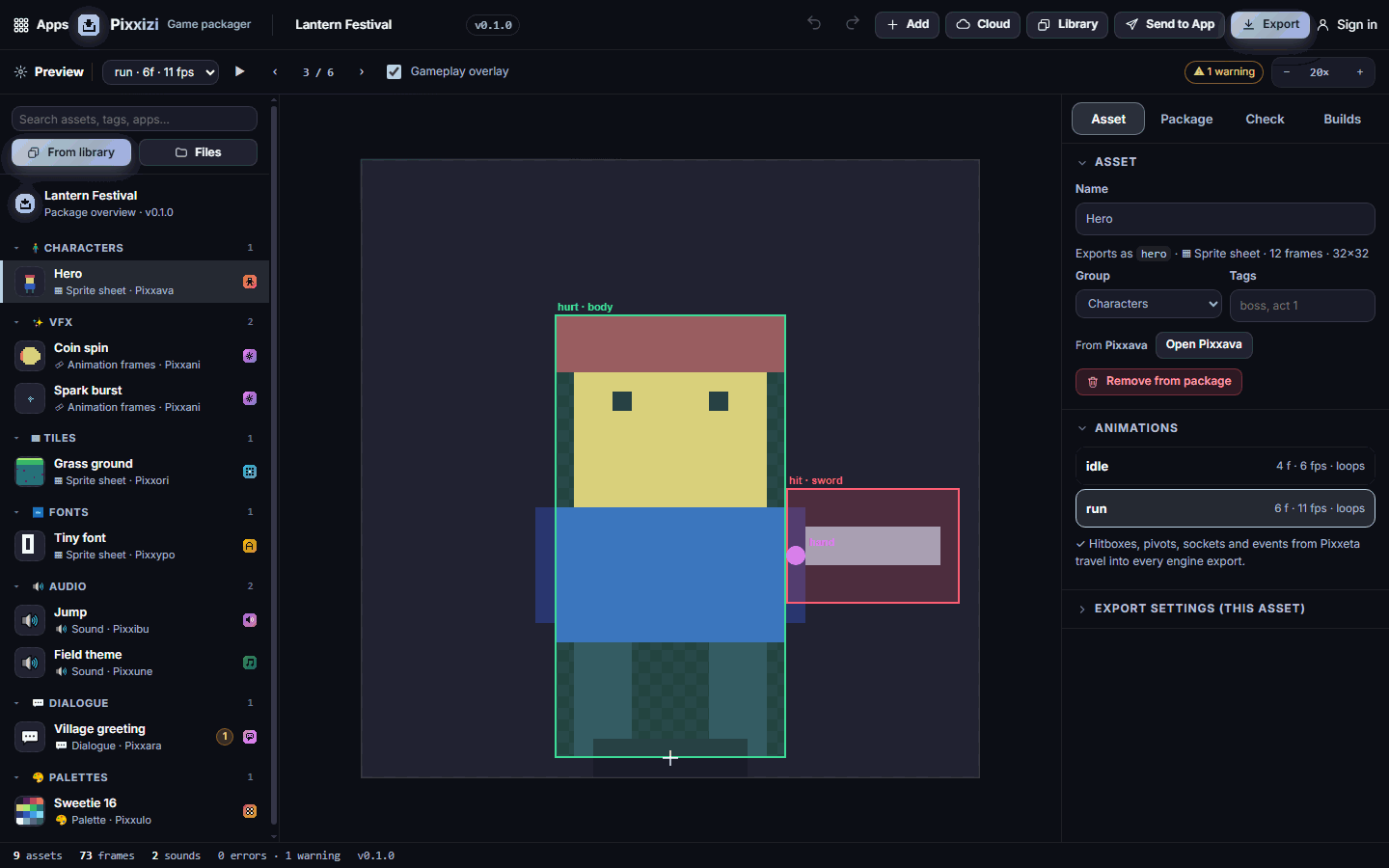
- Click Hero in the list. The preview plays the animation, with the hitboxes, pivot and sockets drawn on top. Pick run in the animation menu at the top.
- Open the Check tab on the right. It lists anything that could go wrong in the engine. The sample has one warning: two lines of the conversation are missing their Spanish translation.
- Click Export in the top bar. Tick Godot 4 (or your engine) and click Build.
- The ZIP downloads. Unzip it into your engine project. The README inside gives the import steps for that engine.
#How-tos
#How to add assets from your Pixx Library
- Click Library in the top bar (or From library above the asset list).
- Use the kind chips (Animation frames, Sprite sheet, Sound, …) to filter, then click every asset you want. Ticked cards get a ✓.
- Click Add selected. A game pack adds all of its members at once.
#How to add files from your computer
- Click Files above the asset list, or drag files onto the preview.
- Pixxizi takes PNG and GIF images (animated GIFs and PNGs become animations), WAV sounds, .pxasset files, GIMP or HEX palettes and dialogue scripts saved as JSON.
#How to check an animation and its hitboxes
- Select a sprite in the list.
- Pick the animation in the menu at the top. Use ▶ to play or pause, and ‹ › (or the arrow keys) to step frame by frame.
- Leave Gameplay overlay on to see hit, hurt, collide and trigger boxes, the pivot cross, sockets and frame events.
- Scroll on the preview to zoom, drag to move it, and double-click to fit it again.
#How to organise and name assets
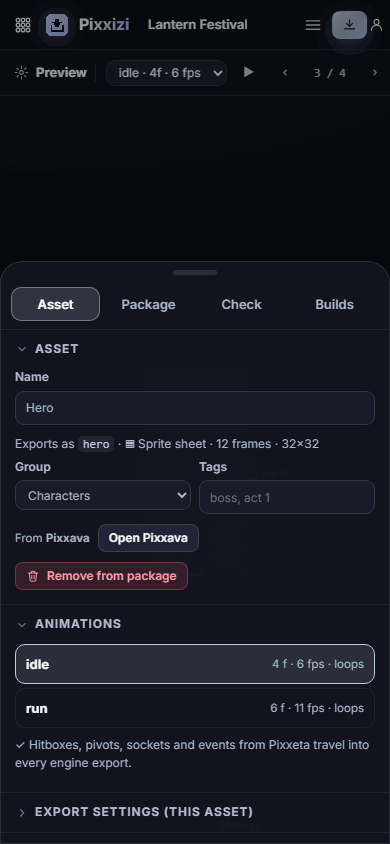
- Select an asset and open the Asset tab.
- Change its Name, Group (Characters, VFX, Tiles, UI, Fonts, Audio, Dialogue, Palettes or Misc) and Tags. The line "Exports as" shows the file name the engine will see.
- In the Package tab, under Naming & folders, choose snake_case, camelCase, PascalCase or kebab-case, and turn on Type prefixes if you want names like spr_hero.
- Use the search box above the list to find assets by name, tag or the app they came from.
#How to fix problems before exporting
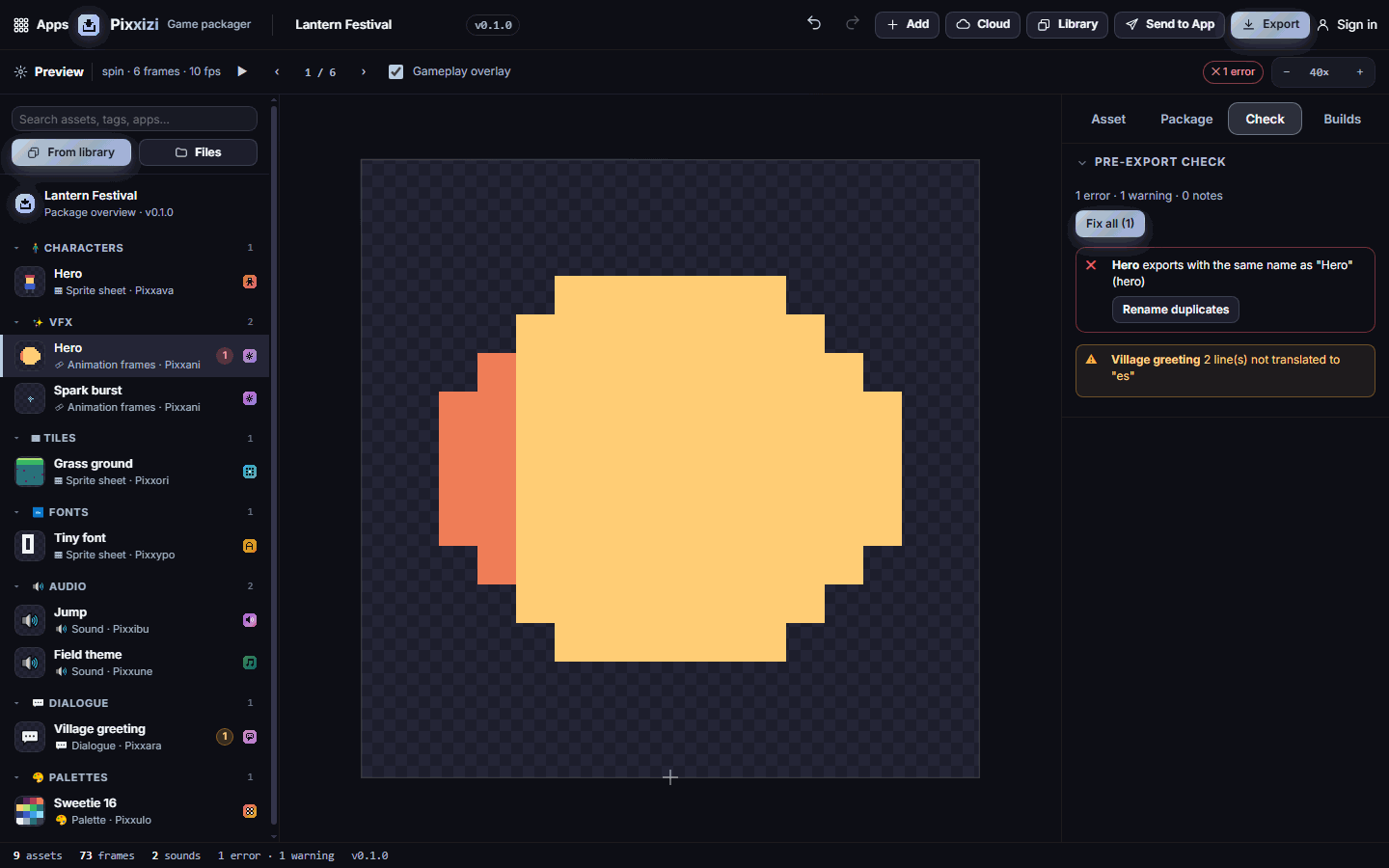
- Open the Check tab. Errors come first, then warnings and notes.
- Click the fix button on an item (for example Rename duplicates, Name it "idle" or Loop end to end), or click Fix all.
- For art problems, use Add in Pixxeta to add missing hitboxes and pivots, or Check in Pixxoku for colours outside your palette and odd sizes.
The check looks for duplicate names, animations without a name, sprites without a pivot, frames bigger than your atlas limit, textures over 4096 pixels, odd sizes, music without a loop, broken dialogue links, missing translations, colours outside a locked palette and packages over your size budget.
#How to set up atlases and image options
- Open the Package tab and expand Atlases & images.
- Choose the Max atlas size, Padding and Extrude (extrude repeats the edge pixels, which stops lines between tiles).
- Turn on Power-of-two atlas sizes for older engines, and PNG8 compression for smaller files.
- Use Scale to export at 2×, 3× or more with crisp pixels. Hitboxes and pivots scale with the art.
- To change one asset only, open its Asset tab and expand Export settings (this asset).
#How to loop music
- Select a sound. Press Play (or Space) to listen.
- In the Loop section, tick Loop this sound and set Loop start and Loop end in seconds. The looping part is highlighted on the waveform.
- Music longer than 8 seconds loops end to end by default. Turn this off under Audio, palette & budget in the Package tab.
#How to check a conversation
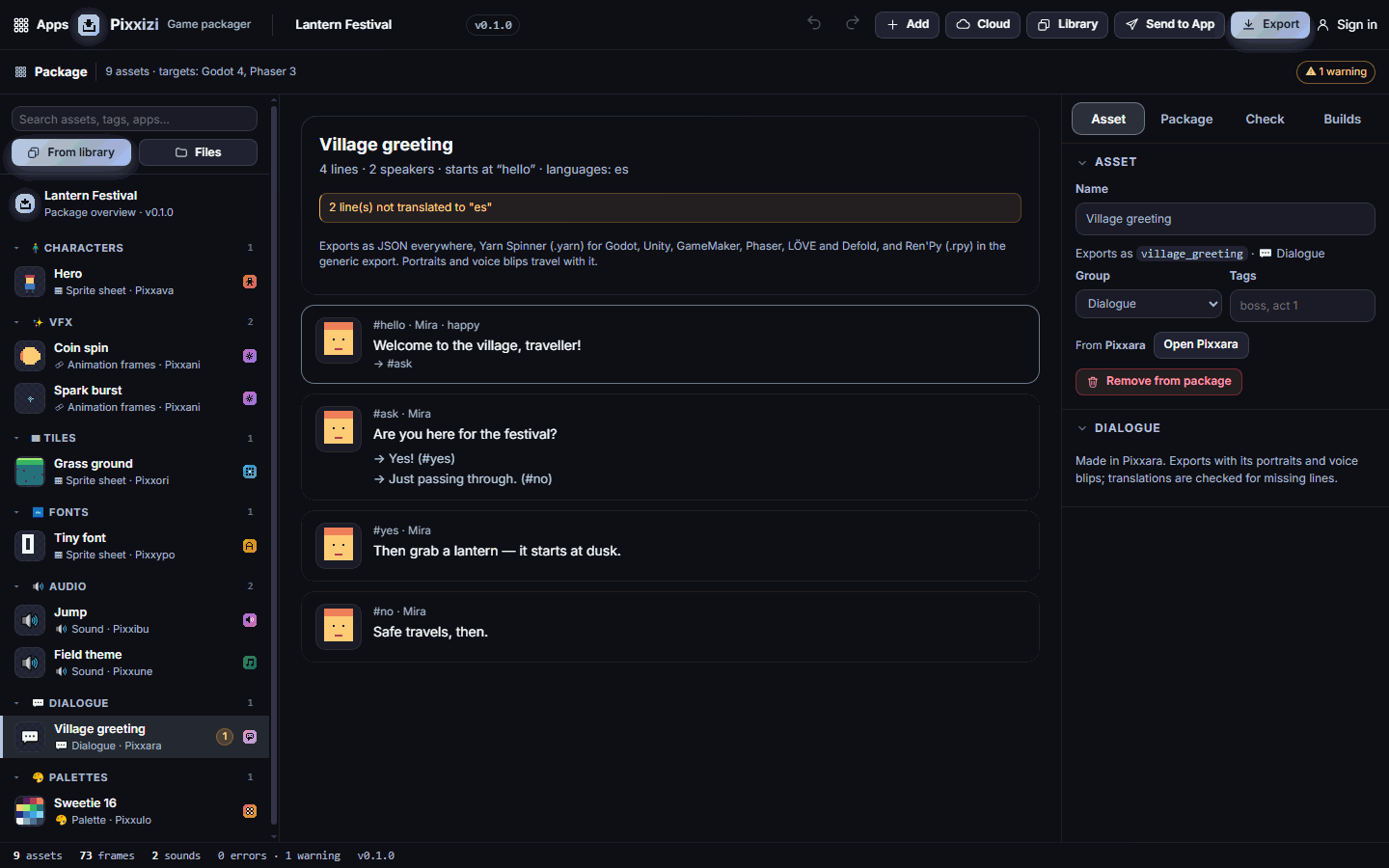
- Select a dialogue asset. Every line shows its speaker, portrait, choices and where it leads.
- Any broken links or missing translations appear at the top and in the Check tab.
#How to export only what changed
- Open the Builds tab. Since the last export shows what was added, changed or removed.
- Click Export, tick Only assets changed since v…, and click Build.
- To bump the version, pick → v0.1.1 (or a minor or major step) next to Version and add a Build note. The Changelog fills in by itself.
#Exporting and sharing
Click Export to build one ZIP per engine:
| Engine | What you get |
|---|---|
| Godot 4 | Animated sprite resources and scenes, a tileset with collisions, bitmap fonts, sound import settings with loop points, dialogue, and a small project you can run |
| Unity | Sliced sprite sheets with pivots, animation clips with events, Tiled tilesets, a collider script |
| GameMaker | A sprite folder per animation with origin and speed, frame strips, a hitbox script, font strips |
| Phaser 3 | A texture atlas, animations, an audio sprite, bitmap fonts and a page you can run |
| LÖVE | An atlas with a Lua table of animations and hitboxes, a helper and a runnable main file |
| Defold | Atlases with animations, tile sources, fonts and sounds |
| Generic | PNG sheets with JSON, WAV, palettes and dialogue (JSON, Yarn and Ren'Py) |
Every ZIP also has a README with import steps, a credits file and a manifest of where each asset came from. Tick One ZIP with every engine to get them all in a single file. Set a Size budget in the Package tab to get a warning when an export grows too big.
- Send to App sends the whole package as a game pack, or just the selected asset, to another app. Pixxkit uses a game pack for your store page and marketing art.
- Library saves and loads assets in your Pixx Library. Pixxizi accepts every kind: animation frames, images, sprite sheets, palettes, sounds, dialogue and game packs.
- Cloud saves the whole package to your Pixx account so you can open it on another device. You can also download the package as a file.
Pixxizi needs a plan or a free trial. See Plans and billing.
#Tips and shortcuts
- Ctrl+Z undo, Ctrl+Shift+Z or Ctrl+Y redo.
- Ctrl+S opens the export window.
- Space plays or pauses the animation or sound. ← and → step frames.
- Delete removes the selected asset (undo brings it back).
- Click the package name at the top of the list to see the overview with counts, targets and the check summary.
- On a phone, use Assets, Add, Settings and Export in the bottom bar. The lists open as sheets.
#Troubleshooting
- If a sprite shows "has no pivot", then add one in Pixxeta, or click Use the default pivot to use the setting from the Package tab.
- If you get "is bigger than the atlas limit", then raise Max atlas size or lower the Scale.
- If an engine shows thin lines between tiles, then set Extrude to 1 or more.
- If your assets are missing after you reopen the app, then they were cleared from this browser's storage. Save to the Cloud or download the package file to keep a copy.
- If Add from library asks you to sign in, then sign in to your Pixx account first. Without an account, open .pxasset files with Files instead.
#Related guides
- Send to App
- Your Pixx Library
- Pixxeta for hitboxes, pivots and events
- Pixxune for looping music
- Pixxkit for store and marketing art