#What Pixxula is for
Pixxula packs your animation frames into one sprite sheet (also called a texture atlas) and writes the data file your game engine needs to find each frame. It can also cut an existing sheet back into frames, and its PNG reducer makes PNG files much smaller without changing how they look.
Pixxula has two modes, switched at the top: Sprite sheet and PNG reducer.
#Your first sprite sheet in 5 minutes
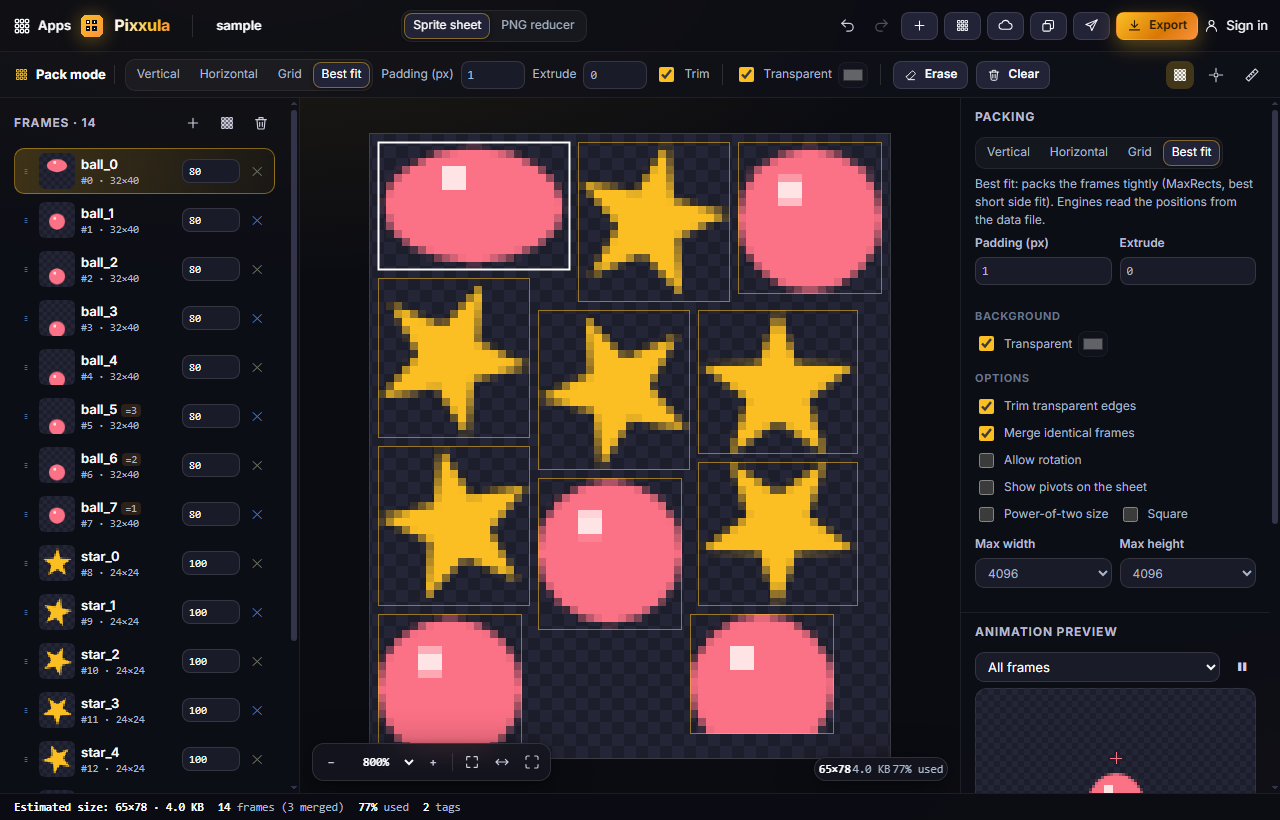
- Open Pixxula. Drop your frame images onto the page, paste one with Ctrl+V, or use the sample. You can drop many files at once; they're sorted by name, so walk_2 comes before walk_10.
- Your frames appear in the Frames list on the left, each with its duration.
- In the Pack mode bar, pick Best fit for the smallest sheet, or Grid for equal-sized cells.
- Check the size at the bottom left: Estimated size: W×H · file size.
- Click Export, choose a data format, and click ZIP (PNG + data).
#How-tos
#How to choose the right pack mode
- Vertical: all frames in one column.
- Horizontal: all frames in one row. Great for simple engines and CSS.
- Grid: equal cells. Set the number of Columns or # Rows, or leave it on auto.
- Best fit: packs frames tightly into the smallest rectangle it can find. Engines read each frame's position from the data file, so the layout doesn't matter to them.
#How to add spacing so frames don't bleed into each other
- Set Padding (px) to 1 or 2 to leave a gap between frames.
- Set Extrude to 1 if you see thin lines at frame edges in your game. It repeats each frame's edge pixels outward.
- Under Options, Trim transparent edges removes empty borders to save space. The data file remembers the original size, so frames still line up.
#How to cut an existing sprite sheet into frames
- Click Slice a sheet in the top bar and choose your sheet image.
- Either set the cell size (or rows × columns), with offset and spacing if needed, or let Pixxula detect frames separated by transparent gaps.
- Check the grid overlay, then click Add frames.
#How to reorder, rename and time frames
- Drag a frame up or down in the Frames list (or press Alt+↑ / Alt+↓).
- Click a frame's name to rename it. Engines use these names.
- Type a duration (in milliseconds) in the box next to each frame.
- Set a pivot, the point the frame rotates and lines up around: pick one of the 9 positions or type numbers. Use "→ all frames" to copy it to every frame.
Frames that are exactly the same are stored only once; they show a small =N badge.
#How to group frames into animations (tags)
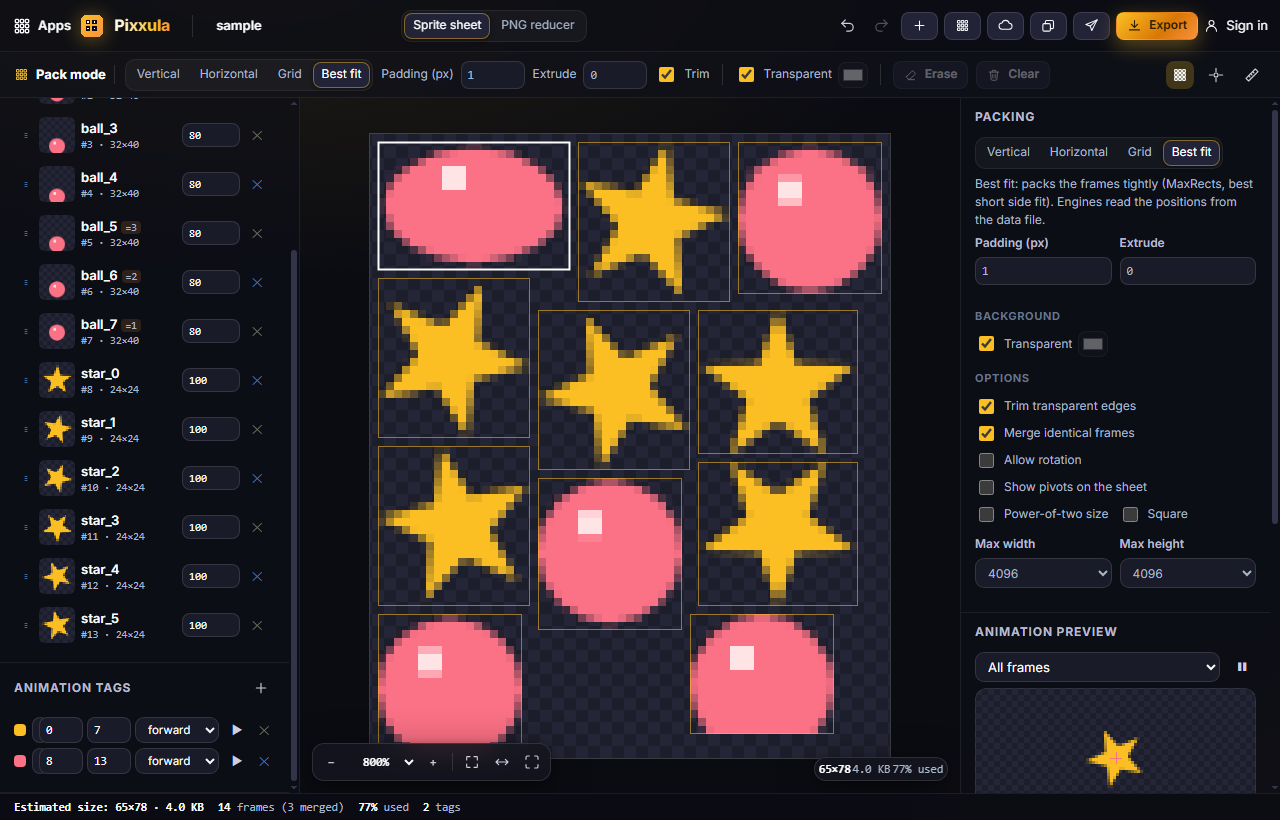
- In the Animation tags panel (below the frames list), click + to add a tag and give it a name such as walk.
- Set the from and to frame numbers, the direction (forward, reverse or ping-pong) and a colour.
- Pick the tag in Animation preview to watch just that animation.
Tags follow their frames: if you move frames around, the tag adjusts.
#How to make a sheet ready for older or stricter engines
Under Options, tick Power-of-two size (sheet sides of 256, 512, 1024…) or Square, and set Max width / Max height. Pixxula warns you above 4096 pixels, which some graphics cards can't load.
#How to shrink PNG files with the PNG reducer
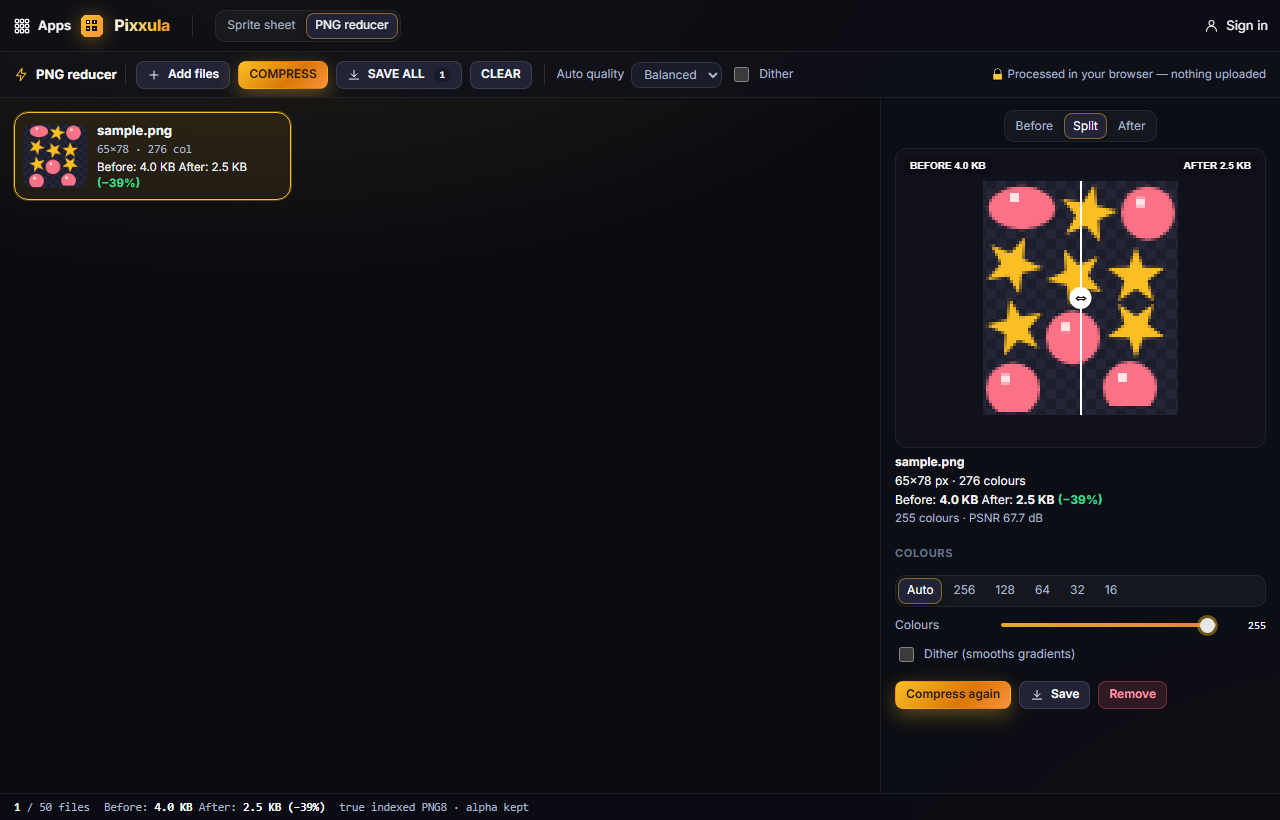
- Switch to PNG reducer at the top.
- Click Add files (up to 50 PNGs), drop them in, or use the current sheet.
- Choose Auto quality (High, Balanced or Smallest) and click COMPRESS. Pixxula picks the fewest colours that still look the same.
- Click a file to compare Before / Split / After (drag the divider), or set its colours by hand.
- Click SAVE ALL for a ZIP, or Save for one file.
Transparency is kept, and a file that wouldn't get smaller keeps its original bytes.
#Exporting and sharing
Click Export to open Export the sheet:
- Pick a data format: TexturePacker JSON (hash or array), Aseprite JSON, Sparrow/Starling XML, CSS sprites, or a simple grid file.
- Optionally Reduce the sheet to a true PNG8 (fewer colours, much smaller file) and watch the size estimate.
- Download ZIP (PNG + data), PNG only, or Data only.

Send to App passes your packed sheet or frames to another Pixx app, for example Pixxifo to make a GIF. Pixxula also opens animations, images and sheets sent from other apps via Library. See Send to App. Cloud saves your whole project to your Pixx account.
#Tips and shortcuts
- Ctrl+Z / Ctrl+Y undo and redo every change · Alt+↑ / Alt+↓ move a frame · Ctrl + scroll to zoom.
- Drop a GIF to get all its frames, with their timing and a tag, in one go.
- Erase removes the selected frame; Clear removes them all.
- Use Show pivots on the sheet to check every pivot at once.
- On a phone, the Frames list and packing settings open as bottom sheets.
#Troubleshooting
- If you see thin lines around sprites in your game, add 1–2 px Padding and set Extrude to 1.
- If a frame looks shifted after trimming, make sure your engine reads the trim offsets from the data file, or turn Trim transparent edges off.
- If a HEIC photo won't open, your browser can't read HEIC; convert it to PNG or JPEG first (Safari can open HEIC).
- If the sheet is too big, use Best fit, turn on trimming, or lower the Max width.