#What Pixxino is for
Pixxino animates pixel art the way bone tools such as Spine do, but keeps every pixel crisp. You cut a character into parts (head, torso, arms, legs…), attach them to bones, and then pose the bones over time to make clips like idle, walk and attack. When you're happy, Pixxino bakes the motion into ordinary pixel frames: a sprite sheet, GIFs or loose PNGs.
Rotated pixel art usually looks smeared. Pixxino rotates with RotSprite, which keeps edges clean and never invents new colours.
#Your first animation in 5 minutes
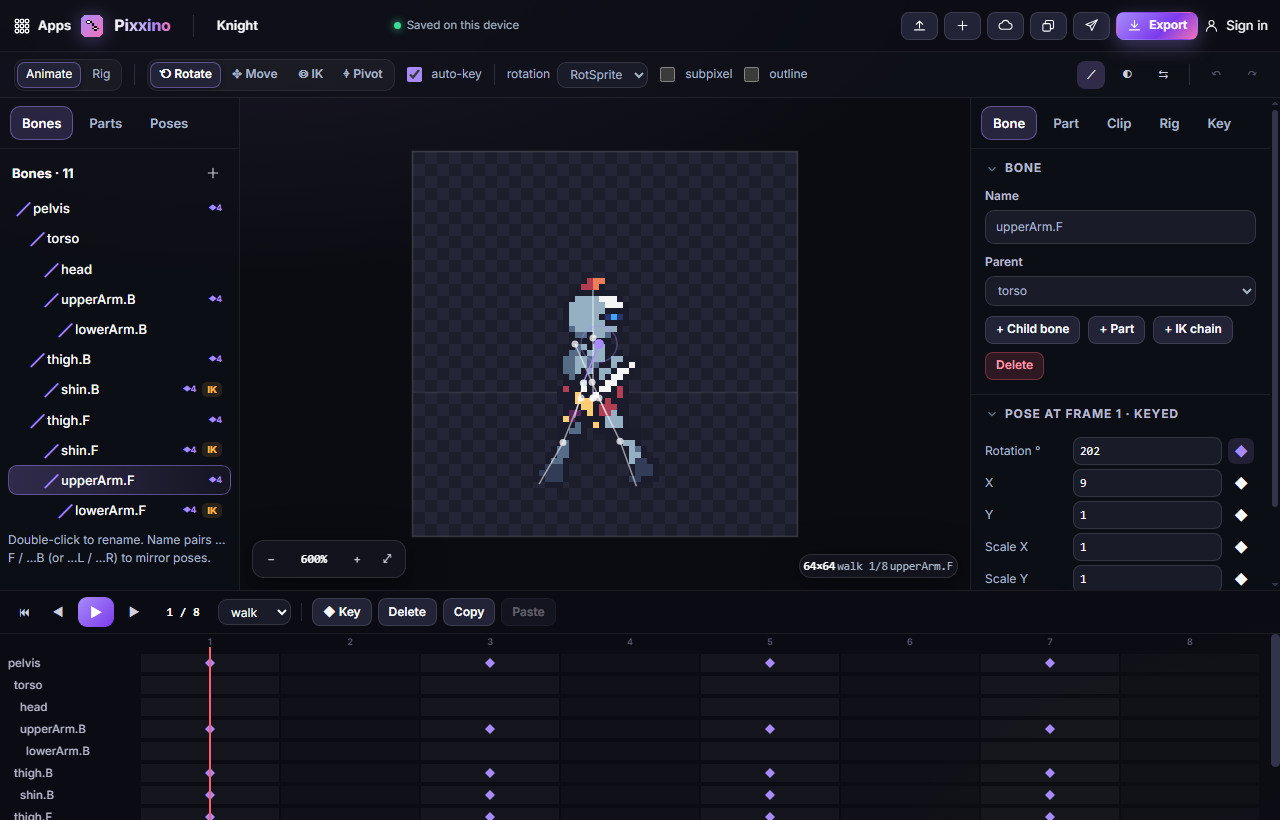
- Open Pixxino. A sample Knight is already rigged, with idle, walk and attack clips.
- Make sure Animate is selected at the top left, choose a clip in the timeline (for example walk) and press Space to play.
- Stop on a frame, choose the Rotate tool, and drag a limb on the stage to turn it. With auto-key on, a key is saved for you (the diamonds in the timeline).
- Scrub the timeline to see the motion blend between keys.
- Click Export, keep Sprite sheet PNG + JSON and A GIF per clip ticked, and click Download ZIP.
#How-tos
#How to build a rig from your own art
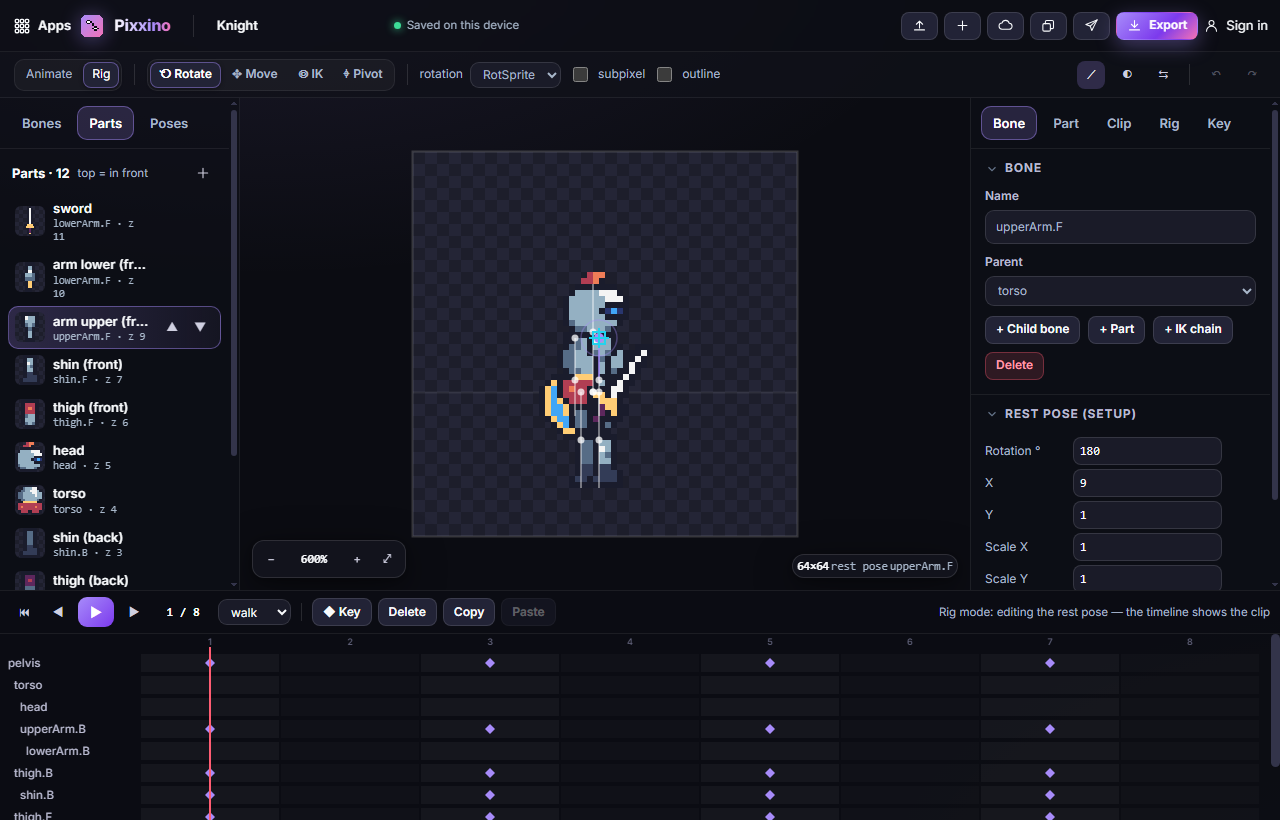
- Switch to Rig mode at the top left. Here you edit the rest pose, the character's default stance.
- In the Bones tab, select a bone and use + Child bone to grow the skeleton (for example torso → upper arm → lower arm). Double-click a bone to rename it.
- Select a bone and click + Part to attach an image to it, or drop PNG files onto the stage.
- Use the Pivot tool to drag a part's pivot to its joint (a shoulder, a knee). The art stays where it is.
- In the Parts tab, the list order is the drawing order (top = in front). Use the arrows to move a part forward or back.
#How to animate with keys
- Switch to Animate mode and pick a clip in the timeline.
- Go to a frame, select a bone and change its Rotation, X, Y or Scale on the right, or drag on the stage with Rotate or Move.
- Press K (or click Key) to key the bone. With auto-key ticked, every change is keyed automatically.
- Use Copy and Paste to repeat a key on another frame, for example to make a loop end where it started.
#How to make motion feel smooth or snappy (easing)
- Select a key and open the Key tab on the right.
- Choose an easing: linear, step (a hard jump), in, out, in-out, back (a little overshoot), or draw your own curve.
#How to make arms and legs follow a target (IK)
- In Rig mode, select an upper limb bone and click + IK chain. A two-bone chain (for example thigh and shin) gets an orange target.
- In Animate mode, choose the IK tool and drag the orange target: the limb bends to reach it, ideal for feet that stay planted.
- Flip the bend side if a knee or elbow bends the wrong way, and use Bake → FK when you want normal keys again.
#How to save and reuse poses
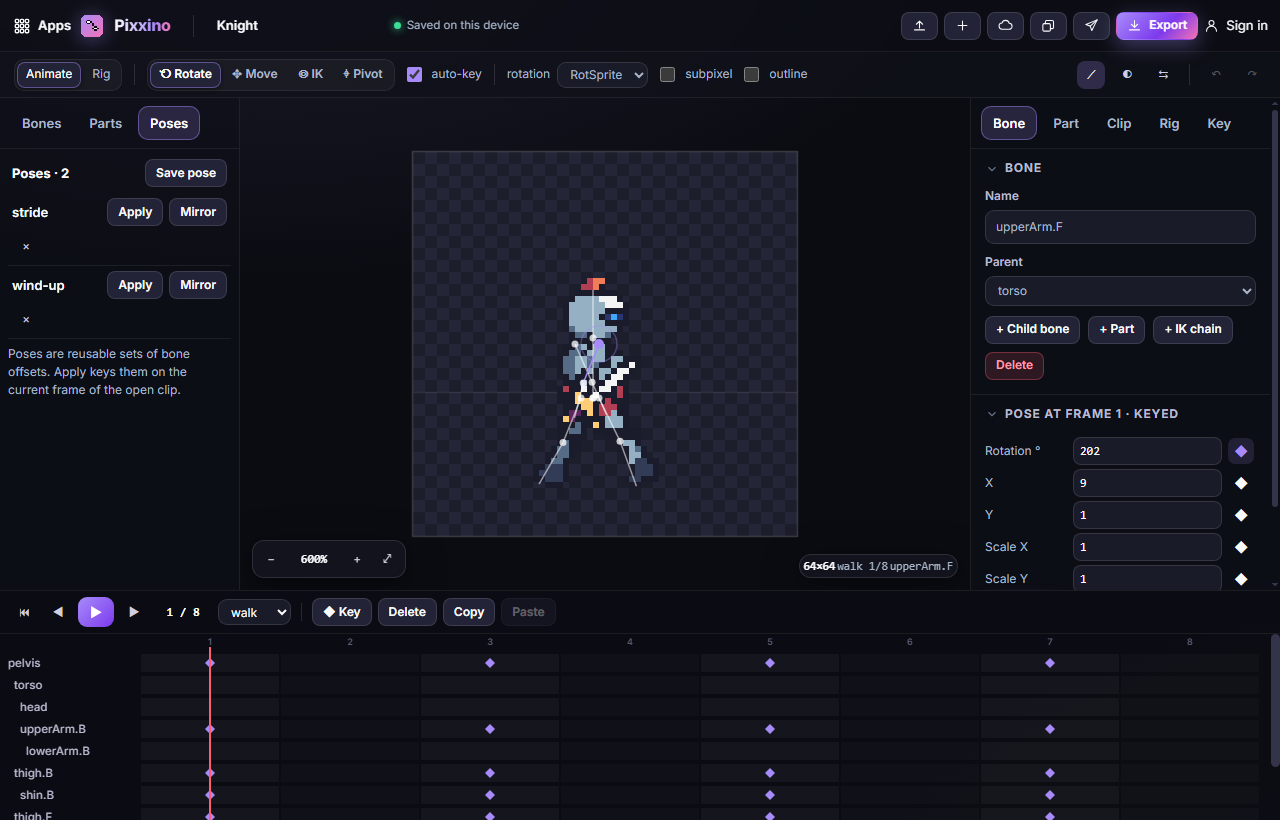
- In the Poses tab, save the current pose with a name.
- Apply it on any frame to key every bone at once.
- Apply it mirrored to swap left and right. Name bones in pairs (upperArm.F / upperArm.B, or …L / …R) so Pixxino knows which ones to swap.
#How to swap a part's image during a clip
Parts can change over time: hide or show them, change their drawing order, or swap their image (for example, a hand that opens). These part keys are stepped, so the change happens on exactly one frame.
#How to make a clip
- Open the Clip tab on the right to add a clip and set its frames, fps and looping.
- "Left-facing copy" makes a mirrored clip for the other direction.
- Tick onion skin to see the neighbouring frames faintly while you pose.
#Exporting and sharing
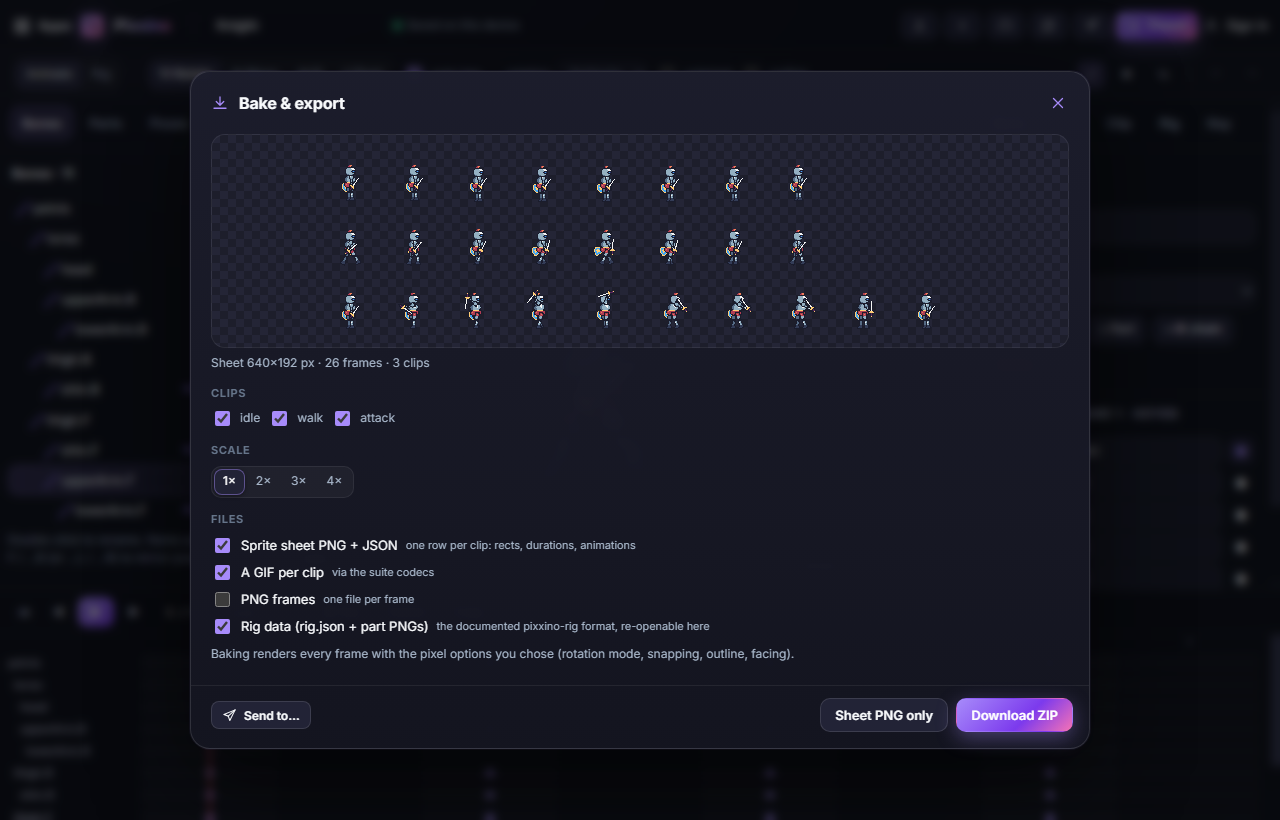
Click Export to open Bake & export:
- Choose which Clips to bake and a Scale (1–4×).
- Pick the files: Sprite sheet PNG + JSON (one row per clip, with frame positions, timing and animation names), A GIF per clip, PNG frames, and Rig data to reopen your rig later.
- Click Download ZIP, or Sheet PNG only.
Send to… sends a baked clip as frames or a sheet, or the current pose as an image, to another Pixx app, for example Pixxifo for a GIF or Pixxula for an atlas. Library adds an image from another app as a new part, or every cell of a sprite sheet as parts. See Send to App. Cloud saves the whole rig to your Pixx account.
#Tips and shortcuts
- Space play · ← / → frame · K key the bone · Delete delete key · R rotate · G move · I IK · P pivot · M switch Animate / Rig · O onion skin · B bones overlay · Ctrl+C / Ctrl+V copy / paste a key · Ctrl+Z / Ctrl+Y undo / redo · 0 fit · + / − zoom.
- Keep parts slightly overlapping at joints so no gaps appear when limbs rotate.
- RotSprite looks best for pixel art. subpixel gives smoother but blurrier motion; leave it off for crisp pixels.
- Tick outline to add a 1-pixel outline around the whole character after it's put together.
- On a phone, the Bones and settings panels open as bottom sheets.
#Troubleshooting
- If a limb rotates around the wrong point, use the Pivot tool in Rig mode to move the part's pivot onto the joint.
- If the mirrored pose doesn't swap sides, rename your bones in pairs (.F / .B or .L / .R).
- If a part appears behind the body, move it up in the Parts list.
- If changes in Rig mode seem to vanish, remember Rig mode edits the rest pose; clip motion is edited in Animate mode.
#Related guides
- Pixxava · Pixxivi · Pixxifo · Pixxula · Send to App