#What Pixxura is for
Pixxura adds real lighting and effects to pixel art without making it blurry. You place lights around a sprite (a torch, a moon, a neon sign), Pixxura works out how light falls across its shape, and you stack effects such as glow, outlines, palette cycling or an old-TV CRT look on top. When you like it, you bake the result into a PNG, a sprite sheet or a GIF that drops straight into your game.
It is made for game artists who want mood (a dungeon lit by torches, a crystal glowing at night) while keeping every pixel crisp.
#Your first lit sprite in 5 minutes
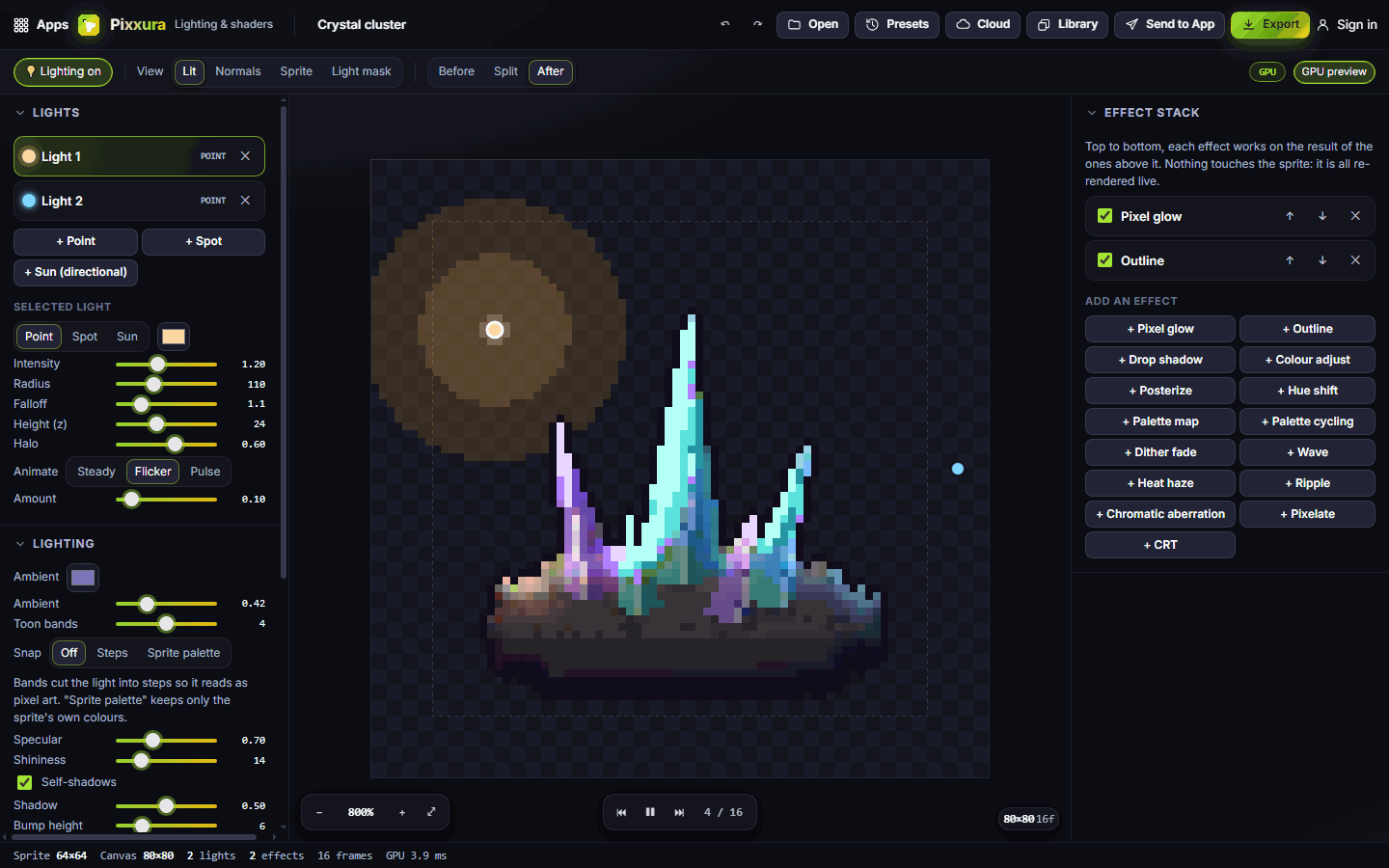
- Open Pixxura. A sample crystal cluster is already loaded and lit, so you can start playing right away.
- Drag a light (the small circle on the canvas) around the sprite and watch the shading follow it.
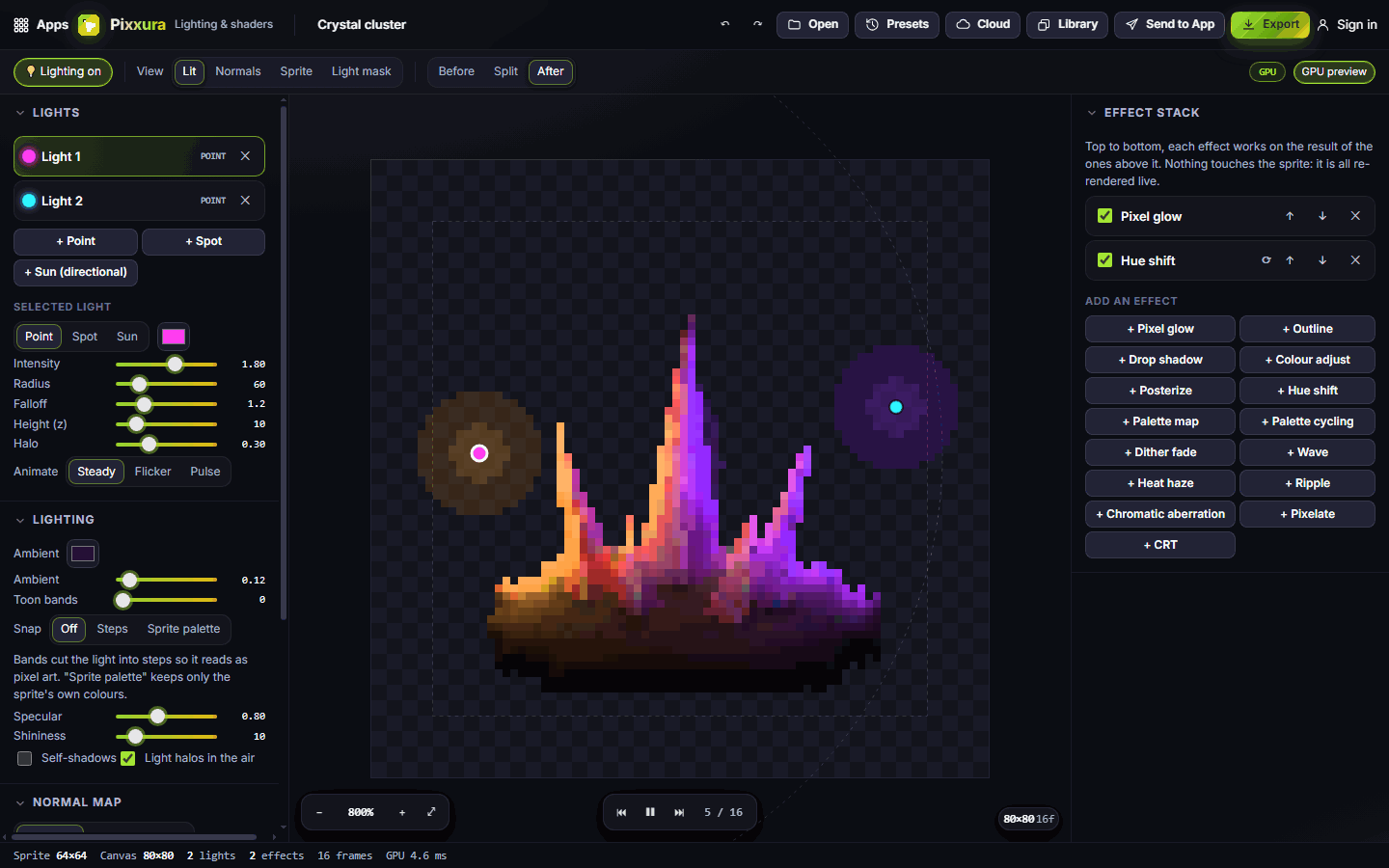
- Click Presets in the top bar and pick Neon. The lights and effects are replaced in one click; your sprite stays the same.
- Use Before, Split and After in the options bar to compare the original with the lit version.
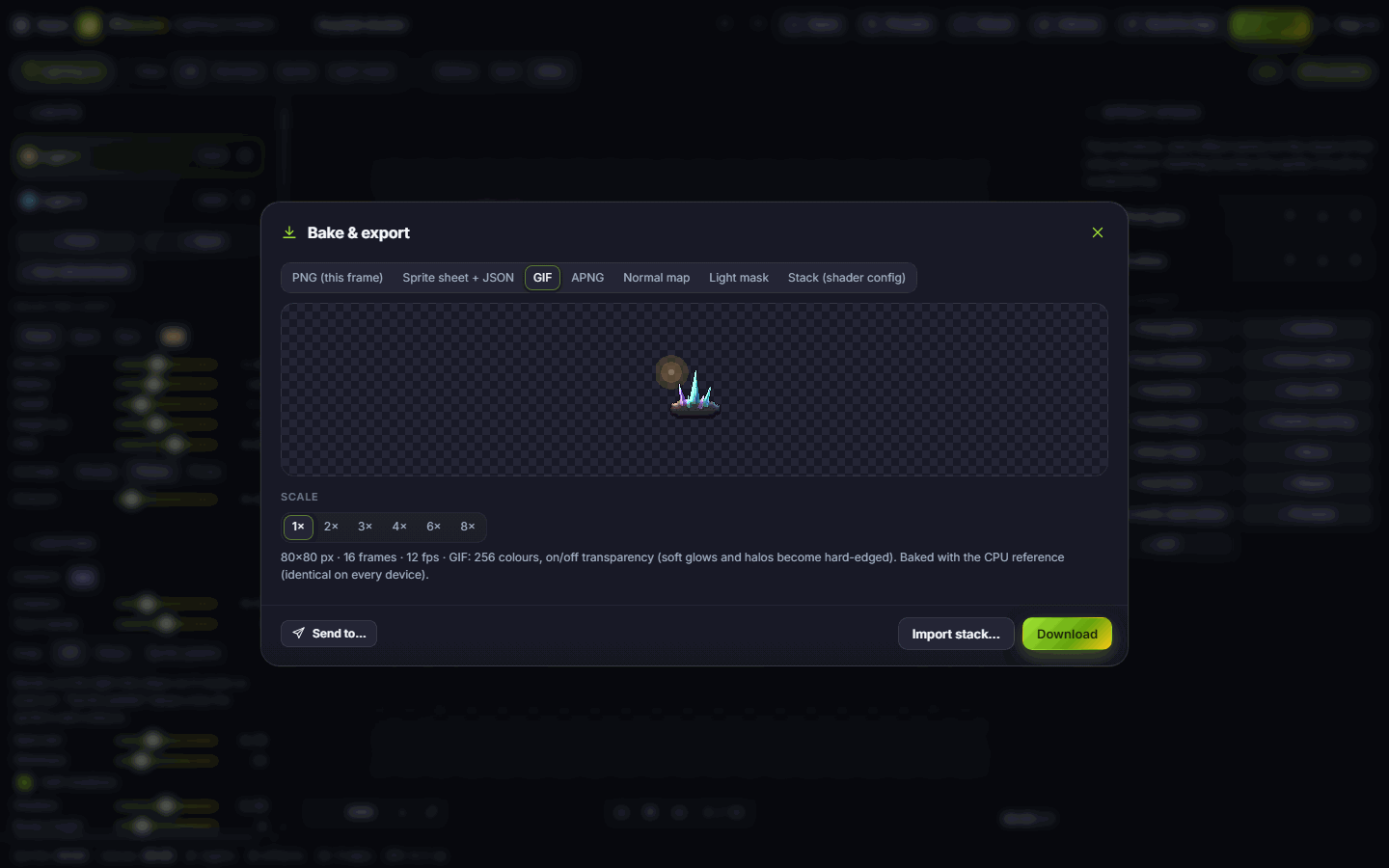
- Click Export, choose GIF (the flicker animates), pick a scale such as 4× and click Download.
#How-tos
#How to open your own sprite
- Click Open in the top bar and choose a PNG, JPEG, WebP, animated GIF or APNG (up to 480×480 pixels). You can also drag a file onto the canvas or paste one with Ctrl+V.
- Animated files keep their frames: each frame is lit separately.
- Your lights and effects stay in place when you swap sprites, so you can light a whole set the same way.
#How to add and adjust lights
- In the Lights panel on the left, click + Point, + Spot or + Sun (directional).
- Click a light in the list (or on the canvas) to select it, then drag it on the canvas to move it.
- Under Selected light, change its colour with the swatch and tune Intensity, Radius, Falloff, Height (z) and Halo (the glow in the air around it).
- Spot lights add an angle and a cone width; a sun lights everything from one direction.
- Remove a light with the × next to its name.
#How to make a light flicker or pulse
- Select the light.
- Next to Animate, choose Flicker (a torch or candle) or Pulse (a slow magic glow). Steady turns it off.
- Set Amount for how strong the effect is.
- The animation loops automatically. To change how long the loop is, open the Canvas panel and set Loop frames and FPS.
#How to keep the pixel-art look
The Lighting panel has the settings that stop light from looking smooth and painterly:
- Toon bands cuts the light into a few clear steps instead of a smooth gradient.
- Snap → Steps limits the number of brightness levels; Sprite palette keeps only colours that already exist in your sprite.
- Ambient sets how bright the unlit side is, and its colour swatch tints the shadows (for example, a cool blue for night).
- Specular and Shininess add bright highlights; Self-shadows lets raised parts cast small shadows across the sprite.
#How to use a preset
- Click Presets in the top bar.
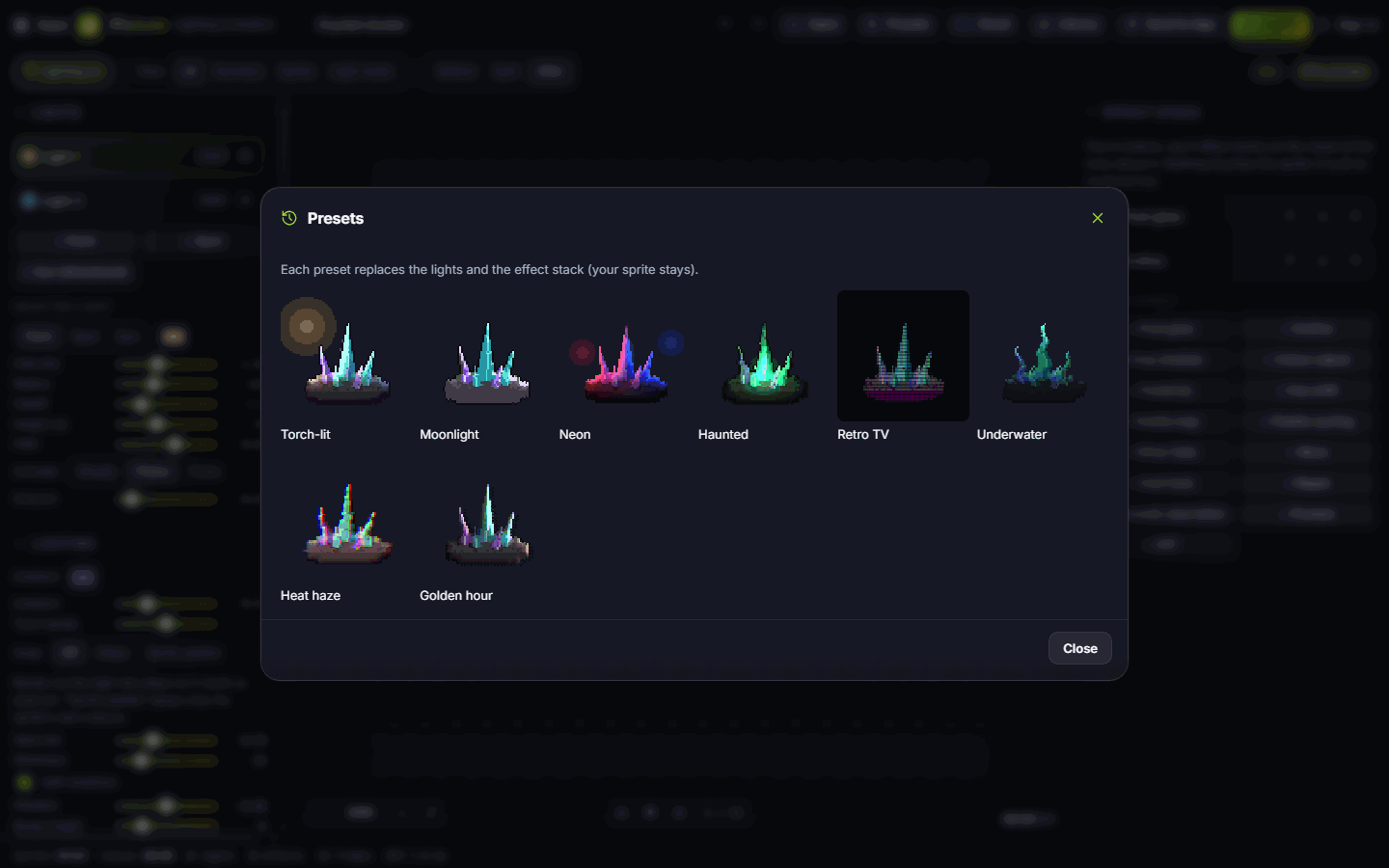
- Pick one of the eight looks: Torch-lit, Moonlight, Neon, Haunted, Retro TV, Underwater, Heat haze or Golden hour. Each thumbnail shows your own sprite with that look.
- A preset replaces the lights and the effect stack, so use it as a starting point and then fine-tune.
#How to add effects
- In the Effect stack panel on the right, click any + button under Add an effect: Pixel glow, Outline, Drop shadow, Colour adjust, Posterize, Hue shift, Palette map, Palette cycling, Dither fade, Wave, Heat haze, Ripple, Chromatic aberration, Pixelate or CRT.
- Effects run from top to bottom, each working on the result of the ones above it. Use the arrows to reorder them.
- Untick an effect to switch it off without losing its settings, or remove it with ×.
- Click an effect's name to show its settings, such as glow strength or CRT scanlines.
#How to check the normal map
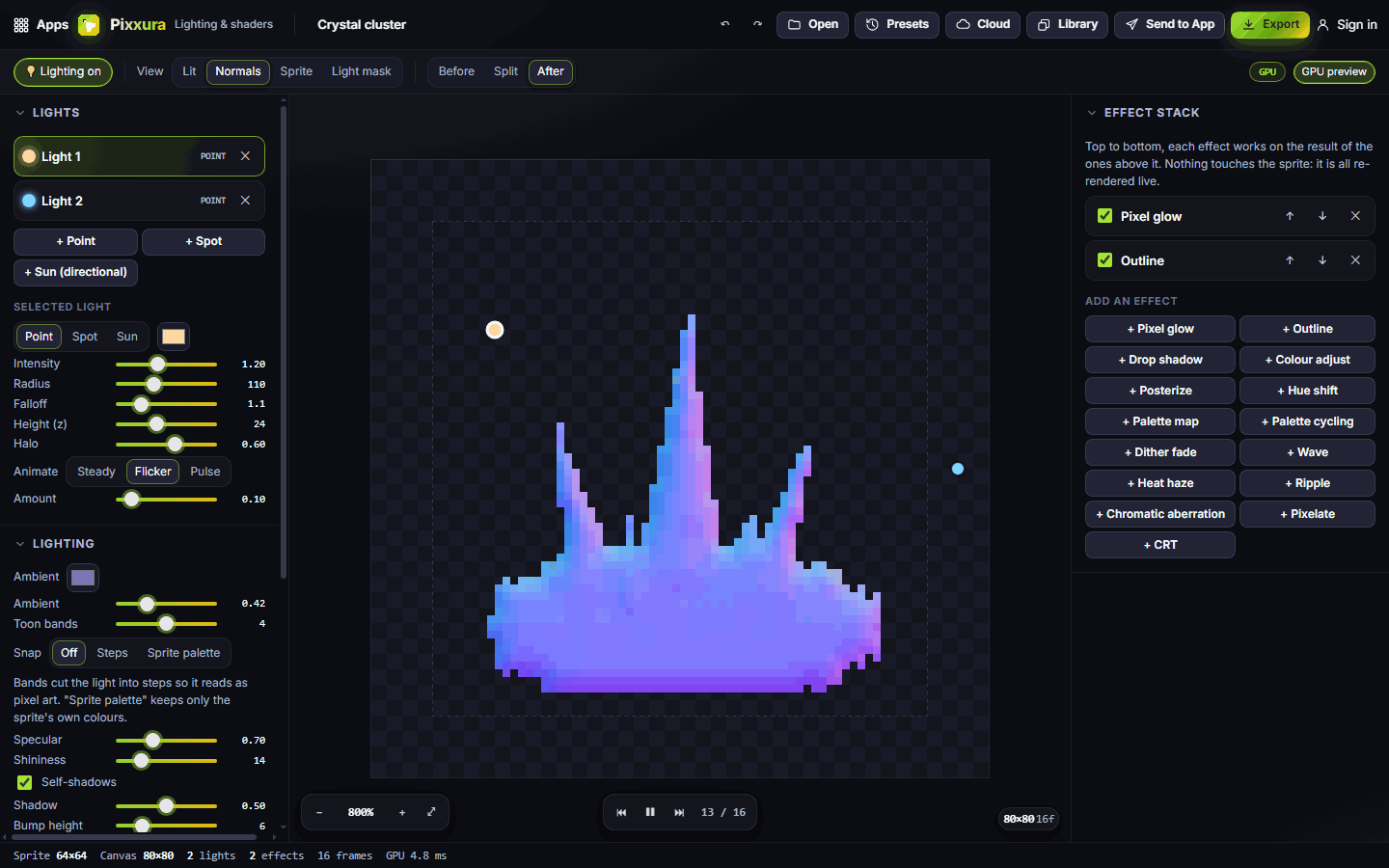
Pixxura works out the shape of your sprite automatically so light can wrap around it.
- In the options bar, switch View to Normals to see the shape map, or Light mask to see only the light.
- In the Normal map panel, choose Generate, then a method: Pillow (rounded), Pillow + detail, Bevel (flat top with sloped edges) or Brightness.
- Adjust Strength, Edge depth and Smooth until the light reads the way you want.
- If you painted your own normal map, click Import normal map… (it must be the same size as the sprite).
#Exporting and sharing
Click Export in the top bar to open Bake & export. Choose a format:
| Format | Use it for |
|---|---|
| PNG (this frame) | A single lit image |
| Sprite sheet + JSON | Every frame in one image, with frame data for game engines |
| GIF / APNG | An animated preview; APNG keeps soft glows, GIF uses up to 256 colours |
| Normal map | The shape map, for lighting in your own engine |
| Light mask | Only the light, to combine with other art |
| Stack (shader config) | Your lights and effects as a settings file you can load again with Import stack… |
Pick a Scale from 1× to 8× (pixels are enlarged cleanly), then click Download.
Send to App passes the lit result to another Pixx app as an animation, a single image or a palette. Library opens an image, frames or a sheet from your Pixx library as the sprite, or a palette to snap the light to.
#Tips and shortcuts
- Ctrl+Z undoes and Ctrl+Y redoes changes.
- Scroll to zoom and drag to pan; on a tablet, pinch to zoom.
- The GPU preview badge shows whether your device's graphics chip is drawing the live preview. Exports always use the same exact method, so they look identical on every device.
- Give the sprite some Padding (in the Canvas panel) if a glow, outline or wave gets cut off at the edges.
- Your work is saved on this device automatically. Sign in and use Cloud to open it on another device.
#Troubleshooting
- If the light looks flat, check that Lighting on is switched on in the options bar and raise the normal map Strength.
- If colours look muddy, try Snap → Sprite palette so only your sprite's own colours are used.
- If a glow is clipped at the edge, increase Padding in the Canvas panel.
- If the GIF has hard-edged glows, export APNG instead; GIF can't store soft transparency.
#Related guides
- Send to App
- Pixxivi for drawing the sprite you light
- Pixxula for packing sheets
- Plans and billing