#What Pixxeta is for
Your sprite animation shows what a character does. Your game also needs to know where it can be hit, where its sword hurts, where its feet touch the ground and when a footstep sound plays. Pixxeta adds that gameplay data on top of any animation, frame by frame.
It is for action, platformer, fighting and shooter games. You get a sprite sheet plus engine-ready data: boxes, pivots, attach points (sockets) and frame events, with frame data such as startup, active and recovery frames.
#Your first annotated attack in 5 minutes
- Open Pixxeta and click Try the sample knight (or Open an animation and pick a sprite sheet, a GIF or frames).
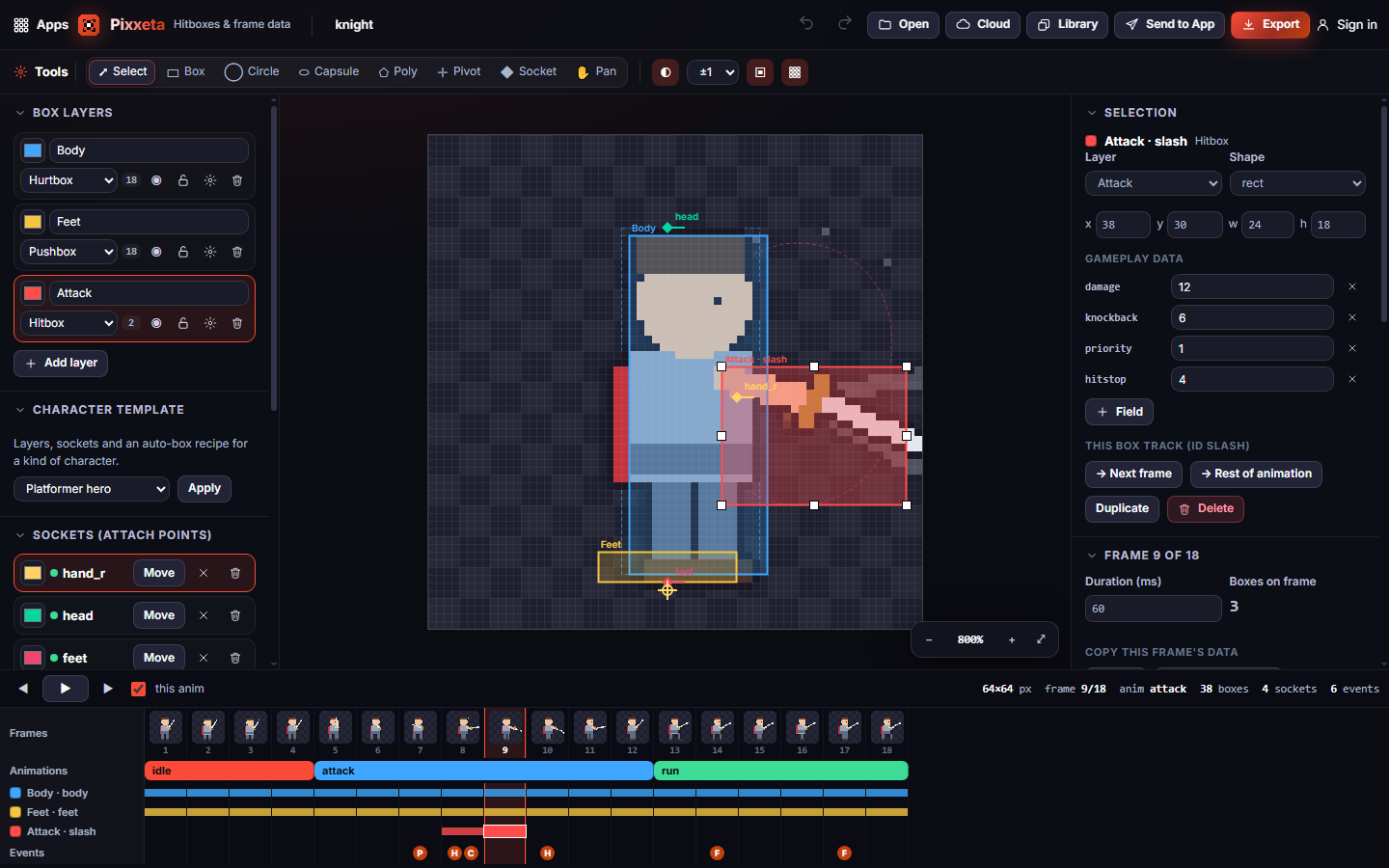
- Click frame 9 in the timeline at the bottom. The red box over the sword is a hitbox.
- Pick Box in the options bar, choose a layer in the menu next to the tools, and drag on the frame to draw a new box.
- In the right panel, under Selection, set damage to 15.
- Press Space to play. Turn on Collision preview → Dummy target to see the hitbox light up when it touches the dummy.
- Click Export, choose Godot 4 (or your engine) and click Download ZIP.
#How-tos
#How to open your animation
- Click Open, or drop files onto the stage.
- A single sprite sheet opens the Slice the sprite sheet dialog. Pixxeta guesses the grid from the empty gaps; check Frame W, H, Frames and FPS, then click Open frames.
- Several PNGs open as frames in name order. A GIF or animated PNG opens with its timing.
- An Aseprite export opens if you select the JSON and the PNG together. Its tags become animations and its slices become boxes.
- You can also click Library to open an animation another Pixx app sent you.
#How to set up box layers
- In Box layers, each layer has a colour, a name and a type: Hitbox, Hurtbox, Pushbox, Trigger or Custom.
- Click Add layer to add one. Rename it in its name field.
- Use the eye button to hide a layer and the padlock to lock it (locked boxes can't be clicked).
- Click the gear button to set default values (damage, knockback, priority, hitstop) that every new box on that layer starts with.
- To start from a ready-made set, pick a Character template (platformer, fighter, shooter, top-down, boss, projectile, prop, mount) and click Apply. It adds the layers and sockets that kind of character usually needs.
#How to draw and edit boxes
- Pick a shape tool: Box, Circle, Capsule or Poly.
- Drag on the frame to draw. For Poly, click each corner, then click the first point (or double-click, or press Enter) to close it.
- Switch to Select (V) to move a box, or drag its white handles to resize it. Everything snaps to whole pixels.
- Use the arrow keys to nudge 1 pixel, or Shift + arrows for 8 pixels.
- Under Selection, type exact x, y, w, h values, change the Shape or Layer, and add gameplay fields with Field (damage, knockback, angle, priority, hitstop, hitstun, blockstun, element, guard or your own).
#How to fill a whole attack quickly
- Draw the box on the first active frame.
- Under Selection, click → Next frame to copy it forward and go there, or → Rest of animation to copy it to every remaining frame.
- To animate a box, put the same box (it keeps its id when copied) on two key frames, adjust each, then under Frame → Interpolate enter the two key frame numbers and click Interpolate. The frames in between get gliding boxes and sockets.
- Copy boxes and Ctrl+C / Ctrl+V copy boxes to any frame you choose.
- Turn on onion skin (the half-moon button in the options bar) to see the neighbouring frames and their boxes as ghosts.
#How to make boxes automatically
- Open Auto boxes in the left panel.
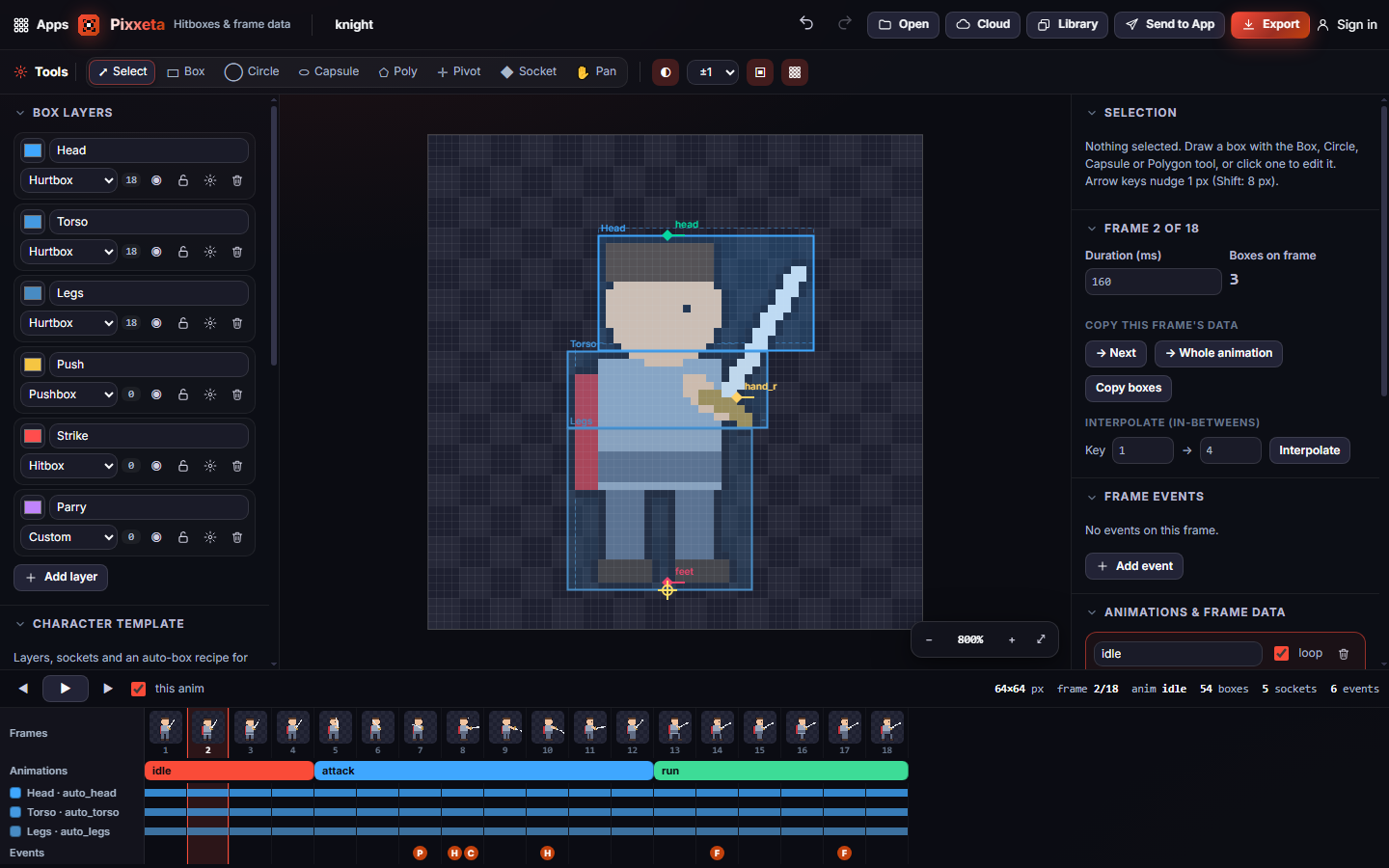
- Choose Tight (around every visible pixel), Padded (grow or shrink with the Padding slider), Outline (a polygon following the silhouette; tick Convex for physics engines) or Body parts (head, torso and legs boxes; use the fighter template for its Head, Torso and Legs layers).
- Pick the layer and the scope: This frame, Animation or All frames.
- Click Generate boxes, then fix any box by hand.
#How to set pivots
- Pick Pivot (O) and choose where the click applies: This frame, Animation or All frames.
- Click the frame to place the yellow cross. With Select, you can drag it or nudge it.
- To set pivots from the art, open Auto pivots and click Feet (lowest pixels), Centre or Top.
- Under Selection, Use the inherited pivot removes a frame's own pivot so it follows its animation or the project again.
#How to place attach points (sockets)
- In Sockets (attach points), click Add socket and pick a name such as hand_r, muzzle, head, mount or vfx_origin, or type your own.
- Click Place (or pick the Socket tool) and click the frame. A green dot shows the socket is placed on the current frame.
- With Select, drag the diamond to move it, and drag the dot at the end of its line to aim it. Hold Shift to snap to 15°.
- To check that a weapon follows, open Collision preview → Attach to a socket, choose the socket and click Image… or Library.
#How to add frame events
- Go to the frame where something should happen.
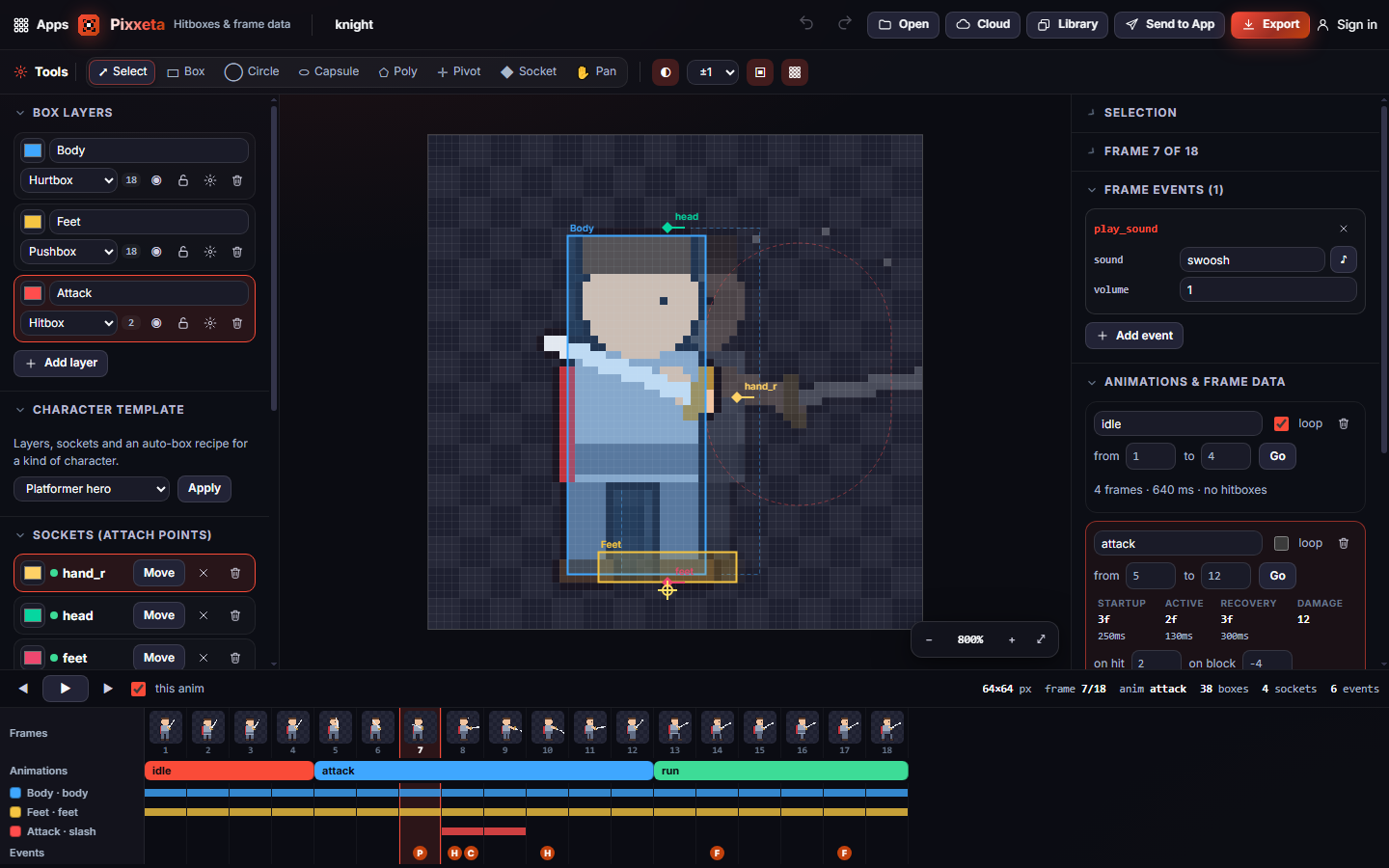
- In Frame events, click Add event and pick one: footstep, hit_active, spawn_projectile, play_sound, camera_shake, invuln_on, invuln_off, vfx, hitstop, cancel_window, or custom.
- Edit its values (for example the projectile name, or the shake amount).
- For play_sound, click the ♪ button to pick a sound from your Pixx library, for example one you made in Pixxibu.
- Events show as small letters on the Events row of the timeline.
#How to read frame data
- Open Animations & frame data. Each animation shows its frames and length.
- If it has hitboxes, the table shows Startup, Active and Recovery frames, in frames and milliseconds, and the highest Damage.
- Fill on hit and on block with the frame advantage you designed.
- Change a frame's timing under Frame → Duration (ms).
#How to test hits before exporting
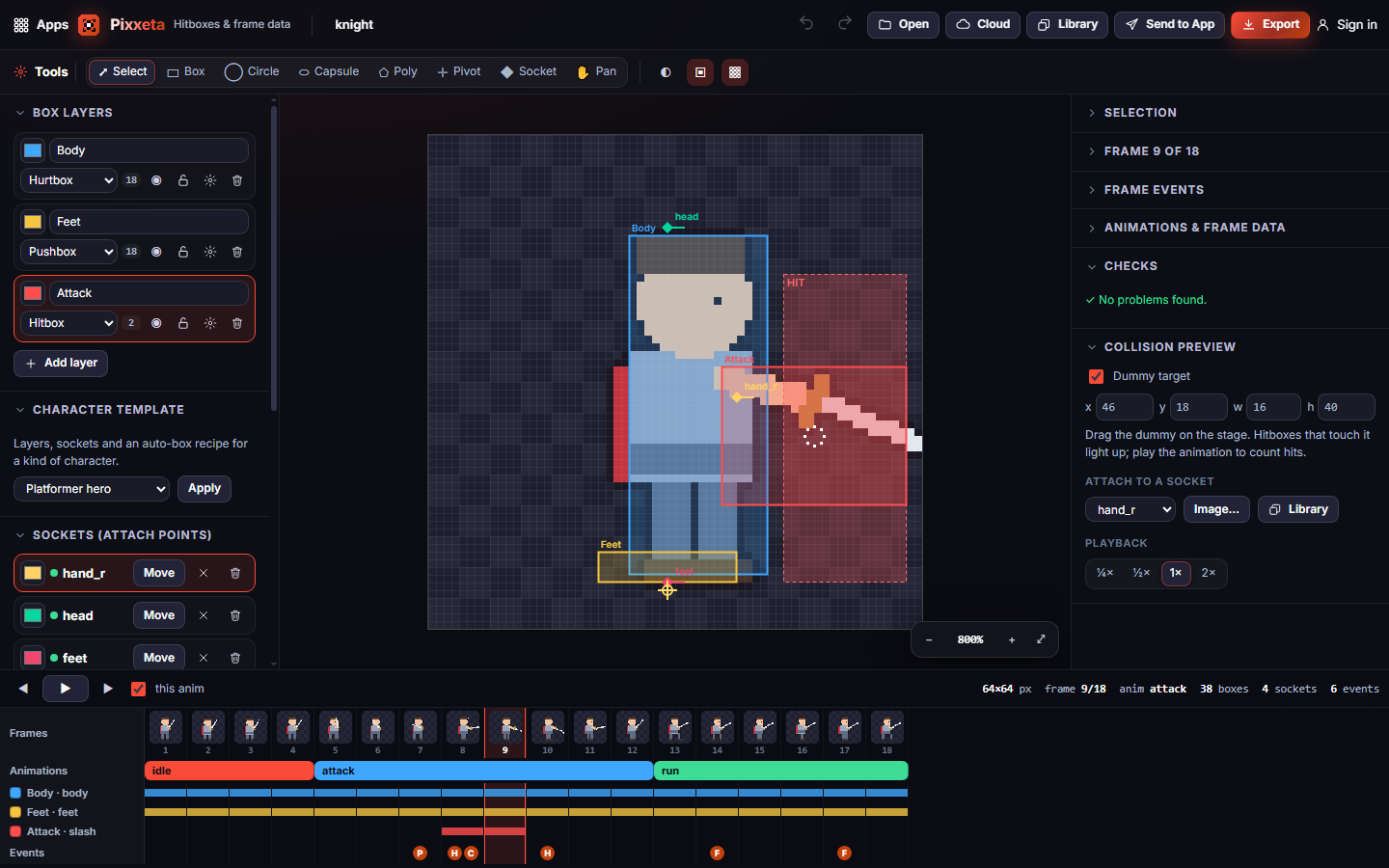
- Open Collision preview and tick Dummy target. Drag the dummy on the stage or type its size.
- A hitbox touching the dummy turns it red and shows HIT.
- Press Space to play. Pick ¼× or ½× under Playback for slow motion, or step with , and ..
- Untick this anim under the stage to play every frame instead of looping the current animation.
#How to make left-facing animations
- Open Animations & frame data and click ⇋ Left-facing copies.
- Pixxeta adds a mirrored copy of every animation, with boxes, pivots, sockets and socket angles flipped.
#How to fix problems
- Open Checks. It lists missing hurtboxes on attack frames, boxes outside the frame, tiny boxes, hitboxes without damage, overlapping hitboxes, sound events without a sound, and sockets that disappear mid-animation.
- Click a line to jump to that frame and select the box.
#Exporting and sharing
Click Export (or press Ctrl+S), pick a format and the Sheet columns, check the file list, then click Download ZIP. Every export includes the sprite sheet PNG.
| Format | What you get |
|---|---|
| Generic JSON | Every box, pivot, socket and event per frame, plus frame data. Works with any engine, such as Defold or LÖVE. |
| Godot 4 | A ready scene: animated sprite, one collision area per layer, sockets as markers, and an animation player that switches boxes, moves sockets and calls your frame events. |
| Unity | JSON plus a script that drives the colliders and sends the frame events. |
| GameMaker | JSON plus helper scripts for boxes, overlaps, events and sockets. |
| Aseprite / Phaser | Aseprite-style JSON with animation tags and one slice per box. |
| XML | The generic data as XML. |
| CSV | Spreadsheet tables for boxes, sockets, events and frame data. |
Send to App sends the sprite sheet or the animation frames with all the gameplay data attached, so Pixxula keeps it while packing and Pixxizi can package it for your engine. Pixxeta receives animation frames, sprite sheets and single images from any Pixx app, and keeps any gameplay data they already carry.
Cloud saves the whole project (frames and data) to your Pixx account so you can open it on another device. Pixxeta also keeps your current project on this device automatically.
#Tips and shortcuts
- Tools: V select, R box, C circle, K capsule, P polygon, O pivot, S socket, H pan. With Select, dragging an empty spot also pans.
- Space plays and pauses. , and . step frames. 0 fits the frame to the stage. Scroll to zoom.
- Ctrl+Z undo, Ctrl+Shift+Z or Ctrl+Y redo, Ctrl+D duplicate a box, Delete removes the selection, Esc deselects.
- On a phone, Layers and Properties open as sheets from the bottom bar. Pinch to zoom. A tablet with a pen is the most comfortable way to draw boxes.
#Troubleshooting
- If a sprite sheet opens with the wrong number of frames, fix Frame W, H and Frames in the slice dialog before clicking Open frames.
- If you can't click a box, its layer may be locked or hidden. Check the padlock and the eye in Box layers.
- If Interpolate says there is nothing to do, the two key frames don't share the same box. Copy the box with → Next frame or Copy boxes so it keeps its id.
- If Body parts makes no boxes, the frame may be empty, or the figure too small to split. Use Padded or Outline instead.
- If the Aseprite JSON won't open, select the JSON and its PNG together.
#Related guides
- Send to App
- Your Pixx library
- Plans and billing
- Pixxani for animations, Pixxula for packing sheets