#What Pixxico is for
Pixxico builds the interface of your game: buttons, panels, health and mana bars, inventory slots, tooltips, cursors and item icons. Everything in a kit shares one theme of colours, so changing the theme restyles the whole kit at once. Panels and buttons can be nine-sliced, so they stretch to any size in your game without blurring the corners. When you're done, Pixxico exports the images plus the data your game engine needs.
#Your first UI kit in 5 minutes
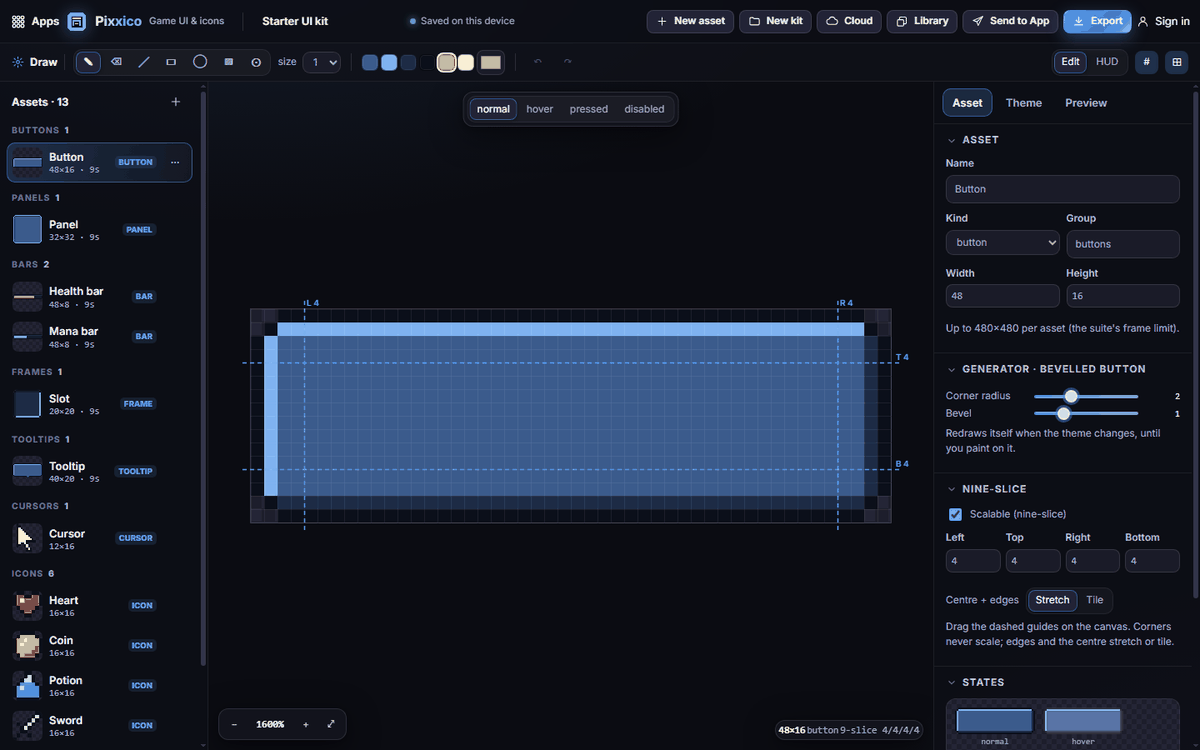
- Open Pixxico. It starts with the Starter UI kit: a button, a panel, two bars, a slot, a tooltip, a cursor and six icons, listed on the left under Assets.
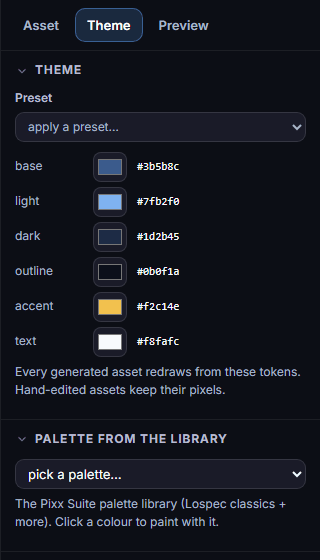
- Click the Theme tab on the right and choose a colour scheme from Preset (for example Forest or Ember). Every generated asset redraws in the new colours.
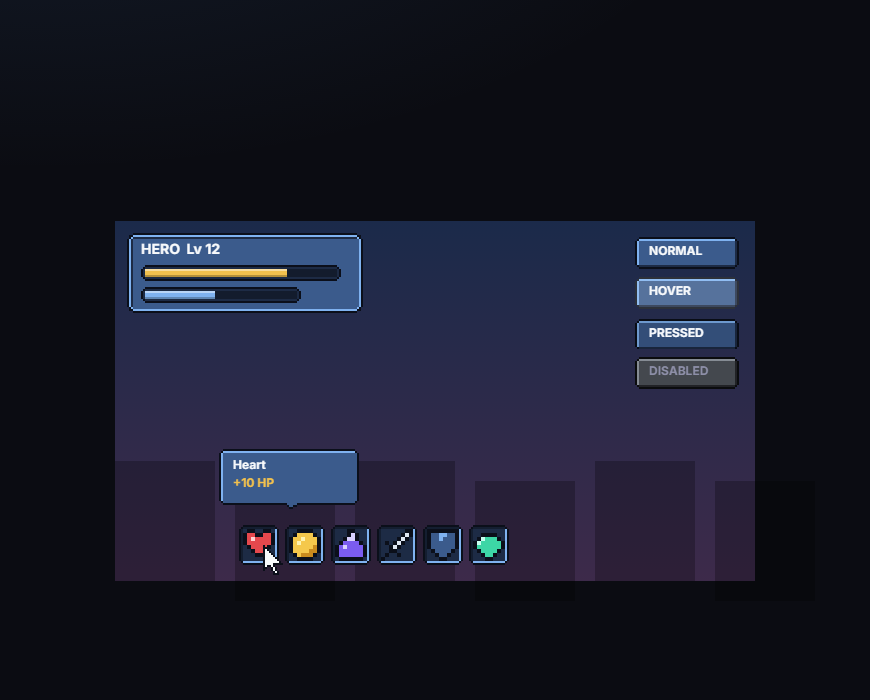
- Click HUD at the top right of the stage to see your kit in a mock game screen. Click Edit to go back.
- Click Export, keep the default files ticked, and click Download ZIP.
#How-tos
#How to add a new asset
- Click New asset at the top (or the + next to Assets, or press N).
- Choose From a template (uses the theme) — a button, panel, bar, slot, tooltip, cursor or icon — or Blank canvas to draw from scratch.
- Set its name and size. Each asset can be up to 480 × 480 pixels.
#How to draw and edit an asset
- Select the asset on the left.
- Pick a tool in the Draw bar: pencil, eraser, line, rectangle, ellipse, fill or picker. Set the brush size next to them.
- Click a theme colour in the bar, or pick any colour.
- Use Ctrl+Z / Ctrl+Y to undo and redo.
- The editing tools also include Outline, Drop shadow, Recolour…, flip and Clear layer, plus Layers for building up more complex art.
#How to change the colours of the whole kit
- Open the Theme tab.
- Choose a Preset, or click a colour token — base, light, dark, outline, accent, text — to change it.
- Palette from the library lets you pick colours from the Pixx palette collection to paint with.
#How to make a panel or button stretch (nine-slice)
- Select a panel or button.
- In the Nine-slice section, tick Scalable (nine-slice).
- Drag the dashed guides on the canvas, or type Left, Top, Right and Bottom, so the corners sit outside the guides.
- Choose whether the centre and edges Stretch or Tile. Corners never scale.
- The Preview tab shows the asset at several sizes so you can check it.
#How to make button states
- Select a button. Draw its normal look.
- Pixxico creates hover (lighter), pressed (pushed down and darker) and disabled (greyed out) for you.
- Click normal, hover, pressed or disabled above the canvas to view each one. The States section shows all four together.
#How to adjust a generated asset
Select a generated asset (such as the button). In its Generator section, change settings such as Corner radius or Bevel. It redraws instantly, as long as you haven't painted over it.
#How to preview your kit in a game screen
Click HUD at the top right of the stage (or press H). You'll see a status panel with two bars, inventory slots with your icons, the four button states, a tooltip and your cursor, all nine-sliced to realistic sizes.
#How to organise your kit
Click ⋯ on an asset in the list to Duplicate, Rename…, change its group or delete it. Assets are grouped by kind: buttons, panels, bars, frames, tooltips, cursors and icons.
#Exporting and sharing
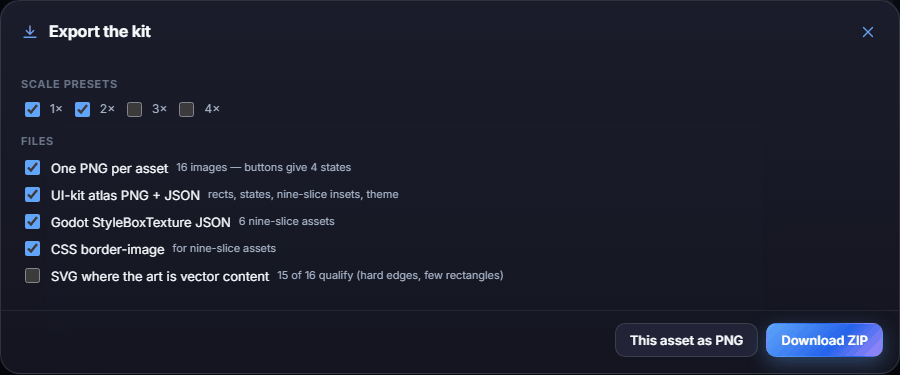
Click Export to open Export the kit:
- Scale presets: export at 1×, 2×, 3× and/or 4×.
- One PNG per asset (buttons give four images, one per state).
- UI-kit atlas PNG + JSON: all assets in one image with their positions, states, nine-slice settings and theme.
- Godot StyleBoxTexture JSON for nine-slice assets, and CSS border-image snippets for web games.
- SVG for assets made of simple, hard-edged shapes.
- Click Download ZIP for everything, or This asset as PNG for just the selected one.
Also:
- Send to App sends the selected asset, a button's four states as a sprite sheet, or the theme colours as a palette to another Pixx app.
- Library opens an image from your Pixx library as a new asset, or a palette as a new theme.
- Cloud saves the whole kit to your account. Your kit also saves automatically on this device ("Saved on this device").
#Tips and shortcuts
- Tools: P or B pencil, E eraser, L line, R rectangle, O ellipse, G fill, I picker.
- [ and ] change brush size, 0 fits the canvas, + / − zoom, hold Space and drag to pan.
- H HUD preview, N new asset, Ctrl+D duplicate, Ctrl+S export.
- The # button shows the pixel grid.
- On a phone, the asset list and settings open as panels from the bottom, and extra actions are in the ⋯ menu.
#Troubleshooting
- If a theme change didn't affect an asset, you've painted on it, so it keeps your pixels. Use Redraw from the generator to get the themed version back (your edits are replaced).
- If corners look stretched in your game, check that the nine-slice guides sit just inside the corner art and that Scalable (nine-slice) is ticked.
- If an icon looks blurry in your game, export at a whole-number scale (2×, 3×, 4×) and turn off smoothing in your engine.
- If your kit is missing on another device, save it with Cloud and open it there from Cloud.
#Related guides
- Pixxypo — pixel fonts for your UI text
- Pixxula — pack UI images into a texture atlas
- Pixxulo — build a theme palette
- Send to App
- Plans and billing