#What Pixxoni is for
Pixel art goes blurry when ordinary image tools resize it. Pixxoni scales it the right way: every pixel stays a sharp square, or is rounded with special pixel-art upscalers that only use colours already in your art. It can also work backwards. Give it a screenshot or an upscaled image and it finds the real pixel size and rebuilds the original small sprite.
Use it for store icons, crisp screenshots, trailer frames, wide-pixel retro looks, or cleaning up art someone sent you at the wrong size.
#Your first scaled image in 5 minutes
- Open Pixxoni and click Try the sample (or Open an image, or drop a file onto the page).
- In the options bar, the algorithm menu says Nearest neighbour and the size is 4×. The original is on the left and the scaled result on the right.
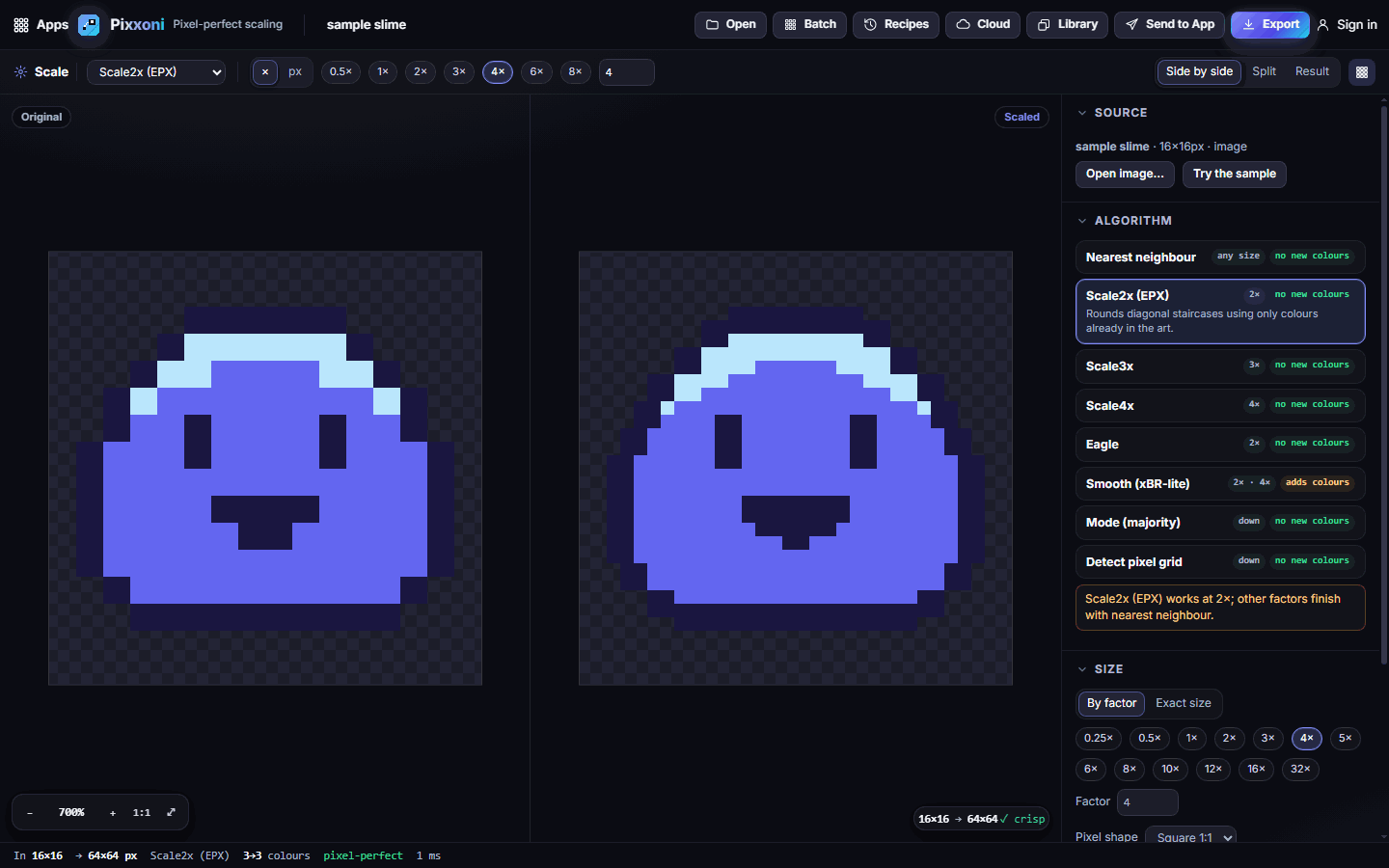
- Try Scale2x (EPX) in the Algorithm panel: diagonal staircases become smoother, with no new colours.
- Click 8× in the options bar for a bigger result.
- Click Export, choose PNG and click Download.
#How-tos
#How to choose an algorithm
Each card in the Algorithm panel shows a tag saying whether it adds colours:
- Nearest neighbour: every output pixel copies one source pixel. It works at any size, and whole-number factors (2×, 3×, 4×) are perfectly even. This is the safest choice for most pixel art.
- Scale2x (EPX), Scale3x, Scale4x and Eagle: classic pixel-art upscalers that round off jagged diagonals using only your existing colours. They work at their own factor (2×, 3× or 4×); other factors are finished with nearest neighbour.
- Smooth (xBR-lite): the smoothest upscale at 2× or 4×. It's the only mode that adds new in-between colours.
- Mode (majority): for shrinking. Each block becomes its most common colour.
- Detect pixel grid: rebuilds the original small art from an upscaled image (see below).
#How to scale to an exact size
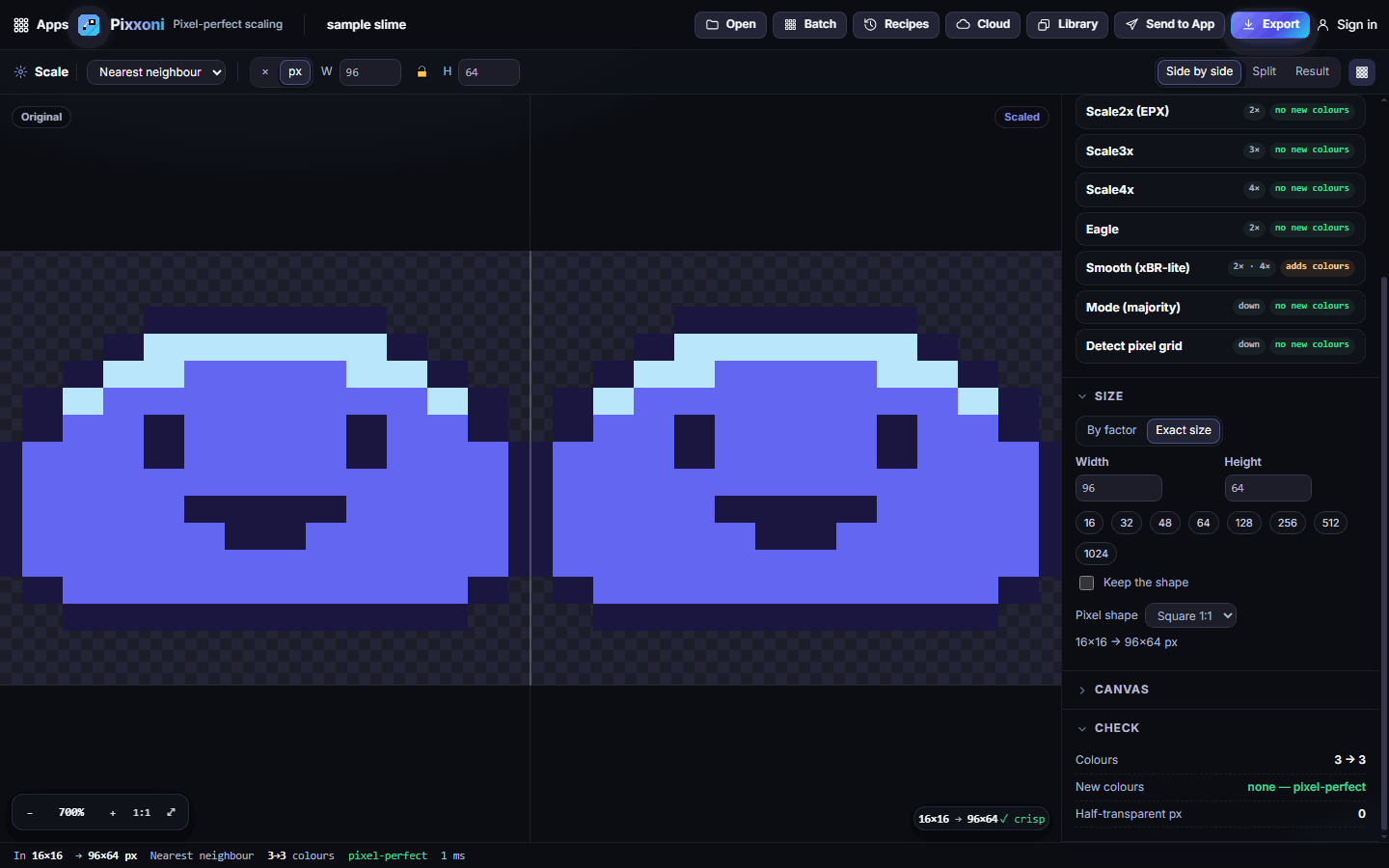
- In the Size panel, switch from By factor to Exact size.
- Type a Width and Height, or click a preset (16, 32, 48, 64, 128, 256, 512, 1024).
- Tick Keep the shape to lock the proportions. When the shape differs from the target, choose to fit, fill and crop, or fit and pad.
- Change Pixel shape for non-square pixels, such as 2:1 wide pixels or the SNES 8:7 look.
#How to shrink an upscaled image back to its real pixels
Handy when you have a screenshot, a blurry export, or art that was already enlarged.
- Open the image.
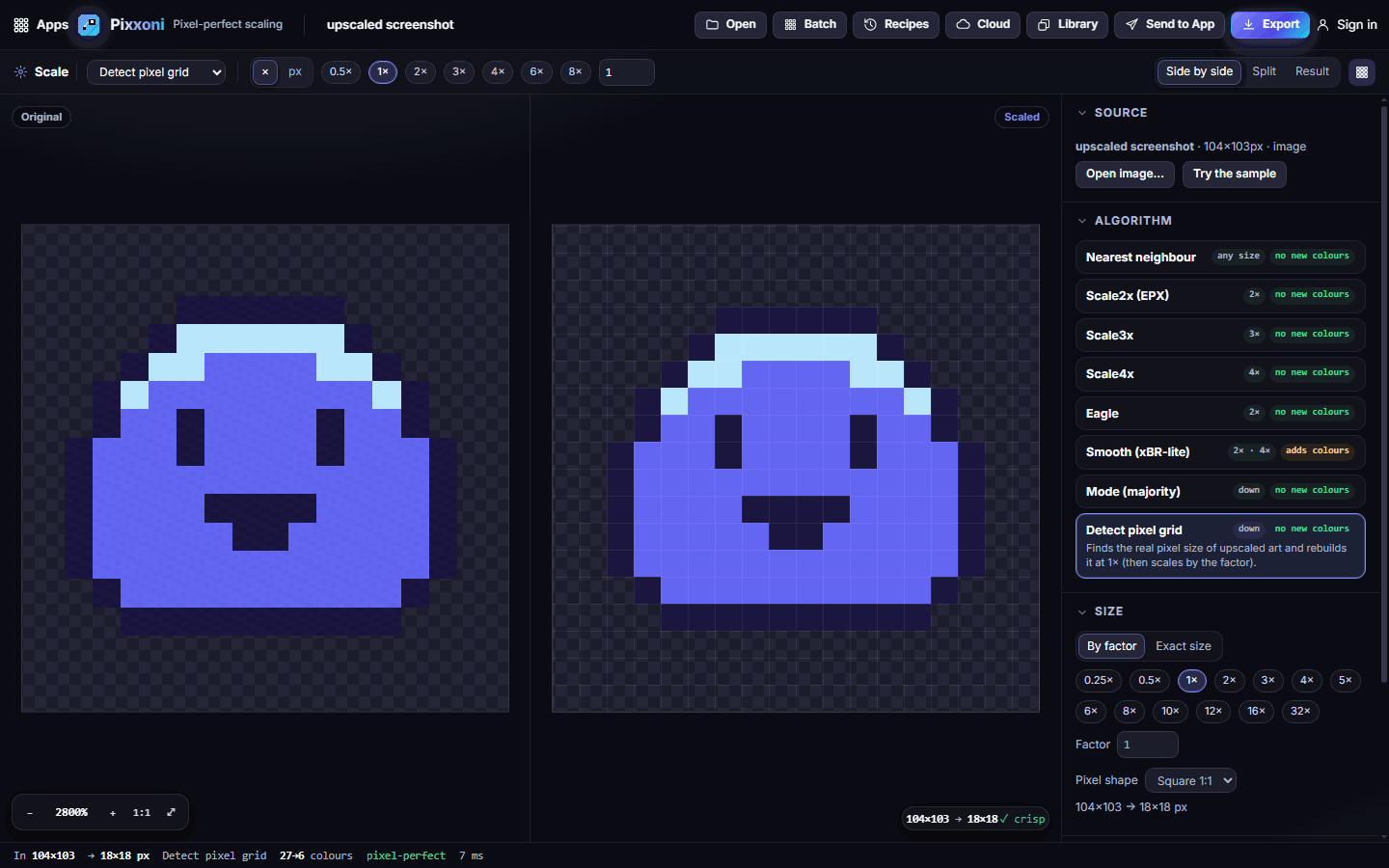
- Choose Detect pixel grid in the Algorithm panel (or in the options bar menu).
- Pixxoni finds the real pixel size and offset, even if the image is noisy, slightly shifted or saved as a JPEG, and rebuilds the original at 1×. Stray colours from compression are cleaned up too.
- Set a factor such as 1× to keep it small, or 4× to re-enlarge it cleanly.
#How to compare before and after
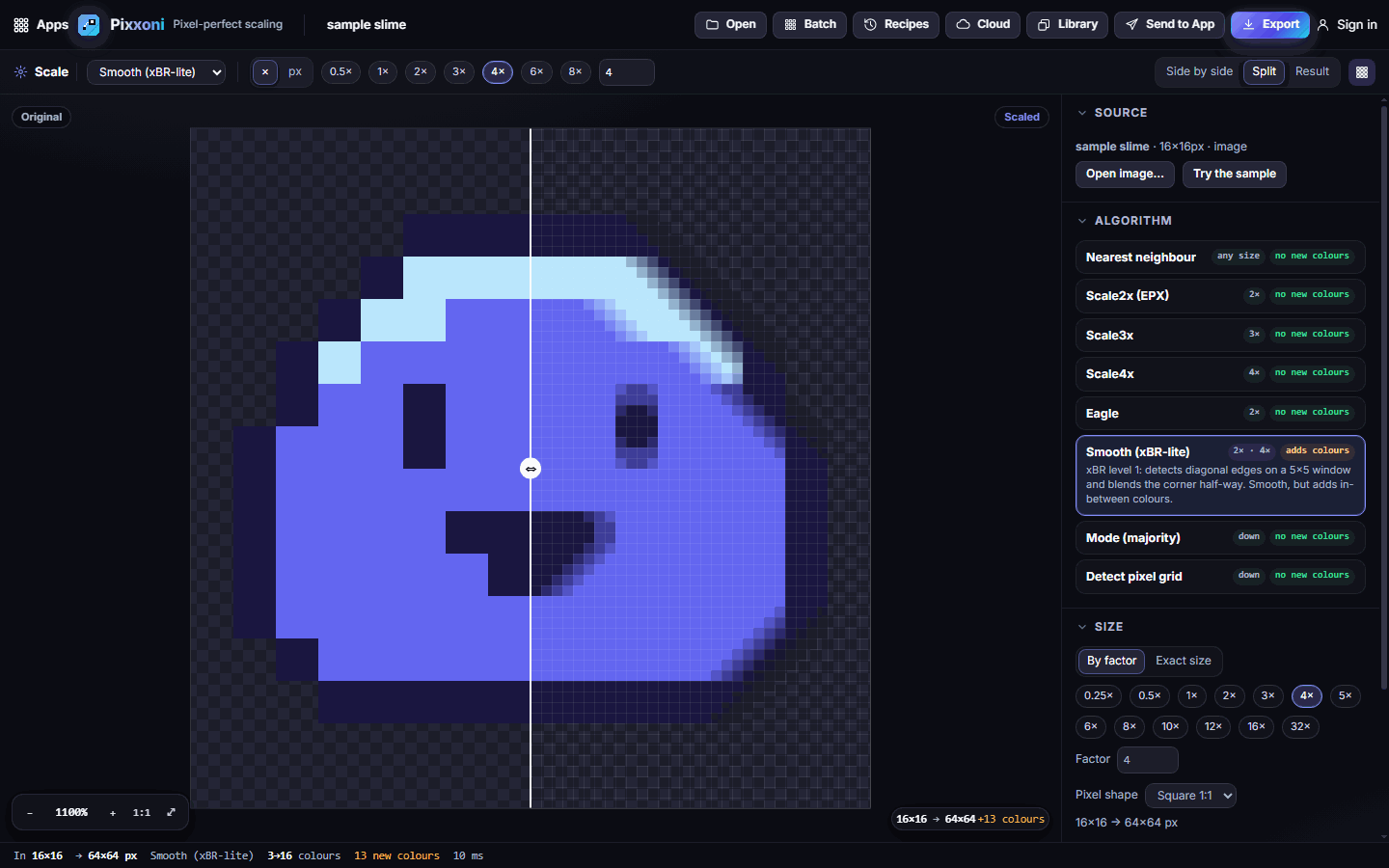
- In the options bar, choose Side by side (zoom and pan stay in sync), Split (drag the divider across the image) or Result.
- Zoom with the wheel or the − / + buttons. 1:1 shows real size and ⤢ fits the view.
- The grid button draws a pixel grid when zoomed in.
#How to check the result is pixel-perfect
The Check panel lists Colours (before → after), New colours (anything other than "none" means blending crept in) and Half-transparent px. The badge at the bottom of the canvas shows the size change and a crisp tick when nothing was smudged.
#How to add a border or change the canvas
- Open the Canvas panel.
- Set a canvas width and height to crop or pad the result.
- Use the 9-point anchor to choose where the art sits, for example bottom-centre for a character.
- Choose transparent or coloured edges.
#How to scale a GIF or sprite sheet
- Open an animated GIF, or bring in frames or a sprite sheet from your Pixx library.
- Every frame goes through the same settings; a sprite sheet keeps its grid.
- Use the play button to preview the animation, then export as GIF, APNG, a sheet or a zip of frames.
#How to scale many images at once
- Click Batch in the top bar (or drop several files onto the page).
- All images use your current settings and download together as one zip.
#How to save and reuse settings
- Click Recipes in the top bar.
- Pick a built-in recipe: Crisp 4× (nearest), Crisp 8× for screenshots, Rounded 2× (Scale2x), Rounded 3× (Scale3x), Smooth 4× (xBR-lite), Undo an upscale (detect grid), Store icon 512×512 or Wide pixels 2:1 (×3).
- Save your current settings as your own recipe to use again later.
#Exporting and sharing
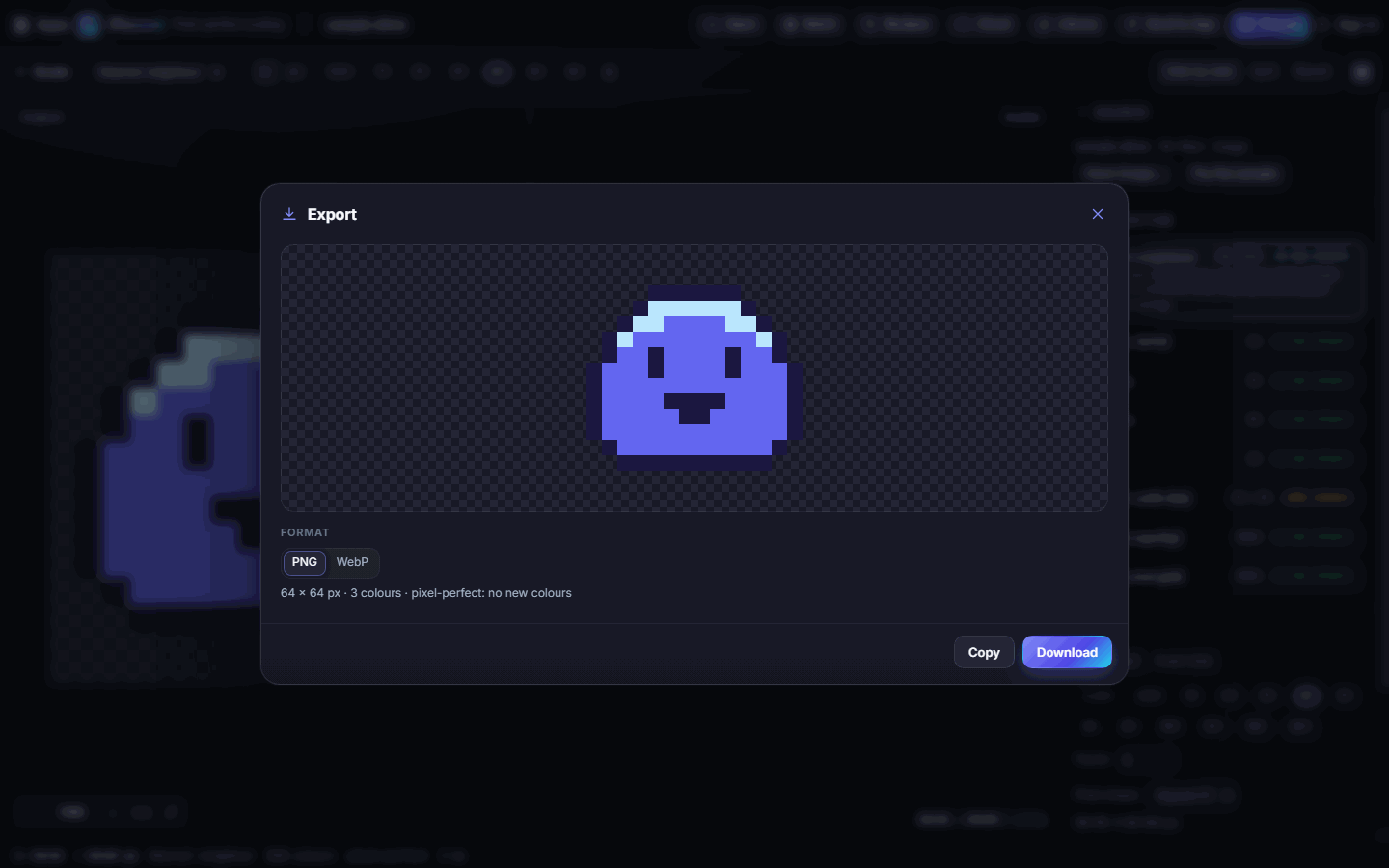
Click Export and choose PNG or WebP. The window shows the final size, the number of colours and whether it's pixel-perfect. Use Copy to put the image on your clipboard or Download to save it. Animations offer GIF, APNG, Sheet PNG and Frames ZIP.
Send to App passes the result to another Pixx app as the same kind it came in as (image, frames or sheet). Library opens an image, frames or a sheet from your Pixx library.
#Tips and shortcuts
- Paste an image straight in with Ctrl+V.
- For sharp screenshots of pixel art, use Nearest neighbour with a whole-number factor.
- Results can be up to 8192 pixels on each side; Pixxoni warns you if you go over.
- Your last settings are remembered on this device. Sign in and use Cloud to keep projects across devices.
#Troubleshooting
- If the result looks blurry, make sure you're not on Smooth (xBR-lite) and use a whole-number factor.
- If Detect pixel grid gets the size wrong, crop away borders or UI around the art first; it expects one even pixel grid.
- If Scale2x looks the same as nearest, your art may have few diagonals. It only changes staircase edges.
- If the file is huge, lower the factor; an 8× image has 64 times as many pixels.
#Related guides
- Pixxula for packing scaled sprites into sheets
- Pixxato for turning photos into pixel art
- Send to App
- Plans and billing