#What Pixxara is for
Pixxara brings your game's conversations to life. You make character portraits that breathe, blink and move their mouths as the text types out, write the dialogue with choices and conditions, and hear each character's voice blips while you preview it.
When it plays right, you export the script for your engine (Yarn Spinner, Ren'Py, Ink, Godot Dialogic or Unity) and the portrait sprite sheets that go with it.
#Your first conversation in 5 minutes
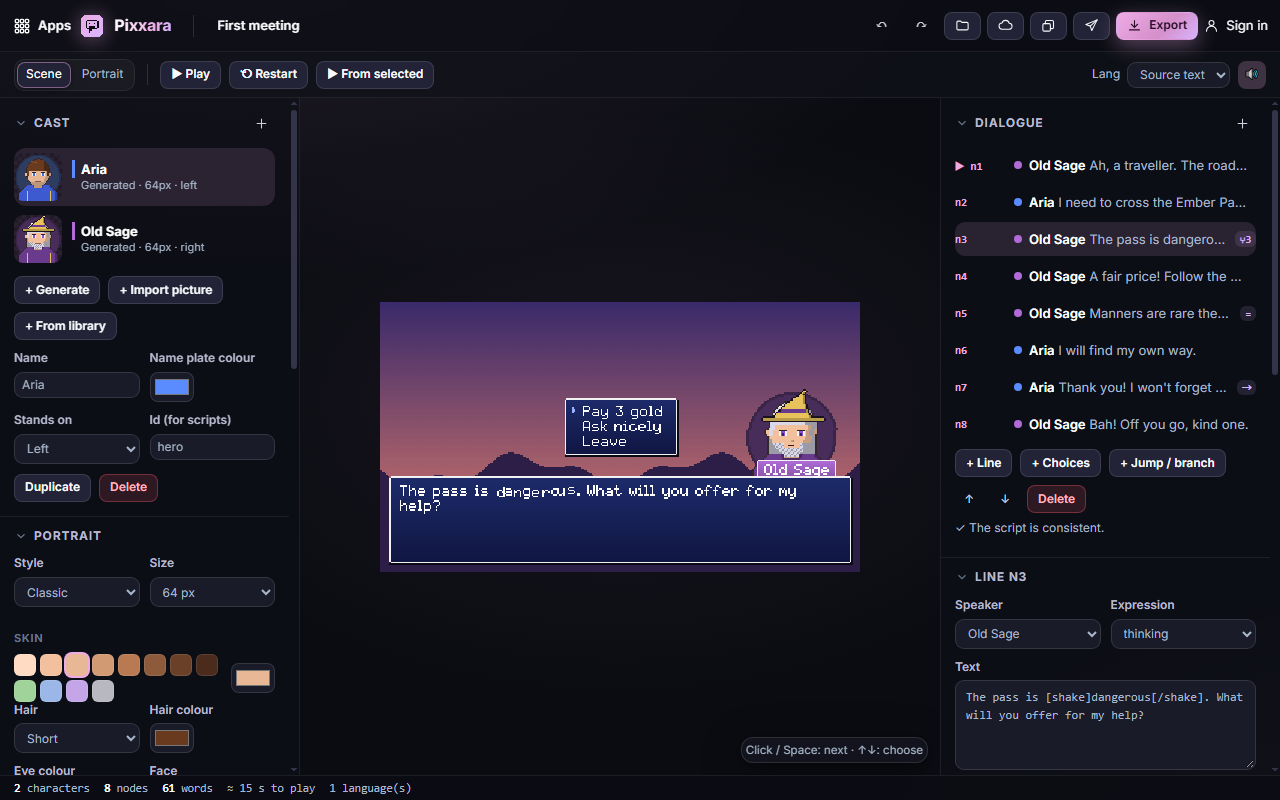
- Open Pixxara. A sample conversation with two characters is already there, and it starts playing in the middle.
- Click the scene (or press Space) to move to the next line. When the menu appears, click a choice.
- In Cast on the left, click + Generate to add a new character, then give it a Name.
- In Dialogue on the right, select a line and click + Line. In the line editor, pick your new character as Speaker, choose an Expression and type the Text.
- Click ▶ Play from here to hear and see it.
- Click Export and choose Download ZIP to get every script format and every portrait sheet in one file.
#How-tos
#How to generate a portrait
- In Cast, click + Generate (each click makes a new random character).
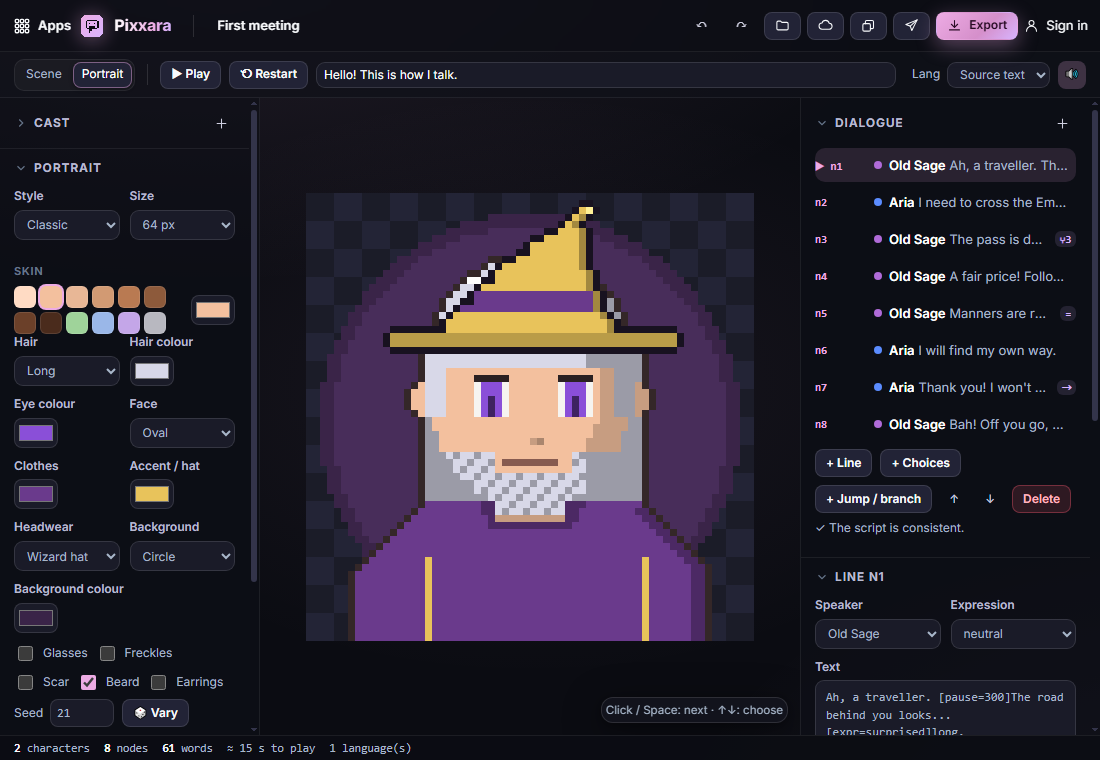
- Switch the top of the stage to Portrait to see it large.
- In Portrait, pick a Style (Classic, Chibi, Anime, Retro or Painterly) and a Size from 32 to 128 px.
- Change Skin, Hair, colours, Headwear and the extras (glasses, freckles, scar, beard, earrings).
- Click 🎲 Vary for another take on the same choices.
#How to use your own portrait
- Click + Import picture in Cast and choose a PNG, or drop the picture on the stage. A full-body sprite is cropped to a head-and-shoulders bust for you.
- Pixxara finds the eyes, brows and mouth and draws blinks and mouth shapes in your picture's own colours. Coloured boxes show what it found.
- If a box is off, change its numbers under Portrait or click Auto-detect again.
- To fix a single frame by hand, open Paint a feature, pick the Feature and State, and paint. Your painted frames are kept.
#How to set up expressions
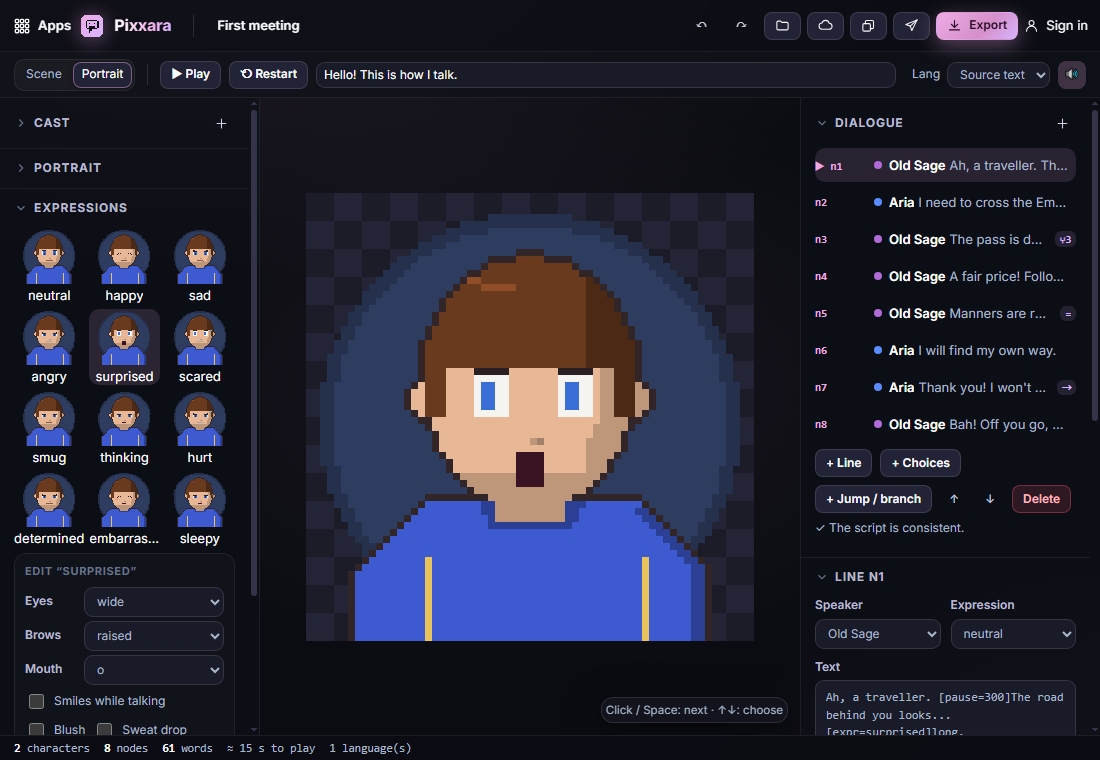
- Select a character and open Expressions. Click any face to preview it.
- Under Edit, choose the Eyes, Brows and Mouth for that expression, add Blush or a Sweat drop, and set Head tilt.
- Tick Smiles while talking so a happy character talks with a smile.
- Click + New expression for your own (for example "confident").
#How to write branching dialogue
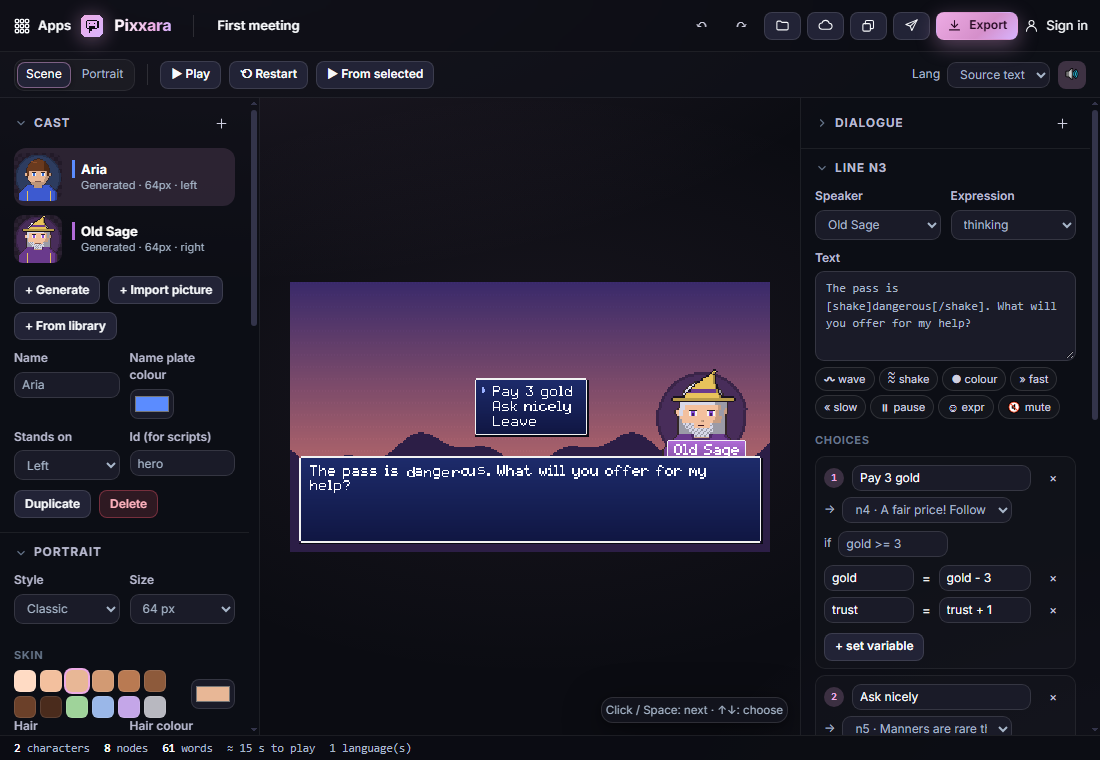
- In Dialogue, click + Line for something a character says, + Choices for a menu, or + Jump / branch for a silent jump.
- In the line editor, set Then go to to choose what comes next.
- For a menu, add choices with + Choice. Each choice has a target (→), an optional condition (if, such as gold >= 3) and variables it sets.
- Add Conditional jumps to send the conversation somewhere else when a condition is true.
- Rename a line with Id; every link to it updates. Use ▶ Make this the start to change where it begins.
#How to use variables
- Open Variables and click + Variable. Give it a name and a starting value (a number, true/false or text).
- Use it in a choice condition, for example trust >= 2 and not angry.
- Change it with + Set variable on a line or a choice, for example gold = gold - 3.
- If something is wrong (a missing target or a broken condition), the line turns red and a note tells you why.
#How to style the text
- Select text in the line editor and click a tag button: wave, shake, colour, fast, slow, pause, expr (change the face mid-line) or mute.
- In Text box, pick a box style, the Font, the Layout (portrait above or inside the box, left or right), the Scene size and a Background.
- Set the Text speed and the Punctuation pauses for commas, full stops and so on.
- Choose From letters for mouth shapes that follow each letter, or Simple flaps for a classic open/close.
#How to give a character a voice
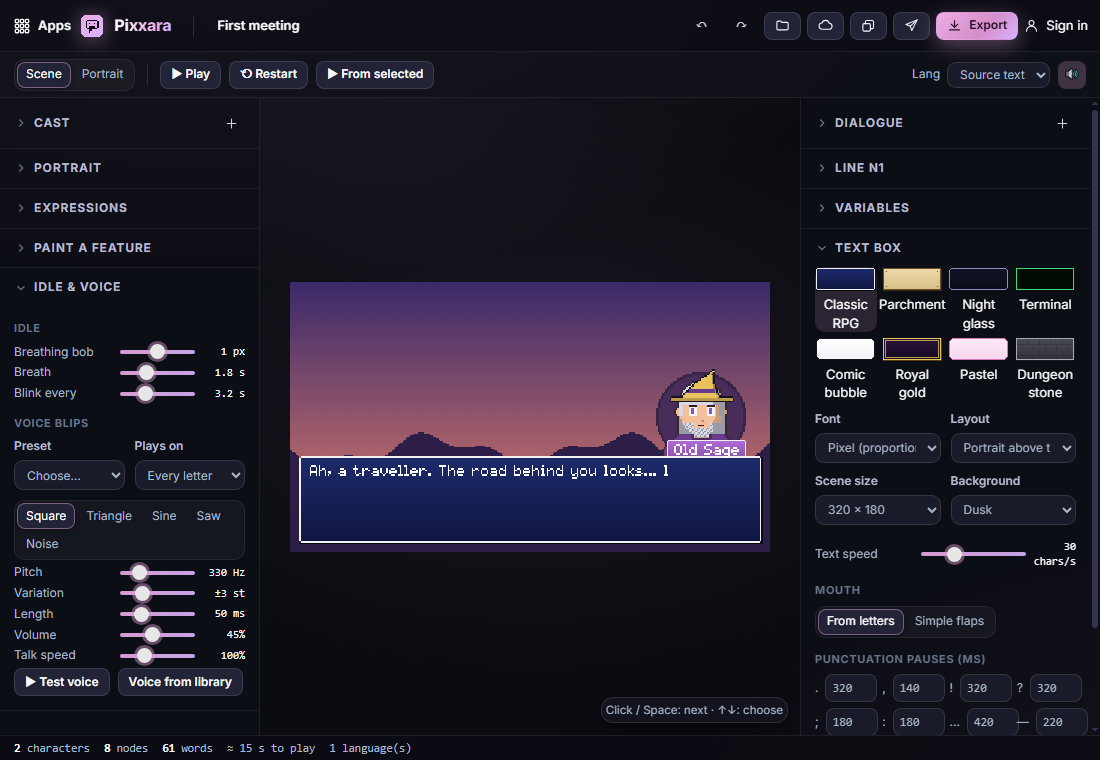
- Select the character and open Idle & voice.
- Pick a Preset, then fine-tune the wave, Pitch, Variation, Length and Volume.
- Choose whether it Plays on every letter, every word, or stays silent, and set the Talk speed.
- Click ▶ Test voice. To use a recorded or Pixxibu sound instead, click Voice from library.
#How to translate your dialogue
- Open Languages and click + Language (for example fr).
- Type the translation for each line and choice, or click Export CSV, send it to a translator, and bring it back with Import CSV.
- Choose the language in Lang at the top to preview it. Pixxara warns you when a translation is too long for the box.
#How to add music, sound effects and screen shake
- Open Music & sound and click From library (for a track made in Pixxune) or Open WAV…. The music loops quietly while the scene plays.
- Select a line. Under When this line starts, click + Shake to shake the screen, + Music to start or stop the music, or + Sound effect to play a sound (from your library, for example one made in Pixxibu, or a WAV file).
- Set the shake strength (px) and length (ms), or pick which sound plays.
- Use the speaker button at the top to mute everything while you work.
#Exporting and sharing
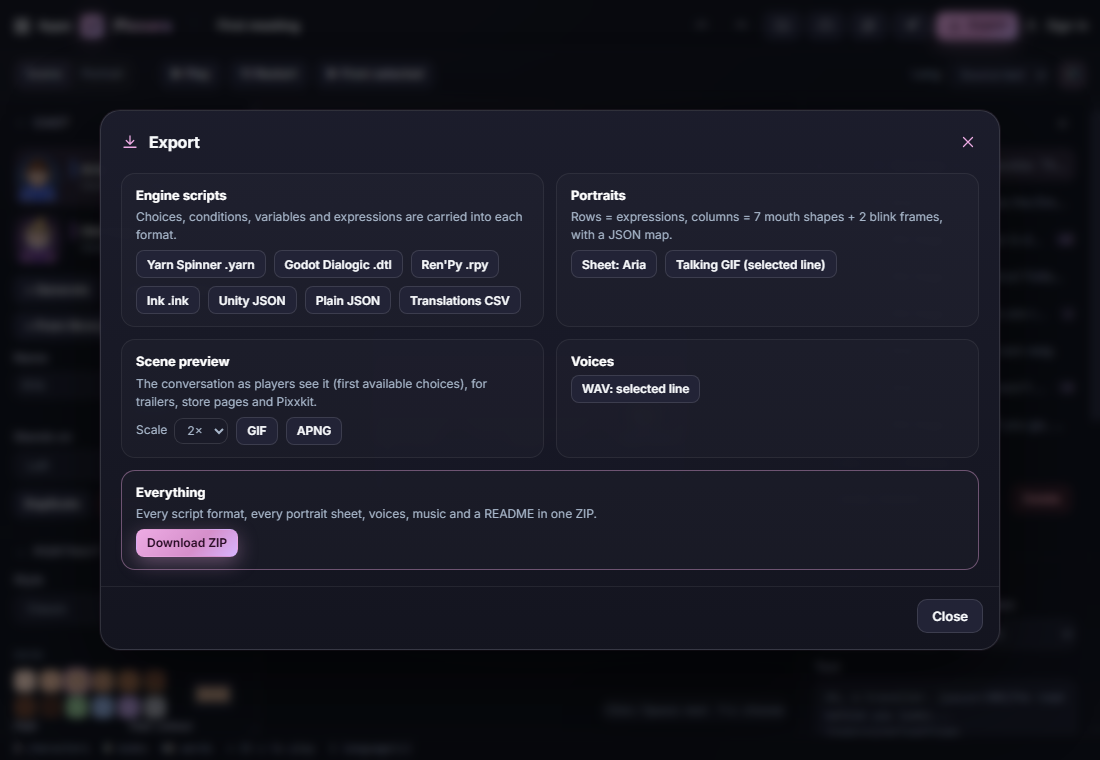
Click Export:
- Engine scripts: Yarn Spinner .yarn, Godot Dialogic .dtl, Ren'Py .rpy, Ink .ink, Unity JSON, plain JSON and a translations CSV. Choices, conditions, variables and expressions are carried over.
- Portraits: a sprite sheet per character (one row per expression; columns are seven mouth shapes plus two blink frames) with a JSON map, and a talking GIF of the selected line.
- Scene preview: the conversation as a GIF or APNG at 1×, 2× or 3×, for trailers and store pages.
- Voices: the selected line's blips as a WAV.
- Everything: one ZIP with all of the above, plus your music and a README.
Send to App sends the whole dialogue (script, portraits and voices), a portrait sheet, the talking animation, a portrait or a voice to another Pixx app. Pixxara receives pictures, animation frames and sheets (as new characters), palettes (to lock a portrait's colours), sounds (as a voice or music) and dialogues. Use Library to keep them in your Pixx library, and Cloud to save the project to your account.
#Tips and shortcuts
- Space or Enter moves to the next line; ↑ and ↓ pick a choice.
- P switches between Scene and Portrait.
- Ctrl+Z undoes and Ctrl+Shift+Z redoes; Ctrl+S opens Export.
- In Portrait view, click the portrait to hear it say the test line in the top bar.
- Scroll on the stage to zoom; double-click to fit.
- You can drop a picture, a .yarn script, a CSV, a WAV or a .pxasset straight onto the stage.
- On a phone, Cast and Script at the bottom open the panels as sheets.
- Your work is saved on this device as you go.
#Troubleshooting
- If the scene shows an error instead of playing, a line points to a missing target or has a broken condition. Look for the red line in Dialogue.
- If an imported portrait blinks in the wrong place, adjust the eyes box under Portrait, or paint the frame in Paint a feature.
- If you hear nothing, click the stage once (browsers only play sound after a click) and check the speaker button at the top.
- If a line is cut off, split it into two lines, choose a smaller Font, or a bigger Scene size.
- If a choice is greyed out in the preview, its condition is false with the current variable values.
#Related guides
- Send to App
- Your Pixx library
- Pixxava for characters
- Pixxibu for sound effects
- Plans and the free trial